



Routing and grouping fx
With
Brian Funk
What's in the course
30 lessons (2h 20m) · 1 free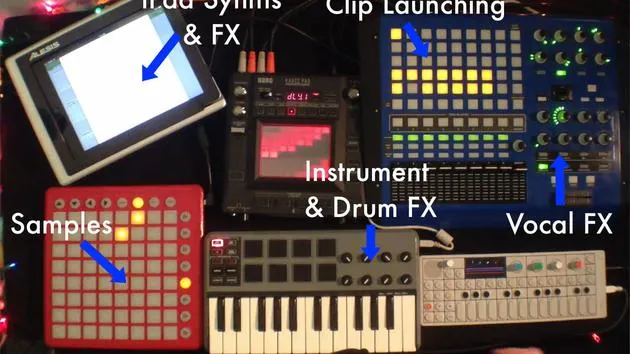
Lesson transcript
Routing Multiple Tracks to a Single Track
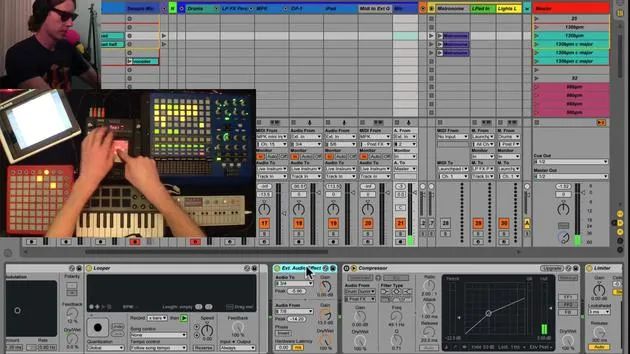
So next, we should talk about routing multiple tracks to another track. On that track everything is routed to, there are effects applied. This way, you can route multiple elements to the same effects, allowing you to control one effect that impacts various tracks.
Example: Drum Track Setup
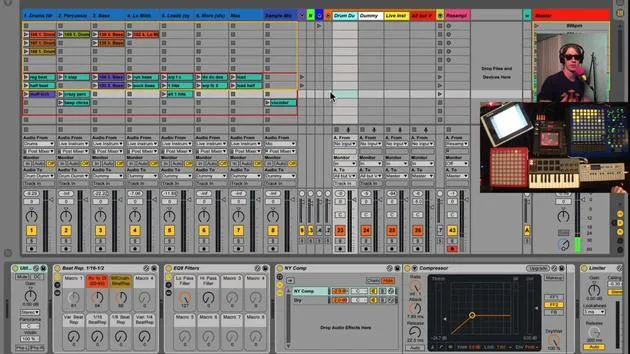
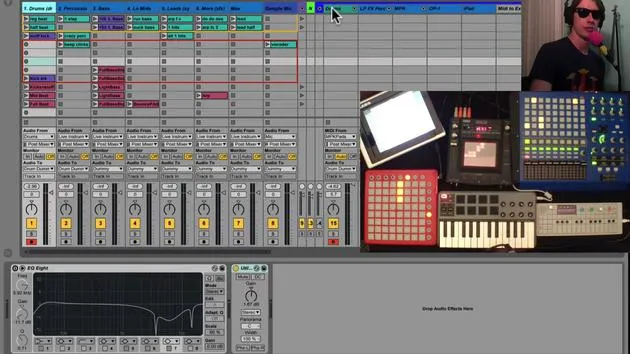
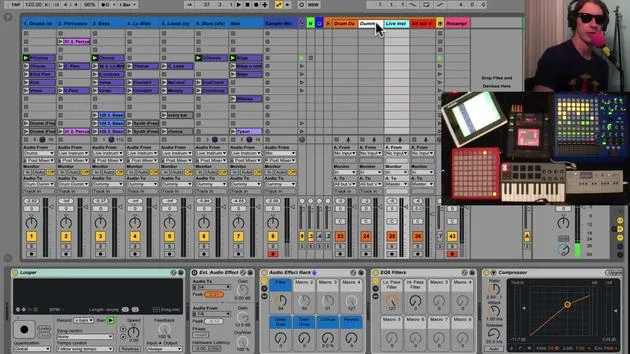
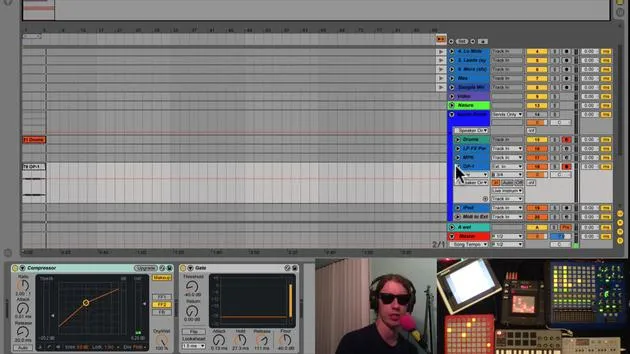
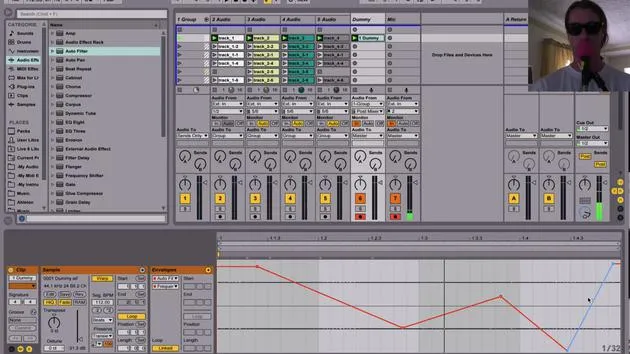
Taking a look at our drums track:
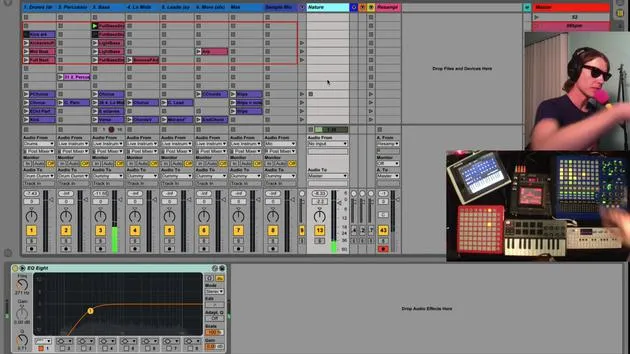
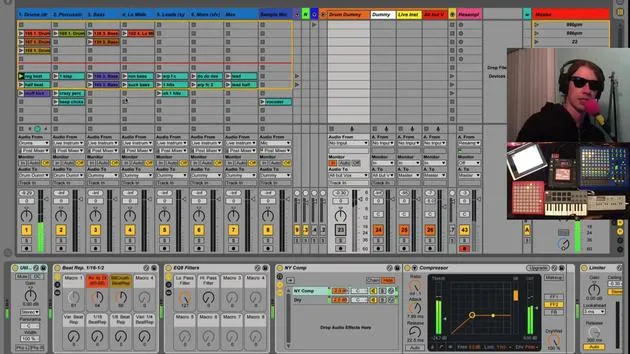
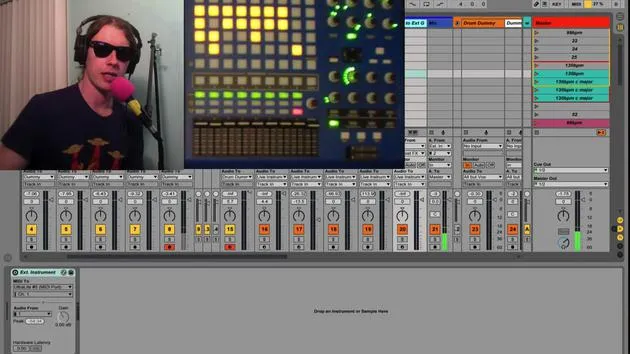
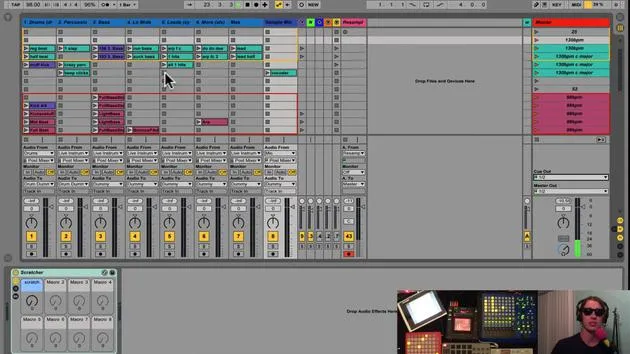
- Currently, if you observe Audio 2, it's routed to drum dummy (which is over here).
- We need to ensure that our track, which we're sending everything to, is set to monitor in.
What Does "Monitor In" Mean?
- This setting ensures that this track will only listen to the input sent to it.
- It will not play any clips or perform any other functions except output whatever is sent to it.
In this case, we have some drums. When I hit play on this track, we see levels here, and it's sent to this drum dummy track.
- If I mute this track, we don't hear anything because it's the only place this track is routed to.
Using Effects on Multiple Tracks
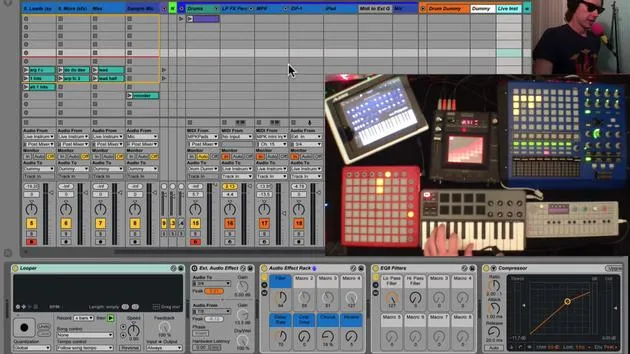
Let's stop that clip quickly. On this track, we have a variety of effects.
By doing this, I can send this track as well as, for instance, another track to the same exact place. Thus, one set of effects will impact both tracks.
Practical Application: Adjusting Sound
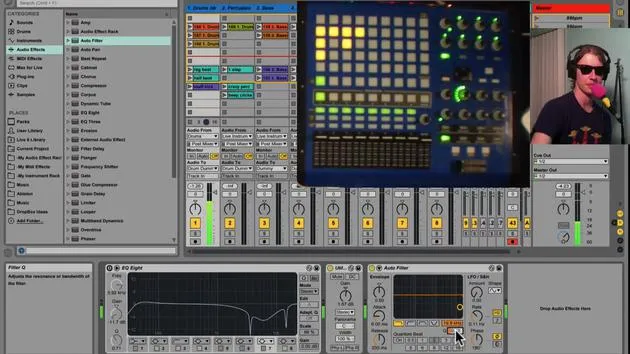
For example, let's play around with our filter.
- Turning one knob affects the sound on two different tracks.
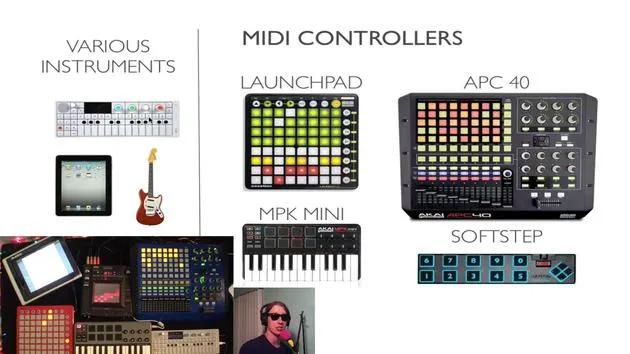
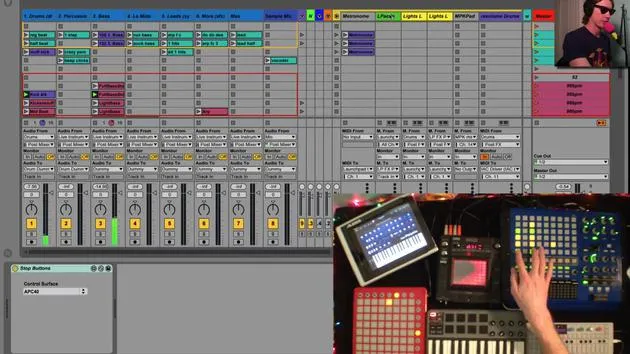
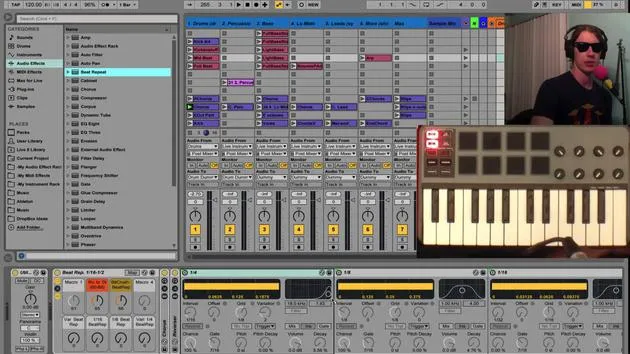
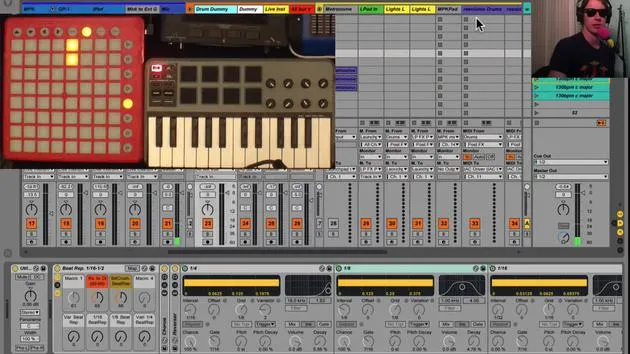
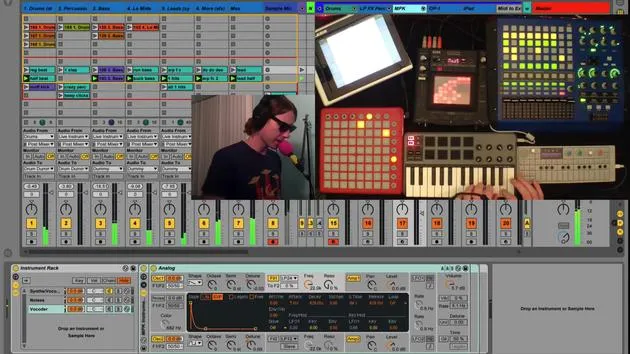
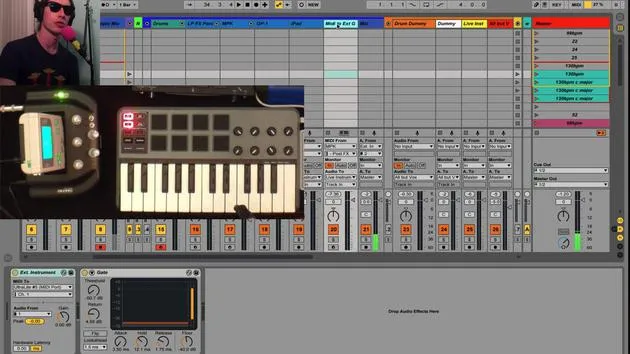
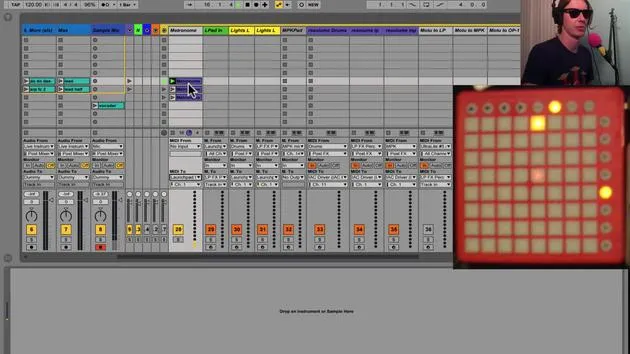
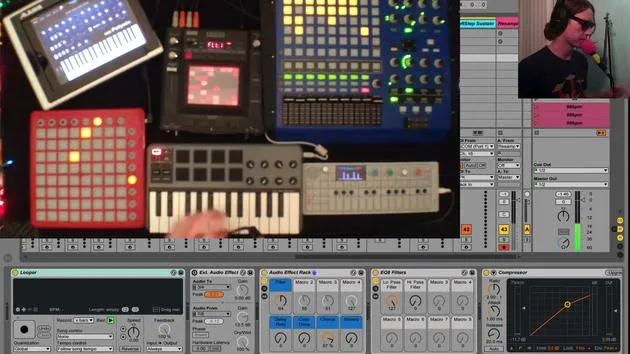
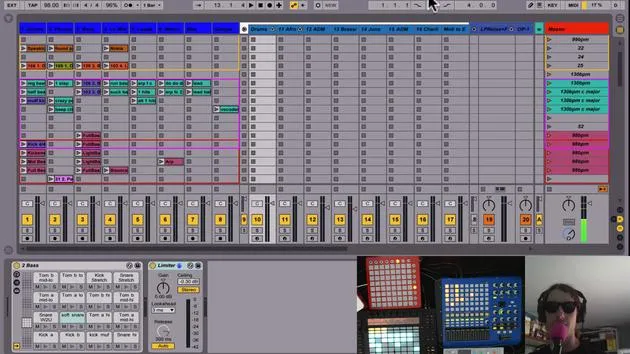
This is a concept I use often in our instrument tracks. If you notice, my MPK and Launchpad effects are all sent to Live Instruments.
Now, I have a track called Live Instruments. On this track, I have a series of effects that allow me to apply effects to this sound, just like I did with our drum tracks.
Best Practice for Routing Tracks
If you ever want to send multiple tracks to one effect:
- Create a Track: Set it to input monitoring.
- This will ensure it only monitors the input.
- Choose the Right Monitoring Option:
- Auto would monitor either the input or the clip, which doesn't work for us.
- Therefore, we want to set it to in.
Now, we can send the output of whichever track we want right into that track, allowing us to apply as many effects as we desire on top of that track.
30 lessons
2h 20m of structured video lessons
Advanced video features
Slow down, loop a passage, follow along
Mobile, tablet & desktop
Practise wherever you are
100% satisfaction guarantee
30-day money-back guarantee
Meet your guru
Meet your guru
Brian Funk is a musician, producer, songwriter and Ableton Certified Trainer. Since 2014 he has taught the Advanced Music Production with Ableton Live course for Berklee College of Music. He has played guitar, bass, drums, synths and sung in touring rock bands, and these days focuses on his solo electronic set - taking his studio experiments to the stage.
Brian loves writing, teaching and sound design. He produces Ableton Live tutorials and Sound Packs, and has released free Ableton Live Packs since 2011 - over 125 so far. As an Ableton Certified Trainer he has given lessons and seminars covering every stage of the production process, and writes regularly on his blog and for other publications.
Influenced by rock and roll, video games, early hip hop, punk and electronica - from The Beatles, Neil Young, Nirvana and Aerosmith to Neon Indian - he describes his own sound as 'futuristic, yet nostalgic'. In his MusicGurus course, Live Performance in Ableton Live, he shows you how he turns studio ideas into a real, hands-on live set: sampling sounds and turning them into playable instruments, running guitars and synths through electronic gear, and mixing and composing on the fly while playing live and singing. You'll come away able to build and perform your own electronic set with confidence.







