



PUSH 2
With
Brian Funk
What's in the course
30 lessons (2h 20m) · 1 free
Lesson transcript
Using Push for Live Performance
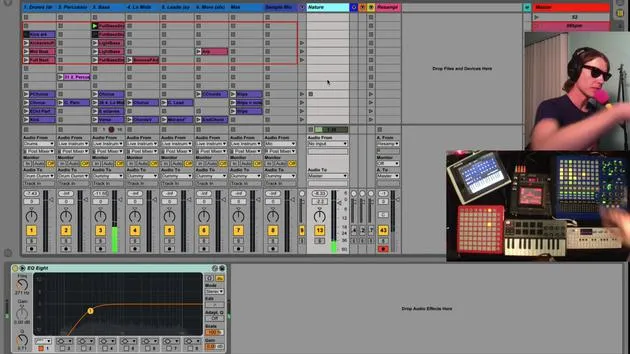
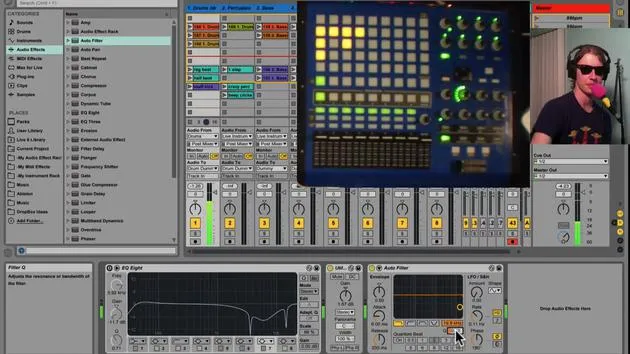
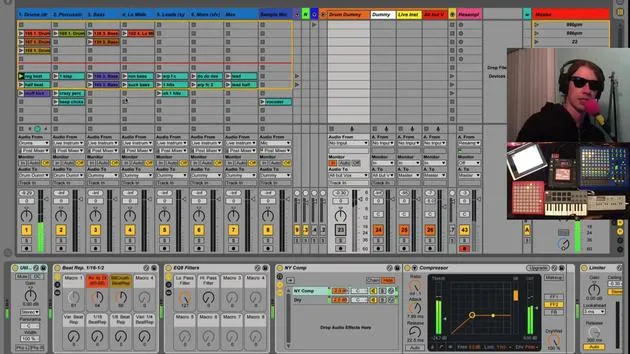
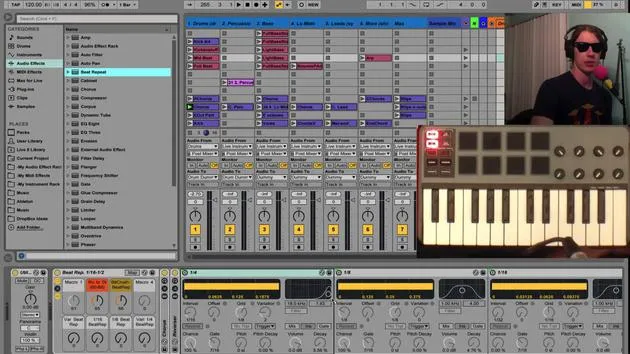
Okay, so Push is a lot of fun to use live, but there are a few things that I've run into. I'd like to share a couple of problems I've encountered and the solutions I've found.
Note Mode Issues
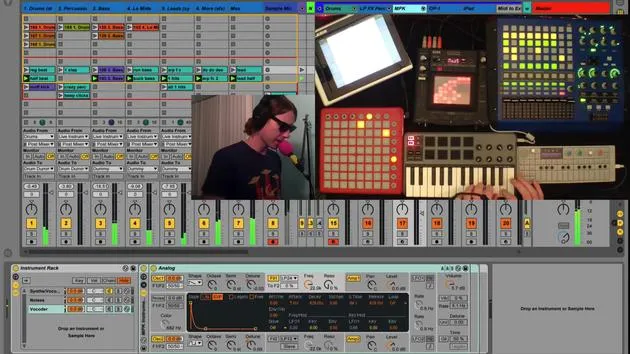
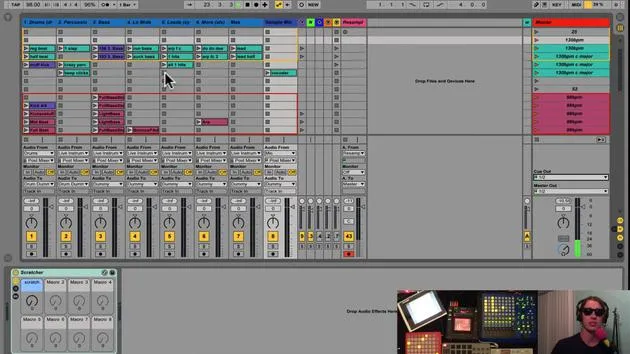
When I go into Note mode, Push gives me the notes for whichever track I have selected. For example, as I'm going through my track selections, if I happen to select another track for whatever reason, my note mode disappears.
Flow Disruption
This is a problem because, during a performance, if I lose my note mode, I need to scroll back to where I was. This interrupts my flow and may force me to look at the computer screen, which is something I want to avoid.
Solution: Mapping Buttons
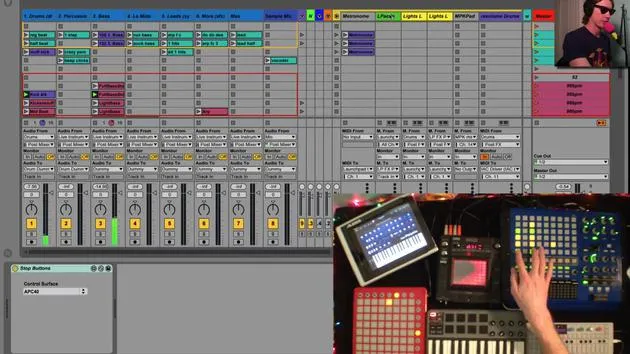
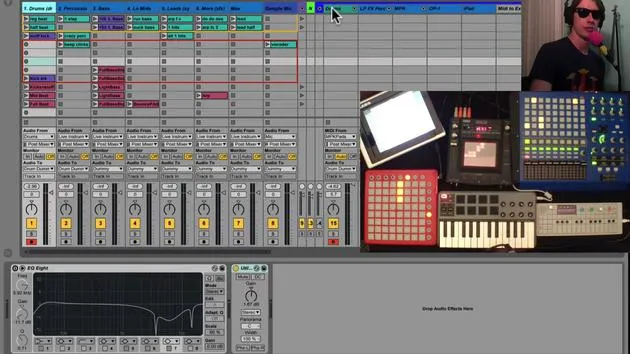
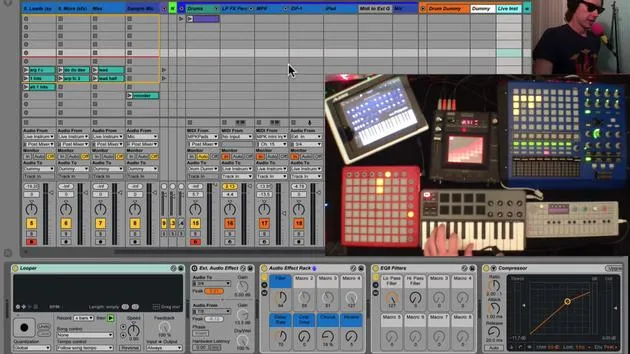
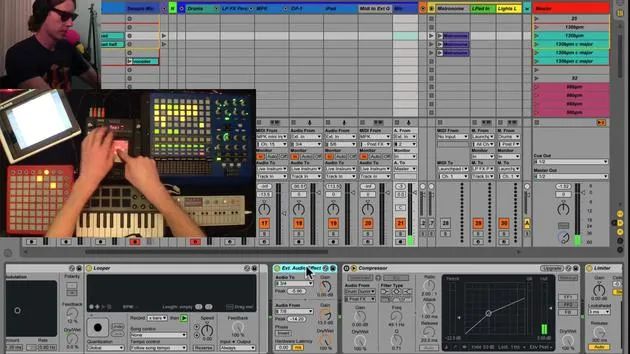
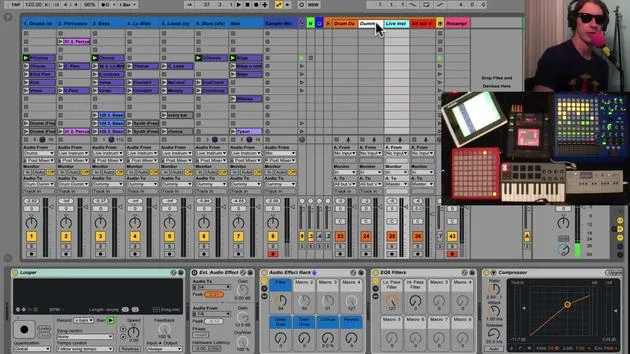
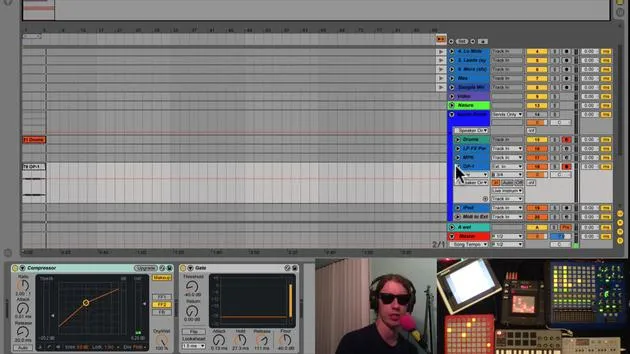
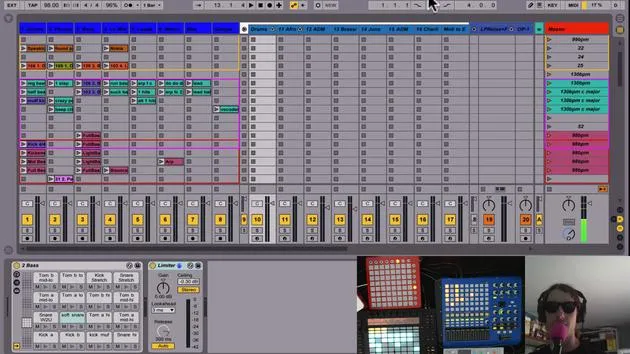
To work around this, I've mapped my Play, Stop, and Record buttons to certain tracks within my live instrument section.
- Play Button: Takes me to the drum track.
- Stop Button: Maps to one of my synths towards the middle (the third one in this case).
- Record Button: Takes me all the way to the right, which I've set up for any external gear.
This mapping is really handy if you lose track of which track you're currently on.
Dangerous Buttons
These button mappings also address another issue: If I'm playing and need to mess around with crossfade or vocal effects, I might accidentally hit Stop, which would kill the performance and result in total silence.
Imagine the embarrassment, the song is over, and everyone knows I made a mistake because the sound just cuts out.
Record Button Concerns
Similarly, if I'm recording my performance and accidentally hit the Record button while adjusting something, it may stop my recording, leading to the loss of the entire performance.
Optimized Mapping
To mitigate these risks, I customize my mappings:
- Play goes to the drums.
- Stop goes to a particular synth I use frequently.
- Record is mapped to the last track.
This way, I can easily access any track if I need to switch!
Select on Launch Setting
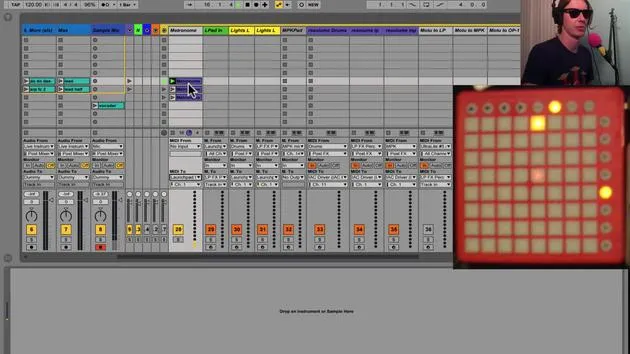
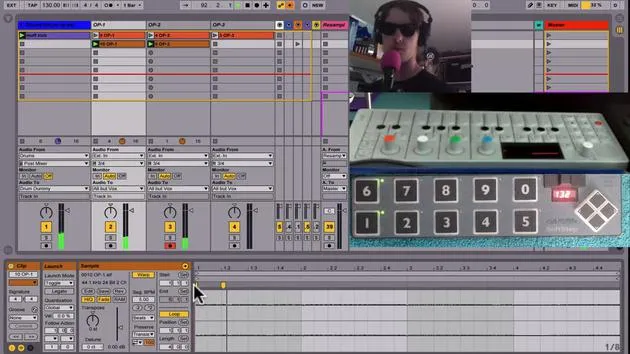
One additional setting to be aware of is Select on Launch located under the Record, Warp, and Launch settings.
With Select on Launch enabled, when I select a track or clip, it automatically selects the track it's on. This messes up my focus on Push because it may cause my instrument to disappear right from under my fingers.
Recommendation
To avoid this, I recommend turning off the Select on Launch feature. This modification allows you to play sounds without anything slipping out from under your fingers.
Result
When I launch a clip with this setting off, it doesn't change my current focus, enabling a seamless addition of parts during performance.
Conclusion
Using Push has been a lot of fun, especially for playing instruments. The layout is intuitive for guitar players, and I find it effective for collecting clips in session mode.
I can blend improvised stuff created on the fly with pre-recorded material, which enhances the excitement of live performances. I'm discovering more ways to engage in improvisation and live construction of tracks, making the process enjoyable. It's truly a great live instrument!
30 lessons
2h 20m of structured video lessons
Advanced video features
Slow down, loop a passage, follow along
Mobile, tablet & desktop
Practise wherever you are
100% satisfaction guarantee
30-day money-back guarantee
Meet your guru
Meet your guru
Brian Funk is a musician, producer, songwriter and Ableton Certified Trainer. Since 2014 he has taught the Advanced Music Production with Ableton Live course for Berklee College of Music. He has played guitar, bass, drums, synths and sung in touring rock bands, and these days focuses on his solo electronic set - taking his studio experiments to the stage.
Brian loves writing, teaching and sound design. He produces Ableton Live tutorials and Sound Packs, and has released free Ableton Live Packs since 2011 - over 125 so far. As an Ableton Certified Trainer he has given lessons and seminars covering every stage of the production process, and writes regularly on his blog and for other publications.
Influenced by rock and roll, video games, early hip hop, punk and electronica - from The Beatles, Neil Young, Nirvana and Aerosmith to Neon Indian - he describes his own sound as 'futuristic, yet nostalgic'. In his MusicGurus course, Live Performance in Ableton Live, he shows you how he turns studio ideas into a real, hands-on live set: sampling sounds and turning them into playable instruments, running guitars and synths through electronic gear, and mixing and composing on the fly while playing live and singing. You'll come away able to build and perform your own electronic set with confidence.







