



Navigating Ableton Live - Overview

With
Isaac CotecIsaac Cotec gives you a tour of the Ableton Live interface, walking through the main windows and the browser so you can find your way around.
What's in the course
20 lessons (2h 16m) · 1 free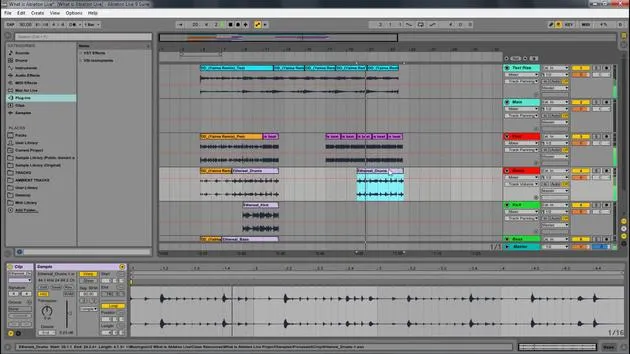
Lesson transcript
Navigating Ableton Live
In this module, we're going to be looking at navigating Ableton Live and how we can really understand the different windows and parts of the program.
Worksheet Download
There will be a worksheet for you to download. This will help you understand how to navigate Ableton Live. Feel free to:
- Download it
- Print it out
- Have it available for reference
This will aid you in filling in the boxes for your own sake and help you remember the different aspects of Ableton Live.
Overview of Ableton Live
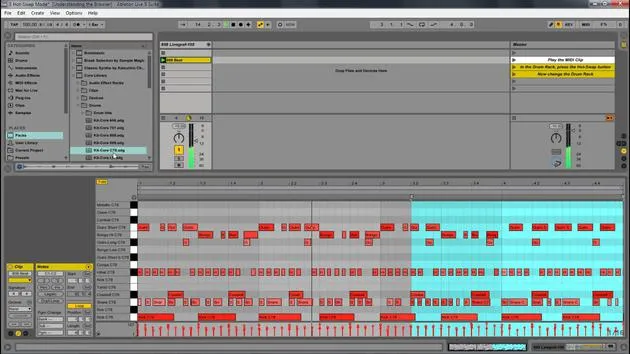
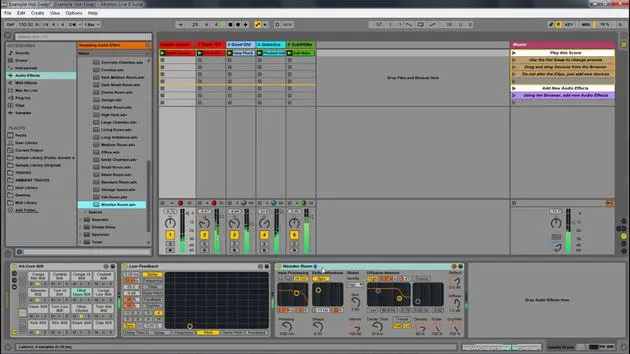
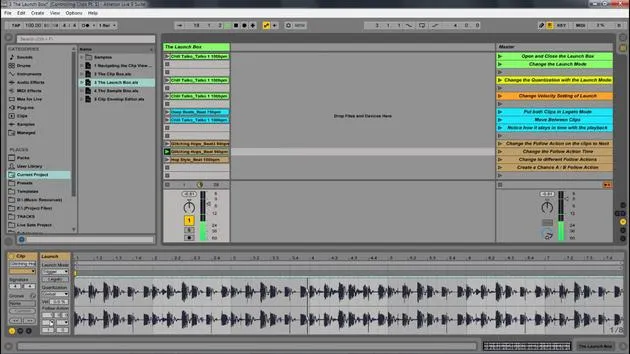
Here's an overview of the Ableton Live set, and I'll walk you through the different parts of Ableton.
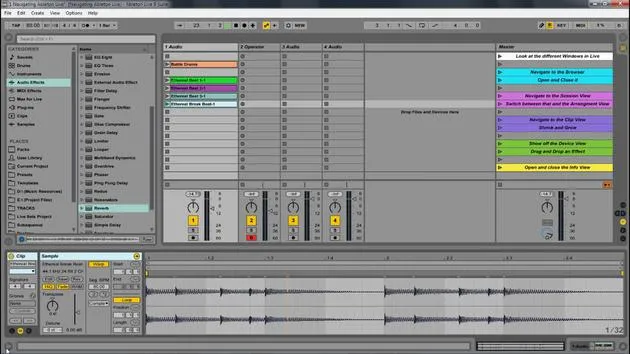
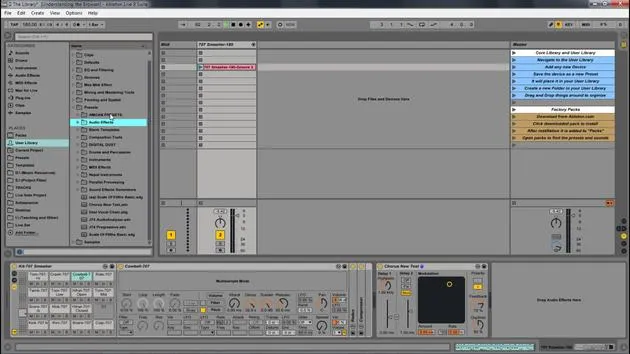
The Browser
- Location: The browser is located on the left side.
- Action: You can open and close it with the triangle icon (similar triangles are found throughout the program).
Functionality:
- This is where you find your audio effects and instruments.
- You can drag in various sounds and any file sample libraries you might have.
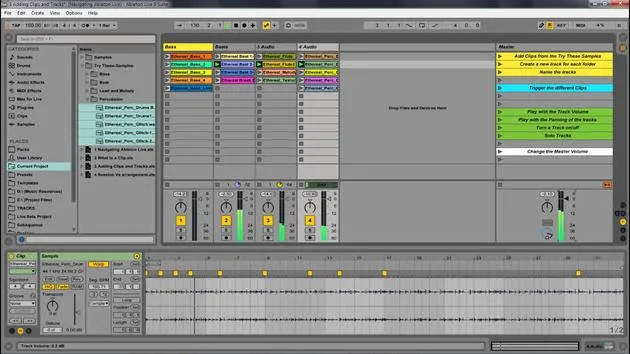
Session View vs. Arrangement View
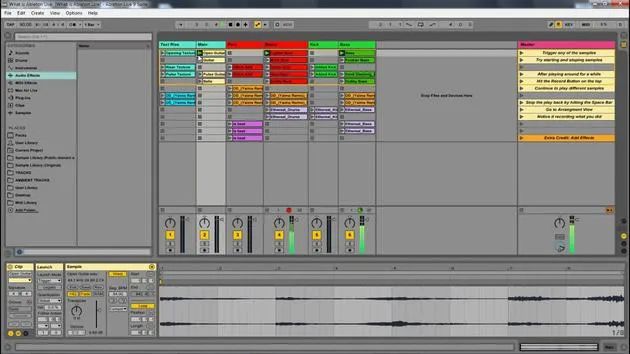
Session View
- Definition: Think of Session View as a nonlinear way of looking at music.
- Functionality: You can grab different clips and drag them in.
- When you play a clip, it loops until you start the next section.
- There's no beginning or end to this; it's similar to a jam session.
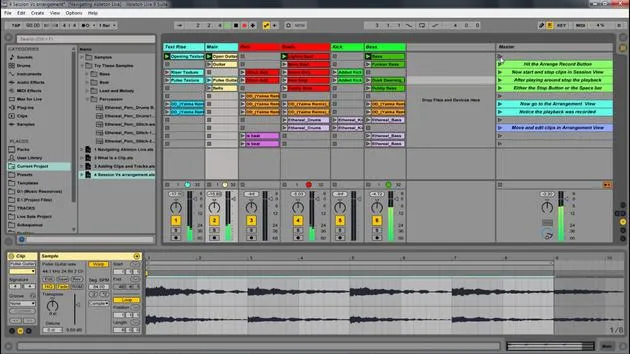
Arrangement View
- Definition: Arrangement View displays clips in a linear fashion from beginning to end.
- Functionality:
- You can drag clips in to create a composition.
- This allows you to arrange your song from start to finish.
Switching Between Views
- You can easily flip between Session View and Arrangement View by pressing the Tab button.
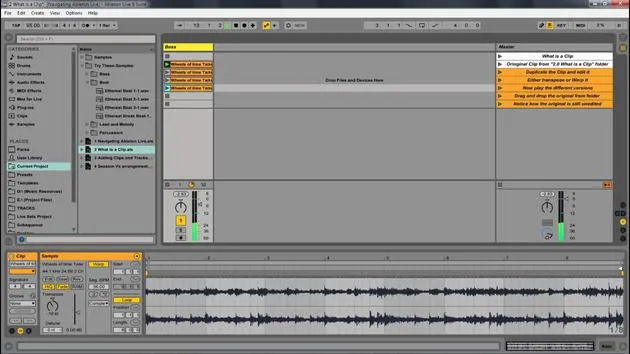
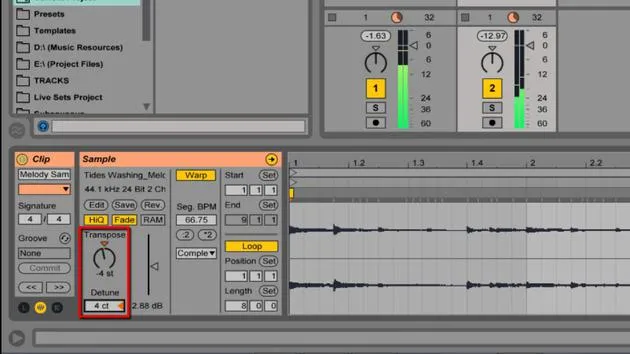
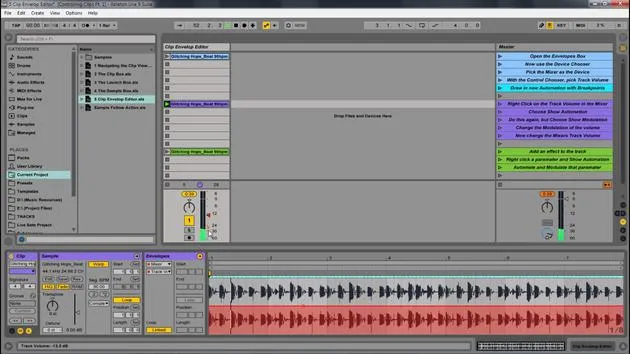
Clip View
- To access the Clip View:
- How to Open: Double-click a clip.
- Display: You can see the waveform and additional information.
Scaling:
- You can extend or shrink the view, and there's also a small triangle to open and close it.
Devices View
- Access: Found at the bottom of the screen.
- Functionality: Displays devices associated with the selected clip.
Example:
- If you drag in a device like a simple delay or a reverb, you will see it in this view.
Info View
- This is an incredibly helpful feature.
- How to Show/Hide: You can manage the visibility here.
- Functionality: Acts as a cheat sheet.
- Hovering your mouse over items will describe their functions.
Summary of Windows
To quickly summarize:
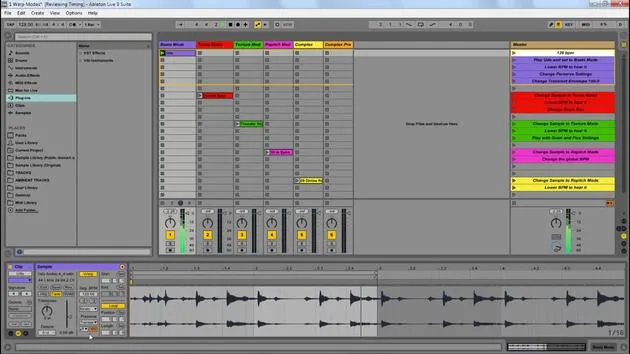
- Session View: Green window
- Browser: Blue window
- Arrangement View: Pink window
- Clip View: Displays clip information
- Use Shift + Tab to toggle between Clip View and Devices View.
- Devices View: Bottom panel showing devices
- Info View: Helpful descriptions for parameters
Next Steps
You have the worksheet to review and fill out. Let's dive deeper into the other parts of navigating Ableton Live!
20 lessons
2h 16m of structured video lessons
Advanced video features
Slow down, loop a passage, follow along
Mobile, tablet & desktop
Practise wherever you are
100% satisfaction guarantee
30-day money-back guarantee
Meet your guru
Meet your guru
Isaac Cotec is, arguably, one of the best Ableton trainers in the world! While working on his own music, he began teaching recording techniques, sound design, and Ableton Live to private students, and since earning his certification as an official Ableton Certified Trainer he has helped thousands of producers step up their game and succeed as musicians.
Isaac started producing electronic music in 2005 with Psyche Sonics, an experimental group working with the science and research of binaural beats and altering consciousness through sound. After touring, he continued writing music under the alias Cotec and later emerged as the artist Subaqueous, blending his electronic past with both future and organic production techniques. To date, he has released 3 albums and 4 EPs.
Isaac is also the founder and manager of the record label Invibe Music, which represents some of the Pacific Northwest's best electronic music and specialises in midtempo dance music.
In his Ableton Live courses, Isaac shares the production, sound design and songwriting techniques he has spent years refining - the very skills he uses to turn a spark of an idea into a finished track.







