



Controlling Timing - Warp From Here

With
Isaac CotecIsaac Cotec shows how Ableton Live's Warp From Here works, walking through the different settings for locking a clip's timing to your project tempo.
What's in the course
20 lessons (2h 16m) · 1 free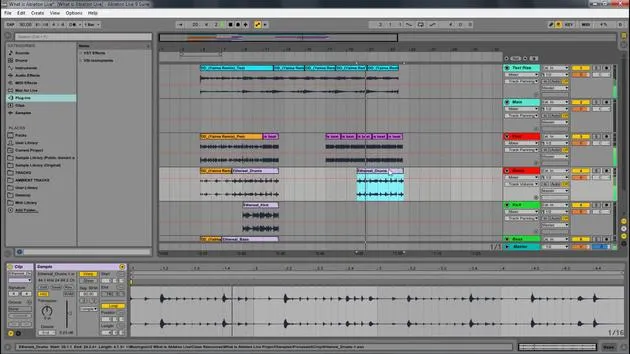
Lesson transcript
Understanding Warp Markers and the "Warp From Here" Function
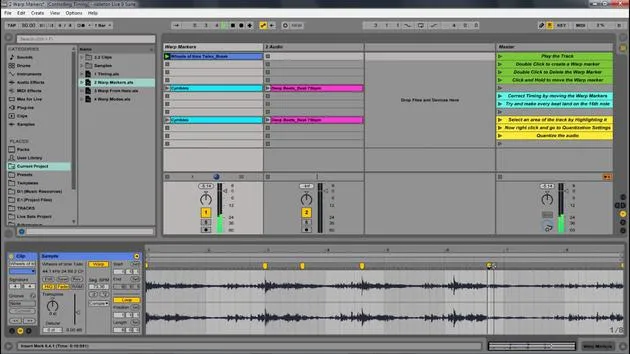
Next, let's look at warp markers and how we can use the Warp From Here function.
What is Warp From Here?
- Warp From Here runs the auto-warp algorithm on the material to the right of the selected marker.
- It directs the auto-warp to use the current Live set's tempo as a starting point for tempo tracking.
Different Warp From Here Options
-
Warp From Here Straight
- This option tells auto-warp that the clip has no tempo variation, which is common in electronic music.
- It auto-warps from that single warp marker and locks all of it to the original tempo.
-
Warp BPM From Here
- This will also set a single warp marker.
- Here, auto-warp is forced to interpret the clip as exactly matching the Live set's tempo.
- Useful when you know the exact BPM value of the electronically produced work.
Example: If I have a 120 BPM song, set Ableton to 120, drag it in, and then select Warp BPM From Here, it will lock into that tempo.
Practical Examples
Warping a Track with a Consistent Beat
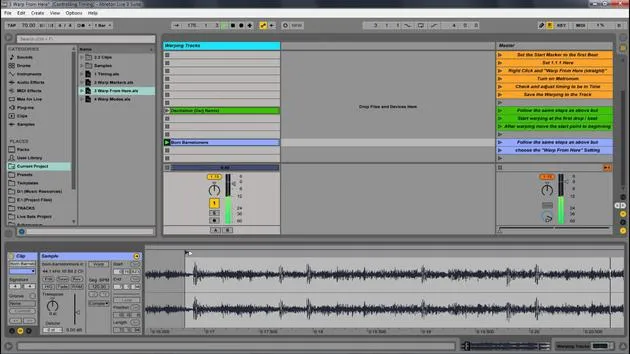
- The first track we will warp is called Exotic Vision.
- I already know the BPM, but we are set at a slightly different tempo.
Steps:
-
Check Warping Status
- Ensure that the clip is not warped.
- Play the track and use the tap function:
"1, 2, 3, 4. 1, 2, 3, 4. 1, 2, 3, 4."
- This indicates a BPM around 126.
-
Zoom In to Find the First Beat
- Zoom in to locate the first beat accurately.
- Right-click and set 1, 1, 1 to mark the first instance of the song.
- Right-click and select Warp From Here Straight.
- The BPM will be estimated, and you can adjust timing as needed.
-
Verification
- Play a section and turn on the metronome to confirm it sounds correct.
Handling Ambient Openings
If the song begins with an ambient pad:
-
Adjust Start Point
- Move the start marker to the point where the beat comes in stronger.
-
Tap Tempo Again
- Use the tap function again to determine the BPM.
- Set BPM around 70.
-
Set Warp Markers
- Right-click, set 1, 1, 1, and warp from there.
Warping with Changing BPM
-
Determine Tempo
- Play the track and tap along to find BPM (around 113).
- Identify and set the first beat with 1, 1, 1.
-
Warp Choices
- Compare results between Warp From Here and Warp From Here Straight to see variations due to fluctuation.
Summary of Warp Functions
-
Warp From Here: Reads and locks in the closest BPM, suitable for music with a human groove.
-
Warp From Here Straight: Starts from the global BPM. Useful if you're certain there are no fluctuations.
-
Warp BPM From Here: Applies a fixed BPM throughout the track.
-
Warp as a 125 Bar Loop: A specialized function not covered here in detail.
Steps Recap for Warping Tracks
- Find the original tempo using the tap function.
- Adjust the start marker to the first beat.
- Set 1, 1, 1 to mark the starting point.
- Choose the appropriate Warp From Here option.
- Check warping with the metronome.
- Adjust the starting point if needed (e.g., for ambient openings).
- Save the warp settings for future use by clicking the save button.
Final Note
Using these steps ensures that every time you drag in a sample, the BPM will be preserved, and the warping settings will be applied as desired. This technique has been shown effectively with Exotic Vision and can be replicated across various tracks.
20 lessons
2h 16m of structured video lessons
Advanced video features
Slow down, loop a passage, follow along
Mobile, tablet & desktop
Practise wherever you are
100% satisfaction guarantee
30-day money-back guarantee
Meet your guru
Meet your guru
Isaac Cotec is, arguably, one of the best Ableton trainers in the world! While working on his own music, he began teaching recording techniques, sound design, and Ableton Live to private students, and since earning his certification as an official Ableton Certified Trainer he has helped thousands of producers step up their game and succeed as musicians.
Isaac started producing electronic music in 2005 with Psyche Sonics, an experimental group working with the science and research of binaural beats and altering consciousness through sound. After touring, he continued writing music under the alias Cotec and later emerged as the artist Subaqueous, blending his electronic past with both future and organic production techniques. To date, he has released 3 albums and 4 EPs.
Isaac is also the founder and manager of the record label Invibe Music, which represents some of the Pacific Northwest's best electronic music and specialises in midtempo dance music.
In his Ableton Live courses, Isaac shares the production, sound design and songwriting techniques he has spent years refining - the very skills he uses to turn a spark of an idea into a finished track.







