



Understanding the Browser - Overview

With
Isaac Cotec
What's in the course
20 lessons (2h 16m) · 1 free

Lesson transcript
Understanding the Browser within Ableton Live
In this module, we're going to be going over understanding the browser within Ableton Live. This walkthrough will cover:
- How to deal with files
- How to get presets and sounds
- How to load different racks, instruments, and effects into our Live set using the browser in Ableton Live.
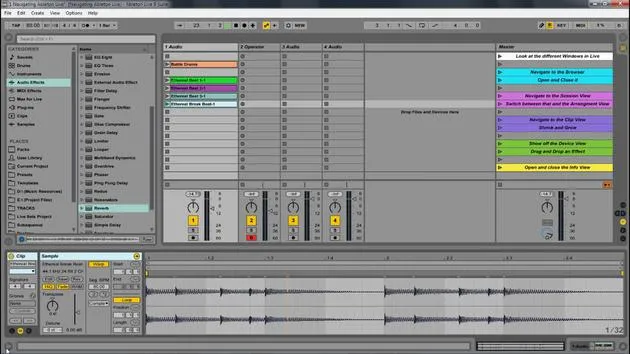
Overview of the Live 9 Browser
The Live 9 browser is organized into a number of categories. Each category includes a specific type of content, such as:
- Sounds
- Drum racks
- Plugins
- And much more.
Many of these categories will be pre-filled with presets, sounds, and devices that are a part of Live's core library, which is installed with Live.
Viewing Presets
Live not only displays the devices and instruments but also has presets for any given device. You can view the presets by pressing the triangle next to the device name.
Example: If you see a little triangle next to "Chorus" and press it, it will open up all the different Chorus presets within Live.
Navigating the Browser
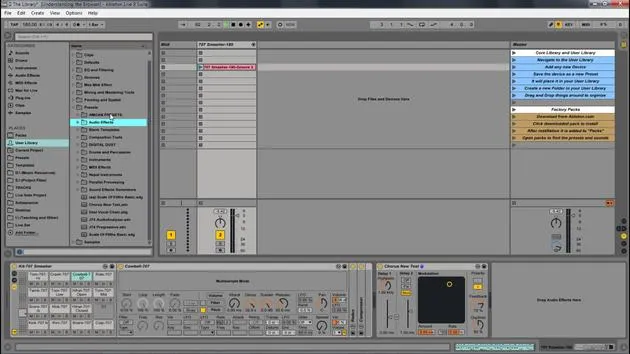
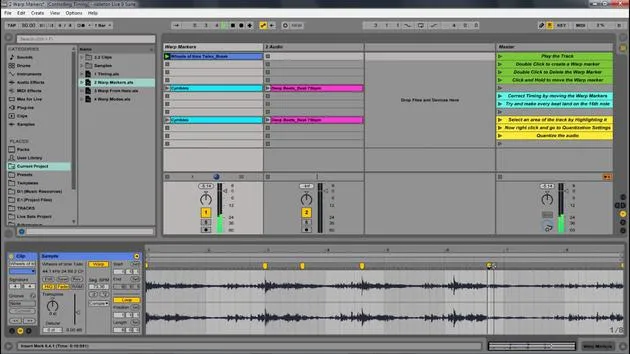
Let's look at this with Live. First off, we can open and close the browser like this. The different categories are:
- Sounds: Any preset within Ableton. For example, brass presets.
- Drums: Where we find all of our drum racks. You can categorize them by the type of drum hit.
- Instruments: This includes different instrument racks, synthesizers (like Operator), and samplers.
- Audio Effects: Contains all audio effects for morphing or changing sound aspects.
- MIDI Effects: For MIDI-related effects.
- Max for Live: If you have the Suite plugins or third-party VSTs.
- Clips: The clips that come with Ableton Live, including example sets and Live packs.
- Samples: Anything referenced within Live's library.
Dragging and Dropping Elements
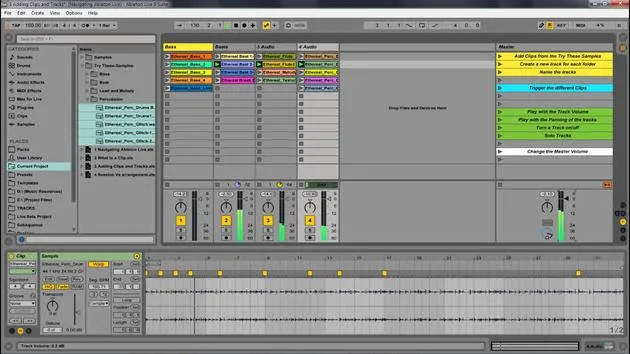
To add an instrument rack, for example, you can simply drag it into a MIDI track. If I arm this track, we have that instrument rack.
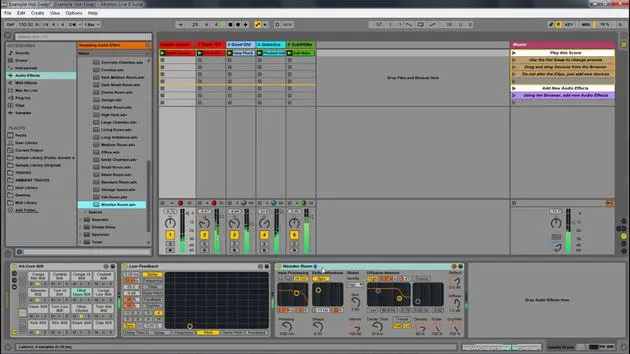
If I want to add an effect like a chorus, I can drag that into either the track or into the devices.
- Tip: You can also drag on top of existing effects to replace them.
Working with Clips
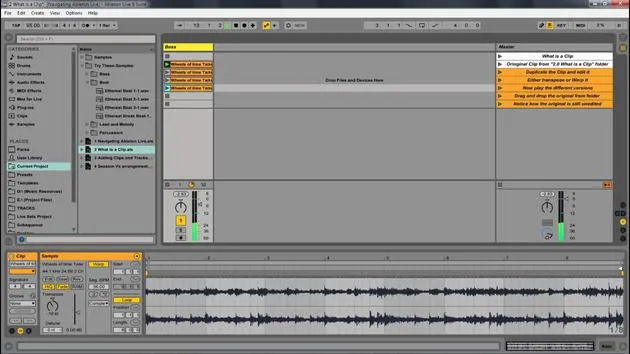
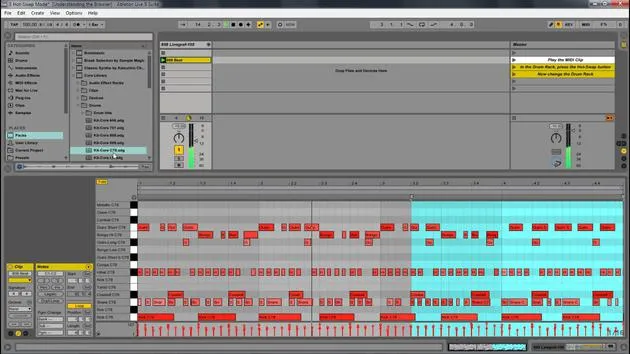
Now, let's show a clip. If I drag in a clip, it also holds the information of the instrument and settings this sample has. Playing this will reflect the settings loaded.
Previewing Sounds
Within the browser, a great feature is the ability to preview sounds. To do this:
- Simply select a clip to hear a preview.
- Moving anywhere else will stop the preview.
Volume Control:
- Keep in mind that the preview and cue volume can be adjusted. If I lower this, it reduces the preview volume.
Utilizing the Search Function
Another essential feature is the search function. If you're looking for something, like a bass, simply type that in. It will show:
- All categories that include references to "bass," including instrument racks and sounds.
Managing Libraries and Presets
Core Library vs. User Library
Ableton Live comes with a core library that contains all your presets in various categories. You can create your own presets in the user library, which allows for more flexibility in organization.
- Core Library: Contains all installed instruments and effects that come with Live.
- User Library: Where your saved presets go, allowing for custom organization.
Example of Saving a Preset: If you save a preset like a chorus, it will go into your user library.
- Name it (e.g., "Chorus New Test").
- Notice how it's highlighted in the user library and assigned to the expected category (e.g., audio effects).
Customizing Your User Library
You can manage your user library as you wish, including moving presets to different folders. Unlike the core library, which is fixed, the user library is more flexible.
You can drag presets into your user library or organize them to fit your workflow.
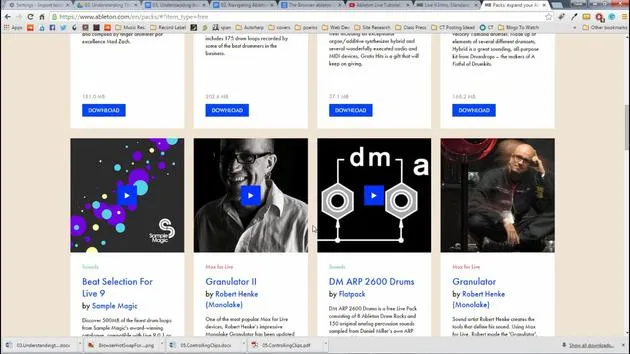
Exploring Packs
As mentioned earlier, your core library can be found within your packs. You will notice various packs available to you as well.
20 lessons
2h 16m of structured video lessons
Advanced video features
Slow down, loop a passage, follow along
Mobile, tablet & desktop
Practise wherever you are
100% satisfaction guarantee
30-day money-back guarantee
Meet your guru
Meet your guru
Isaac Cotec is, arguably, one of the best Ableton trainers in the world! While working on his own music, he began teaching recording techniques, sound design, and Ableton Live to private students, and since earning his certification as an official Ableton Certified Trainer he has helped thousands of producers step up their game and succeed as musicians.
Isaac started producing electronic music in 2005 with Psyche Sonics, an experimental group working with the science and research of binaural beats and altering consciousness through sound. After touring, he continued writing music under the alias Cotec and later emerged as the artist Subaqueous, blending his electronic past with both future and organic production techniques. To date, he has released 3 albums and 4 EPs.
Isaac is also the founder and manager of the record label Invibe Music, which represents some of the Pacific Northwest's best electronic music and specialises in midtempo dance music.
In his Ableton Live courses, Isaac shares the production, sound design and songwriting techniques he has spent years refining - the very skills he uses to turn a spark of an idea into a finished track.







