



Controlling Clips - Sample Box

With
Isaac CotecHow to use the Sample Box in Ableton's Clip View to transpose, detune, warp and loop your samples.
What's in the course
20 lessons (2h 16m) · 1 free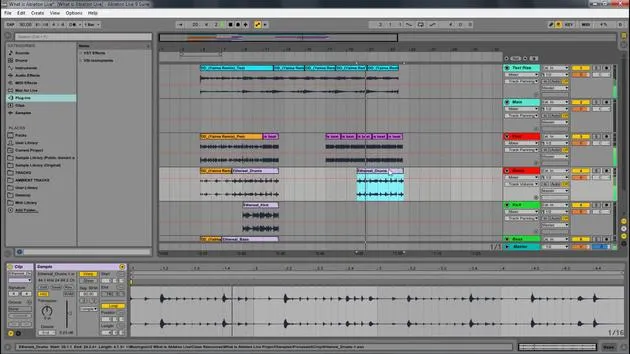
Lesson transcript
Understanding the Sample Box and Sample Display
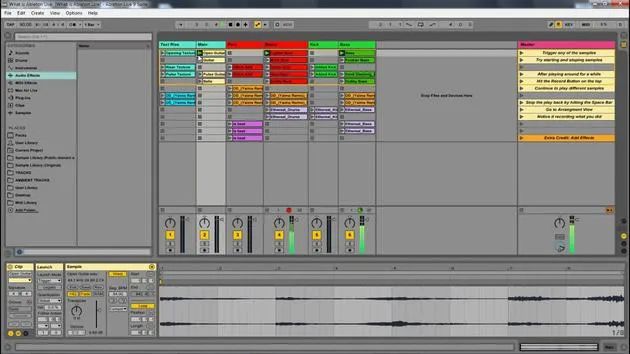
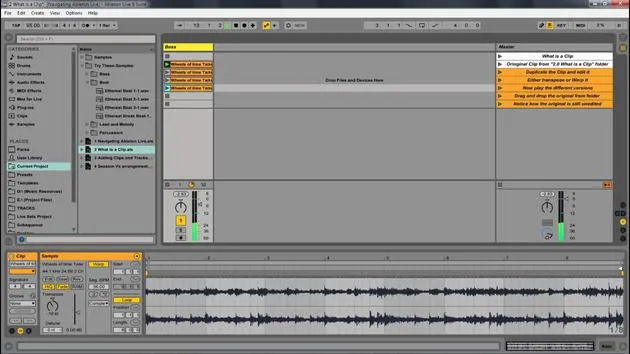
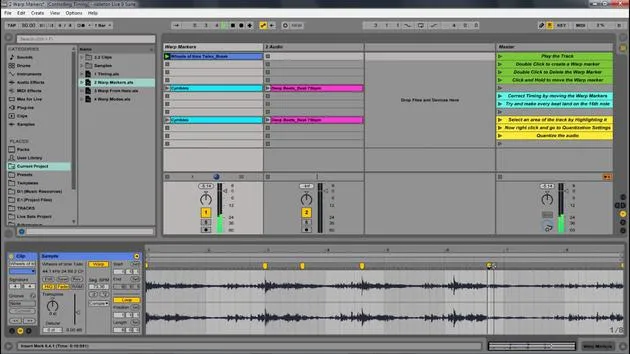
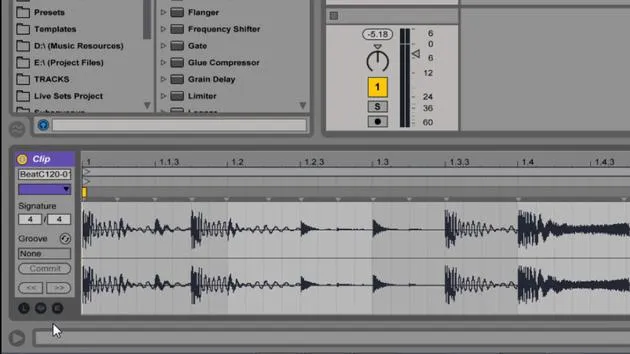
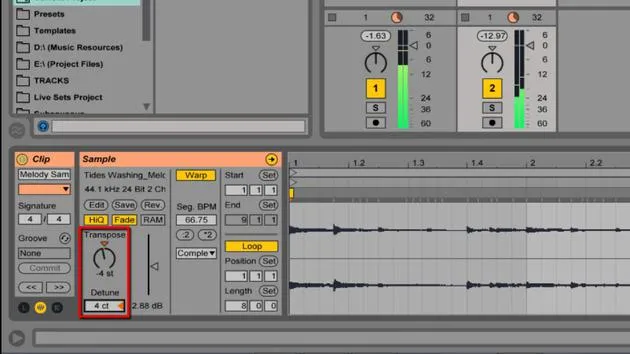
Now let's look at the sample box. The sample box goes hand in hand with the sample display. This allows you to control the sample itself.
Key Functions of the Sample Box
You can:
- Transpose the sound lower
- Raise the volume
- Affect your warping
- Set the looping of your sample
Demo: Playing Clips
Now, let's just play both of these clips. With the sample box we have right here, I have a few different options.
File Management: Although there are many specific things here for file management, we're going to focus on the very basics you need to utilize.
Transposition and Detune
If I change the transposition, it lowers and raises the pitch, going by semitone (basically a note up or down). Then we have detune:
- Notice this is rolling back; when I go past a certain amount, it kind of restarts, it's like a mileage counter in your car.
- The detune functions like tuning a guitar. It's just tuning it. So it is actually Cb as compared to whatever note it might have been if it was out of tune.
Adjusting Volume
We can also change the volume of this clip, which is really useful because sometimes you'll have samples that are super quiet, making it difficult to get that loud out of your track.
- Tip: You can just turn up the volume here for fine control.
Warp Modes and Loop Options
Next, we have other options related to our warp modes and everything we need to deal with warping. This also includes our start, stop, and loop options.
Start and End Points
Now you can come in here, starting at 1:1:1, which is right at the beginning.
- I can always come into the sample display and move this to 2:1 or simply type in 2, and it snaps there.
Let's put that back to 1; that's our start point. If this was not looped, I have an endpoint, and I can set it to end at 2.
- Play Note: When I put loop on, there is no end to the loop, it just keeps looping.
Looping Details
I have some extra parameters:
- I have the start, and
- I have where to loop.
Just like I can move the end and start point here, I can also move what's called the loop brace.
- Let's say we want to loop from 2 to 3. I can move it to 2, but I can also say the length is 1. This means it's not indicating position 3; it's stating where the start position is and how long the loop is.
Important Consideration
You have your loop, but you also have your start.
- Starting at 1 means that when it plays, it moves through this segment into the loop, which will only loop that section or however long I make it.
- Reminder: Start and loop can be independent of each other.
Personal Preference
I prefer to move these points by hand rather than typing them in.
That is the basics of the sample box and the sample display.
20 lessons
2h 16m of structured video lessons
Advanced video features
Slow down, loop a passage, follow along
Mobile, tablet & desktop
Practise wherever you are
100% satisfaction guarantee
30-day money-back guarantee
Meet your guru
Meet your guru
Isaac Cotec is, arguably, one of the best Ableton trainers in the world! While working on his own music, he began teaching recording techniques, sound design, and Ableton Live to private students, and since earning his certification as an official Ableton Certified Trainer he has helped thousands of producers step up their game and succeed as musicians.
Isaac started producing electronic music in 2005 with Psyche Sonics, an experimental group working with the science and research of binaural beats and altering consciousness through sound. After touring, he continued writing music under the alias Cotec and later emerged as the artist Subaqueous, blending his electronic past with both future and organic production techniques. To date, he has released 3 albums and 4 EPs.
Isaac is also the founder and manager of the record label Invibe Music, which represents some of the Pacific Northwest's best electronic music and specialises in midtempo dance music.
In his Ableton Live courses, Isaac shares the production, sound design and songwriting techniques he has spent years refining - the very skills he uses to turn a spark of an idea into a finished track.







