



Controlling Clips - Launch Box

With
Isaac Cotec
What's in the course
20 lessons (2h 16m) · 1 free
Lesson transcript
Understanding the Launch Box
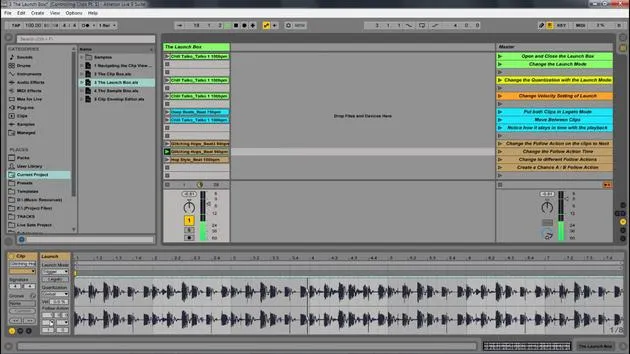
The Launch Box allows you to control how clips are launched or played live. This includes control over:
- Launch Mode
- Quantization
- Follow Actions
Let's break down these elements.
Opening and Closing the Launch Box
To get started, you need to open and close the launch box, which can be done by clicking the L icon.
Launch Modes
1. Trigger
- When you press down, the clip starts.
- Pressing down again restarts the clip.
- An up message (when you release) means nothing happens.
2. Gate
- Pressing down starts the clip.
- Releasing it stops the clip.
Example of Gate in Action:
- Set to Trigger and press play; pressing again restarts.
- Switch to Gate: press and hold to play, then release to stop.
3. Toggle
- Pressing down starts the clip.
- The next down press stops the playback.
Example of Toggle:
- Press once to start.
- Press again to stop.
4. Repeat
- As long as the mouse switch or key is held down, the clip is triggered repeatedly at the clip quantization rate.
Example of Repeat:
- Set to 1 bar and press and hold.
- On release, continue through the rest of the sample.
Quantization
- Determines how quickly the clip starts and stops.
- Default is set to global; setting this to 1:16 allows for faster releases.
Velocity
- Velocity can affect playback volumes if you have a velocity-sensitive controller, like a keyboard.
Legato
- Legato mode takes over the play position from the last played clip, ensuring smooth transitions.
Example of Legato:
- When you play a second clip, it begins where the first clip left off.
Follow Actions
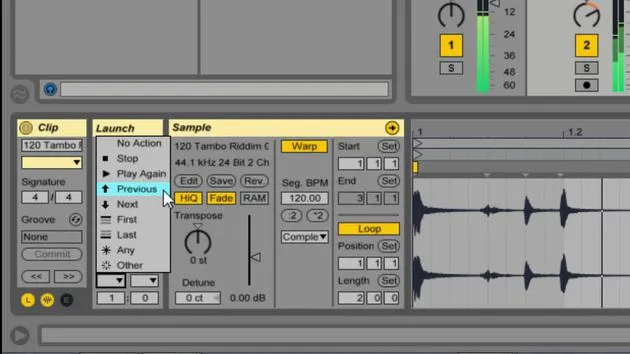
Follow actions enable automation, allowing clips to trigger the next action without user intervention.
Options Include:
- Bars
- Beats
- 16th Notes
Setup of Follow Actions:
- Set to 1 bar and choose next.
- Clips can be set to go next or previous and can even be configured for random selection.
Customization with Ratios
- You can set the ratio for follow actions. For example:
- 1:1 means a 50% chance of going next vs. previous.
- Adjusting this ratio allows for varying probabilities.
Conclusion
The launch box is a powerful tool for creating dynamic performances and automations. By understanding and experimenting with the various modes, quantization settings, and follow actions, you can greatly enhance your music production capabilities.
20 lessons
2h 16m of structured video lessons
Advanced video features
Slow down, loop a passage, follow along
Mobile, tablet & desktop
Practise wherever you are
100% satisfaction guarantee
30-day money-back guarantee
Meet your guru
Meet your guru
Isaac Cotec is, arguably, one of the best Ableton trainers in the world! While working on his own music, he began teaching recording techniques, sound design, and Ableton Live to private students, and since earning his certification as an official Ableton Certified Trainer he has helped thousands of producers step up their game and succeed as musicians.
Isaac started producing electronic music in 2005 with Psyche Sonics, an experimental group working with the science and research of binaural beats and altering consciousness through sound. After touring, he continued writing music under the alias Cotec and later emerged as the artist Subaqueous, blending his electronic past with both future and organic production techniques. To date, he has released 3 albums and 4 EPs.
Isaac is also the founder and manager of the record label Invibe Music, which represents some of the Pacific Northwest's best electronic music and specialises in midtempo dance music.
In his Ableton Live courses, Isaac shares the production, sound design and songwriting techniques he has spent years refining - the very skills he uses to turn a spark of an idea into a finished track.







