



Localizar archivos que faltan
Qué incluye el curso
36 lecciones (5h 28m) · 1 gratis
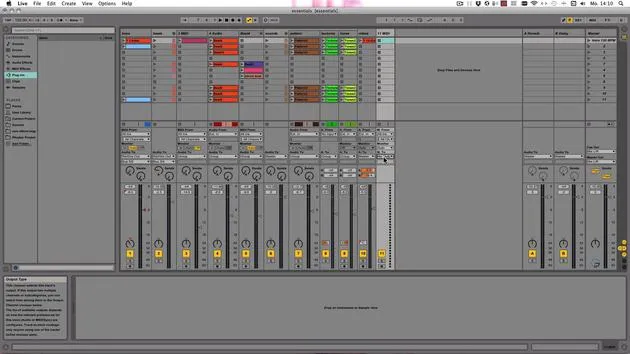
Transcripción de la lección
Locating Missing Audio Files in Ableton Live
In this video, I want to show you how you can locate missing audio files.
Moving the Samples Folder
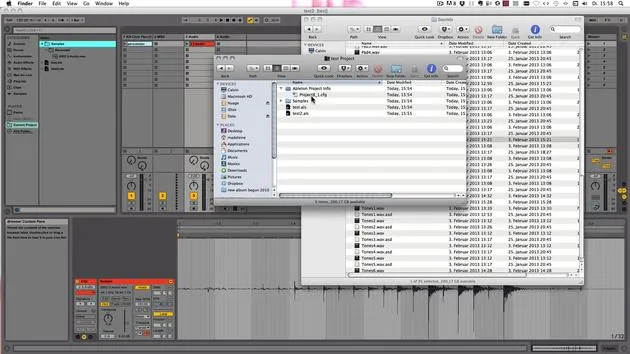
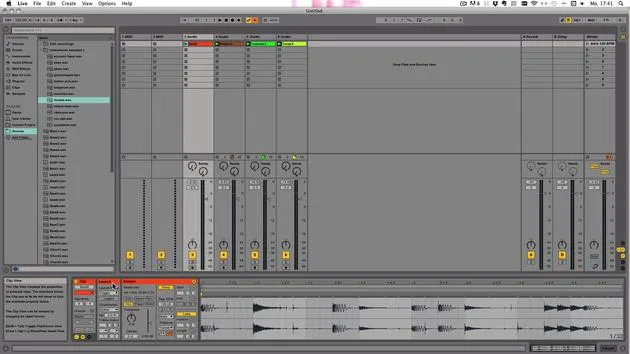
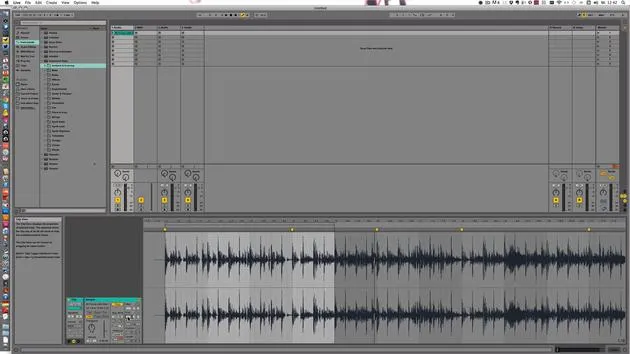
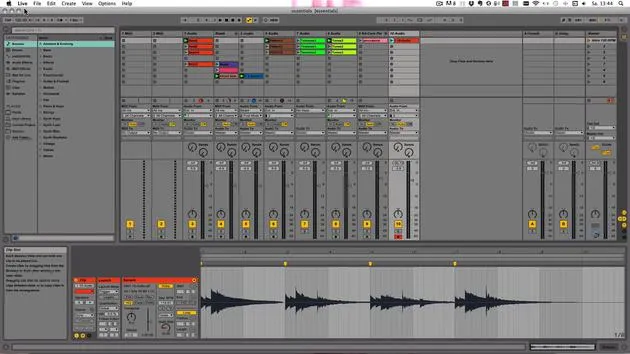
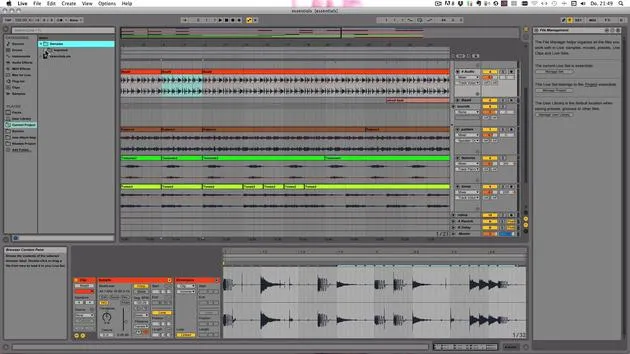
What I've done is I've taken the "Samples" folder from our Live set and moved it somewhere else. Now, I've opened the Live set and you can see that all the audio clips are now offline and see-through.
Double-Clicking the Missing Clips
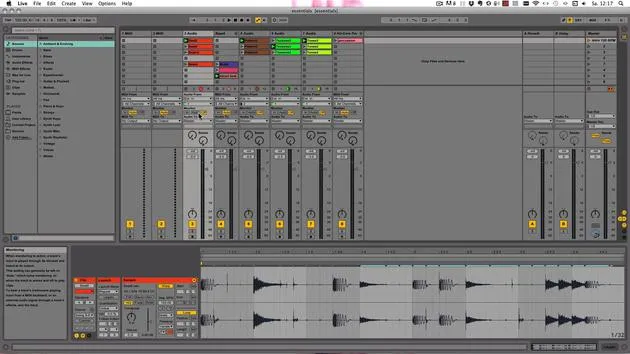
- When I double-click, you also see "Sample offline" and you can't see a waveform anymore.
- Down here at the bottom, you see "Media files are missing. Please click here to learn more."
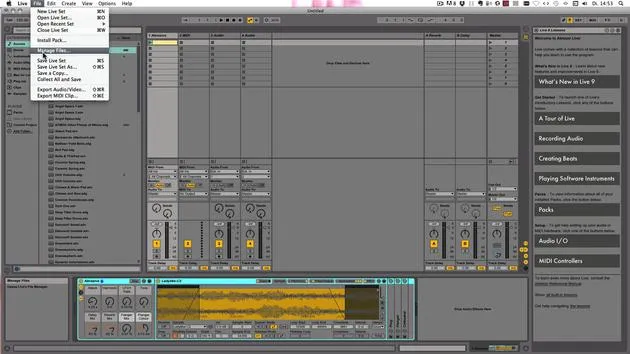
And that's what we're going to do now because it's a shortcut to the file manager.
Searching for Missing Files
Here you see all the missing files, and you can try the automatic search.
- In this case, the Documents folder would be searched (that's set).
- The project folder itself can also be searched, as well as the Live library.
However, the more you want to search through, the longer it'll take. Since it's definitely not in the Live Library, I won't tick this option.
Starting the Automatic Search
Let's go to Automatic Search and click on Go.
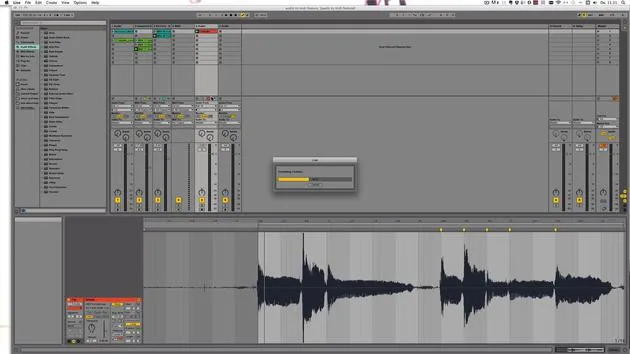
- Now it searches through the Project and also the Documents folder in my case.
- After it's done, it says that 14 new candidates were found.
Click OK. Here, you still see two files shown as missing. For the other ones, you have two possible candidates.
Hot Swap Mode
When you click on the question mark next to a missing file, you enter hot swap mode.
- The two possible candidates are shown and you can preview them.
- We can just double-click this one and say that this is the correct file.
Resolving Missing Files
Here it also offers me the option for Live to try to resolve all the missing files based on the location of the file I just replaced.
- You can choose Yes or No. "Yes" is quite often a good choice, but I'm going to go for No right now because I want to show you more.
- We can then leave the hot swap mode.
Manually Locating Missing Files
Audio files can't be found anymore if they were deleted, renamed, or dragged and dropped into Live directly from a different hard or flash drive.
If you know where the file should be located, you can simply navigate to that folder.
- In my case, I actually moved it into the Downloads folder.
- So I'm going to choose this one and click Open.
Scanning the Downloads Folder
You can turn this off now. It scans the Downloads folder for those files and tells me that 12 new candidates were found and 12 missing files were replaced automatically.
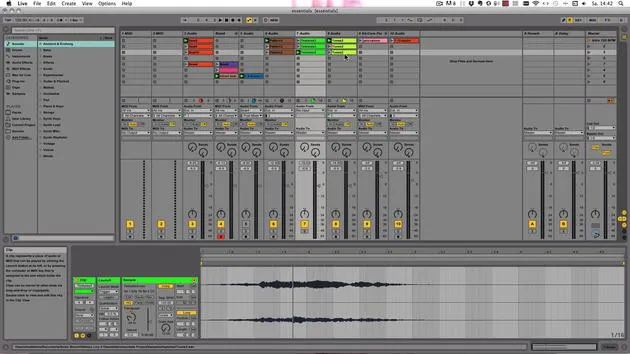
Click OK, and everything has been found and replaced. We can see the files here again.
Saving Your Changes
Now what we have to do is click on Save, that's really important. Don't forget it!
- You also don't have the "Media files are missing" alert at the bottom anymore.
Saving as a New Live Set
If you accidentally saved your Live set within a different Live project, or even worse, in the Live Library, then you need to do the following:
- Click on Save Live Set As.
- Choose where it should be saved and make sure it's in a dedicated folder that's not another Live project or the Live Library.
Now we first have to go out of the search, and if we look in the current project, we still don't see the Samples folder.
Collecting and Saving Files
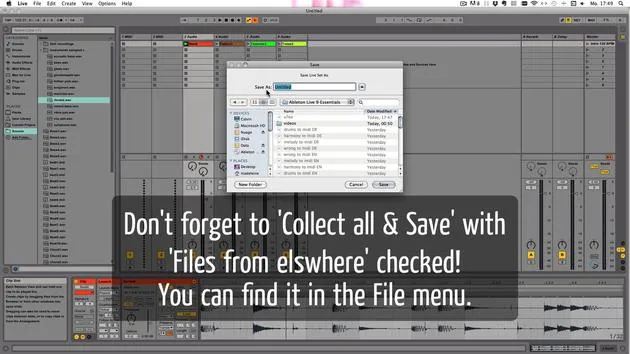
For it to actually be copied into the Live set, we need to do Collect All and Save.
If you accidentally moved the files or loaded them in from a USB stick or a different hard drive, then you should also ensure that you click on Collect All and Save.
Turning on File Collection
Generally, files from elsewhere and other projects should be turned on so that they're copied in.
If it was a file from your User Library, Live Library, or other packs that you downloaded from Ableton, those should also be turned on.
- Otherwise, it's not necessary, as the more you copy (especially from the Factory Packs), the larger your Live set becomes.
Now we see the Samples folder has been created and it contains just one subfolder called Imported, because all the files have now been imported.
Final Reminder
Make sure that when you import files into Live, you always click Collect All and Save.
36 lecciones
5h 28m de lecciones en vídeo estructuradas
Funciones de vídeo avanzadas
Ralentiza, repite un pasaje, sigue la partitura
Móvil, tablet y ordenador
Practica donde quieras
Garantía de satisfacción 100%
30 días de garantía de devolución
Conoce a tu gurú
Conoce a tu gurú
Madeleine Bloom es una música de formación clásica, productora, multiinstrumentista y cantante de Berlín, y fundadora del sello Quixotica Records. Estudió música electroacústica en el Conservatorio Franz Liszt con el Prof. Robin Minard, y lleva esos métodos a su propia mezcla de pop electrónico. Su música ha recibido elogios de los productores Guy Sigsworth y Rupert Hine, así como una invitación personal de Imogen Heap, cuya gira abrió como telonera.
Antigua agente de soporte técnico de Ableton, en 2012 fundó la plataforma online Sonic Bloom, donde enseña Ableton Live y producción musical mediante cursos, talleres y clases individuales. Ha ayudado a personas de todo el mundo con Ableton Live, Push y Max for Live, además de con ingeniería de sonido, teoría musical, composición y diseño de sonido.







