



Envolventes (automatización y modulación)
Qué incluye el curso
36 lecciones (5h 28m) · 1 gratis
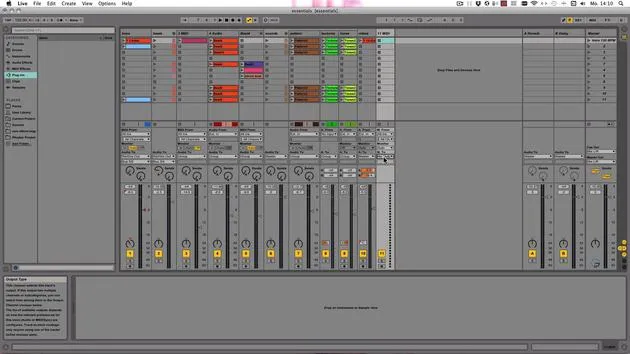
Transcripción de la lección
Understanding Envelopes and Automation
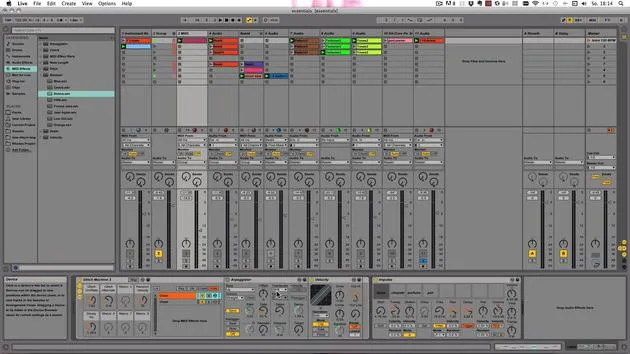
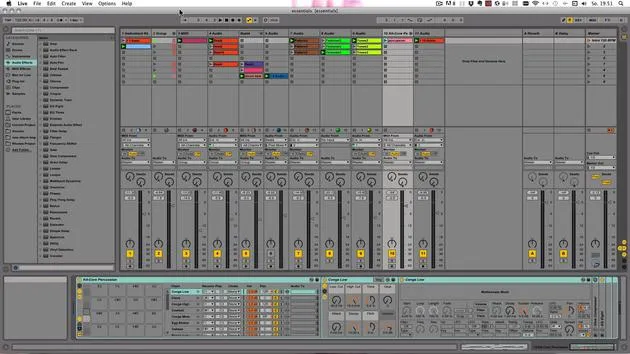
Okay, now we've already mixed quite a bit, and now we want to talk about envelopes. There are two types of envelopes to consider:
- Automation Envelopes
- Modulation Envelopes
Recording Automation
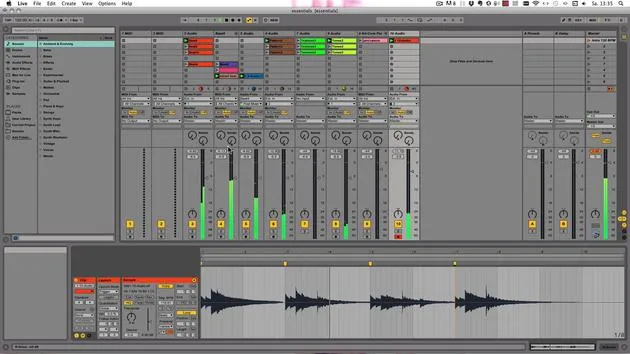
First, we'll record automation. For this process, make sure that the automation arm is turned on.
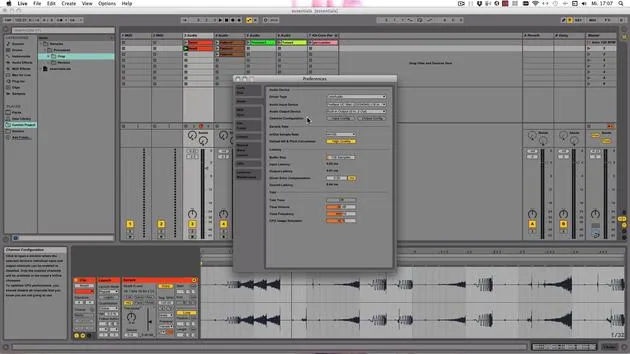
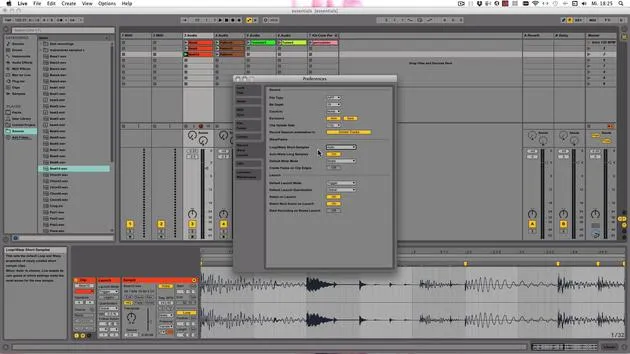
Preferences
- The setting under Preferences > Record Warp Launch determines how the recording session automation should be recorded:
- Armed Tracks Only
- All Tracks (by clicking again)
Let's proceed with automation on the desired track.
Automating Effects
-
Record the automation for how much we want to send into the delay:
- Ensure the track is armed.
- Click on the Session Record button.
-
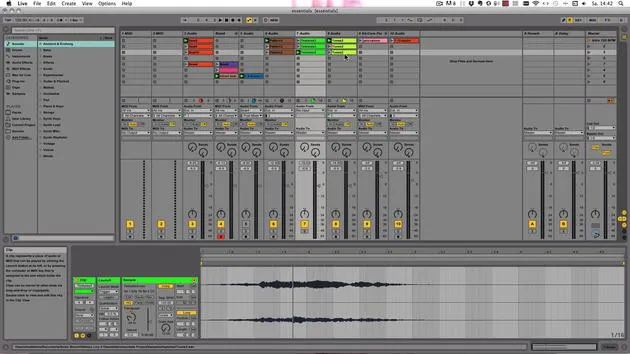
Wait for the loop to start again. As soon as you start moving the mouse, a red LED appears in the corner indicating that it's automated.
-
If you change it manually, it turns gray, showing it has been overridden.
-
The button next to the automation arm will turn orange, allowing you to re-enable the automation, returning to the automated settings.
Viewing Automation
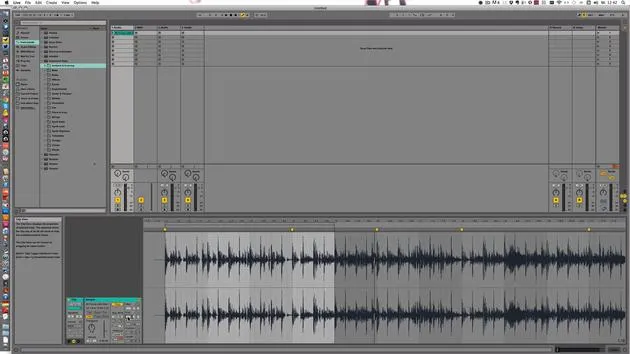
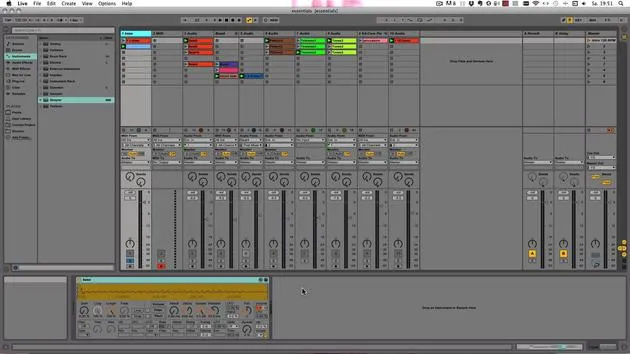
To view automation in session view:
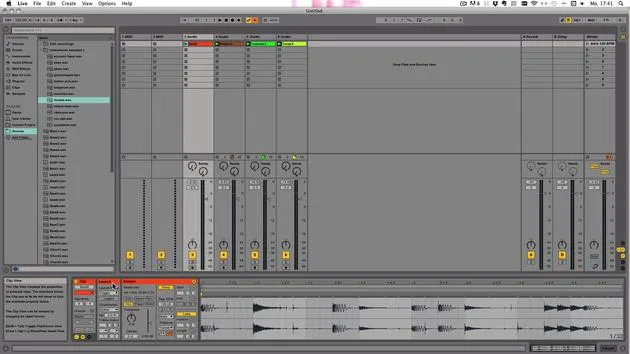
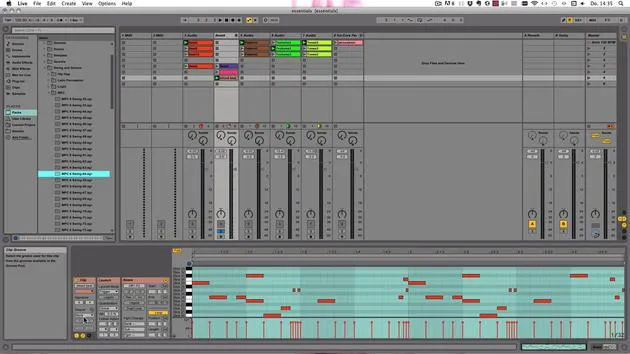
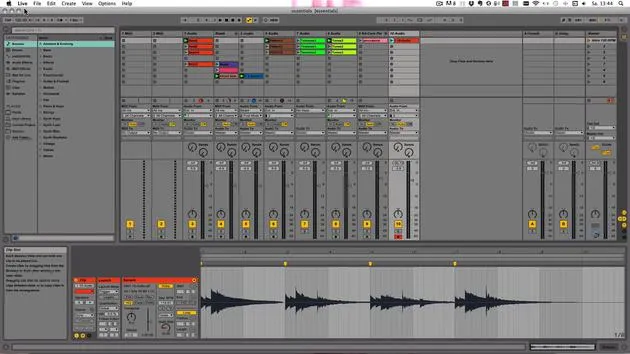
- Double-click on the clip.
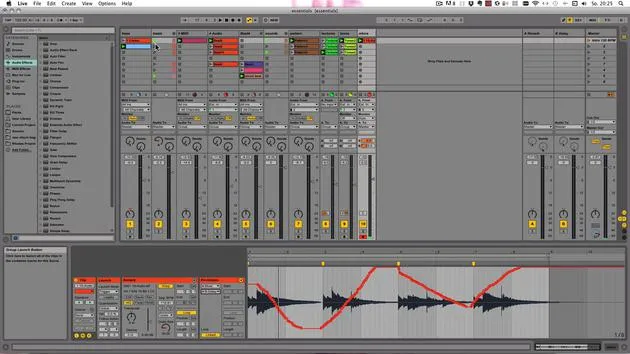
- In the envelopes box that appears at the bottom, you can turn it on and see:
- Mixer Return B Delay (what has been recorded).
At the top, choose what you wish to automate from various mixer options, such as:
- Track panning
- Track volume
- Crossfade assignment
- Zen controls of return tracks
If there are no effects on this track, select a different track and clip to access additional settings, such as:
- Instrument rack
- Bass distortion
Editing Automation Envelopes
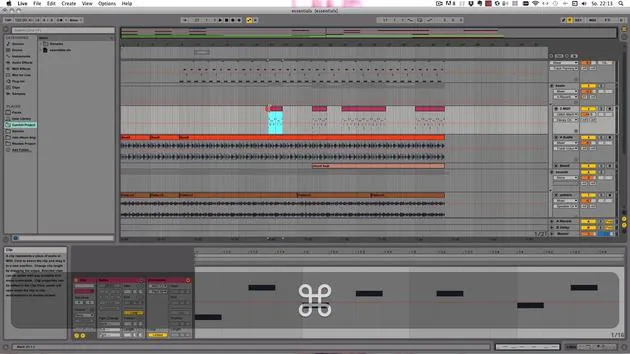
- The mixer envelopes are available only in session view. In arrangement view, they are written into the track.
- You can choose to automate device parameters or mixer parameters.
Showing Adjusted Envelopes
If you've automated a few settings, you can click on "Only show adjusted envelopes." If nothing turns up, it indicates that no automation exists on this track.
To add automation:
- Select track panning (or desired parameter).
- Hover over the line to create a pseudo breakpoint:
- Click and drag to adjust the automation points at will.
- To delete breakpoints, select them and click again, or highlight, right-click, and then delete.
Using Drawing Mode
To draw envelopes:
- Click on B to enter drawing mode.
- Create the desired envelope shape:
- Drawing follows grid settings; you can adjust the grid size for smoother lines.
Deleting Envelopes
To clear an entire envelope:
- Right-click in the background of the envelope and select "Clear Envelope."
Linked Envelopes
The linked button allows you to unlink the envelope from the loop, enabling the creation of longer variations on short clips or fade-outs. For example:
- Set start and end points.
- Extend the loop to 16 bars, and adjust the drawing mode for varied panning.
MIDI Clips and Modulation
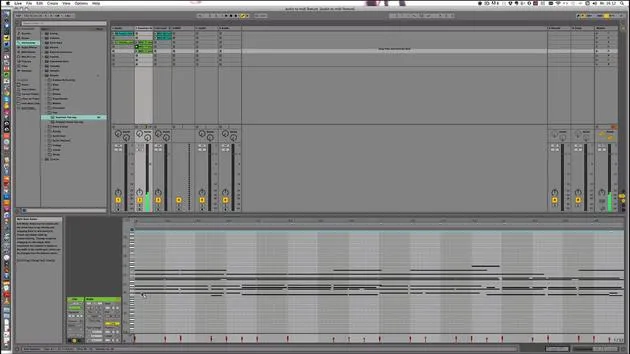
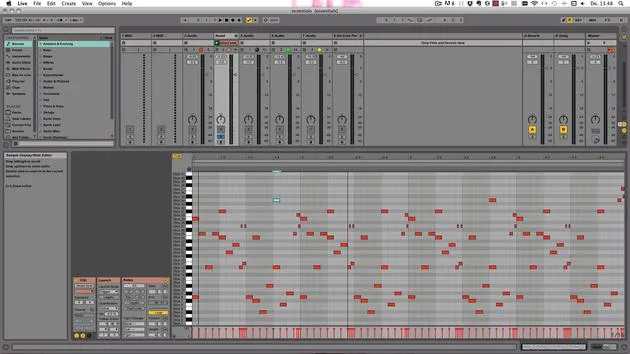
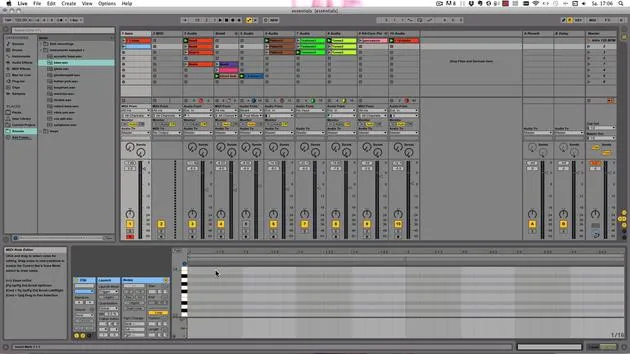
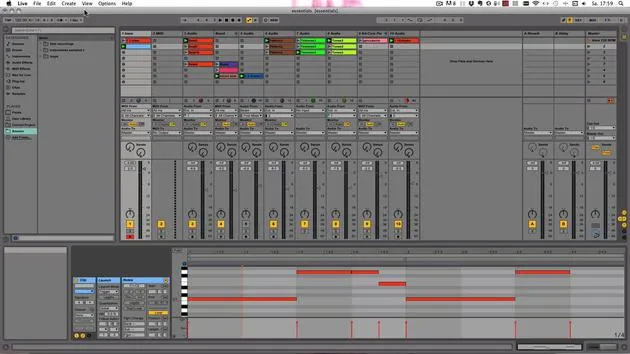
You can apply similar principles to MIDI clips.
Recording Pitch Bend
- Arm the desired track.
- Turn on session record and input your data.
- If you're using a MIDI controller, remember:
- Touch behavior: Stops recording on mouse release.
- Latch behavior: Continues recording until the end of the loop.
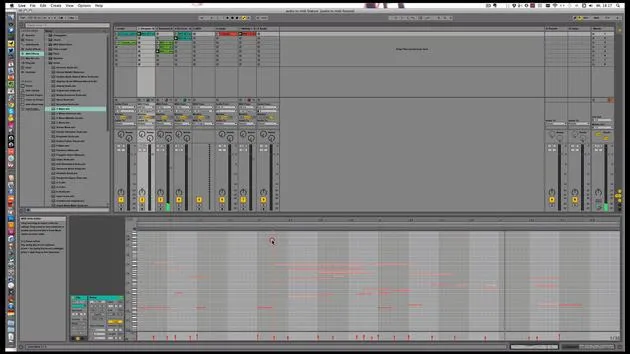
Clip Modulation
Clip modulation will always be saved into the clip, and it functions the same across different views.
- MIDI Clips: You can adjust pitch bend, modulation, and sustain pedal settings.
- The MIDI keyboard attached can record pitch bend envelopes effectively.
Important Notes on Modulation
- Modulation settings may vary:
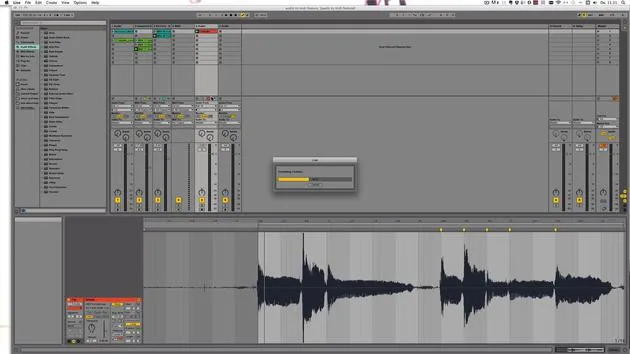
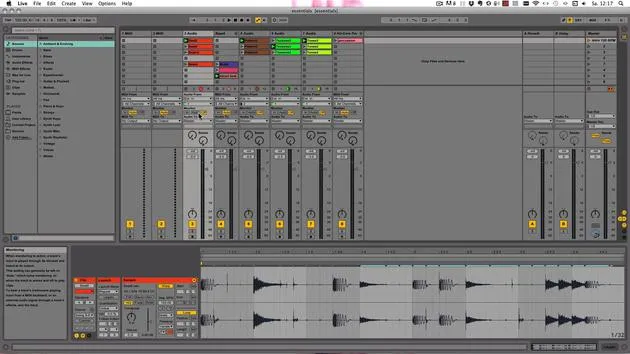
- For audio clips, you can choose to show all envelopes first:
- Volume
- Transposition
- Grain size
- Flux
- Sample offset
- For audio clips, you can choose to show all envelopes first:
Remember, volume modulation is relative to the global settings. If both clip modulation and track automation are used for volume, it can be confusing.
Conclusion
Feel free to automate and modulate to your heart's content, and I'll see you in the next video!
36 lecciones
5h 28m de lecciones en vídeo estructuradas
Funciones de vídeo avanzadas
Ralentiza, repite un pasaje, sigue la partitura
Móvil, tablet y ordenador
Practica donde quieras
Garantía de satisfacción 100%
30 días de garantía de devolución
Conoce a tu gurú
Conoce a tu gurú
Madeleine Bloom es una música de formación clásica, productora, multiinstrumentista y cantante de Berlín, y fundadora del sello Quixotica Records. Estudió música electroacústica en el Conservatorio Franz Liszt con el Prof. Robin Minard, y lleva esos métodos a su propia mezcla de pop electrónico. Su música ha recibido elogios de los productores Guy Sigsworth y Rupert Hine, así como una invitación personal de Imogen Heap, cuya gira abrió como telonera.
Antigua agente de soporte técnico de Ableton, en 2012 fundó la plataforma online Sonic Bloom, donde enseña Ableton Live y producción musical mediante cursos, talleres y clases individuales. Ha ayudado a personas de todo el mundo con Ableton Live, Push y Max for Live, además de con ingeniería de sonido, teoría musical, composición y diseño de sonido.







