



Añadir efectos táctiles con el Kaoss Pad 3

Con
Mark Burnett
Qué incluye el curso
24 lecciones (3h 29m) · 2 gratis
01. Lo que aprenderás en este capítulo
1:18
02. Preparemos el setup (MicroKorg y Novation Launch Control)
7:47
03. Mensajes MIDI CC y asignación del Novation LC a los parámetros del MicroKorg
18:19
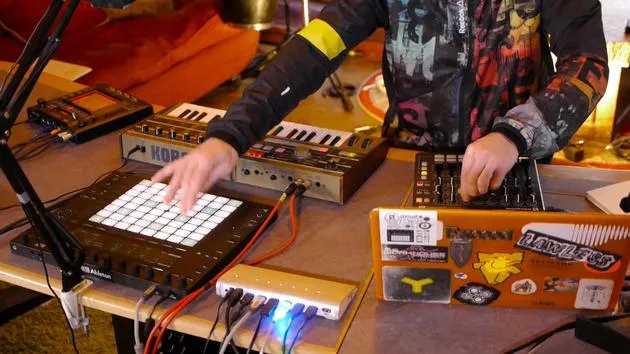
04. Demostración de la configuración hasta ahora
1:47
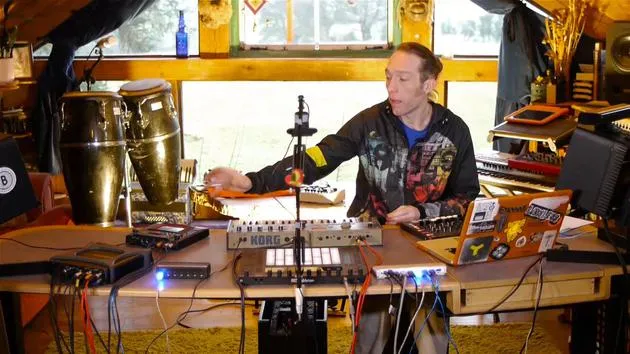
05. Añadir efectos táctiles con el Kaoss Pad 3
Estás aquí11:50
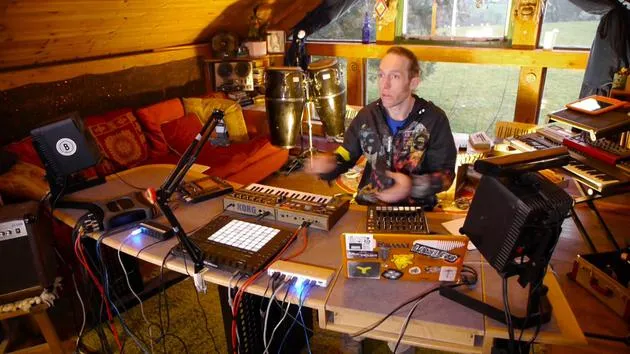
06. Finalizar la configuración del Kaoss
7:02
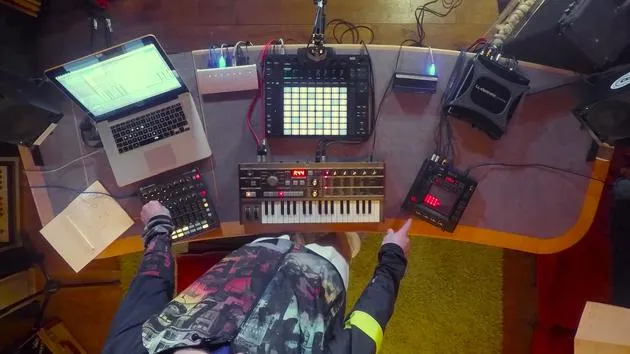
07. Repaso de lo que hemos aprendido
4:23
08. Explorar el setup
3:54
Transcripción de la lección
Incorporating the Chaos Pad 3
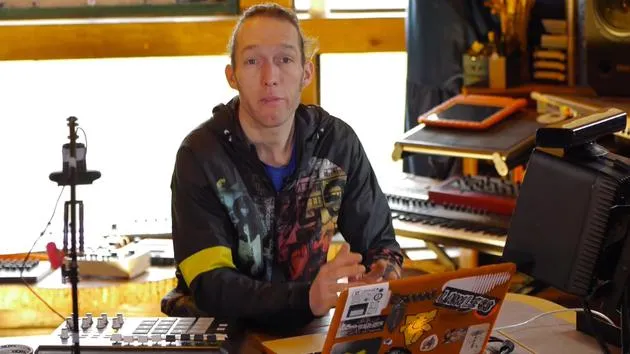
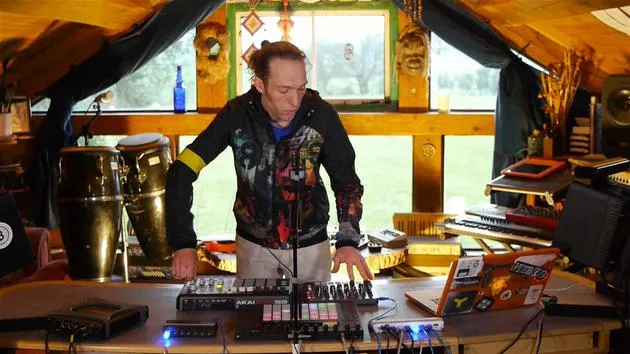
Okay, so the next thing to do is to incorporate the Chaos Pad 3 here.
What is the Chaos Pad?
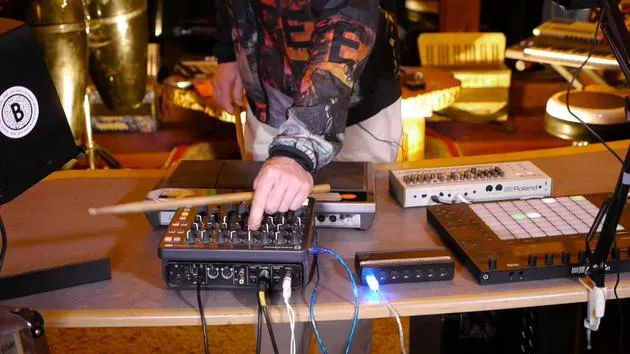
The Chaos Pad is an external effects processor. Here's how it works:
- We send audio signals to it.
- We mash them up using the effects in the Chaos Pad.
- We then get the audio signals back in and use them within Live.
- Additionally, we'll set up some MIDI control to manage those effects using our MIDI controller.
Setting Up in Live
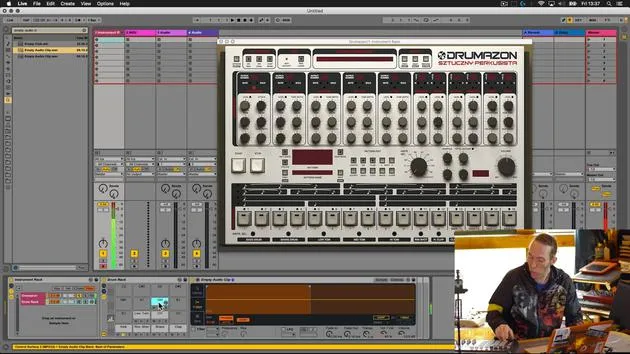
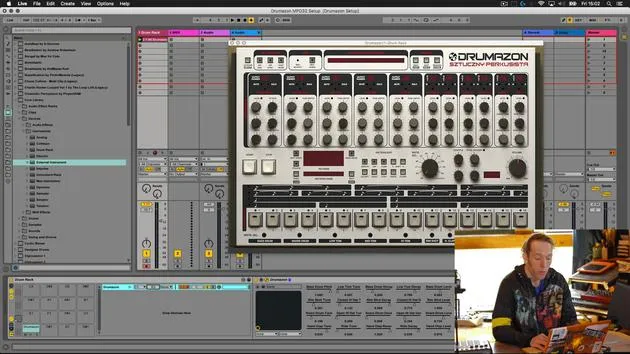
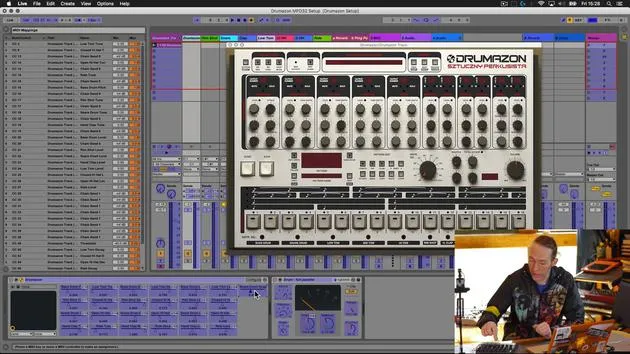
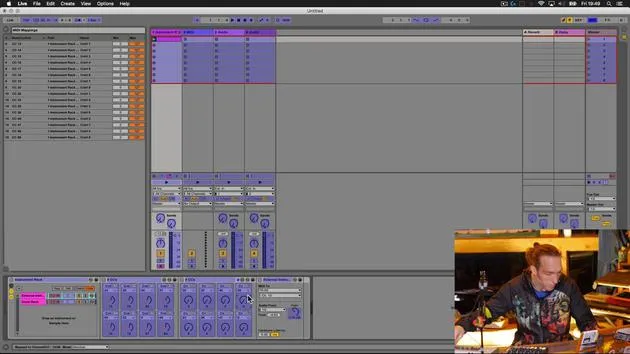
Let's go back into Live and have a look at what's going on here.
- We are on MIDI Track 1, where we've set up our external instrument.
- You can see a large Max 4 Live custom device built by Grimjack and nicely shared with the public.
- If you have the microKorg, you can get this device and use it.
To make it easier to see, I'll double-click in the name bar to shrink it down a bit.
When I press a key or two on the Korg, the external instrument device shows that it is receiving MIDI information via the TCNear port on Channel 3, which is the MIDI channel specified for this instrument.
Next, it's bringing the audio back in via these cables into Audio 1 and 2 input.
Sending Audio to the Chaos Pad
What we want to do now is send that audio back out again to the Chaos Pad and bring it back in again into this track.
- We will use the external audio effect device, which is very similar to the external instrument device, but it only sends and receives audio.
- As previously mentioned, we connected the Chaos Pad to inputs 3 and 4 and outputs 3 and 4 on the back of the TC Connect.
Let's select those appropriate outputs:
- It will send audio to 3 and 4.
- It will receive audio from 3 and 4.
This is great! We can now dial in any of the many different effects presets that the Chaos Pad has, including some interesting delays and varied effects to apply to our sounds.
Adding MIDI Control
We've added an extra layer to this. The next step is to refine what's going on within Live to make it more versatile.
- Currently, we have our Max 4 device acting as a mapping template, sending CC messages to the Korg.
- If you go to Max 4 Live and type in "Chaos Pad," you'll notice there aren't many bespoke devices created for controlling the Chaos Pad.
This could be due to the Chaos Pad being fun to interact with directly, but I'm going to show you how it can be done.
Understanding MIDI Messages
To control the Chaos Pad, we need to understand what MIDI information it responds to:
- Find a bespoke device (which there isn't as far as I can ascertain).
- Use Ableton Live's MIDI mapping mode to identify what channels, note numbers, and CC messages are coming from the Chaos Pad.
Let's check if the Chaos Pad 3 is being recognized in our preferences:
-
Go to the MIDI link MIDI tab.
-
In the bottom part of the window, we can see all the devices that Live recognizes as MIDI capable.
-
Input: kp3 pad
-
Output: kp3 sound
This indicates that the Chaos Pad is registering as a MIDI capable device with both input and output.
Enabling MIDI Map Mode
Let's close our preferences now. I'll enable MIDI map mode again and select any parameter on the screen. I'm going to use the volume on the first track and interact with the parts of the Chaos Pad that I want to control.
XY Pad Interaction
The first thing of interest is the XY Pad on the front of the Chaos Pad:
- The XY Pad outputs multiple control channels (one for the X-axis, one for the Y-axis).
- By touching the pad, we can see the little box appears indicating a received MIDI signal (Channel 2).
As I move my finger, it jumps between 12 and 13. Let's note:
- 12 = X axis
- 13 = Y axis
When I let go, a third MIDI message (number 92) is sent , likely indicating that the Chaos Pad is active.
Hold Button
Next, I'm interested in the Hold button:
- Pressing it sends a MIDI message of 95.
- I'll make a note that 95 is likely the hold function.
Changing the Program
Lastly, I want to access the ability to change the effect program.
To test the program change, I would normally just move the program dial, but program change information is transmitted on a common MIDI channel.
We'll aim to use another Max for Live device to control this for reliable access.
Using 8CC's Device
Firstly, let's delete the MIDI mapping we added in the first track, and exit MIDI map mode.
I'm going to introduce the 8CC's device:
- Type in 8CC , it will appear at the top.
- Drag it down into the track.
You'll notice it must be placed before the external instrument because it's a MIDI device.
Assigning Control Numbers
This device has eight knobs, each with a dropdown menu for assigning control numbers:
- Let's assign 12 and 13 for the first two pots.
As I test these, I expect to see the LED indicators on the Chaos Pad move around, but they aren't responding.
Fixing MIDI Channel
This is likely because the HCC's device is sending information on MIDI Channel 3, while the Chaos Pad receives on MIDI Channel 2.
Grouping and Configuring Devices
To solve this:
- I'll group the Max for Live device used for mapping with the external instrument for microKorg.
- Open the rack and drag 8CC's into the bottom half.
Now we have two parallel chains:
- First chain: Max for Live microKorg device and external instrument send CC info on MIDI Channel 3.
- Second chain: Add another external instrument after 8CC's and set the output to the kp3 on MIDI Channel 2.
Now, since we have the setup, when we move these faders, the pointer on the Chaos Pad should move left-right and up-down using the CC knobs.
We can now control the Chaos Pad and the microKorg using our Novation Excel!
24 lecciones
3h 29m de lecciones en vídeo estructuradas
Funciones de vídeo avanzadas
Ralentiza, repite un pasaje, sigue la partitura
Móvil, tablet y ordenador
Practica donde quieras
Garantía de satisfacción 100%
30 días de garantía de devolución
Conoce a tu gurú
Conoce a tu gurú
Mark Burnett es un Ableton Certified Trainer que lleva más de 14 años trabajando con productos de Ableton. Como productor y DJ en Funk'n Deep Records, sus temas han sonado en grandes festivales y en sesiones y podcasts de artistas como Carl Cox y Richie Hawtin, y ha tocado ante multitudes de miles de personas. También organiza eventos a gran escala como Workhouse Project, y estudió en el Imperial College London. Su curso trata sobre el uso de Ableton Live para construir actuaciones en directo, y está pensado para productores y artistas de música electrónica que quieran llevar su espectáculo del estudio al escenario.







