



Working With The Browser
With
Madeleine Bloom
What's in the course
36 lessons (5h 28m) · 1 free
Lesson transcript
Working with the Browser in Live
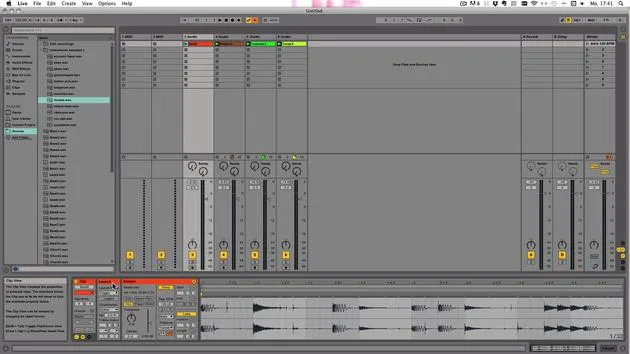
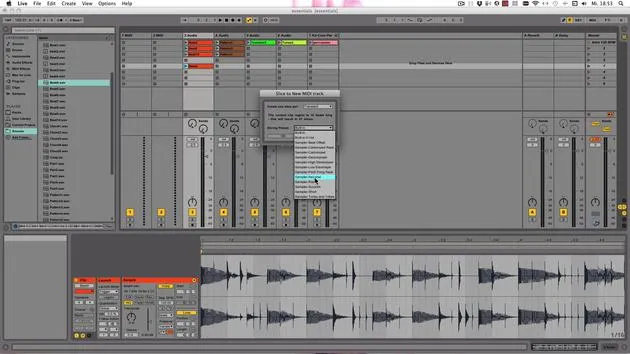
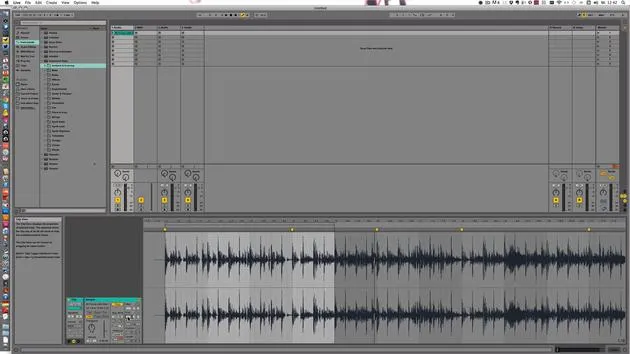
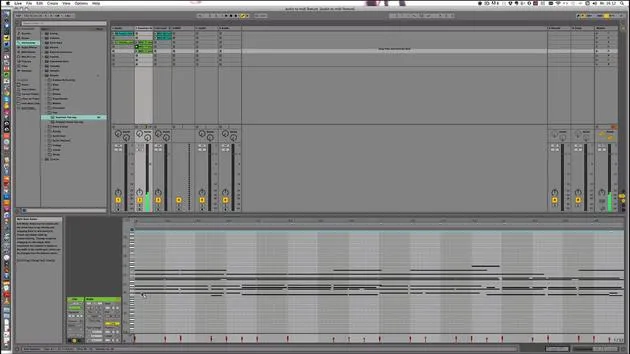
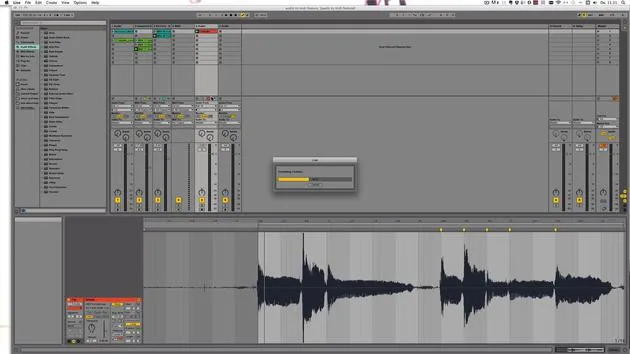
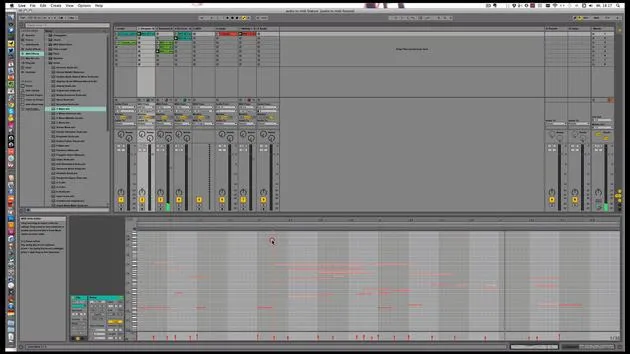
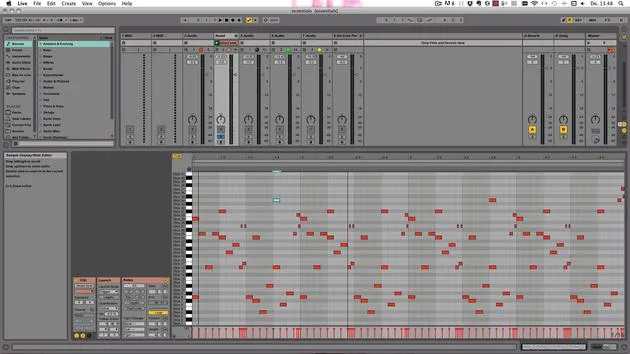
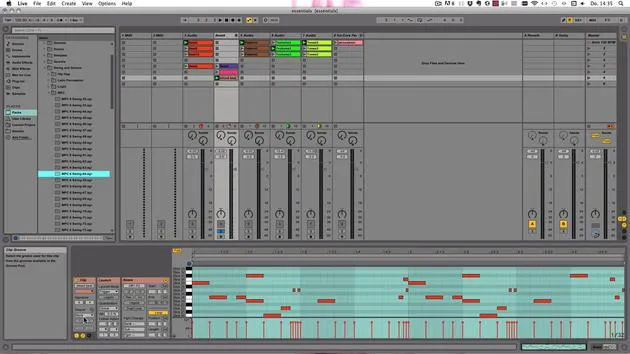
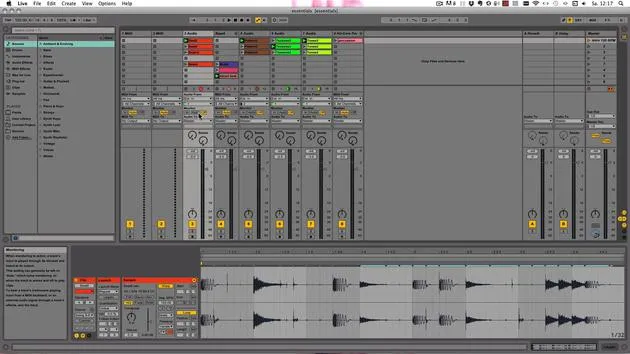
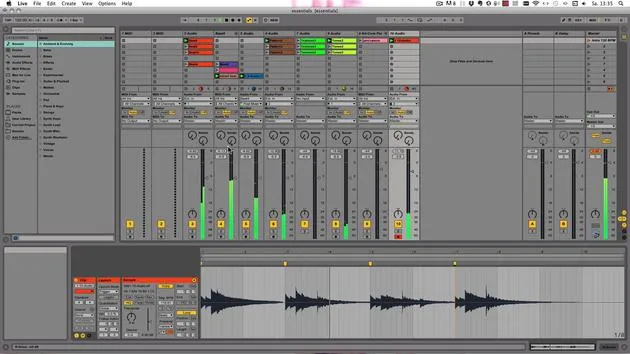
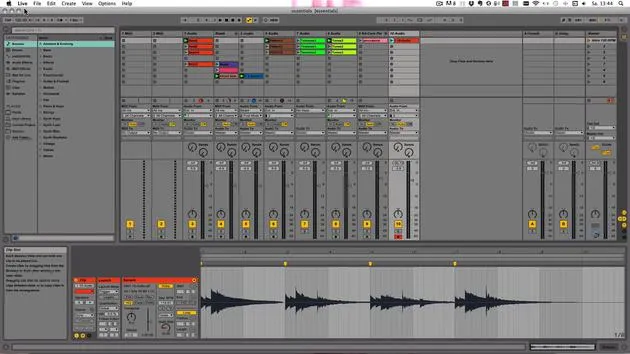
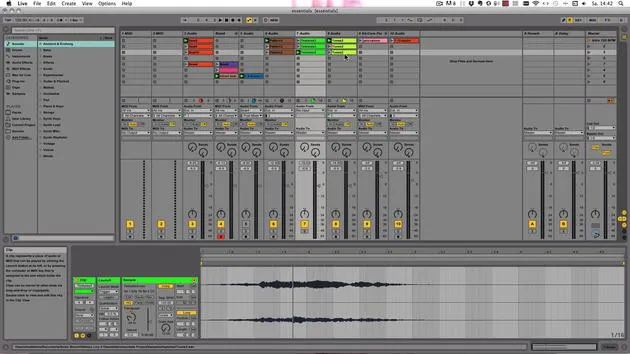
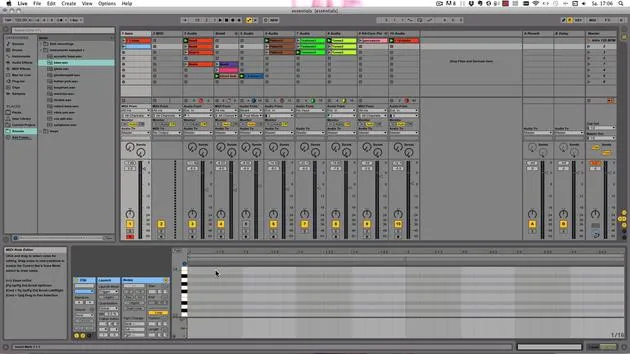
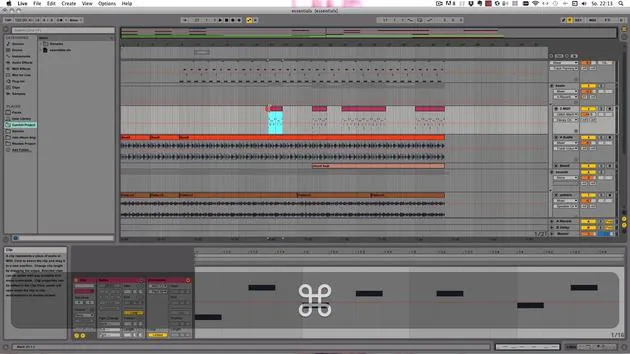
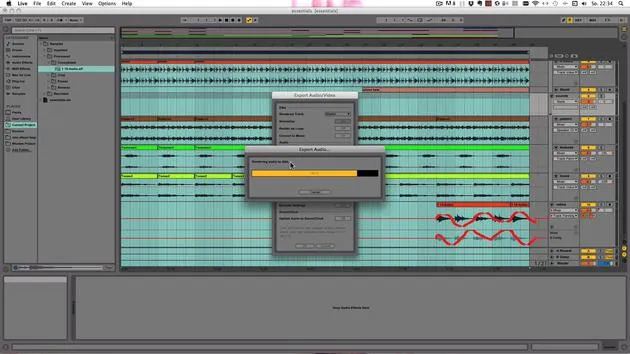
In this video, I want to show you how to work with the browser, especially since it's the place where you find all the files, instruments, and effects available in Live to work with.
The Redesigned Browser
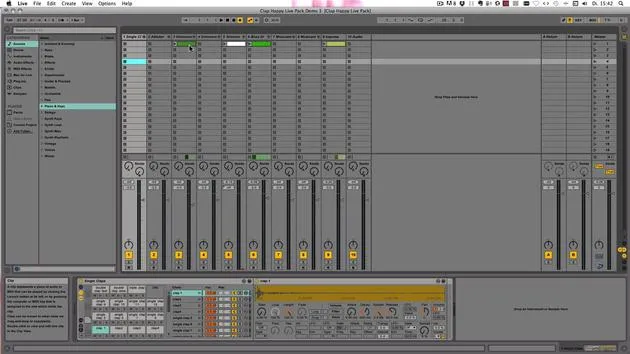
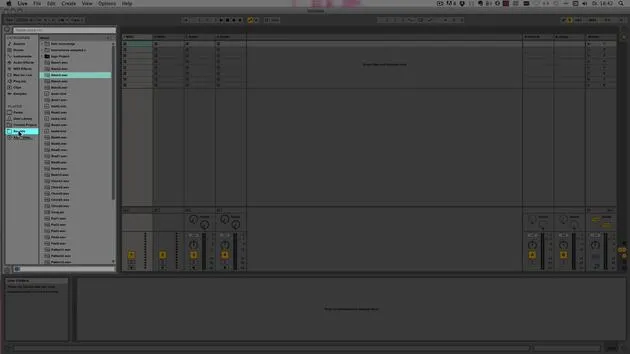
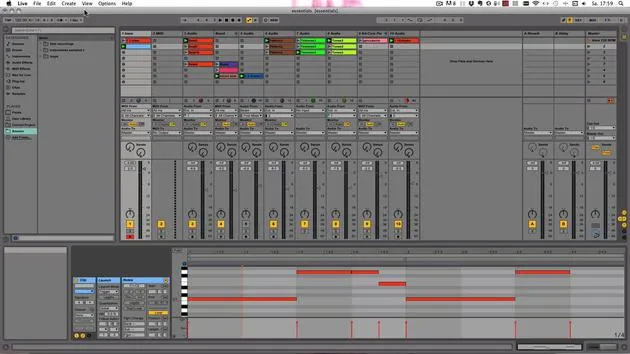
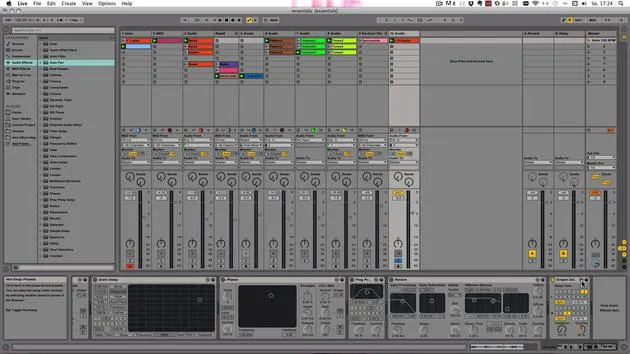
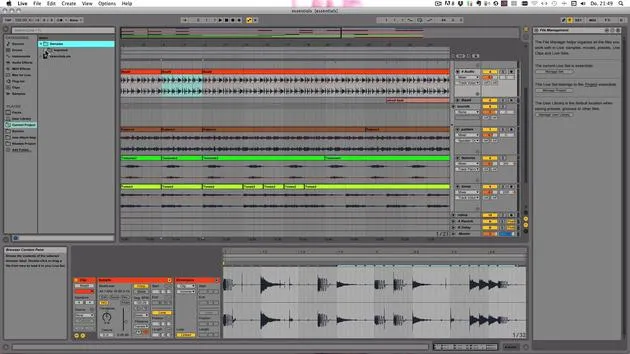
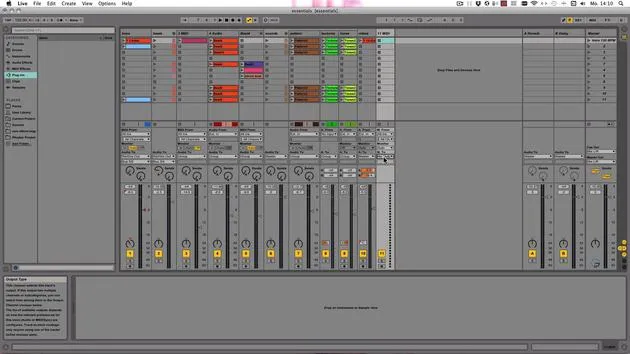
The browser has been redesigned for Live 9, making it easier to navigate. It includes:
- Sidebar: Allows for easy access to categories.
- Content Pane: Displays the content based on the selected category.
You can navigate using:
- The mouse
- Arrow keys on your computer keyboard
Categories in the Browser
-
Sounds:
- Contains all the instrument racks organized by sound (not by device).
- Includes categories such as:
- Bass sounds
- Pads
- Piano and keys
- For example, use the down arrow key to navigate to Drums, which contains drum racks and single hits.
-
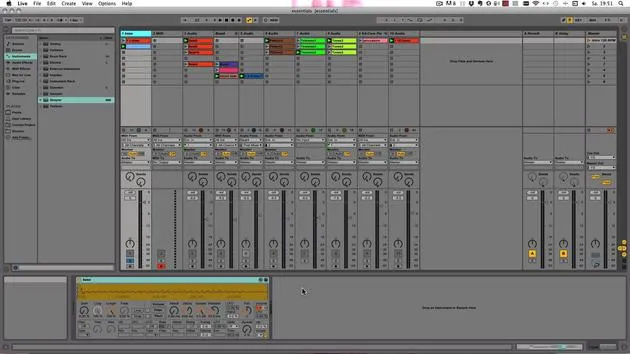
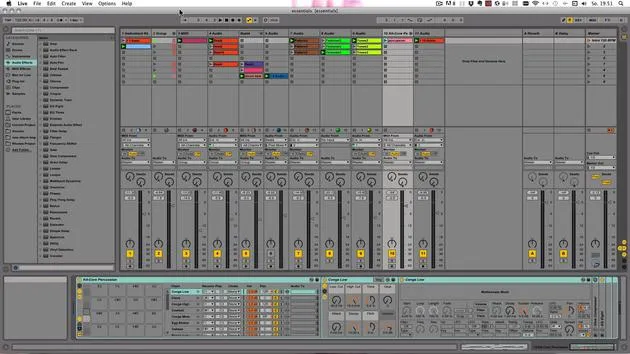
Instruments:
- Lists all the available instruments of your Live version.
- Note: The suite installation has the maximum amount of instruments.
- A standard Live 9 install includes:
- Simpler instrument rack
- Impulse
- External instrument
- Drum rack
- Lesser versions (Intro or Live Lite) may lack certain instruments.
-
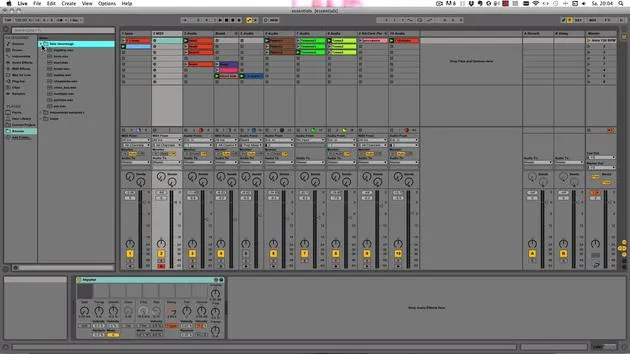
Audio Effects:
- Contains presets for all audio effects supplied with Live.
-
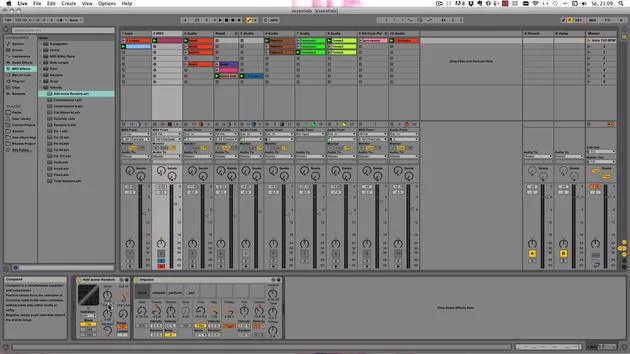
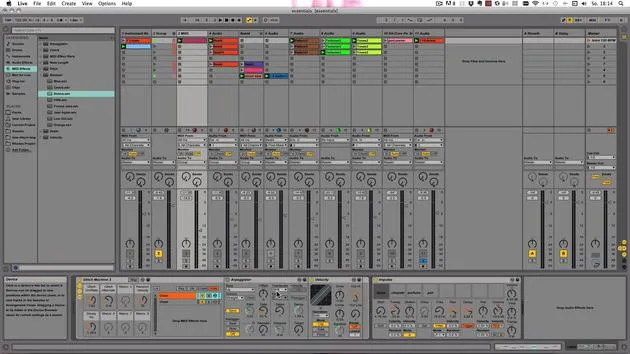
MIDI Effects:
- Includes presets for MIDI effects.
-
Max for Live:
- Visible only if you have Max for Live installed, showing:
- Max audio effects
- Max instruments
- Max MIDI effects
- Visible only if you have Max for Live installed, showing:
-
Plugins:
- Displays configured plugins.
- On Windows, shows VST effects and VST instruments;
- On Mac, includes Audio Units.
Working with Folders
- To add a folder, click Add Folder.
- To remove a folder, right-click and select Remove from Sidebar.
- You can add multiple folders, which then display all files and subfolders contained within.
External Drives
If you have added a folder from an external hard drive and it's not connected, it will appear greyed out. To locate it again:
- Right-click on the folder and select Locate.
Searching the Browser
To search for specific files:
- Use Windows: Control + F or Mac: Command + F.
- Begin typing your search term (e.g., "Piano") to see all corresponding files and presets.
Previewing Files
To preview files:
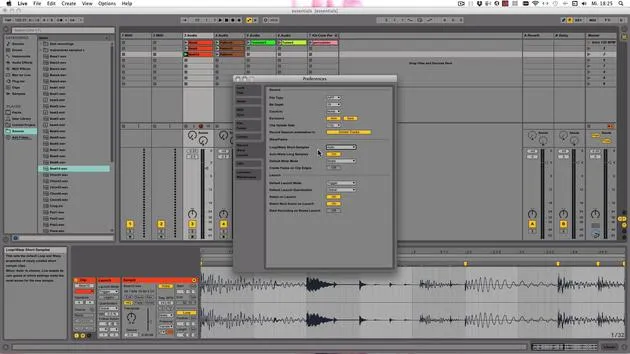
- Ensure the preview button is enabled.
- Short samples will play automatically for presets.
- For live clips, you'll need to either click it or press the right arrow key to preview.
Audio Playback Notes:
- All files play at the tempo set in the live set (e.g., 120 BPM).
- Warped files will play in sync; unwarped files will play at their original tempo.
- To prevent a warped clip from syncing to the live set's tempo, turn on RAW (note: scrubbing won't work with RAW enabled).
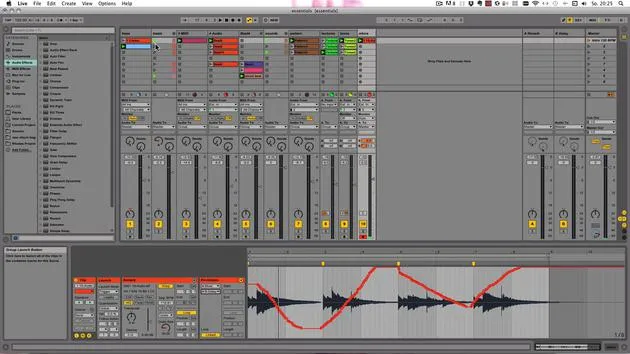
Scrubbing
- Click within the waveform display to make Live jump to that position and play from there.
- Adjust the volume of the preview as needed.
Adding Files to Your Project
To add files to your project:
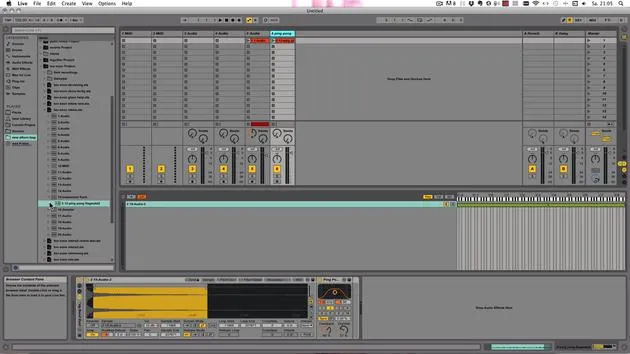
- Double-click to add a new track (e.g., an audio track or MIDI track).
- Drag and drop files to create a new track or to place them in existing tracks.
With this knowledge, you're well-equipped to navigate the browser and incorporate files into your projects effectively.
36 lessons
5h 28m of structured video lessons
Advanced video features
Slow down, loop a passage, follow along
Mobile, tablet & desktop
Practise wherever you are
100% satisfaction guarantee
30-day money-back guarantee
Meet your guru
Meet your guru
Madeleine Bloom is a classically trained musician, producer, multi-instrumentalist and singer from Berlin, and founder of the label Quixotica Records. She studied electroacoustic music at the Franz Liszt Conservatory under Prof. Robin Minard, and brings those methods to her own blend of electronica pop. Her music has earned praise from producers Guy Sigsworth and Rupert Hine, and a personal invitation from Imogen Heap, whose tour she opened.
A former Ableton technical support agent, she founded the online platform Sonic Bloom in 2012, where she teaches Ableton Live and music production through courses, workshops and one-to-one classes. She has helped people around the world with Ableton Live, Push and Max for Live, as well as audio engineering, music theory, composition and sound design.







