



Converting Drums To MIDI

With
Madeleine Bloom
What's in the course
36 lessons (5h 28m) · 1 free
Lesson transcript
Music Lesson: Converting Audio to MIDI in Live 9
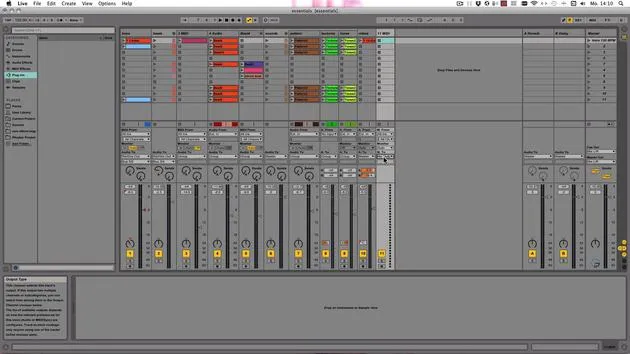
Today I want to show you my favorite feature in Live 9 at the moment, which is the audio to MIDI function.
Starting with Beats
This can be a helpful tool if you're a newbie and you haven't made beats before. It serves as a great starting point for:
- Learning how to build your own beats
- Trying out different genres
- Overcoming creative blocks
Lesson Introduction
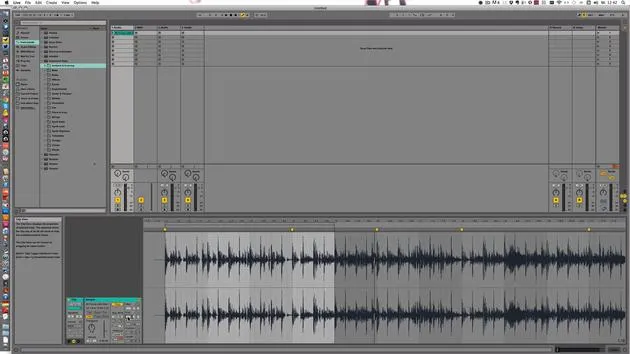
I've chosen a track by Fixed Twin and I'm going to start with that.
-
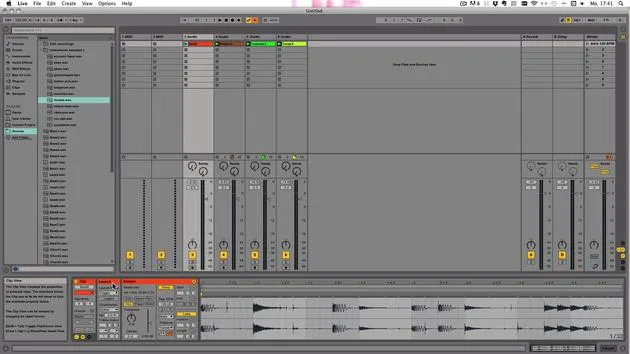
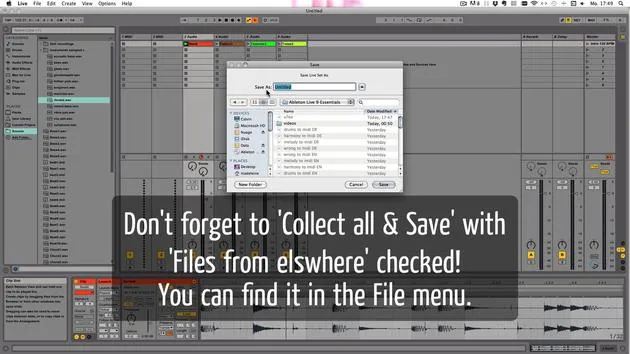
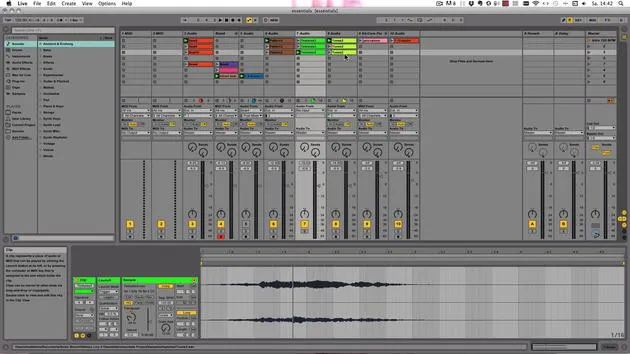
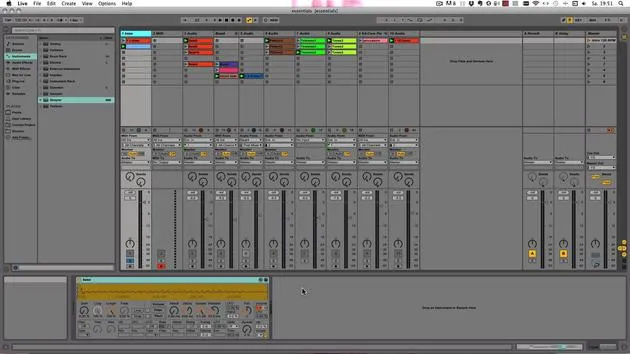
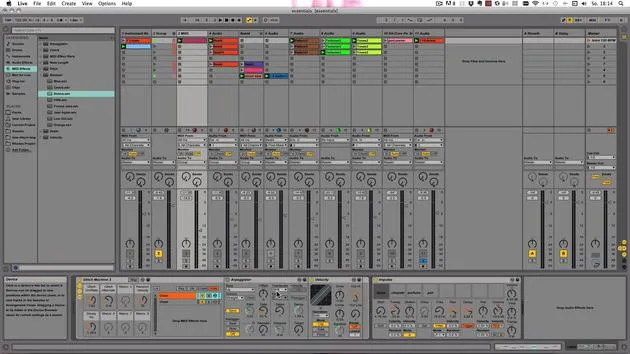
Right Click on the Audio Track:
- You will see the new functions:
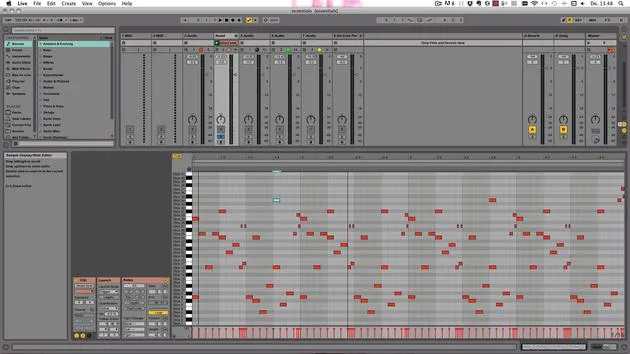
- Convert Harmony to New MIDI Track
- Convert Melody to New MIDI Track
- Convert Drums to New MIDI Track
But before we dive into these options, we should select a part that works quite well.
- You will see the new functions:
Preparing the Audio
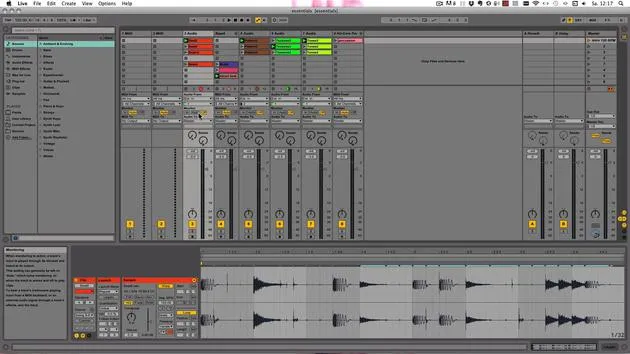
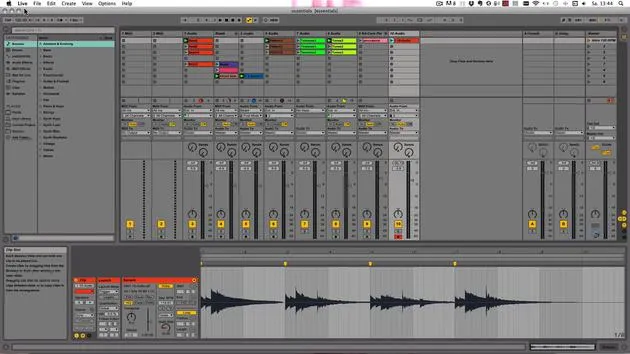
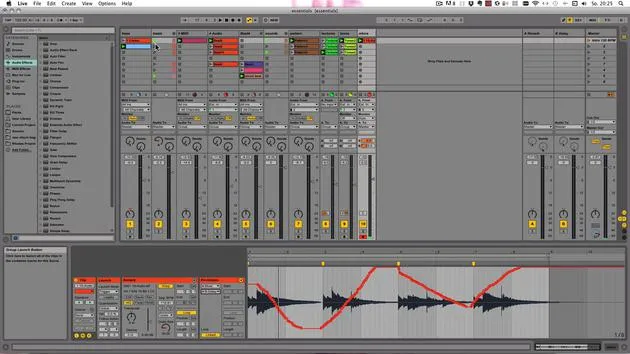
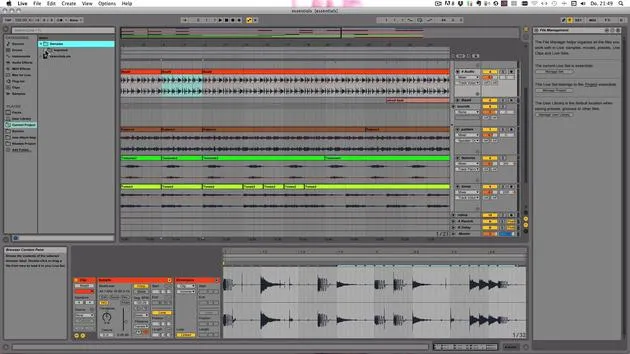
- Select and Warp: Let's click half warp from here. It should start at bar one.
- Play the Track: After bar five, many more sounds come in, which we want to avoid. It's best to use the "Convert Drums to New MIDI Track" only on beats or drum loops.
Input Options
You can also:
- Beatbox if you can
- Tap something on your desktop and record that with a microphone
Just ensure the sound is percussive with minimal background noise.
Converting the Clips
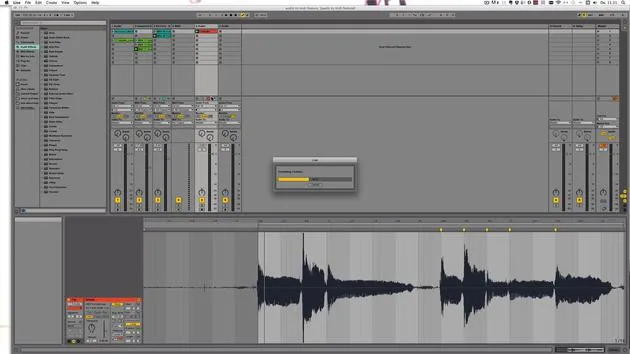
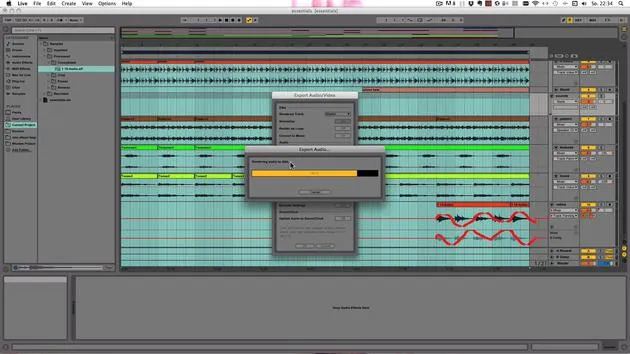
Now, let's convert this!
Note: The longer the audio file, the longer it will take to convert.
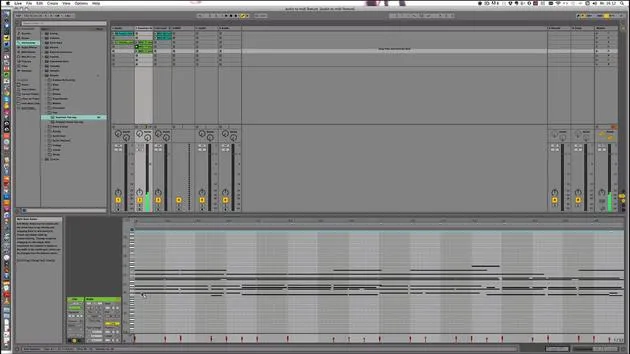
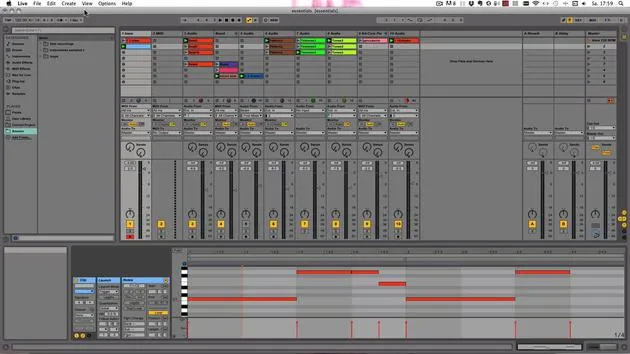
After the conversion:
- We might notice something missing at the beginning, this can be added later.
- Remember to loop the clip.
Creating Your Beat
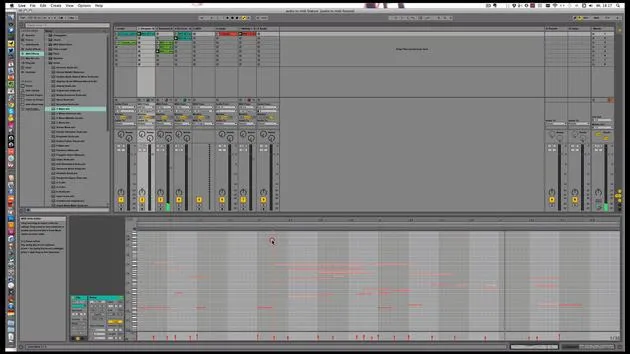
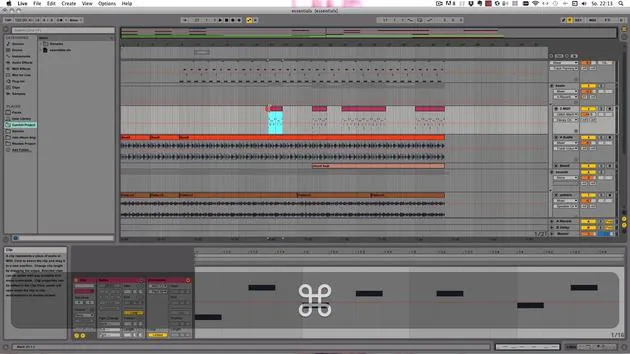
- Copy the initial two bars to fill in the gaps.
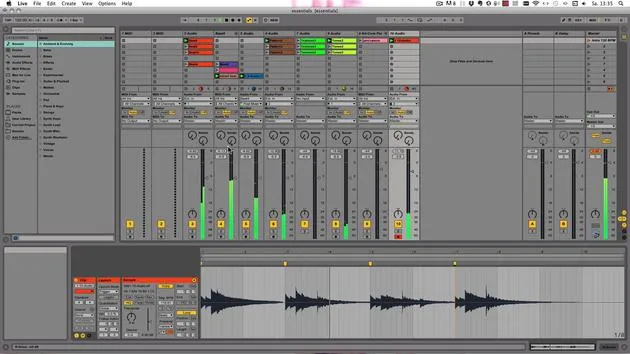
- Be cautious of clipping; if the audio is going into the red, we need to adjust it.
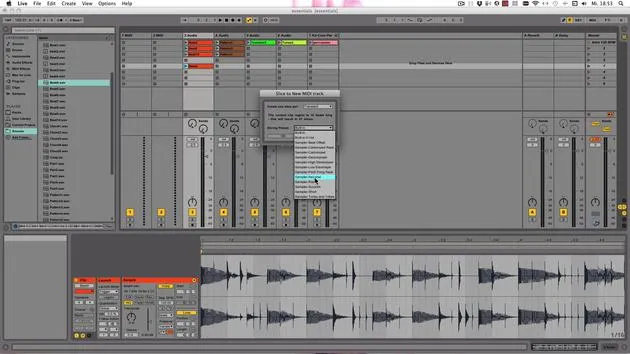
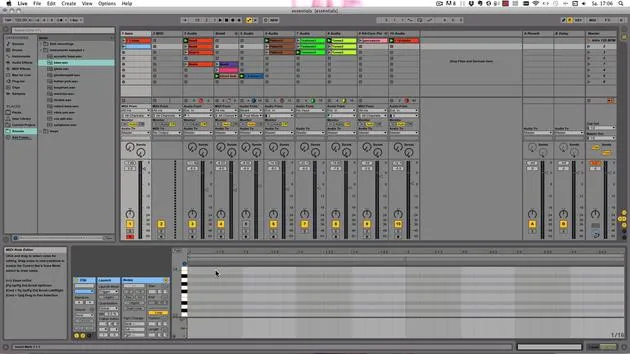
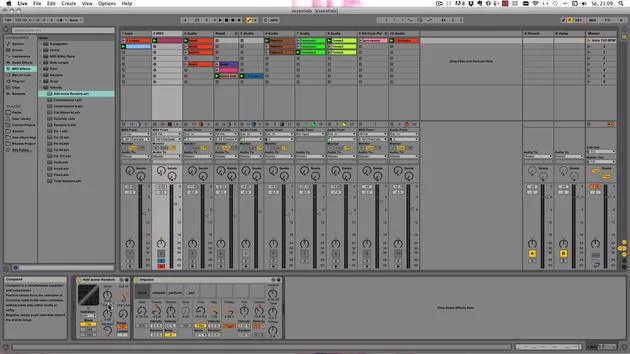
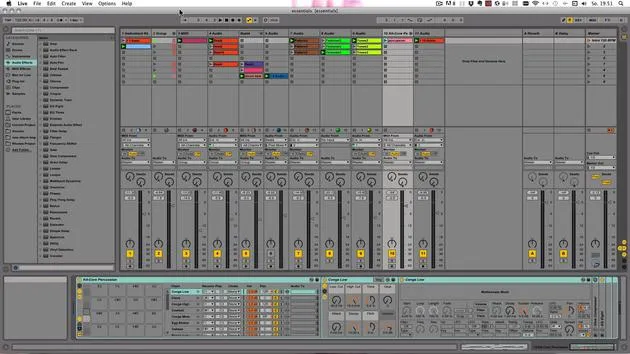
Using a MIDI effect, I'll select a kick (like the 606) but prefer something more creative.
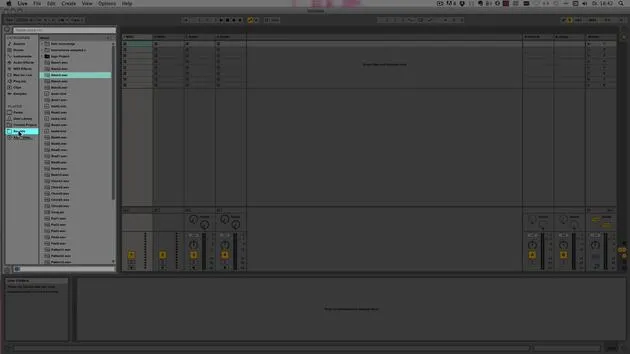
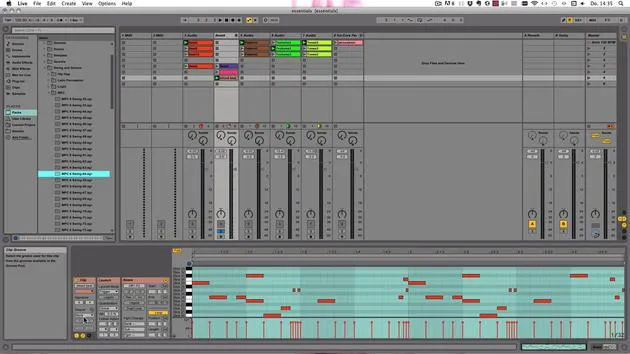
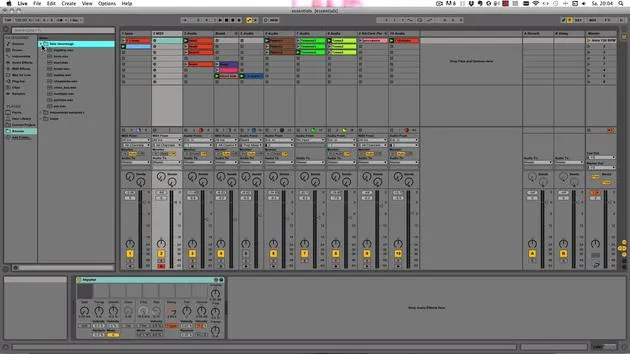
- Searching for Sounds:
- Let's go through packs.
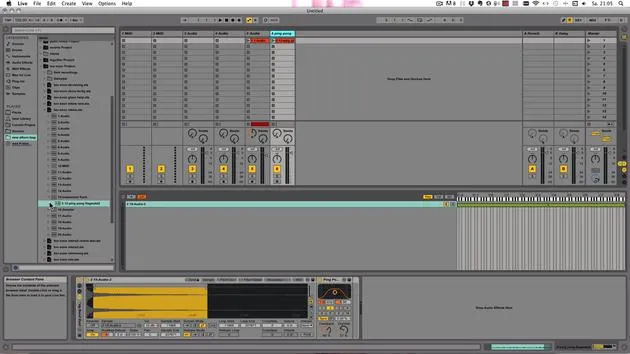
- Navigate to the core library and drop in the first sound.
Playing Your Beat
Now, let's play it.
Tip: You can create beats using several MIDI clips by converting different audio clips and experimenting with various kits and sounds.
Editing Your Beat
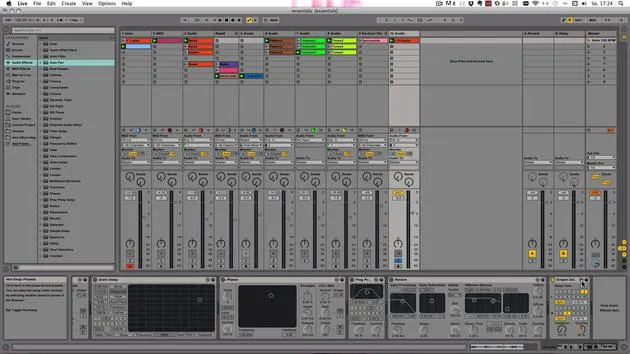
- You can move things around or add new elements.
- Duplicate clips easily:
- On Windows: Control + D
- On Mac: Command + D
You can also:
- Copy a bar and duplicate it as needed.
Final Thoughts
You can already create a lot of variations with just this technique.
Listen: Play back your creation. No one would think that this is the same track!
Next Steps
That's it for now! The next tutorial in this series will focus on the harmony to new MIDI track feature, where I'll show you its applications.
See you next time!
Bye!
36 lessons
5h 28m of structured video lessons
Advanced video features
Slow down, loop a passage, follow along
Mobile, tablet & desktop
Practise wherever you are
100% satisfaction guarantee
30-day money-back guarantee
Meet your guru
Meet your guru
Madeleine Bloom is a classically trained musician, producer, multi-instrumentalist and singer from Berlin, and founder of the label Quixotica Records. She studied electroacoustic music at the Franz Liszt Conservatory under Prof. Robin Minard, and brings those methods to her own blend of electronica pop. Her music has earned praise from producers Guy Sigsworth and Rupert Hine, and a personal invitation from Imogen Heap, whose tour she opened.
A former Ableton technical support agent, she founded the online platform Sonic Bloom in 2012, where she teaches Ableton Live and music production through courses, workshops and one-to-one classes. She has helped people around the world with Ableton Live, Push and Max for Live, as well as audio engineering, music theory, composition and sound design.







