



Live Sets et Live Projects

Avec
Madeleine Bloom
Le contenu du cours
36 leçons (5h 28min) · 1 gratuites
Transcription de la leçon
Working with Live Sets in Ableton Live
The file that you're working on in Ableton Live is called a Live Set. It contains:
- All the MIDI clips
- All the settings for tracks, clips, and devices
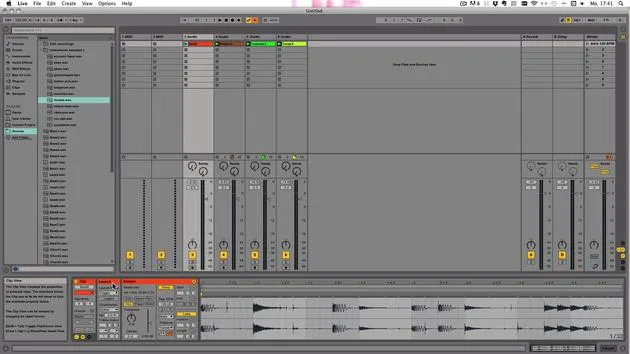
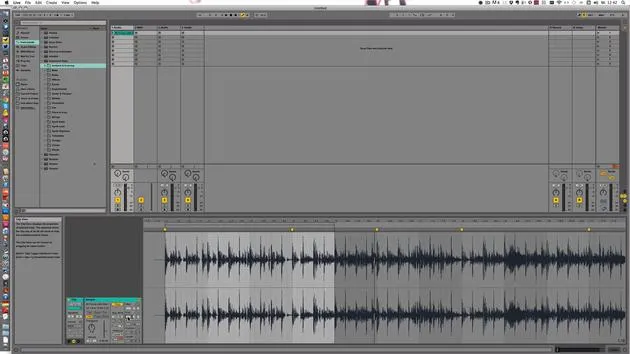
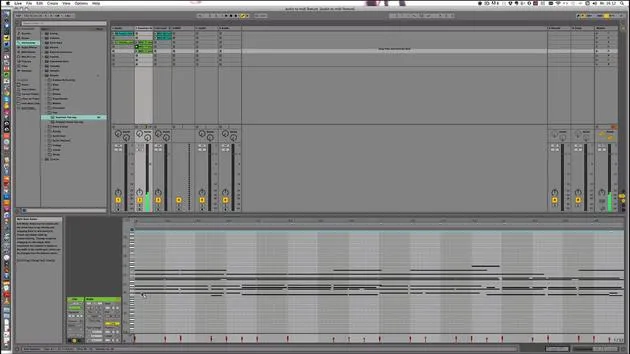
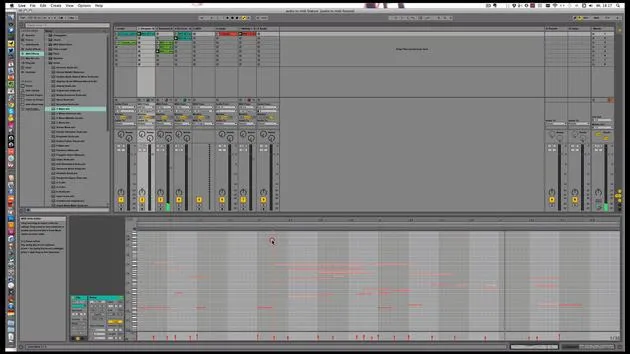
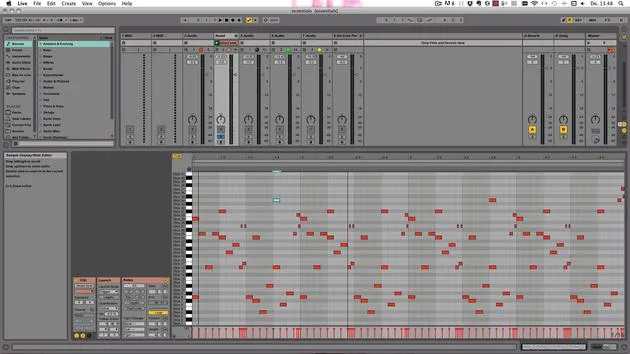
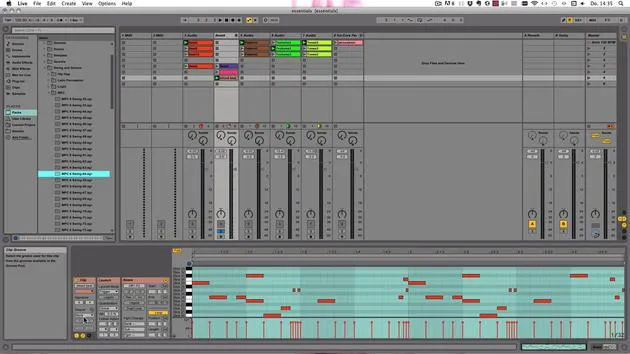
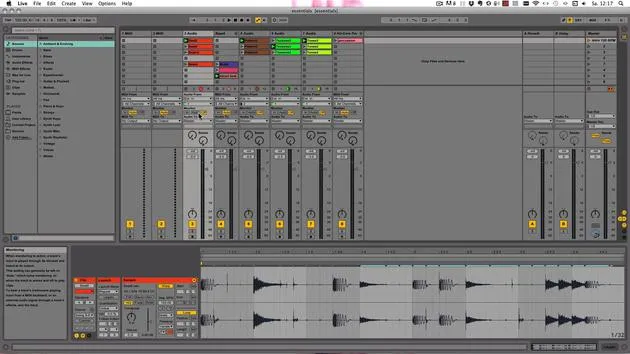
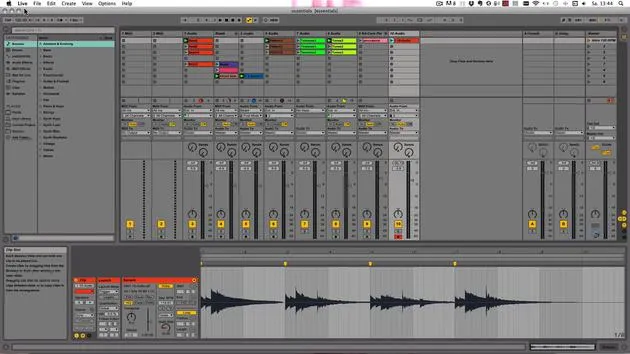
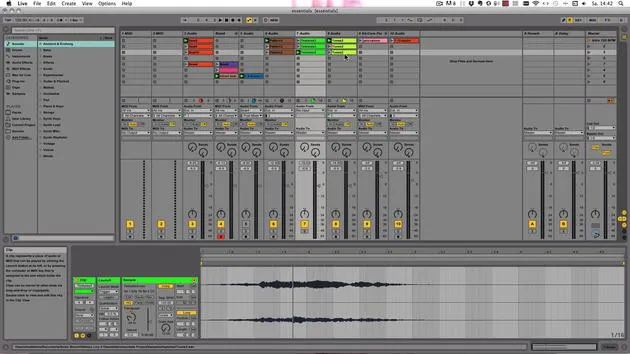
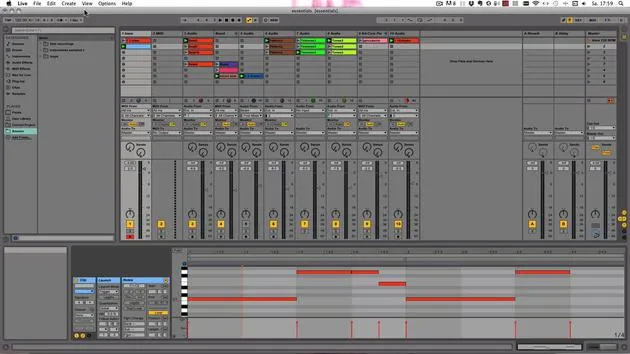
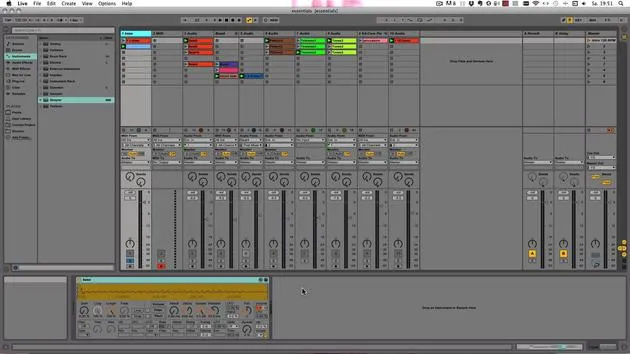
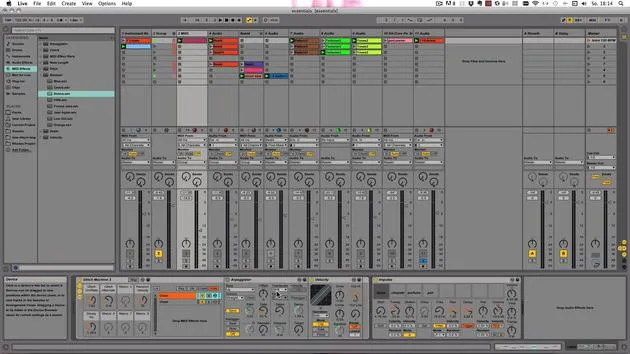
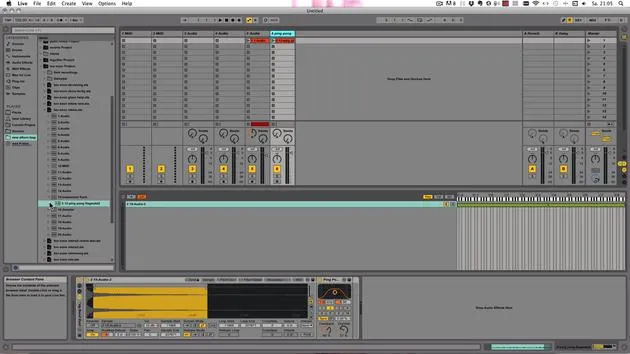
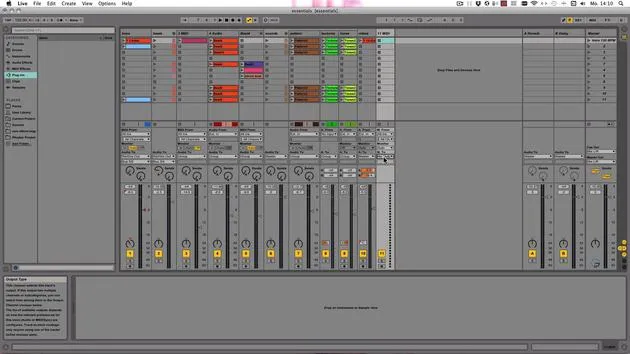
I've prepared a little Live Set here that is unsaved so far, which you can see because it's called Untitled. It has:
- A MIDI clip
- Some devices
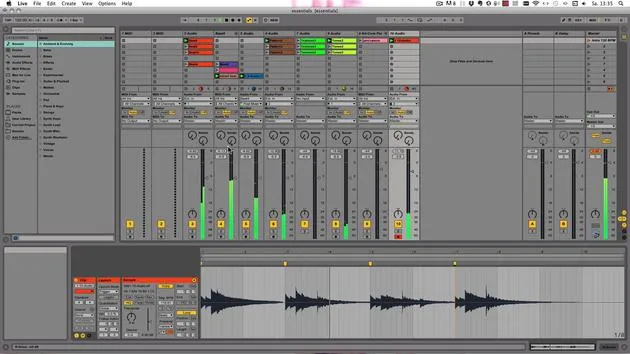
- An audio clip that I just recorded
Saving Your Live Set
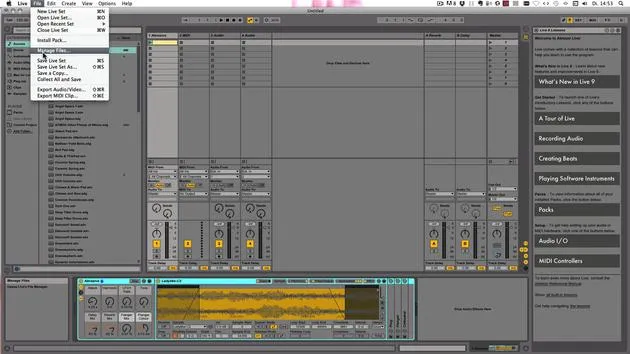
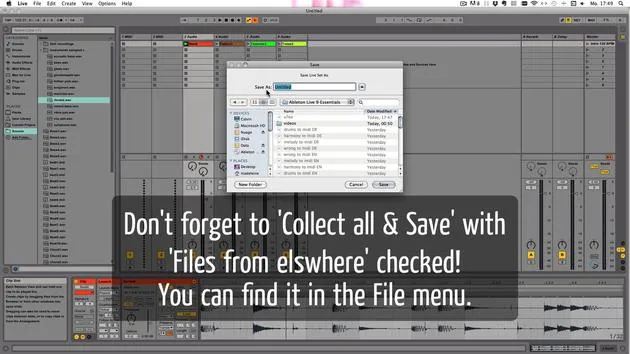
Let's save that. You can save through:
- File > Save Live Set
- On Mac: Command + S
- On Windows: Control + S
Here you see, I've been working on another project. This is where you definitely don't want to save it. You should have a dedicated folder where you want to save all your Live Sets into. For example, here I have different folders:
- Collaborations
- Music
Saving Process
Let's say I want to save it in Collaps and call this Test. Then, press Enter.
There are also more commands for saving:
-
Save As: This is useful, for example, if you've been working on a song or a track, saved it, and then go back the next day to work more on it. Suppose you want to save it as Version 2; you could save it as Test 2.
-
Save a Copy: Here, you can save it with a new name and in a different location.
Using the Browser
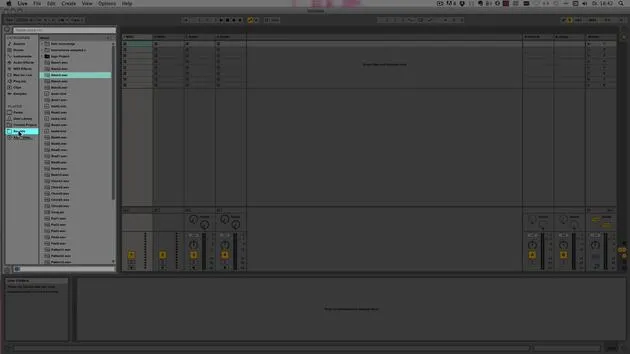
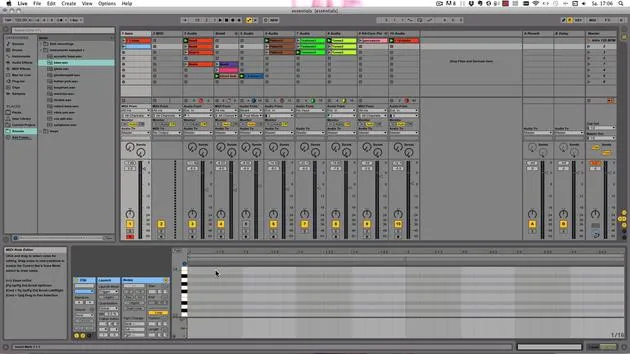
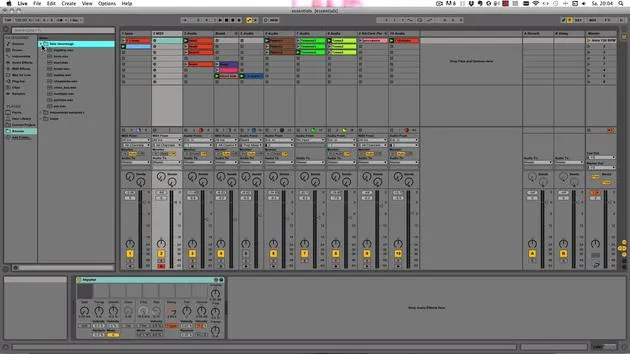
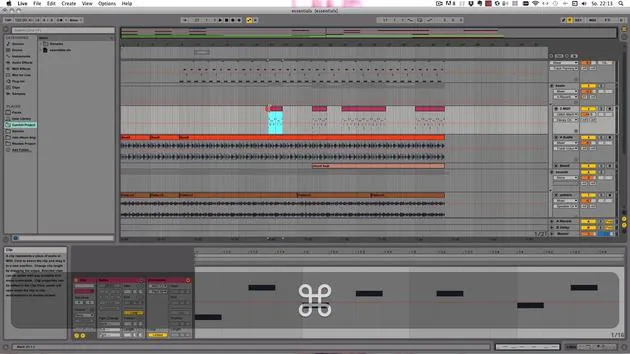
In the browser, you can go to Current Project, which shows you all the files in your Live Set, such as:
- Test 1
- Test 2
- Samples folder
Exploring Tracks and Clips
When you click on the little triangle, you can unfold and see more details:
- Track 1
- Track 2
- Track 3
- Track 4
Upon unfolding them, you can see the clips contained in each track:
- Track 1: Nothing in it.
- Track 2: Audio clip, nothing in it again.
- Samples folder: So far, it only has another recorded folder.
Important Note on Samples
The Samples folder contains all the audio files because Live Sets themselves (the .ALS files) are not very big. They do not save the WAV files within them, but only reference them. Therefore:
- Ensure you have a dedicated folder.
- Always save a new Live Set there to avoid saving it in the Live library or within another Live Set's project folder, which prevents the Samples folder from being generated and can lead to missing audio files.
This is a common issue that many newcomers to Live encounter.
Viewing in Finder
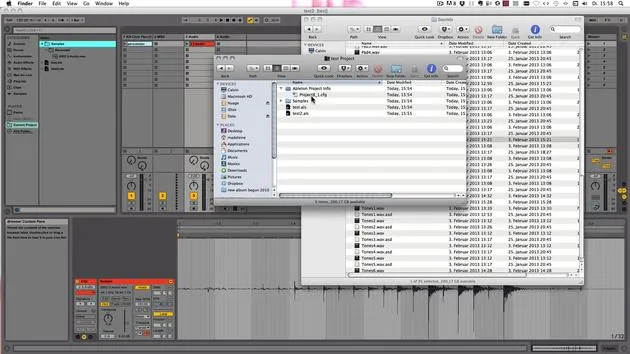
Let's take a look at how this looks in Finder on Mac. It would appear the same on Windows in Windows Explorer.
- Navigate back to Collaps; you will find the Test project containing:
- Samples folder
- Both saved Live Sets (Test 1 and Test 2)
- Ableton project info, which Live needs for data (do not delete this).
When you save a Live Set for the first time, a project folder with the same name is instantly created that contains:
- All Live Set versions
- The Samples folder
Adding Audio Clips
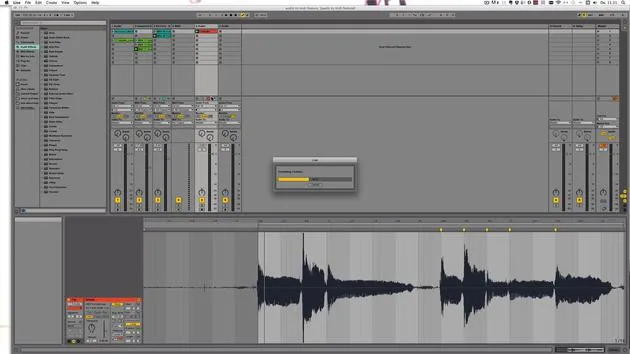
Let's drag another audio clip in. If I save again and then check, you'll see it doesn't show up here because only what's been recorded or created by Live shows up in the Samples folder.
To avoid having lost connections and to address missing media files:
- Go through Collect All and Save.
- If you wish to copy audio files from the Live library, turn that option on.
All this is covered in a later tutorial, so don't worry about it. Just press OK, and you'll see a folder called Imported now, containing all the audio files used in that Live Set.
Opening Live Sets
To open a new Live Set, go through:
- Open Live Set or
- On Mac: Command + O
- On Windows: Control + O
You can also use Open Recent Set to quickly access the Live Sets you've been working on. Be mindful that some may be grayed out, meaning either they were deleted, moved, or renamed, causing Live to lose track of them.
Starting a New Live Set
You can start a new Live Set by pressing:
- On Mac: Command + N
- On Windows: Control + N
By default, Live always starts with a new Live Set. Unfortunately, you cannot set it to open with the last project you worked on.
Lastly, if you close a Live Set, a new one is created instantly as well.
36 leçons
5h 28m de leçons vidéo structurées
Fonctions vidéo avancées
Ralentissez, bouclez un passage, suivez la partition
Mobile, tablette et ordinateur
Pratiquez où vous voulez
Satisfaction garantie à 100 %
Garantie remboursement 30 jours
Rencontrez votre guru
Rencontrez votre guru
Madeleine Bloom est une musicienne de formation classique, productrice, multi-instrumentiste et chanteuse originaire de Berlin, et fondatrice du label Quixotica Records. Elle a étudié la musique électroacoustique au Conservatoire Franz Liszt auprès du Prof. Robin Minard et applique ces méthodes à son propre mélange de pop électronique. Sa musique a été saluée par les producteurs Guy Sigsworth et Rupert Hine, et lui a valu une invitation personnelle d'Imogen Heap, dont elle a assuré la première partie de la tournée.
Ancienne conseillère du support technique d'Ableton, elle a fondé en 2012 la plateforme en ligne Sonic Bloom, où elle enseigne Ableton Live et la production musicale à travers des cours, des ateliers et des séances individuelles. Elle a accompagné des personnes du monde entier avec Ableton Live, Push et Max for Live, mais aussi en ingénierie du son, théorie musicale, composition et sound design.







