



Enregistrer de l'audio
Avec
Madeleine BloomDécouvre comment enregistrer de l'audio dans la Session View de Live.
Le contenu du cours
36 leçons (5h 28min) · 1 gratuites
Transcription de la leçon
Recording External Audio
So now that you've already recorded some audio internally, we want to do the same with external audio.
Importance of a Good Audio Interface
Let me just stress again:
- If you want to record acoustic or electric instruments and/or vocals, please get a decent audio interface.
- This will help you achieve smaller latencies (delays in sound).
- Built-in sound cards are never really equipped to do that properly.
Connecting Your Equipment
-
Connect your instrument or microphone:
- Use an audio cable to connect to an input on your audio interface or sound card.
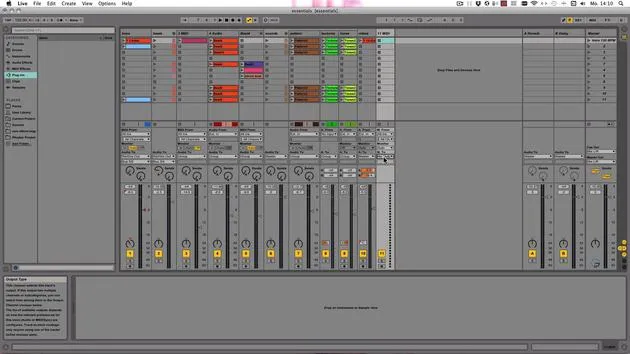
- If you just have one, go to the "in/out" section in the audio track.
-
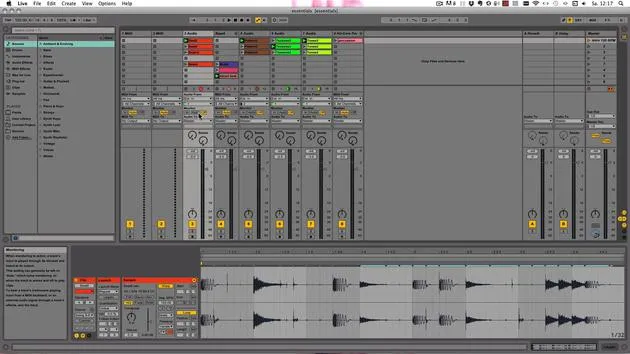
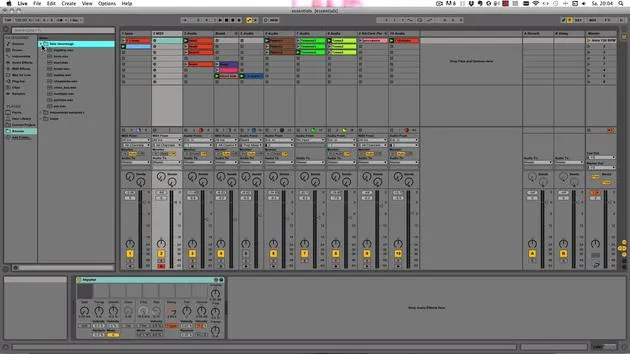
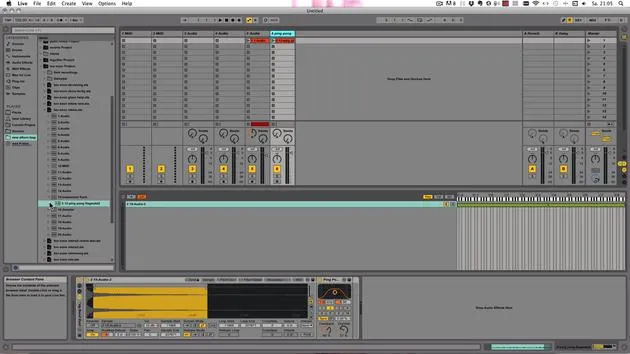
Create a new audio track:
- Use Command (or CTRL) + T to create a new audio track.
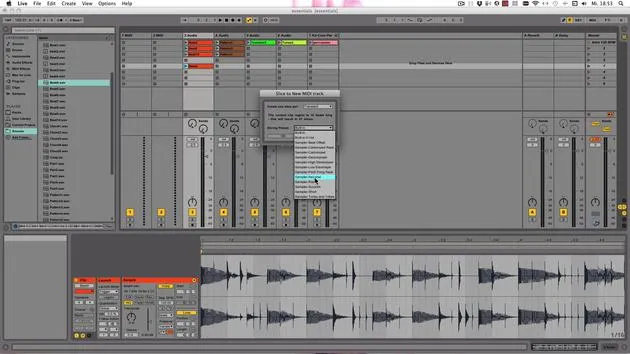
- Choose "External In" and select the appropriate input.
- Example: If you've connected your MBIRA to input 3, choose input 3.
Tip: Always choose the correct input based on your connections.
- Monitoring Settings:
- Select your preferred monitoring setting; I recommend "Auto" to hear if it gets too loud.
- Make sure to use closed headphones, especially when working with a microphone.
Arming the Track
Before you arm the track:
- Ensure that headphones are connected and speakers are turned off to avoid feedback.
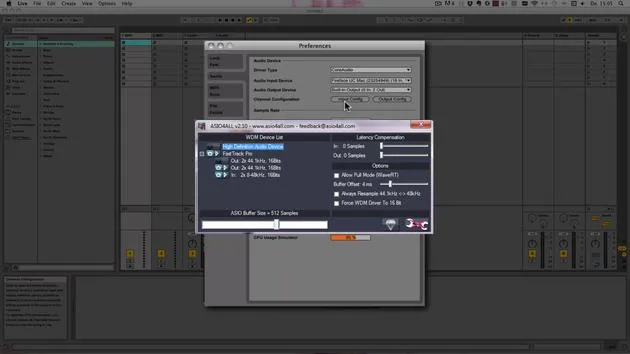
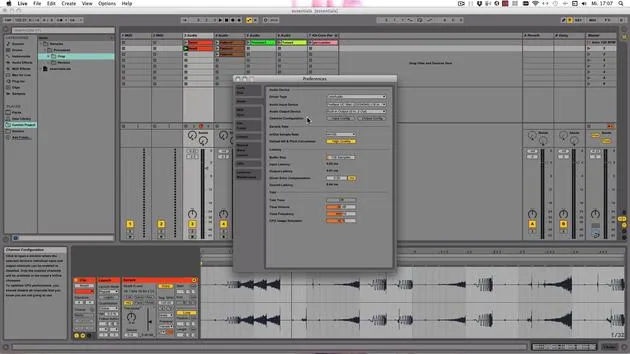
- If you can't choose the right input (e.g., stereo 3/4), click on Configure, choose Input Config, and turn it on if needed.
- Close the configuration window; setting "Audit 2" to the master is usually fine unless you want to send it elsewhere.
Exclusive Arming Setting
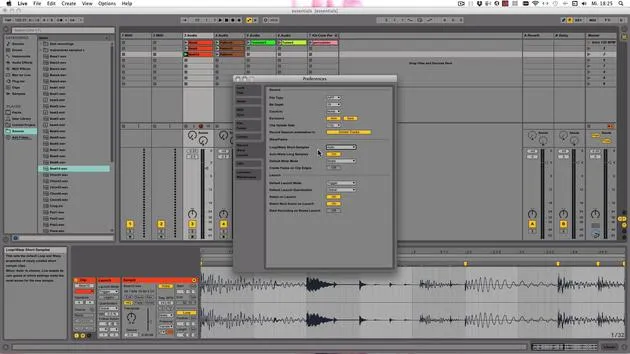
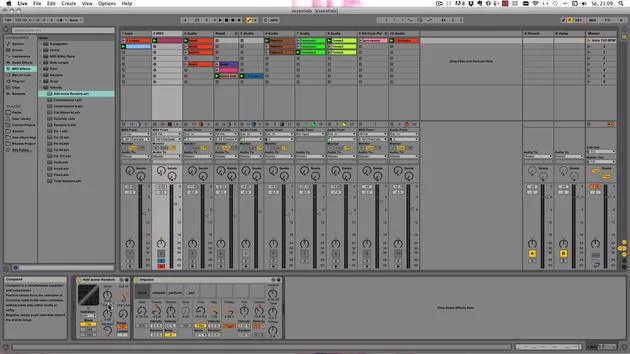
- When you arm a track, it should disarm all other tracks unless you've altered that in preferences.
- This option can be found under Recall Warp > Launch > Exclusive Arm.
Testing Input Levels
-
Test the input:
- Play your instrument lightly and then loudly.
- Ensure the levels do not exceed zero; otherwise, you risk digital clipping.
-
Adjusting Levels:
- If levels are too low or too high:
- For built-in sound cards: Adjust via System Preferences on Mac or Sound in the Control Panel on Windows.
- For audio interfaces: Use the knob directly on the interface or download mixer software from the manufacturer's website if necessary.
- If levels are too low or too high:
Setting the Tempo
- If you need to set a tempo for recording something without a rhythm, use the Tap Button in the top left.
- Tap it four times (or according to your desired time signature) to set the tempo.
- You can also turn on the metronome and set a count-in (default is set to none).
Recording Considerations
- When recording, ensure that the metronome is turned off if you have a count-in set.
- During the count-in, the metronome will sound and will be silent during playback.
Starting the Recording
Now that everything is set, you can start recording:
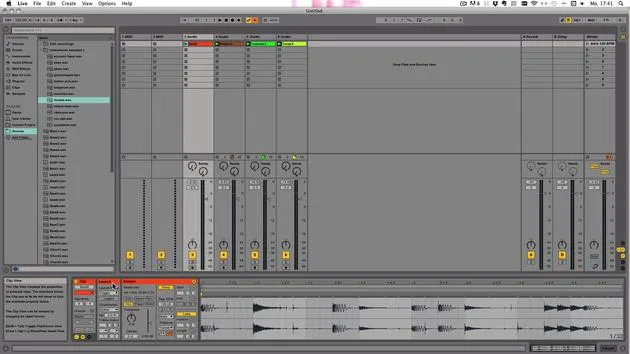
- Click on the record button in the clip slot or use the main session record button.
- After recording, press the space bar to stop. Note: You don't have to use the space bar to stop; it can also stop playback.
Play Back Your Recording
- To play back what you've just recorded, click on the record play button of the clip or on the session record button.
-
Adjust Levels During Playback:
- Ensure the recording levels do not exceed zero for best quality.
-
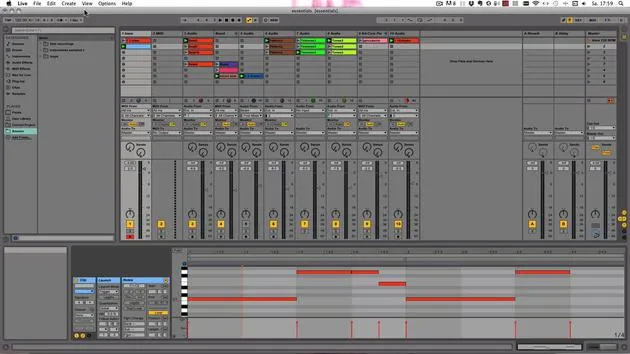
Clip View:
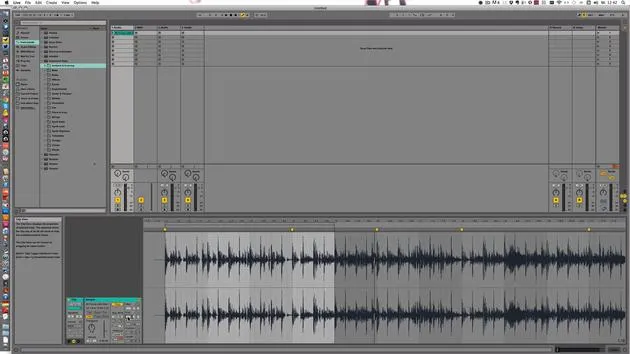
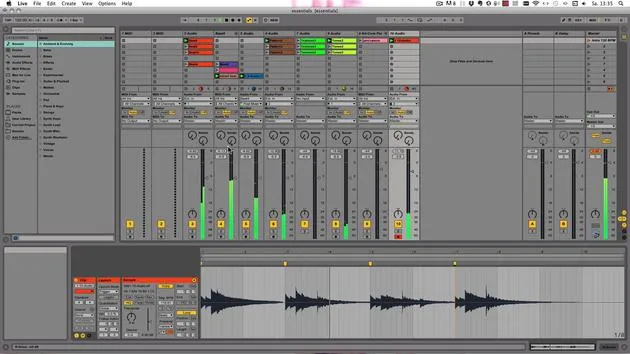
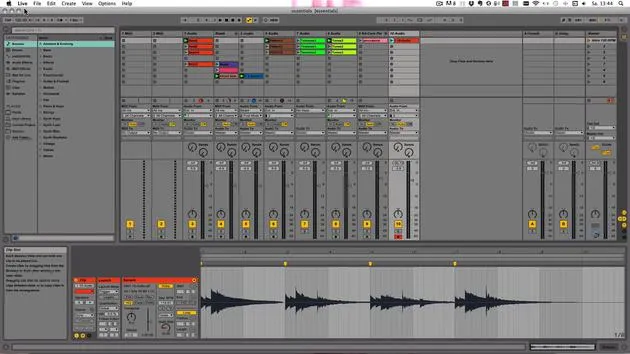
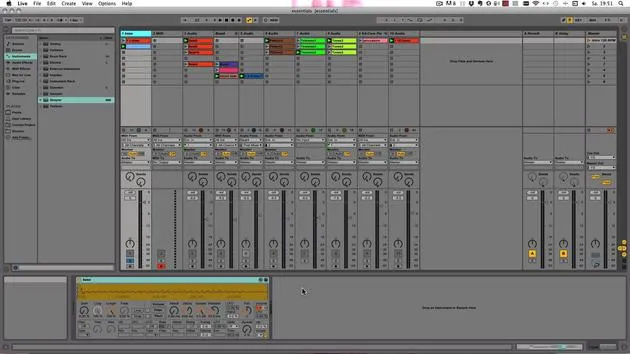
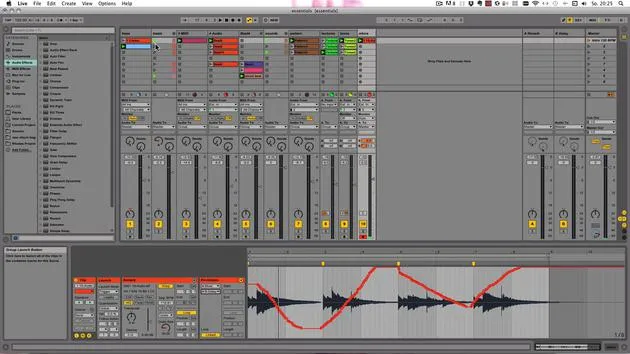
- You can see what you've recorded in the clip view and warp it to ensure it's on time.
Preparing for a New Take
- To stop playback and prepare for a new take, press the New button.
- This will stop clips in armed tracks and select a new scene for recording.
If your scenes are filled, it will create and select a new one.
Final Tips
- Feel free to experiment: record more, tweak your recordings, warp them, or play with transposition.
I'll see you in the next video. Bye!
36 leçons
5h 28m de leçons vidéo structurées
Fonctions vidéo avancées
Ralentissez, bouclez un passage, suivez la partition
Mobile, tablette et ordinateur
Pratiquez où vous voulez
Satisfaction garantie à 100 %
Garantie remboursement 30 jours
Rencontrez votre guru
Rencontrez votre guru
Madeleine Bloom est une musicienne de formation classique, productrice, multi-instrumentiste et chanteuse originaire de Berlin, et fondatrice du label Quixotica Records. Elle a étudié la musique électroacoustique au Conservatoire Franz Liszt auprès du Prof. Robin Minard et applique ces méthodes à son propre mélange de pop électronique. Sa musique a été saluée par les producteurs Guy Sigsworth et Rupert Hine, et lui a valu une invitation personnelle d'Imogen Heap, dont elle a assuré la première partie de la tournée.
Ancienne conseillère du support technique d'Ableton, elle a fondé en 2012 la plateforme en ligne Sonic Bloom, où elle enseigne Ableton Live et la production musicale à travers des cours, des ateliers et des séances individuelles. Elle a accompagné des personnes du monde entier avec Ableton Live, Push et Max for Live, mais aussi en ingénierie du son, théorie musicale, composition et sound design.







