



Computer Keyboard As A MIDI Controller

With
Madeleine Bloom
What's in the course
36 lessons (5h 28m) · 1 free
Lesson transcript
Using Your Computer Keyboard as a MIDI Controller
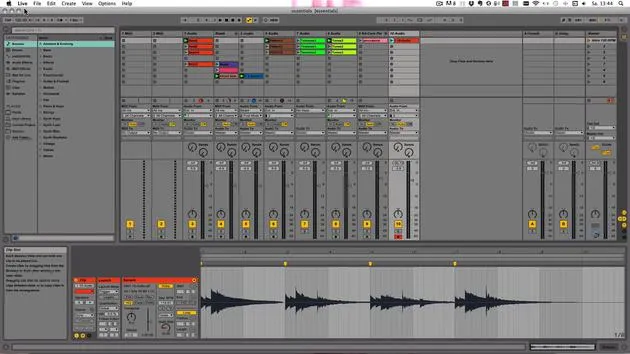
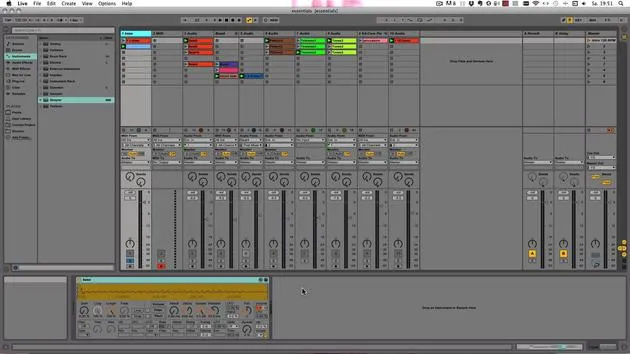
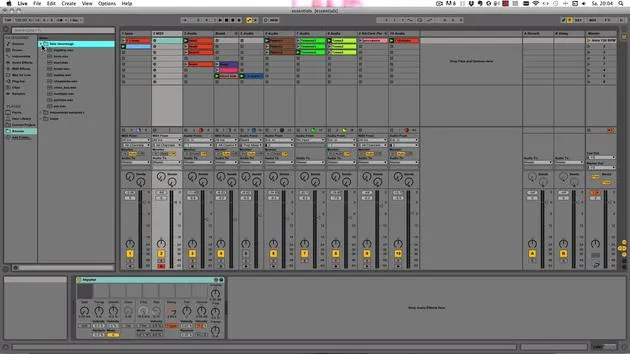
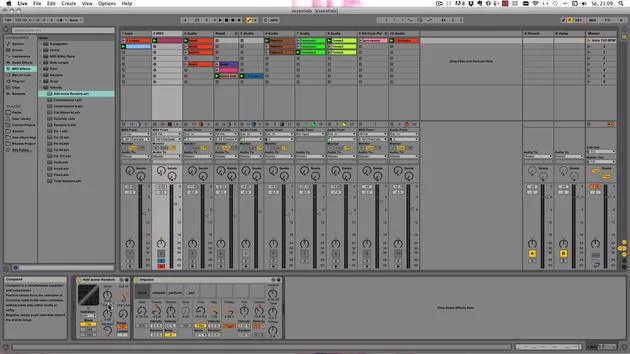
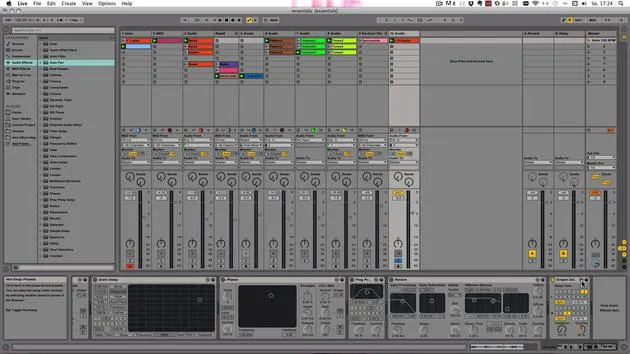
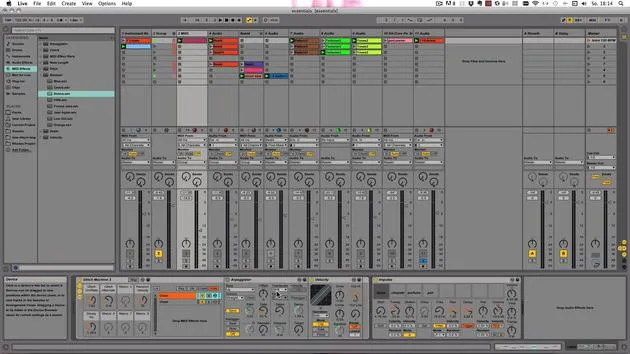
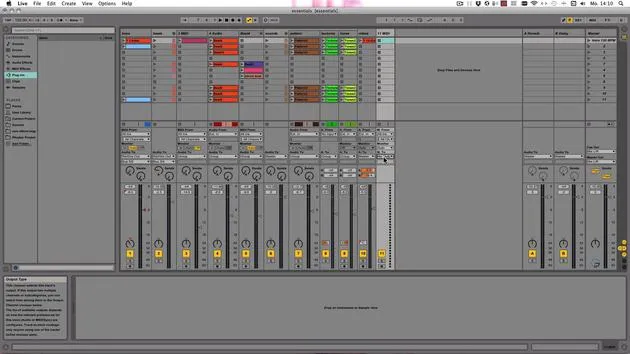
If you don't have a keyboard or other MIDI controller, you can still use your computer keyboard for the same tasks. Here's how to set it up:
Activating the Computer MIDI Keyboard
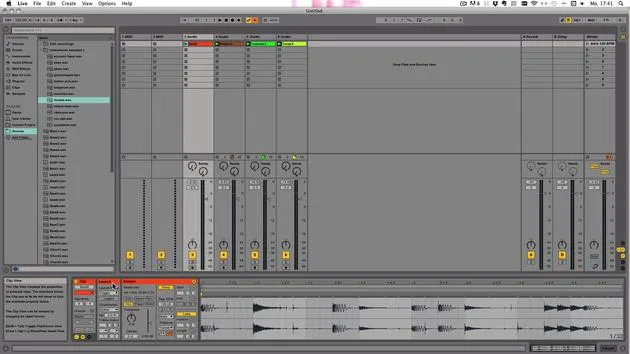
- Ensure the keyboard icon is on; this indicates that the computer MIDI keyboard is activated.
- By default, the MIDI keyboard is on.
Playing Notes
-
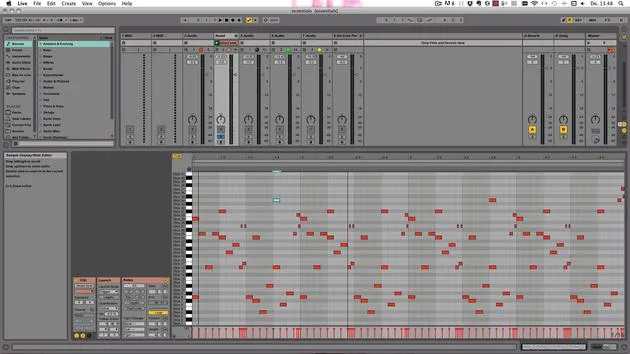
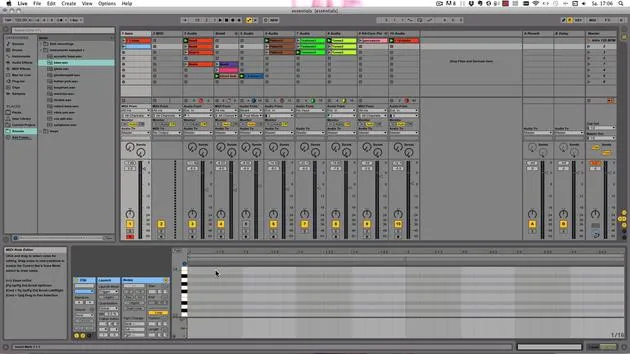
White Keys: Use the center row of letters from A to L to play the white keys on the keyboard. This corresponds to the notes from C3 to D4 by default.
-
Black Keys: Use the keys W, E, T, Y, U, and O on an English keyboard for the black keys.
Switching Octaves
- Use the keys Z to lower the octave and X to raise it.
- For example, when you click Z, the range changes to C2 to D3. When you click X, it can set back to C3 to D4 or go higher.
Adjusting Note Velocity
- The keys C and V adjust the incoming note velocity in intervals of 20.
- Default is set to 100.
- Pressing V increases it to 120, while pressing C brings it back to 100.
- If you go all the way up, it will reach 127, the maximum value.
Key Mapping
- You can also use the keyboard for key mapping rather than MIDI mapping.
- Activate key mapping by:
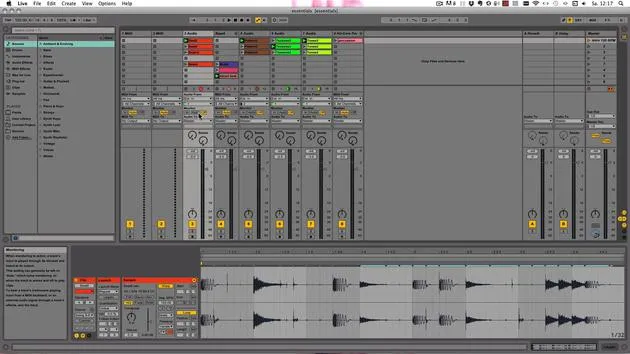
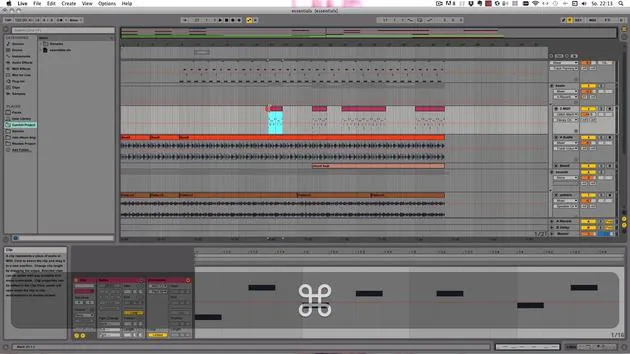
- Using the key button to turn it on (everything turns orange that can be mapped).
- Pressing Command + K on Mac or Control + K on Windows to toggle it on and off.
Mapping Example
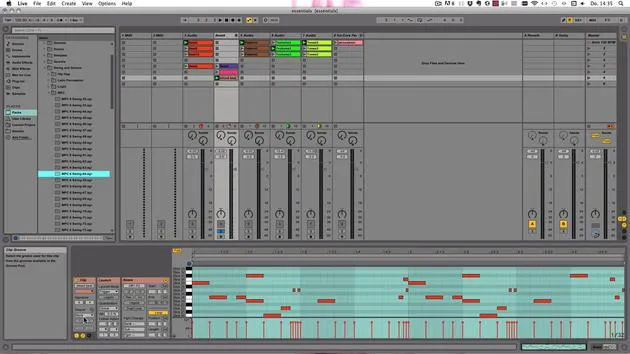
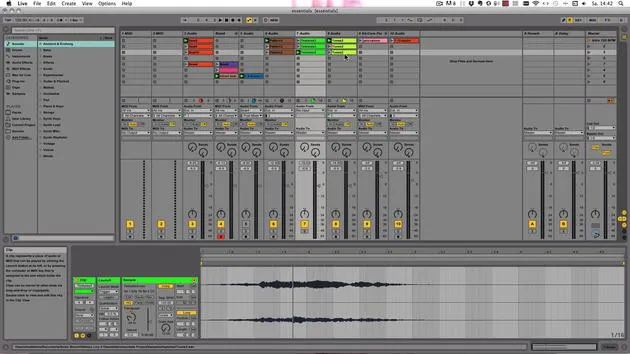
- For example, choose a clip, and you may see:
- Key one corresponds to track seven, slot number three.
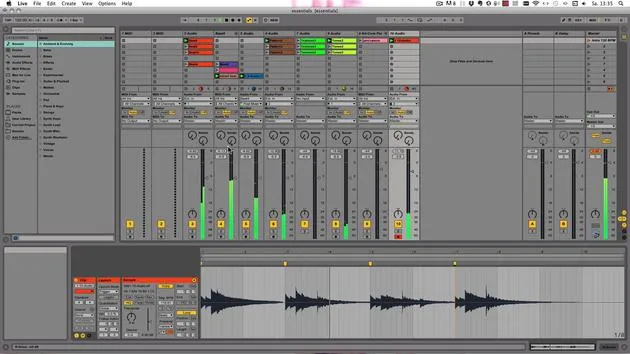
- You can map continuous parameters as well. For instance, mapping the volume to 2 allows for adjustments.
Note on Playing and Mapping
- When the keys A to L (or the upper row) are mapped, they cannot be used for playing sounds unless the computer MIDI keyboard is turned off.
- If you turn that off and map, say A, you can still play sounds.
Conclusion
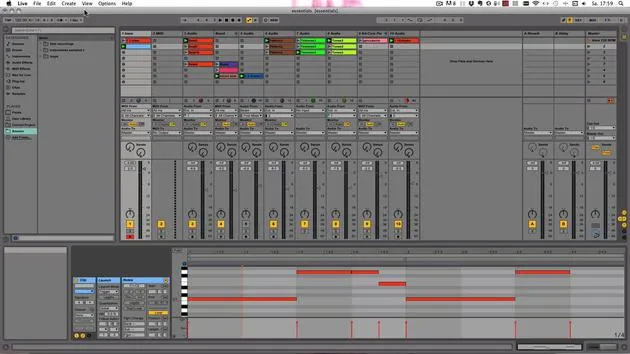
- Numbers work well for mapping, and in the next video, we will finally record some MIDI. See you then!
36 lessons
5h 28m of structured video lessons
Advanced video features
Slow down, loop a passage, follow along
Mobile, tablet & desktop
Practise wherever you are
100% satisfaction guarantee
30-day money-back guarantee
Meet your guru
Meet your guru
Madeleine Bloom is a classically trained musician, producer, multi-instrumentalist and singer from Berlin, and founder of the label Quixotica Records. She studied electroacoustic music at the Franz Liszt Conservatory under Prof. Robin Minard, and brings those methods to her own blend of electronica pop. Her music has earned praise from producers Guy Sigsworth and Rupert Hine, and a personal invitation from Imogen Heap, whose tour she opened.
A former Ableton technical support agent, she founded the online platform Sonic Bloom in 2012, where she teaches Ableton Live and music production through courses, workshops and one-to-one classes. She has helped people around the world with Ableton Live, Push and Max for Live, as well as audio engineering, music theory, composition and sound design.







