



MIDI Controller Setup & MIDI Mapping

With
Madeleine Bloom
What's in the course
36 lessons (5h 28m) · 1 free
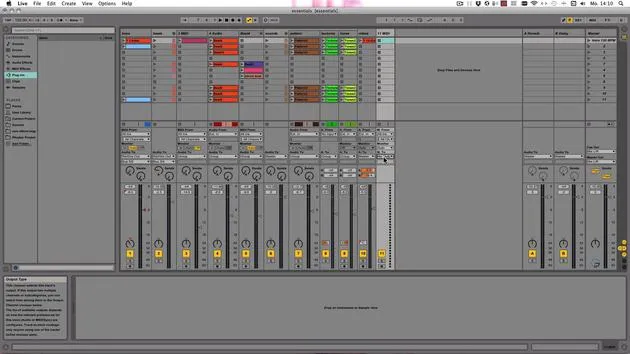
Lesson transcript
MIDI Controller Setup and MIDI Mapping in Ableton Live
So now let's get to the MIDI controller setup and also to MIDI mapping on the Ableton website. The link is also mentioned below here under Feature Comparison.
Finding Compatible MIDI Controllers:
- Scroll further down to see all the compatible MIDI controllers that allow for auto-mapping.
- These controllers are supposed to work as soon as you plug them in.
- Check if your controller is in that list or not. If it's not, don't worry; you will get to that as well.
Connecting Your MIDI Controllers
-
Plug In Your Controllers:
- I've already plugged in my Archai LPK25, BCF2000, and Launchpad.
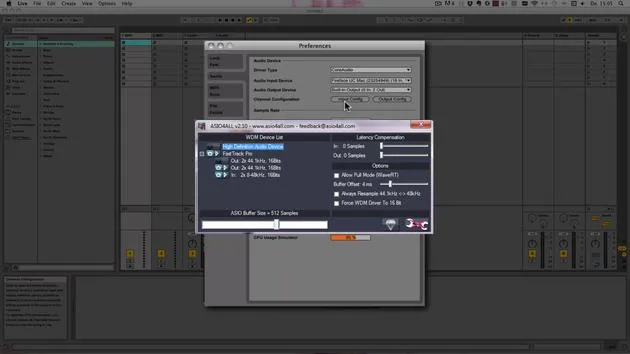
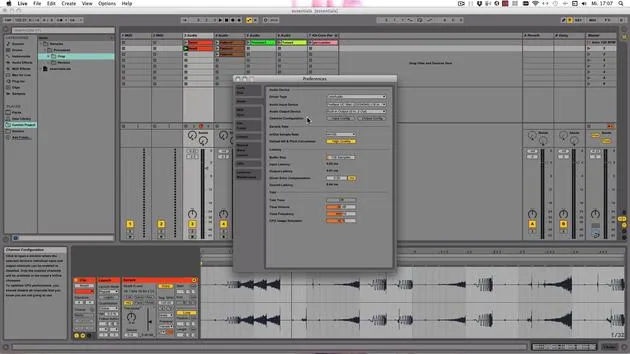
- Go into the preferences to MIDI Sync.
-
Launchpad Recognition:
- Plugging in the Launchpad: It is automatically recognized.
- Under the control surface, the Launchpad is chosen, with an input and output set.
-
BCF2000 Setup:
- The BCF2000 is recognized but does not auto-set.
- You can choose the BCF2000 control surface if desired, but I prefer using MackiControl Classic for better mixing layout.
- From here, you can choose the BCF2000 as input and output.
-
Using Non-Listed Controllers:
- Even if your device is not listed, try other control surfaces. Sometimes they work well.
- Check online for control surfaces created by users for download.
Driver Installation
- Some MIDI controllers require driver installation:
- Check the manual or manufacturer's website for downloadable drivers.
- Install the driver, then connect your controller via USB.
Note: For older controllers or synthesizers, connect via MIDI.
Important Connection Tips:
- Avoid unpowered hubs: MIDI data streams can get interrupted or scrambled.
- Connect the MIDI output of your controller to the MIDI input of your audio or MIDI interface.
- For visual feedback, connect the MIDI output of your interface to the input of the controller.
Setting Up in Live
-
Start Ableton Live and go to MIDI Sync Preferences.
-
If your controller is supported, it will be recognized instantly. Otherwise, set it up manually like the BCF2000.
Troubleshooting Connection Issues
- If a controller appears greyed out:
- It may be unplugged or turned off.
- Check the driver; try re-downloading it.
- For a keyboard player:
- Ensure the input for Track is turned on to play sounds.
- Select the controller's input and arm the track to play.
Utilization of MIDI Mapping
- Some controllers require a preset dump:
- Consult the controller's manual for specifics on how to perform this.
To activate MIDI mapping:
- Press the MIDI button to turn everything blue for MIDI mapping.
- Use Command (Mac) or Control (Windows) + M.
Mapping Controls
- You can map keys to clips, mute buttons, track activators, and continuous controllers like knobs or faders.
- Set minimum and maximum values for parameters when mapping.
Important Considerations
- If you map a key on your MIDI keyboard to control parameters, it will no longer produce sound.
For example:
- Pressing F3 may play the clip but not produce sound.
- Always check how keys are mapped before using them for sound production.
Dual Usage of Controllers
- When using a control surface and creating your own MIDI mappings:
- Keep auto-mapping on for basic functions, but manual mappings should only be in user modes 1 and 2 to avoid issues.
Conclusion
Now you know how to set up all your controllers and how to MIDI map things yourself. If you have any questions, feel free to revisit this guide!
36 lessons
5h 28m of structured video lessons
Advanced video features
Slow down, loop a passage, follow along
Mobile, tablet & desktop
Practise wherever you are
100% satisfaction guarantee
30-day money-back guarantee
Meet your guru
Meet your guru
Madeleine Bloom is a classically trained musician, producer, multi-instrumentalist and singer from Berlin, and founder of the label Quixotica Records. She studied electroacoustic music at the Franz Liszt Conservatory under Prof. Robin Minard, and brings those methods to her own blend of electronica pop. Her music has earned praise from producers Guy Sigsworth and Rupert Hine, and a personal invitation from Imogen Heap, whose tour she opened.
A former Ableton technical support agent, she founded the online platform Sonic Bloom in 2012, where she teaches Ableton Live and music production through courses, workshops and one-to-one classes. She has helped people around the world with Ableton Live, Push and Max for Live, as well as audio engineering, music theory, composition and sound design.







