



Getting started & gear setup

With
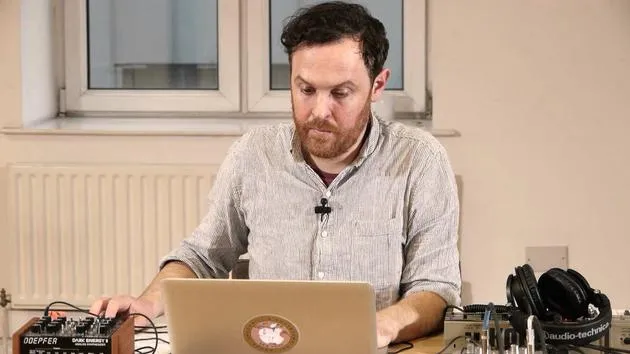
John WatsonJohn Watson introduces the course and walks through his hardware setup - synth, drum machine and sound card - and how to connect it all to your computer in Ableton Live.
What's in the course
14 lessons (1h 39m) · 2 free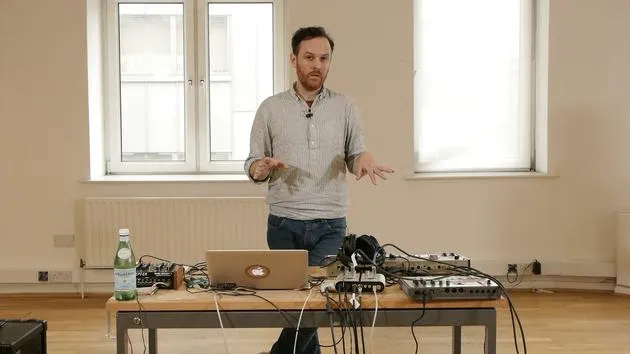
01. Getting started & gear setup
You are here11:07
02. Generating ideas with MIDI - intro to MIDI
Free lesson6:12
03. Recording a simple rhythm guide track
7:41
04. Recording audio: setup & levels
6:21
05. Recording audio
6:25
06. Using an external instrument
3:27
07. Creating the bassline
11:05
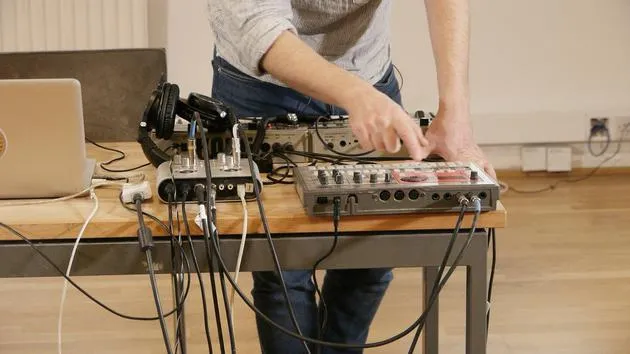
08. Adding one more rhythm part
2:50
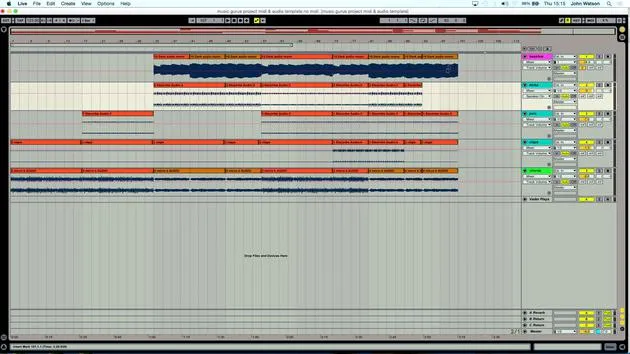
09. Premixing & session view
9:59
10. Song structure & arrange view
8:47
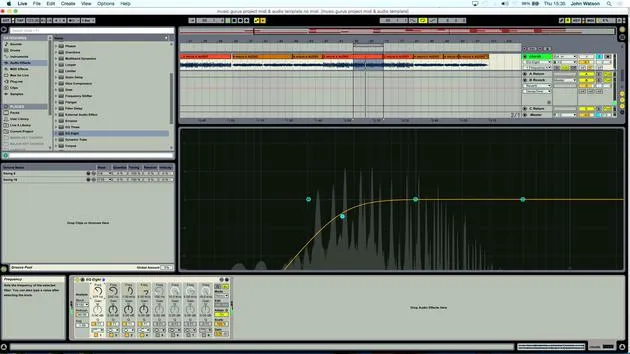
11. Mixing EQ and compression
7:37
12. Spatial effects
4:40
13. Modulation effects
5:26
14. BONUS: Creating a bassline with Doepfer Dark Energy II
Free lesson7:26
Lesson transcript
Music Lesson: Hardware Setup
Introduction
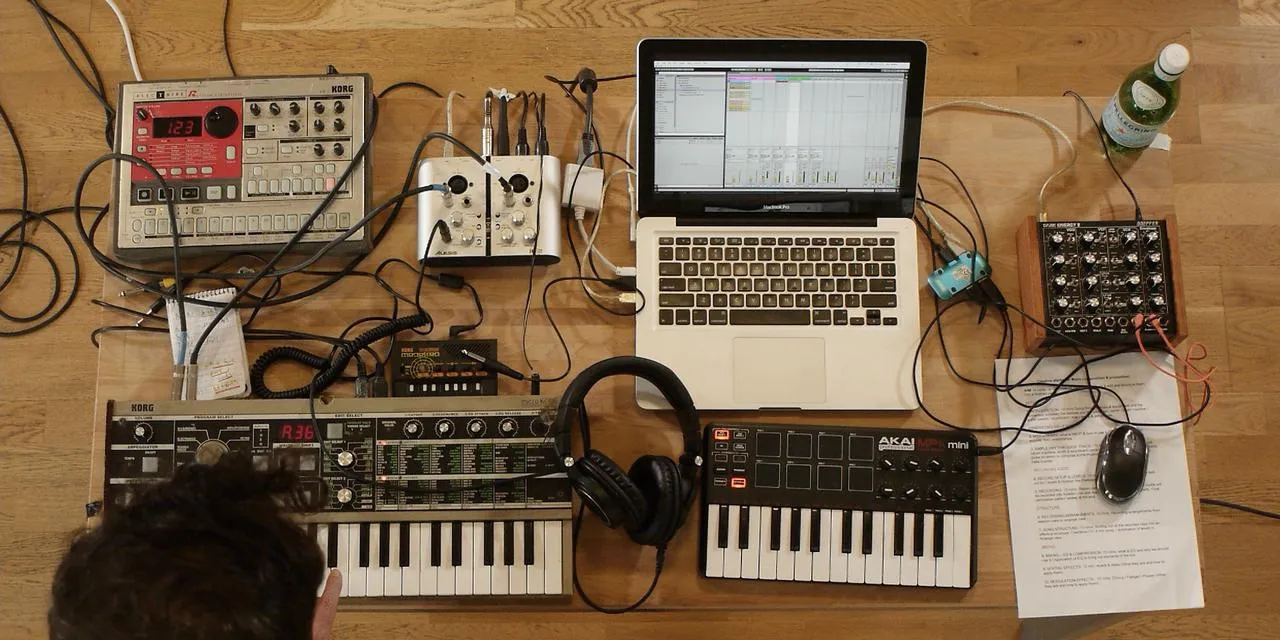
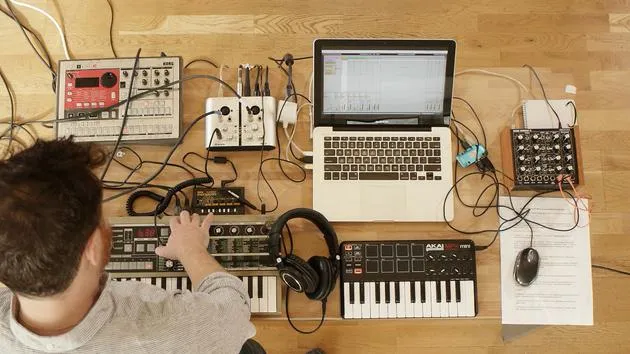
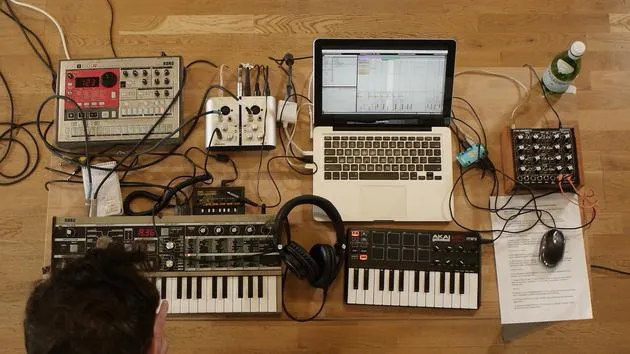
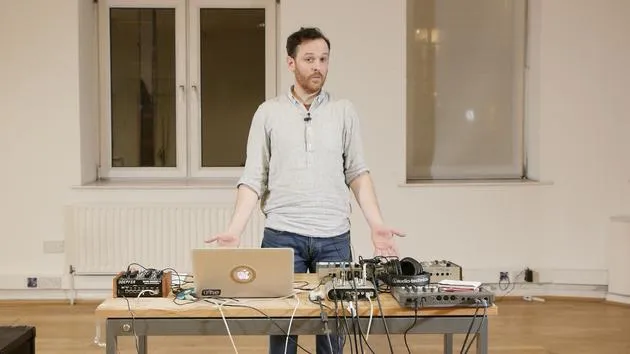
Okay, I'd like to talk a little bit about the setup that I've got here. I've got three hardware devices:
- Korg Microcorg: a polyphonic synth. You can pick them up fairly cheaply on eBay and things.
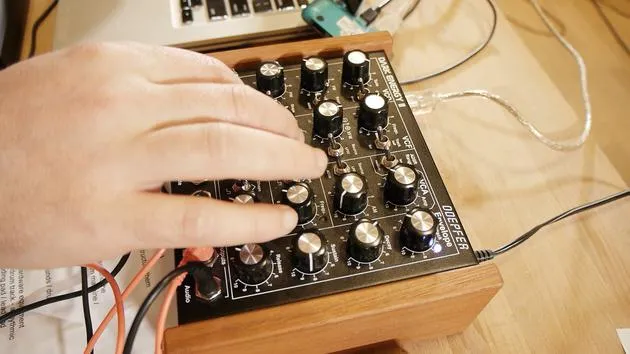
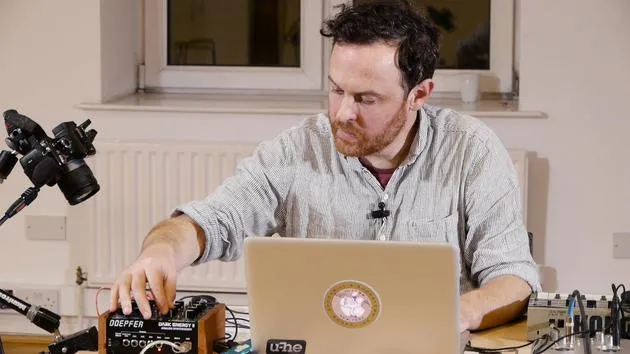
- Doepfer Dark Energy: really good at basslines, a crazy little synth.
- Korg Electribe: this will provide my drum and rhythm tracks.
Between these three main devices, I'm going to create a piece of music.
Note: These courses aren't specifically about having these types of hardware. You don't have to have this exact drum machine or synth. It's really about getting hold of something, maybe secondhand, having a play with it, and utilizing it to get really creative. Your music will sound better using real hardware devices.
Additional Hardware
The other gear I have includes:
- A portable sound card
- Korg Monotron: a little delay unit
- My MIDI keyboard
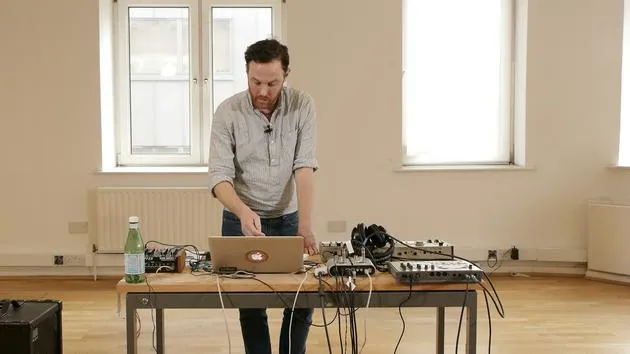
This setup is quite portable, making it great for live shows and other events.
Demonstration: Korg Microcorg
The first thing I'll demonstrate here is the Korg Microcorg. I've got some chords coming from this.
Next, the Dark Energy synth is set up to produce my bass sounds.
Setting Up the Dark Energy
Here's how I set up the Dark Energy:
-
Input Connection:
- Connect the left and right outputs of the drum machine (stereo) into the left and right inputs of my sound card.
-
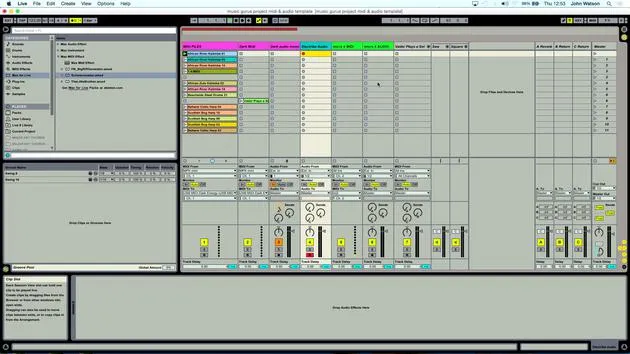
Live Preferences:
- Ensure my sound card (Ioj2 from Alesis) is connected in Live.
-
Input/Output Setup:
- Match inputs and outputs: input to sound card, output also to sound card.
- Use a stereo switch to ensure the sound card operates in stereo.
- Record analog sources to receive analog inputs from my devices.
Organizing the Channels
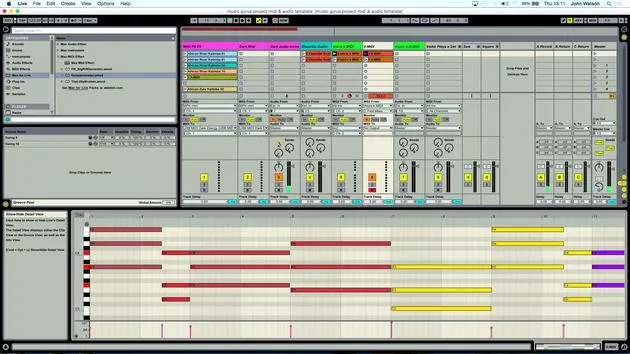
I've created multiple channels in Live and color-coordinated them to simplify my workflow.
- Electribe Audio Input:
- Select
external inputsince I'm taking a signal from the drum machine into the sound card, which feeds into Ableton.
- Select
Input Selection:
- Since my sound card has only two inputs, I select inputs 1 and 2 to achieve stereo output from the drum machine.
Monitoring Audio
To monitor what's coming into Ableton:
- Click the record button to enable audio capture.
- Check for drum signals arriving as expected.
Dark Energy Synth Connection
For the Dark Energy synth:
- Plug the output from the Dark Energy into the sound card's left input (ensure it's set to mono).
- Connect a MIDI keyboard, as the Dark Energy doesn't have one built-in, allowing for note input.
MIDI Connections
Regarding the MIDI connections:
- The Dark Energy is connected via USB into Live.
- Use a USB controller, which is common for many modern synths.
Connection recommendations:
- MIDI Out from the sound card into MIDI In on the Korg.
- This allows me to play notes and record them as MIDI.
Creating a MIDI Track in Live
- Create a MIDI track under
Create > Insert MIDI Track. - Select the MIDI input from my controller.
Note: When connecting a MIDI keyboard, ensure installation is correct and matches your device settings.
Setting Up an Audio Track
I also need to set up an audio track to record the synth's audio input:
- Monitor input from the synth.
- To record the audio, I click the record button.
Arming for Playback
- Arm the MIDI track, allowing me to play the synth.
- Two track lights will illuminate:
- The first indicates that MIDI input is enabled.
- The second shows that audio is incoming.
Conclusion
Now that I've covered the setup process, this template will be available at the end of the course for your reference.
While I'm using specific hardware, you'll use your own, so make sure to adapt based on your setup.
With the Korg Microcorg for polyphonic sounds (chords, pads, and strings), a monophonic bass from Dark Energy, and percussion from the Korg Electribe, we're ready to start generating ideas and laying down tracks!
14 lessons
1h 39m of structured video lessons
Advanced video features
Slow down, loop a passage, follow along
Mobile, tablet & desktop
Practise wherever you are
100% satisfaction guarantee
30-day money-back guarantee
Meet your guru
Meet your guru
After work experience with Depeche Mode and The Cure producer Dave Allen, John was inspired to study Music Technology in London. His music career took off after a successful signing to CookShop Records, releasing 9 singles and an album in 2007 that received rave reviews from Q, Uncut and Lowdown Magazine, plus radio play from XFM and Radio One.
John began training as an audio engineer at Bonafide studio in 2005, where he refined his talents, and later that year set up Jackdaw Recordings. He has collaborated with many successful artists, and in 2007 began playing for pop musician Patrick Wolf, performing at leading venues here in the UK and internationally - including The Astoria and Shepherds Bush Empire.
Based in his London studio, John now writes music, with two more releases on CookShop, does sound engineering for prominent artists, and creates sound design for TV ads, film, theatre and corporate video.
That rare mix of songwriter, producer and working studio engineer is exactly what John brings to his teaching. In Creative Composition & Production in Ableton Live and Creative Sampling & Production in Ableton Live, he shows you how he turns raw ideas into finished, release-ready tracks - the writing, the sampling, the sound design and the hands-on engineering know-how behind a professional record.







