



What is MIDI?

With
Isaac Cotec
What's in the course
17 lessons (1h 33m) · 1 free

Lesson transcript
MIDI Editing and Creation in Ableton Live
In this module, we're going to look at editing and creating MIDI.
What is MIDI?
MIDI is short for Musical Instrument Digital Interface. It is a technical standard that describes a protocol, digital interface, and connectors, allowing a wide variety of electronic musical instruments, computers, and other related devices to connect and communicate with one another.
Key points about MIDI:
- MIDI is not audio and audio is not MIDI.
- MIDI is a signal that an instrument or synth can read and output audio.
- In other words, MIDI is information, a standardized way of sending information between a controller and a synthesizer, Ableton, or any electronic device.
- The instrument used with MIDI defines what happens; that instrument is what makes the sound.
- It's important to know that MIDI is just information that something translates into sound later.
Understanding MIDI Clips in Ableton Live
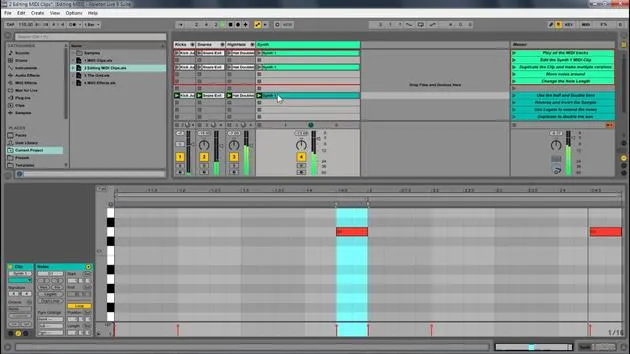
A MIDI clip contains musical material in the form of MIDI notes and controller envelopes. This information can then be passed on to your synth, VST, or live instrument to create sound.
- The MIDI clip is comparable to an audio clip.
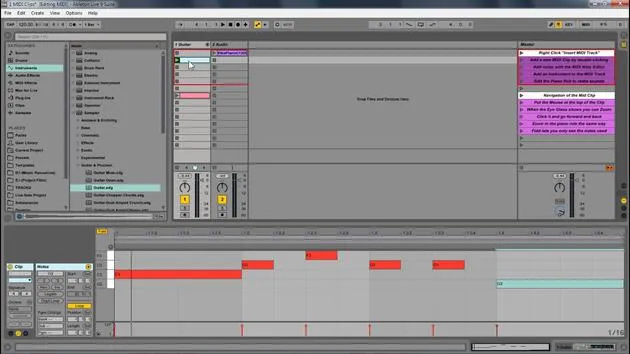
- You control it from the clip view, where you can edit, add notes, and create new parts.
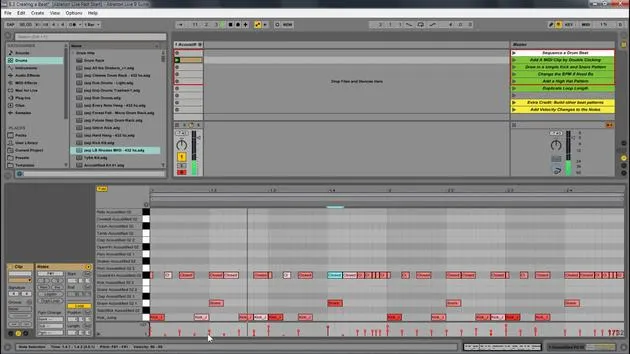
- The clip view is similar to MIDI clips, but instead of displaying a sample, there is the MIDI note editor.
The Piano Roll
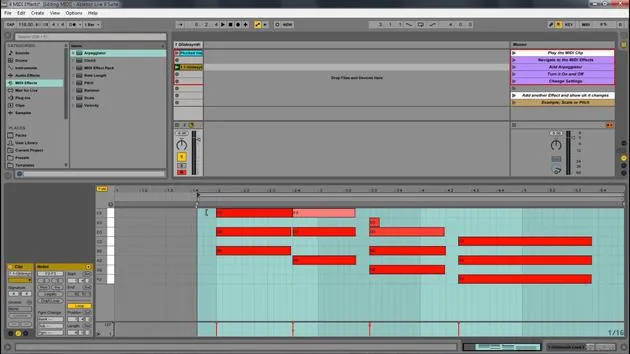
Here's an image of the piano roll: normally, you would see the sound right, the sample, but in this case, you see little red boxes on this piano roll, indicating the MIDI notes.
Adding and Editing MIDI Clips
To add a new MIDI clip:
- Double-click to create a clip, or you can always record one.
- Once you have a clip, you can add a note. For example, let's add a C note:
- Double-click to create the note.
- Adjust the length of the note as desired.
- Create multiple notes if needed.
No Sound? Understanding the Data
When you play this, you may notice nothing happens. This is because, as mentioned before, this is data.
- You'll see a little yellow indicator showing that MIDI data is happening, but there's just no sound from it.
- To make it audible, add an instrument from the browser:
- Navigate to Instruments.
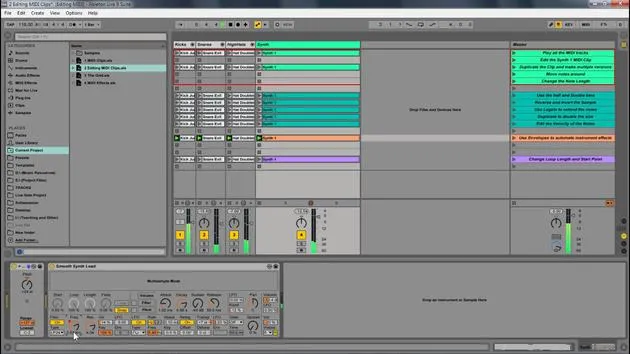
- Select an instrument (e.g., Sampler or Guitar Pluck) and drag it into the MIDI clip.
Playback and Zooming
Once you have added an instrument, you can:
- Play the MIDI clip.
- Use the cue feature to hear the sound when moving the note.
- Draw in notes and adjust their lengths as desired.
To zoom in and out:
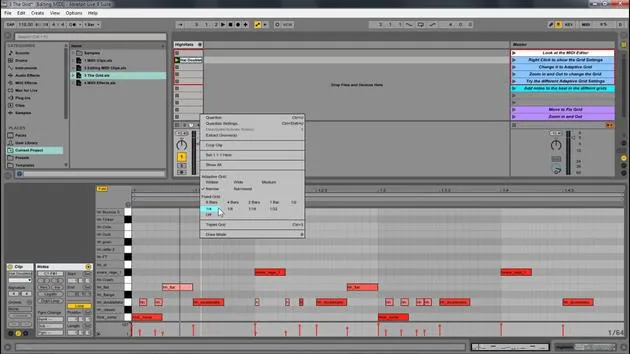
- Use the magnifying glass tool at the top.
- Click to zoom in and out of the MIDI.
- Navigate left and right to adjust view.
You can also utilize the piano roll:
- Click to zoom in and out.
- Navigate up and down through the notes.
Helpful Features
An important feature is the fold button:
- Hitting fold displays only the notes you played, making it easier to edit and manage notes in your key.
You can duplicate notes using Ctrl D (or Command D on Mac) or create variations:
- Create different changes.
- Just like with samples, you can have multiple versions and modify them.
Conclusion
In summary, the basics of MIDI editing in Ableton Live involve utilizing the piano roll to click to add notes, delete them, and manage various elements similar to audio samples. MIDI adds engaging features, offering more depth to your musical creations.
17 lessons
1h 33m of structured video lessons
Advanced video features
Slow down, loop a passage, follow along
Mobile, tablet & desktop
Practise wherever you are
100% satisfaction guarantee
30-day money-back guarantee
Meet your guru
Meet your guru
Isaac Cotec is, arguably, one of the best Ableton trainers in the world! While working on his own music, he began teaching recording techniques, sound design, and Ableton Live to private students, and since earning his certification as an official Ableton Certified Trainer he has helped thousands of producers step up their game and succeed as musicians.
Isaac started producing electronic music in 2005 with Psyche Sonics, an experimental group working with the science and research of binaural beats and altering consciousness through sound. After touring, he continued writing music under the alias Cotec and later emerged as the artist Subaqueous, blending his electronic past with both future and organic production techniques. To date, he has released 3 albums and 4 EPs.
Isaac is also the founder and manager of the record label Invibe Music, which represents some of the Pacific Northwest's best electronic music and specialises in midtempo dance music.
In his Ableton Live courses, Isaac shares the production, sound design and songwriting techniques he has spent years refining - the very skills he uses to turn a spark of an idea into a finished track.







