



Installing and setting up MIDI Controllers in Ableton Live

With
Isaac CotecHow to install and set up a MIDI controller in Ableton Live, from the MIDI and Sync preferences to enabling Track and Remote so you can play and record parts.
What's in the course
17 lessons (1h 33m) · 1 free

Lesson transcript
Recording MIDI in Ableton Live
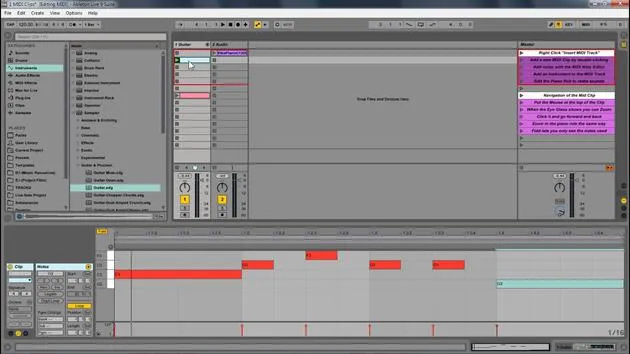
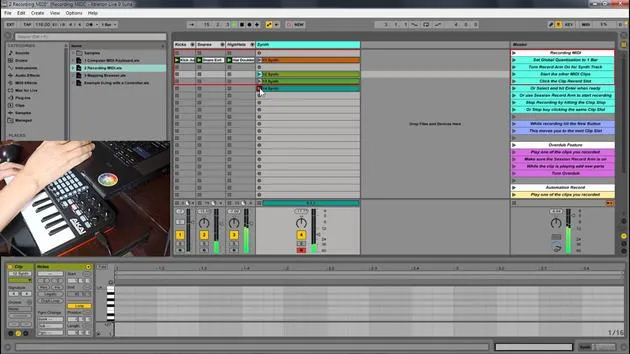
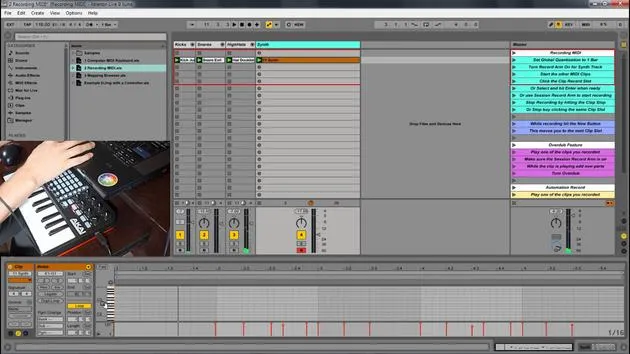
In this module, we're going to be looking at how we can record new MIDI parts and add them directly into Ableton Live. Recording MIDI in Ableton Live allows us to add new MIDI in real-time.
Recording New Clips
- You can record new clips on the fly into any session slot.
- You can record new MIDI using:
- A keyboard
- A MIDI controller
Benefits of MIDI Controllers
MIDI controllers provide a much easier way to control aspects of Live. They can transform Live from just a Digital Audio Workstation (DAW) into a musical instrument. There is a wide variety of MIDI controllers available, such as:
- Keyboards
- Drum pads
- Devices like the Ableton Push, which enhances the feeling of playing an instrument rather than just working within a screen.
Setting Up a MIDI Controller
To set up a MIDI controller in Ableton Live:
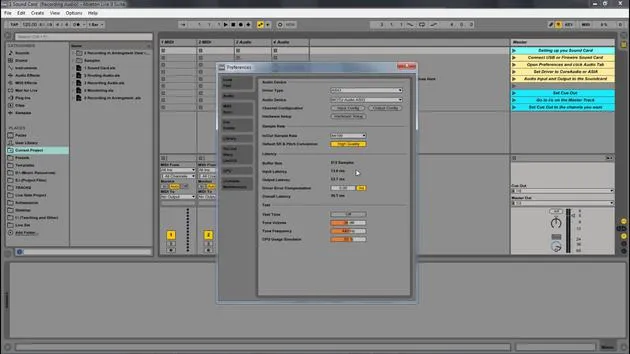
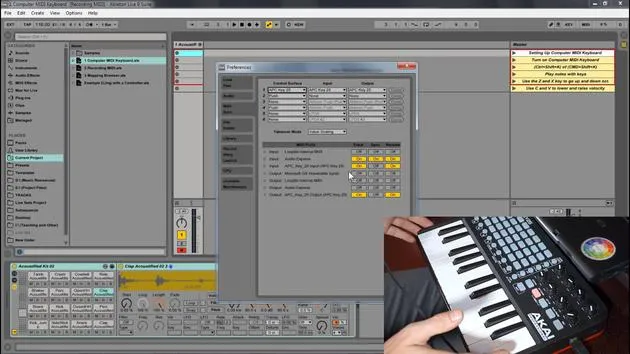
- Go to Options > Preferences.
- Under MIDI and Sync, you'll find your different MIDI preferences.
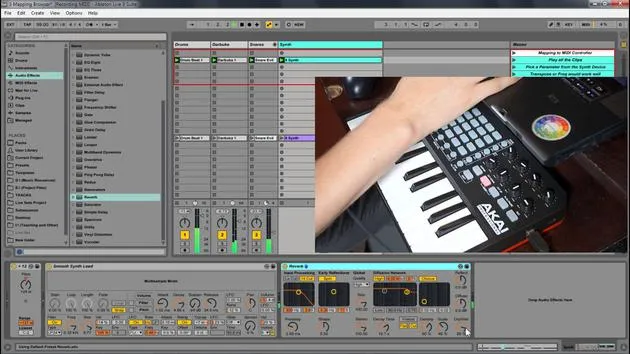
For instance, I have the APC Key 25, which functions similarly to a launchpad:
- It features grids corresponding with Ableton.
- It includes knobs and keys for additional control.
Configuration Steps
- If you are using a control surface (like the APC Key 25), set the control surface in the preferences.
- Set the inputs and outputs accordingly (e.g., your audio interface, like the Audio Express, and the APC Key 25).
Make sure to enable "Track" and "Remote" so you can control various aspects of Ableton. Once the armed button is set, you can use your keyboard to input information.
Quick Review
- Go to Live Preferences.
- Check the MIDI and Sync section.
- Ensure that the MIDI device is set to "Remote On" and "Track On".
This might vary depending on the specific controller you are using, and the manufacturer will generally provide the necessary setup information.
Using Your Computer Keyboard
If you do not have a MIDI controller, you can always use your computer keyboard.
- The image shows the white and black keys of a piano represented on the computer keyboard:
- White Keys: A, S, D, F, G, H, J, K, L
- Black Keys: W, E, T, Y, U, O, P
Activating the Computer MIDI Keyboard
To activate the computer MIDI keyboard:
- Press the designated button in Ableton to turn it on.
After activation, you can use the following keys to play:
- W, A, S, D will produce sound.
Visual Feedback
In the drum rack, you will see little yellow dots indicating active spaces. If there are no instruments loaded there, hitting the keys won't produce any sound.
To adjust the octave:
- Press Z to lower the octave and keep pressing to adjust further.
Velocity Sensitivity
While using the computer keyboard:
- It may not be velocity sensitive by default.
- Press C to lower velocity and V to raise it.
I've seen amazing producers write music on the fly using just their computer keyboard while traveling. So, don't let the lack of a MIDI controller hold you back, your computer keyboard is a great starting point!
Summary
- The keys A, S, D represent the white keys on a keyboard.
- The keys W, E, T represent the black keys.
- You can adjust octave and velocity directly from your keyboard.
- Always ensure the activation button for the computer MIDI keyboard is on; otherwise, it will default to MIDI control for external devices.
17 lessons
1h 33m of structured video lessons
Advanced video features
Slow down, loop a passage, follow along
Mobile, tablet & desktop
Practise wherever you are
100% satisfaction guarantee
30-day money-back guarantee
Meet your guru
Meet your guru
Isaac Cotec is, arguably, one of the best Ableton trainers in the world! While working on his own music, he began teaching recording techniques, sound design, and Ableton Live to private students, and since earning his certification as an official Ableton Certified Trainer he has helped thousands of producers step up their game and succeed as musicians.
Isaac started producing electronic music in 2005 with Psyche Sonics, an experimental group working with the science and research of binaural beats and altering consciousness through sound. After touring, he continued writing music under the alias Cotec and later emerged as the artist Subaqueous, blending his electronic past with both future and organic production techniques. To date, he has released 3 albums and 4 EPs.
Isaac is also the founder and manager of the record label Invibe Music, which represents some of the Pacific Northwest's best electronic music and specialises in midtempo dance music.
In his Ableton Live courses, Isaac shares the production, sound design and songwriting techniques he has spent years refining - the very skills he uses to turn a spark of an idea into a finished track.







