



Créer la ligne de basse

Avec
John Watson
Le contenu du cours
14 leçons (1h 39min) · 2 gratuites
01. Démarrage et configuration du matériel
11:07
02. Générer des idées avec le MIDI - introduction au MIDI
Leçon gratuite6:12
03. Enregistrer une piste guide rythmique simple
7:41
04. Enregistrer de l'audio : configuration et niveaux
6:21
05. Enregistrer de l'audio
6:25
06. Utiliser un instrument externe
3:27
07. Créer la ligne de basse
Tu es ici11:05
08. Ajouter une partie rythmique de plus
2:50
09. Prémixage et Session View
9:59
10. Structure du morceau et vue Arrangement
8:47
11. Mixage : EQ et compression
7:37
12. Effets spatiaux
4:40
13. Effets de modulation
5:26
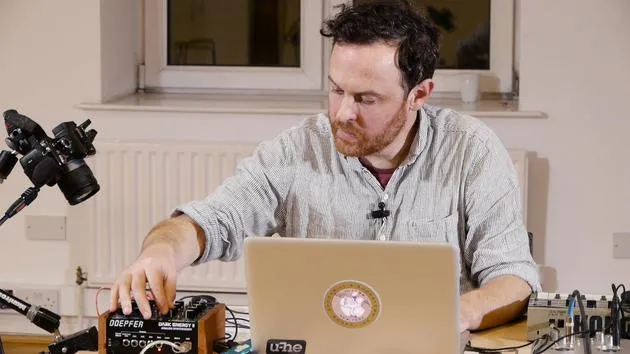
14. BONUS : Créer une ligne de basse avec le Doepfer Dark Energy II
Leçon gratuite7:26
Transcription de la leçon
Music Lesson: Creating a Bass Line
Introduction
I think now it's time to move on with our bass. So I'm thinking about drums and percussion. I've got my chords, and I'd like to get a bass sound going from that. I will then work out whether I have enough to actually lay down a structure of a track or if I need to do something different.
Creating a Bass Line
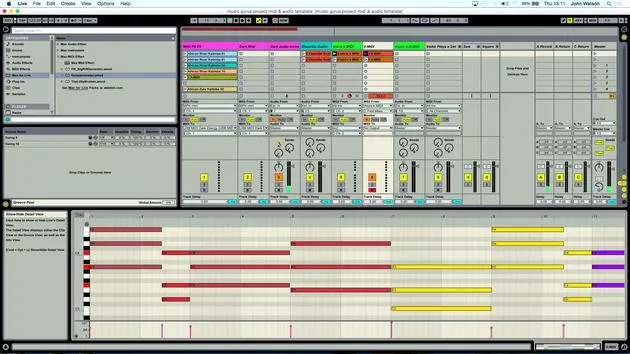
A nifty little trick here for creating a bass line is to use the root note of the chords. If you remember, we started out using the Schwarzenegger to create some chords. These chords were then recorded into a separate MIDI track to extract the actual chords themselves.
Now that I know this MIDI track works well with the music I've created, I'm going to do the following:
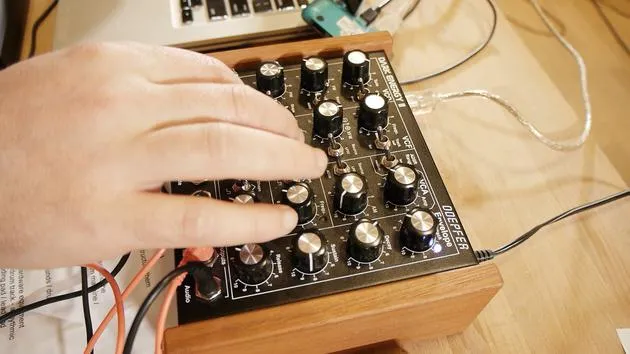
- Copy over these MIDI tracks to my synth track for the Dark Energy that will create my bass.
Deleting Unnecessary Notes
Since this synth is monophonic, it can only play one note at a time. We have quite a complex series of chords here, so I need to delete some of the notes to allow our bass line to play through. Here's how:
- Zoom out a little bit.
- Select all of the notes apart from the bottom set.
- You can have a little play around; it doesn't have to be all of the bottom notes. A bit of variation is okay.
Remember, I have copies of the original chords, so if I make a mistake, I can undo or replace the chords back in to delete the notes and get my bass line.
Finalizing the Bass Line
I'm looking for one note to play at a time. Let's select the notes and create our bass line.
- I'll take out the final note and check everything is set.
Now, going back to the MIDI setup, I know this is connected already, so hopefully I should be able to:
- Solo the clip.
- Plug in the audio output, making sure to connect to the mono input (left input).
Listening to the Bass
Let's listen to the bass now. Upon listening, I realized I have some extra parts that I don't need. I can simply right-click and delete those.
Now, I have the root notes of the chords that I've just inputted.
- Listening in context of everything else reveals that some notes are a little bit out in terms of timing.
To fix this:
- Shift the note over so it lines up correctly.
- Use the metronome to get the rhythm right.
Adjusting Notes
For previous recordings, I had a different set of chords, and I need to do the same here.
- I'll delete everything apart from the last bottom notes of the chord.
- Once again, zoom out to make it easier.
In theory, I should be able to play this now.
- Ensure that the final note isn't too low in its octave range for the synth.
Raising the Octave
To jump up an octave inside a MIDI clip in Ableton, press Shift + Arrow Up, which will raise it.
- Undo to find the original note (C3) and then shift it up to C4.
- Check the rhythm and timing to ensure everything is aligned correctly.
Completing the Bass Line
With the bass line done, we've got two different layers of music that work well together.
Recording the Bass
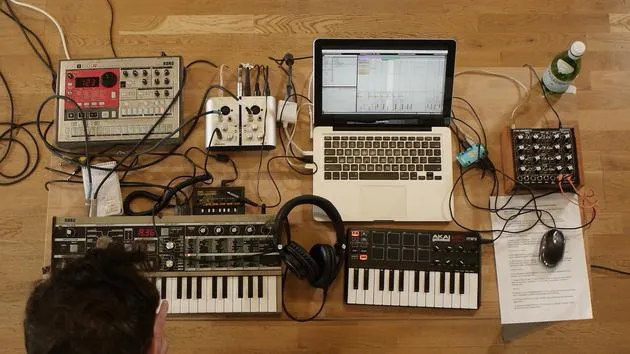
We recorded the audio in from the MicroKorg and Electribe drum machine and just created our bass line (the MIDI part). Now we need to record this in as audio:
- Arm the audio track that I have previously set up.
- Click the first scene of MIDI clips and click record.
I might tweak a few parameters as well, adjusting the filter cut-off to add some timbre change for movement.
Final Checks
- Come down to the next clip and make sure everything is fine.
- Check the clips and prepare to record again.
After listening back, it sounds like the bass part is now recorded in.
Conclusion: That's how you create and refine a bass line, working through MIDI and audio recording to achieve the desired sound in your music project.
14 leçons
1h 39m de leçons vidéo structurées
Fonctions vidéo avancées
Ralentissez, bouclez un passage, suivez la partition
Mobile, tablette et ordinateur
Pratiquez où vous voulez
Satisfaction garantie à 100 %
Garantie remboursement 30 jours
Rencontrez votre guru
Rencontrez votre guru
Après un stage auprès de Dave Allen, producteur de Depeche Mode et The Cure, John a eu envie d'étudier la Music Technology à Londres. Sa carrière musicale a décollé après une signature réussie chez CookShop Records, où il a sorti 9 singles et un album en 2007 salué par Q, Uncut et Lowdown Magazine, en plus d'être diffusé sur XFM et Radio One.
John a commencé à se former comme ingénieur du son au studio Bonafide en 2005, où il a affiné son talent, avant de fonder Jackdaw Recordings plus tard la même année. Il a collaboré avec de nombreux artistes à succès et, en 2007, a commencé à jouer pour le musicien pop Patrick Wolf, se produisant dans des salles de premier plan au Royaume-Uni et à l'international — dont The Astoria et le Shepherds Bush Empire.
Depuis son studio londonien, John compose désormais de la musique, avec deux autres sorties chez CookShop, assure l'ingénierie du son pour des artistes en vue et conçoit le design sonore de publicités télévisées, de films, de pièces de théâtre et de vidéos d'entreprise.
Ce mélange rare d'auteur-compositeur, de producteur et d'ingénieur de studio en activité est précisément ce que John apporte à son enseignement. Dans Creative Composition & Production in Ableton Live et Creative Sampling & Production in Ableton Live, il te montre comment il transforme des idées brutes en morceaux finis, prêts à sortir — l'écriture, le sampling, le design sonore et le savoir-faire concret de l'ingénierie derrière un disque professionnel.







