



Primeros pasos y configuración del equipo

Con
John WatsonJohn Watson presenta el curso y recorre su configuración de hardware -sintetizador, caja de ritmos y tarjeta de sonido- y cómo conectarlo todo a tu ordenador en Ableton Live.
Qué incluye el curso
14 lecciones (1h 39m) · 2 gratis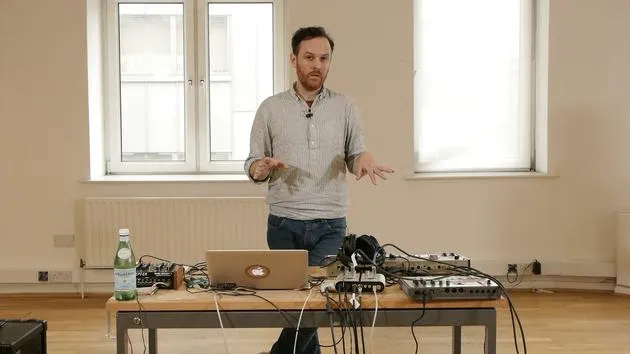
01. Primeros pasos y configuración del equipo
Estás aquí11:07
02. Generar ideas con MIDI - introducción al MIDI
Lección gratis6:12
03. Grabar una guía rítmica sencilla
7:41
04. Grabar audio: configuración y niveles
6:21
05. Grabar audio
6:25
06. Usar un instrumento externo
3:27
07. Crear la línea de bajo
11:05
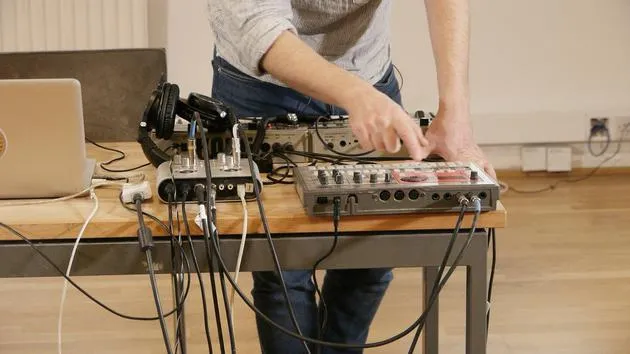
08. Añadir una parte rítmica más
2:50
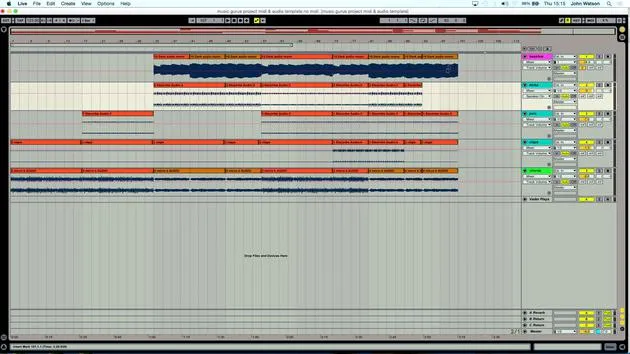
09. Premezcla y Vista de Sesión
9:59
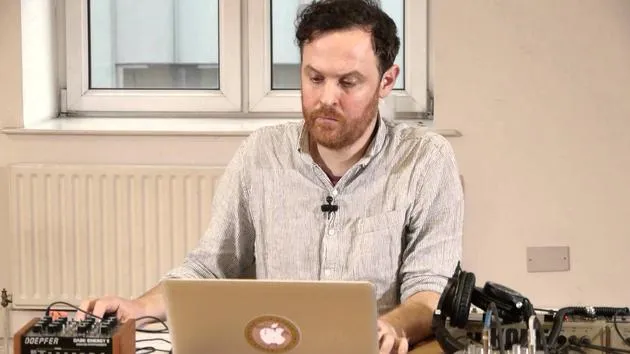
10. Estructura de la canción y vista de arreglo
8:47
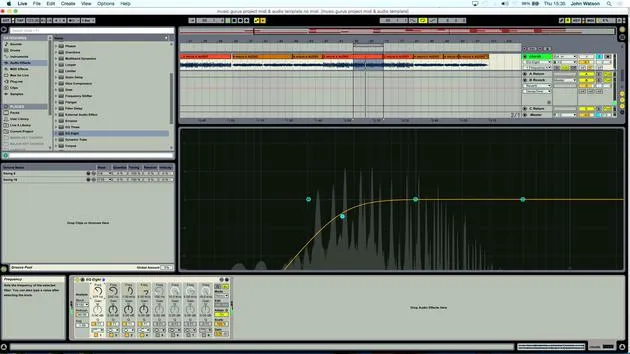
11. Mezcla: ecualización y compresión
7:37
12. Efectos espaciales
4:40
13. Efectos de modulación
5:26
14. BONUS: Crear una línea de bajo con el Doepfer Dark Energy II
Lección gratis7:26
Transcripción de la lección
Music Lesson: Hardware Setup
Introduction
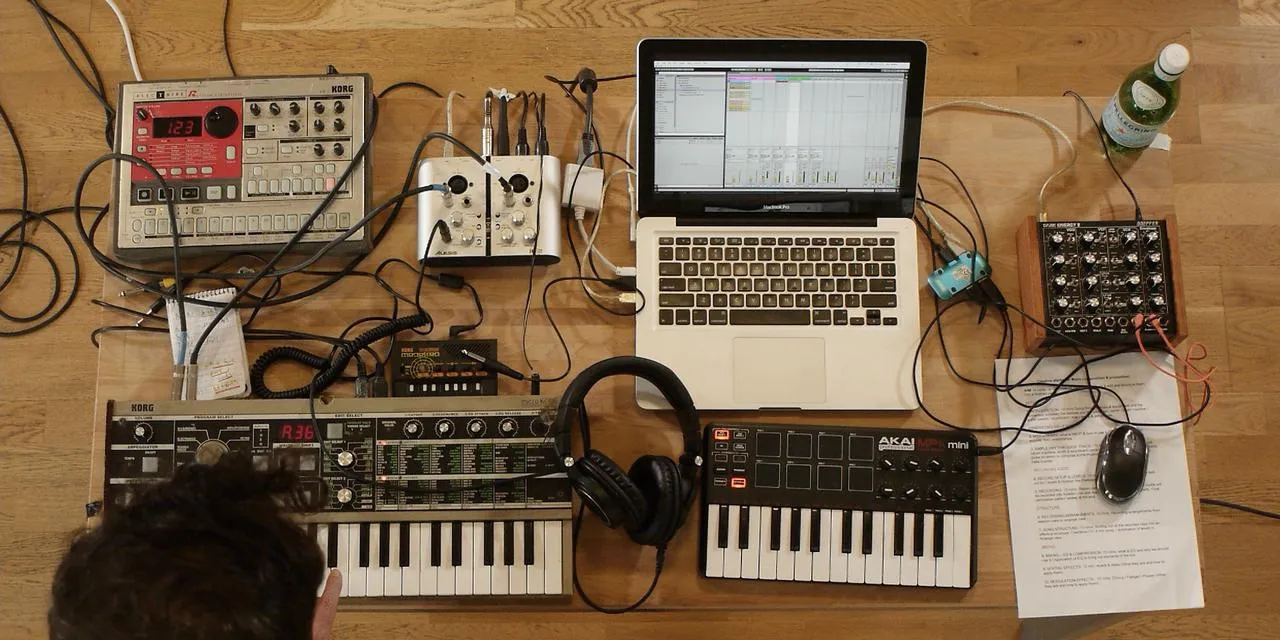
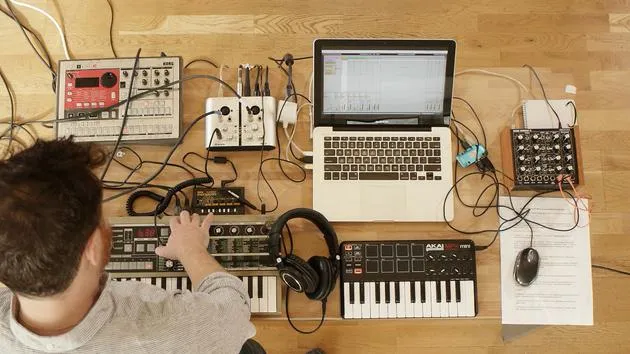
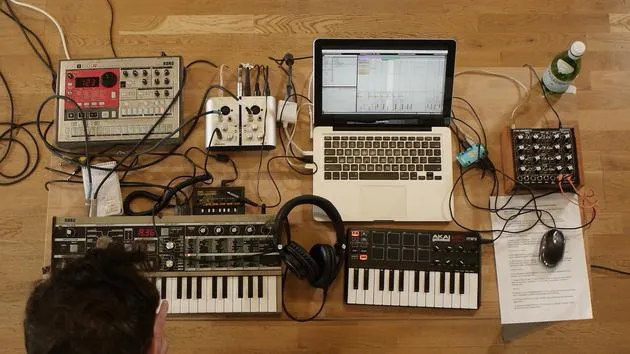
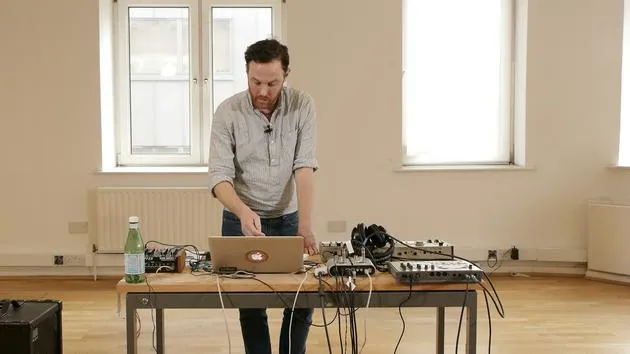
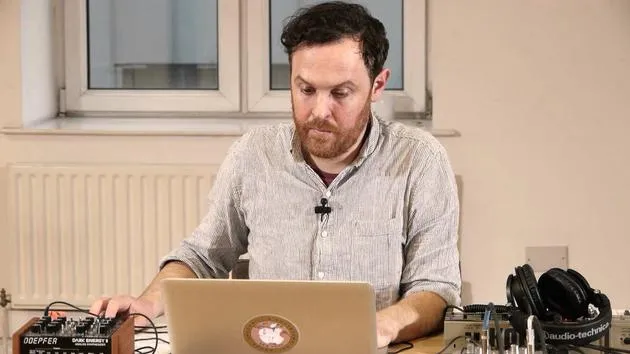
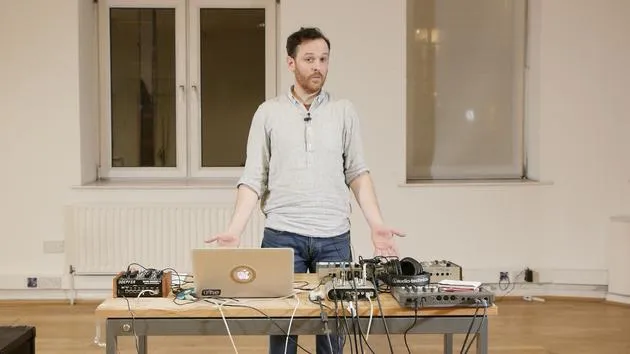
Okay, I'd like to talk a little bit about the setup that I've got here. I've got three hardware devices:
- Korg Microcorg: a polyphonic synth. You can pick them up fairly cheaply on eBay and things.
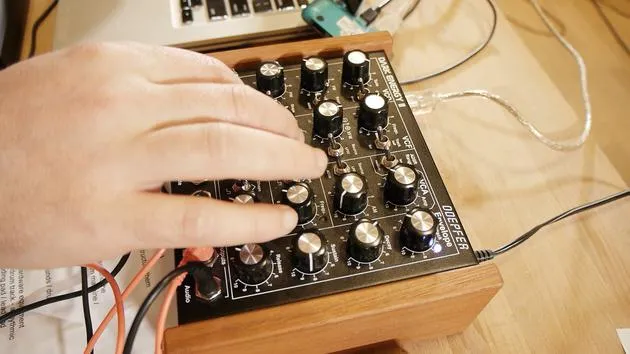
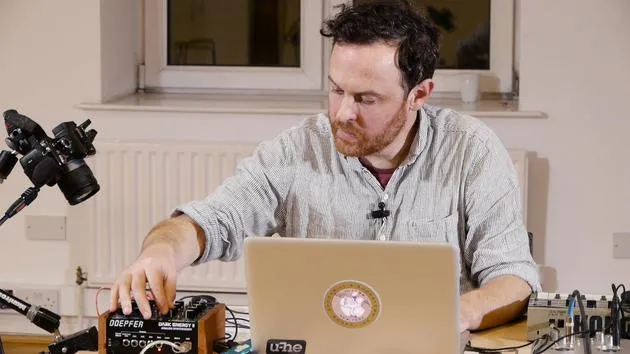
- Doepfer Dark Energy: really good at basslines, a crazy little synth.
- Korg Electribe: this will provide my drum and rhythm tracks.
Between these three main devices, I'm going to create a piece of music.
Note: These courses aren't specifically about having these types of hardware. You don't have to have this exact drum machine or synth. It's really about getting hold of something, maybe secondhand, having a play with it, and utilizing it to get really creative. Your music will sound better using real hardware devices.
Additional Hardware
The other gear I have includes:
- A portable sound card
- Korg Monotron: a little delay unit
- My MIDI keyboard
This setup is quite portable, making it great for live shows and other events.
Demonstration: Korg Microcorg
The first thing I'll demonstrate here is the Korg Microcorg. I've got some chords coming from this.
Next, the Dark Energy synth is set up to produce my bass sounds.
Setting Up the Dark Energy
Here's how I set up the Dark Energy:
-
Input Connection:
- Connect the left and right outputs of the drum machine (stereo) into the left and right inputs of my sound card.
-
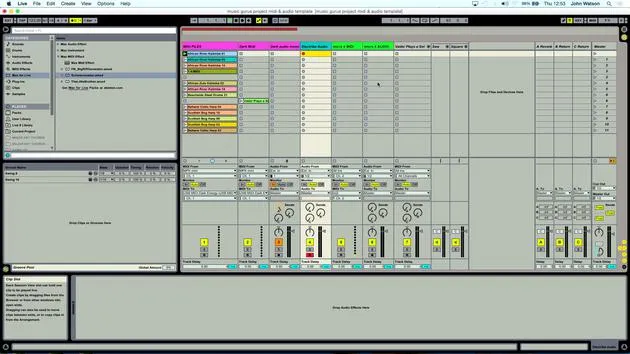
Live Preferences:
- Ensure my sound card (Ioj2 from Alesis) is connected in Live.
-
Input/Output Setup:
- Match inputs and outputs: input to sound card, output also to sound card.
- Use a stereo switch to ensure the sound card operates in stereo.
- Record analog sources to receive analog inputs from my devices.
Organizing the Channels
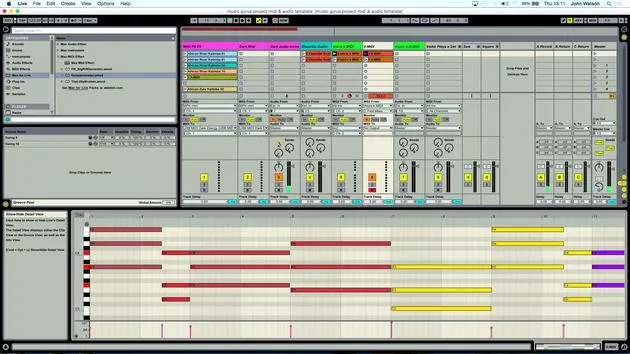
I've created multiple channels in Live and color-coordinated them to simplify my workflow.
- Electribe Audio Input:
- Select
external inputsince I'm taking a signal from the drum machine into the sound card, which feeds into Ableton.
- Select
Input Selection:
- Since my sound card has only two inputs, I select inputs 1 and 2 to achieve stereo output from the drum machine.
Monitoring Audio
To monitor what's coming into Ableton:
- Click the record button to enable audio capture.
- Check for drum signals arriving as expected.
Dark Energy Synth Connection
For the Dark Energy synth:
- Plug the output from the Dark Energy into the sound card's left input (ensure it's set to mono).
- Connect a MIDI keyboard, as the Dark Energy doesn't have one built-in, allowing for note input.
MIDI Connections
Regarding the MIDI connections:
- The Dark Energy is connected via USB into Live.
- Use a USB controller, which is common for many modern synths.
Connection recommendations:
- MIDI Out from the sound card into MIDI In on the Korg.
- This allows me to play notes and record them as MIDI.
Creating a MIDI Track in Live
- Create a MIDI track under
Create > Insert MIDI Track. - Select the MIDI input from my controller.
Note: When connecting a MIDI keyboard, ensure installation is correct and matches your device settings.
Setting Up an Audio Track
I also need to set up an audio track to record the synth's audio input:
- Monitor input from the synth.
- To record the audio, I click the record button.
Arming for Playback
- Arm the MIDI track, allowing me to play the synth.
- Two track lights will illuminate:
- The first indicates that MIDI input is enabled.
- The second shows that audio is incoming.
Conclusion
Now that I've covered the setup process, this template will be available at the end of the course for your reference.
While I'm using specific hardware, you'll use your own, so make sure to adapt based on your setup.
With the Korg Microcorg for polyphonic sounds (chords, pads, and strings), a monophonic bass from Dark Energy, and percussion from the Korg Electribe, we're ready to start generating ideas and laying down tracks!
14 lecciones
1h 39m de lecciones en vídeo estructuradas
Funciones de vídeo avanzadas
Ralentiza, repite un pasaje, sigue la partitura
Móvil, tablet y ordenador
Practica donde quieras
Garantía de satisfacción 100%
30 días de garantía de devolución
Conoce a tu gurú
Conoce a tu gurú
Tras hacer prácticas con Dave Allen, productor de Depeche Mode y The Cure, John se sintió inspirado para estudiar Tecnología Musical en Londres. Su carrera musical despegó tras un exitoso fichaje por CookShop Records, con el que publicó 9 sencillos y un álbum en 2007 que recibió críticas entusiastas de Q, Uncut y Lowdown Magazine, además de sonar en XFM y Radio One.
John empezó a formarse como ingeniero de sonido en el estudio Bonafide en 2005, donde perfeccionó su talento, y ese mismo año fundó Jackdaw Recordings. Ha colaborado con numerosos artistas de éxito y, en 2007, comenzó a tocar para el músico pop Patrick Wolf, actuando en salas de primer nivel tanto en el Reino Unido como a nivel internacional, incluidos The Astoria y el Shepherds Bush Empire.
Desde su estudio londinense, John ahora compone música, con dos lanzamientos más en CookShop, se ocupa de la ingeniería de sonido para artistas destacados y crea diseño sonoro para anuncios de televisión, cine, teatro y vídeo corporativo.
Esa infrecuente combinación de compositor, productor e ingeniero de estudio en activo es justo lo que John aporta a su enseñanza. En Creative Composition & Production in Ableton Live y Creative Sampling & Production in Ableton Live, te muestra cómo transforma ideas en bruto en temas terminados y listos para publicar: la composición, el sampleo, el diseño sonoro y el saber hacer práctico de la ingeniería que hay detrás de un disco profesional.







