



Crear la línea de bajo

Con
John Watson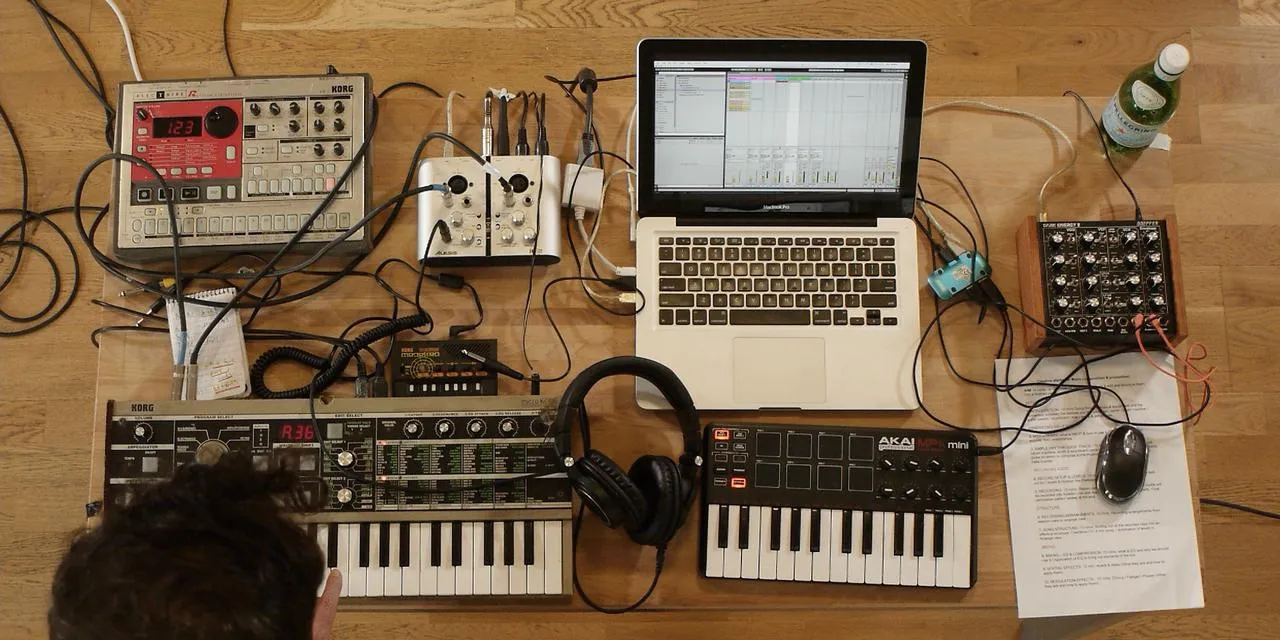
Qué incluye el curso
14 lecciones (1h 39m) · 2 gratis
01. Primeros pasos y configuración del equipo
11:07
02. Generar ideas con MIDI - introducción al MIDI
Lección gratis6:12
03. Grabar una guía rítmica sencilla
7:41
04. Grabar audio: configuración y niveles
6:21
05. Grabar audio
6:25
06. Usar un instrumento externo
3:27
07. Crear la línea de bajo
Estás aquí11:05
08. Añadir una parte rítmica más
2:50
09. Premezcla y Vista de Sesión
9:59
10. Estructura de la canción y vista de arreglo
8:47
11. Mezcla: ecualización y compresión
7:37
12. Efectos espaciales
4:40
13. Efectos de modulación
5:26
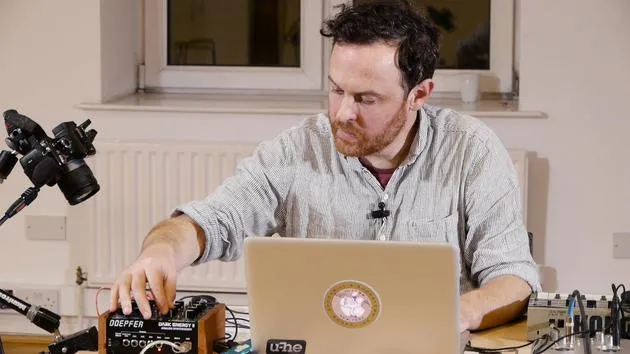
14. BONUS: Crear una línea de bajo con el Doepfer Dark Energy II
Lección gratis7:26
Transcripción de la lección
Music Lesson: Creating a Bass Line
Introduction
I think now it's time to move on with our bass. So I'm thinking about drums and percussion. I've got my chords, and I'd like to get a bass sound going from that. I will then work out whether I have enough to actually lay down a structure of a track or if I need to do something different.
Creating a Bass Line
A nifty little trick here for creating a bass line is to use the root note of the chords. If you remember, we started out using the Schwarzenegger to create some chords. These chords were then recorded into a separate MIDI track to extract the actual chords themselves.
Now that I know this MIDI track works well with the music I've created, I'm going to do the following:
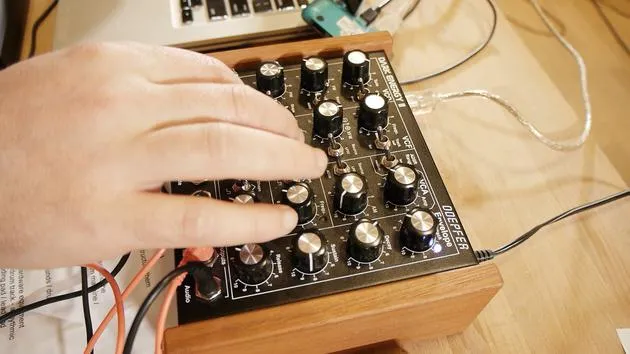
- Copy over these MIDI tracks to my synth track for the Dark Energy that will create my bass.
Deleting Unnecessary Notes
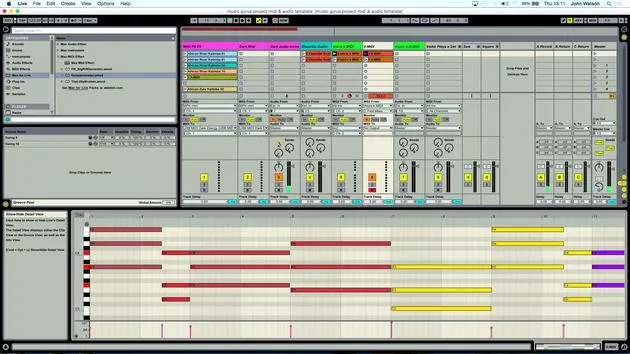
Since this synth is monophonic, it can only play one note at a time. We have quite a complex series of chords here, so I need to delete some of the notes to allow our bass line to play through. Here's how:
- Zoom out a little bit.
- Select all of the notes apart from the bottom set.
- You can have a little play around; it doesn't have to be all of the bottom notes. A bit of variation is okay.
Remember, I have copies of the original chords, so if I make a mistake, I can undo or replace the chords back in to delete the notes and get my bass line.
Finalizing the Bass Line
I'm looking for one note to play at a time. Let's select the notes and create our bass line.
- I'll take out the final note and check everything is set.
Now, going back to the MIDI setup, I know this is connected already, so hopefully I should be able to:
- Solo the clip.
- Plug in the audio output, making sure to connect to the mono input (left input).
Listening to the Bass
Let's listen to the bass now. Upon listening, I realized I have some extra parts that I don't need. I can simply right-click and delete those.
Now, I have the root notes of the chords that I've just inputted.
- Listening in context of everything else reveals that some notes are a little bit out in terms of timing.
To fix this:
- Shift the note over so it lines up correctly.
- Use the metronome to get the rhythm right.
Adjusting Notes
For previous recordings, I had a different set of chords, and I need to do the same here.
- I'll delete everything apart from the last bottom notes of the chord.
- Once again, zoom out to make it easier.
In theory, I should be able to play this now.
- Ensure that the final note isn't too low in its octave range for the synth.
Raising the Octave
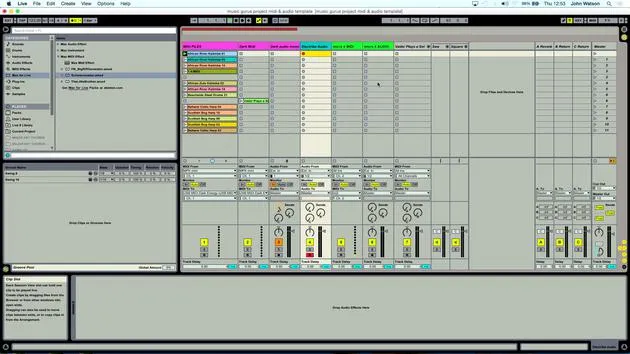
To jump up an octave inside a MIDI clip in Ableton, press Shift + Arrow Up, which will raise it.
- Undo to find the original note (C3) and then shift it up to C4.
- Check the rhythm and timing to ensure everything is aligned correctly.
Completing the Bass Line
With the bass line done, we've got two different layers of music that work well together.
Recording the Bass
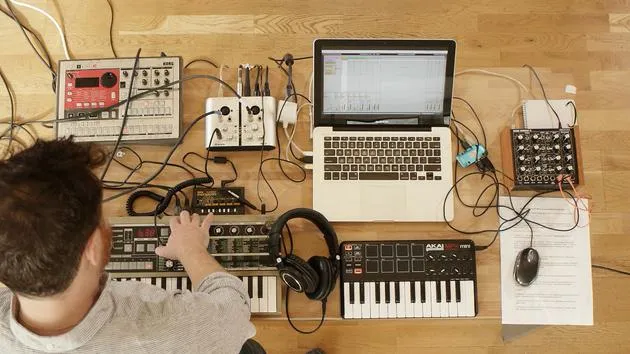
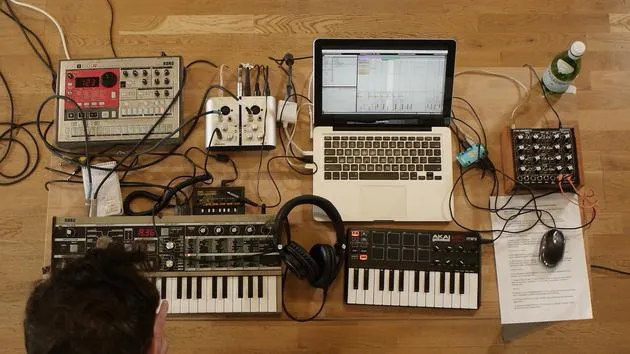
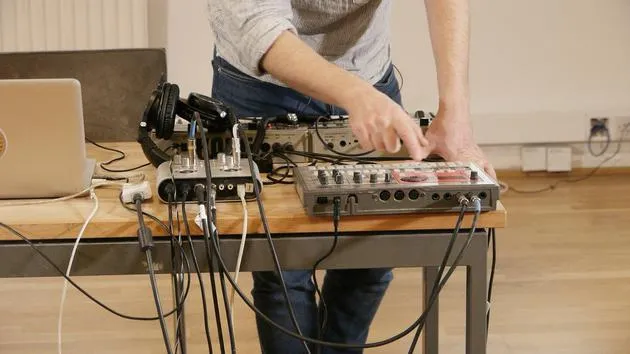
We recorded the audio in from the MicroKorg and Electribe drum machine and just created our bass line (the MIDI part). Now we need to record this in as audio:
- Arm the audio track that I have previously set up.
- Click the first scene of MIDI clips and click record.
I might tweak a few parameters as well, adjusting the filter cut-off to add some timbre change for movement.
Final Checks
- Come down to the next clip and make sure everything is fine.
- Check the clips and prepare to record again.
After listening back, it sounds like the bass part is now recorded in.
Conclusion: That's how you create and refine a bass line, working through MIDI and audio recording to achieve the desired sound in your music project.
14 lecciones
1h 39m de lecciones en vídeo estructuradas
Funciones de vídeo avanzadas
Ralentiza, repite un pasaje, sigue la partitura
Móvil, tablet y ordenador
Practica donde quieras
Garantía de satisfacción 100%
30 días de garantía de devolución
Conoce a tu gurú
Conoce a tu gurú
Tras hacer prácticas con Dave Allen, productor de Depeche Mode y The Cure, John se sintió inspirado para estudiar Tecnología Musical en Londres. Su carrera musical despegó tras un exitoso fichaje por CookShop Records, con el que publicó 9 sencillos y un álbum en 2007 que recibió críticas entusiastas de Q, Uncut y Lowdown Magazine, además de sonar en XFM y Radio One.
John empezó a formarse como ingeniero de sonido en el estudio Bonafide en 2005, donde perfeccionó su talento, y ese mismo año fundó Jackdaw Recordings. Ha colaborado con numerosos artistas de éxito y, en 2007, comenzó a tocar para el músico pop Patrick Wolf, actuando en salas de primer nivel tanto en el Reino Unido como a nivel internacional, incluidos The Astoria y el Shepherds Bush Empire.
Desde su estudio londinense, John ahora compone música, con dos lanzamientos más en CookShop, se ocupa de la ingeniería de sonido para artistas destacados y crea diseño sonoro para anuncios de televisión, cine, teatro y vídeo corporativo.
Esa infrecuente combinación de compositor, productor e ingeniero de estudio en activo es justo lo que John aporta a su enseñanza. En Creative Composition & Production in Ableton Live y Creative Sampling & Production in Ableton Live, te muestra cómo transforma ideas en bruto en temas terminados y listos para publicar: la composición, el sampleo, el diseño sonoro y el saber hacer práctico de la ingeniería que hay detrás de un disco profesional.







