



Ejercicio - Editar MIDI - Beat de muestra

Con
Isaac CotecCon los clips MIDI y los Drum Racks, puedes empezar a escribir tus propios beats únicos. Esta actividad te guiará por la creación de un beat en Live. Es una forma estupenda de asegurarte de que has entendido todo sobre la edición de MIDI en Ableton Live. El Example Set está disponible para descargar en la primera lección de este módulo. Si aún no lo tienes, puedes descargarlo abajo.
Qué incluye el curso
17 lecciones (1h 33m) · 1 gratis
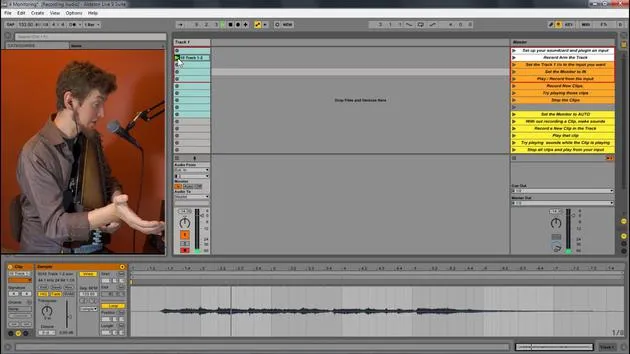
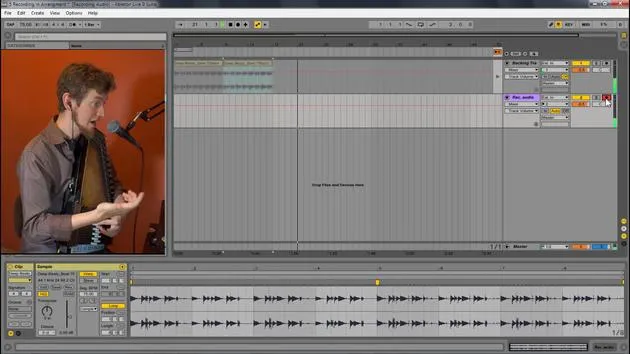
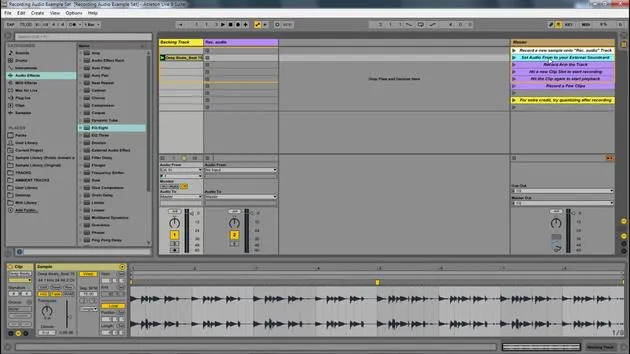
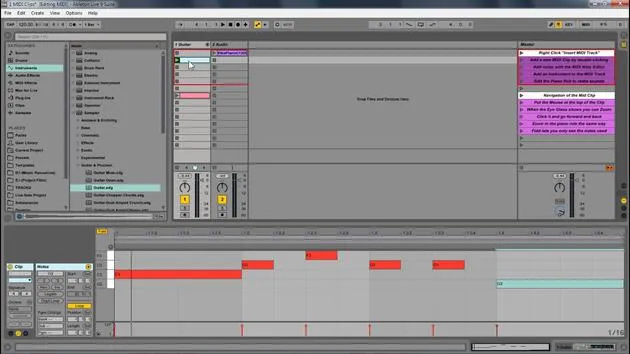
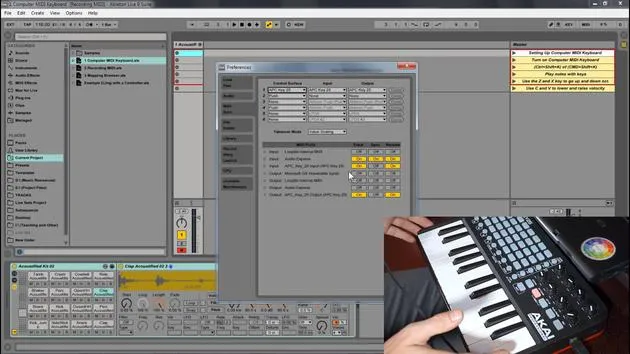
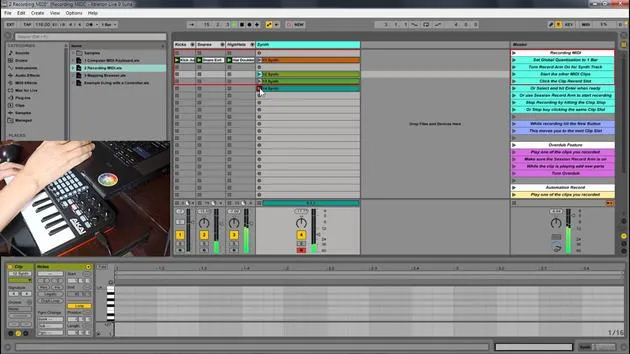
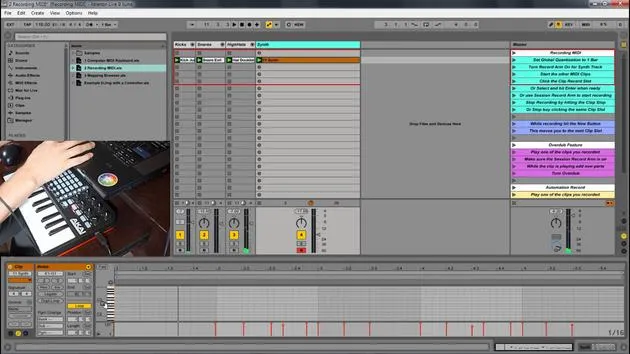
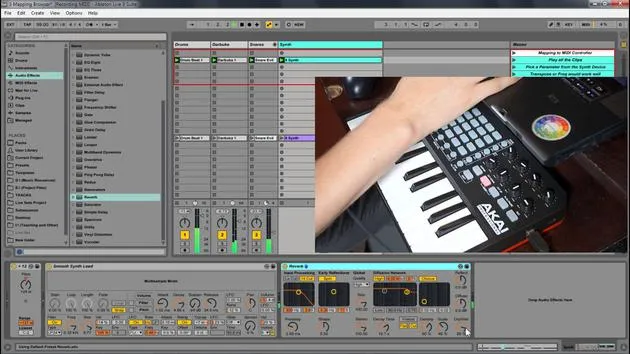
Transcripción de la lección
Music Lesson: Creating a Beat in Ableton Live
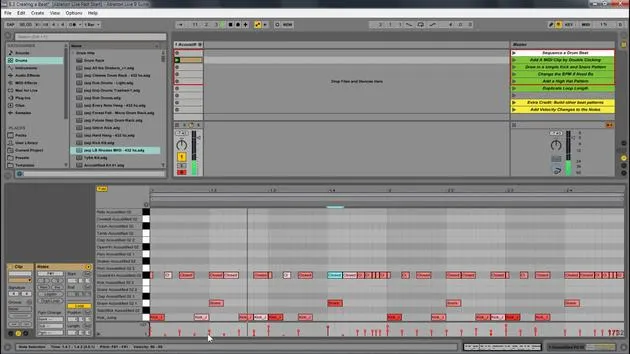
So we have this example set for creating a beat. Here's what we're going to do:
- Open the Project: Start by opening up the project.
- Create a MIDI Clip:
- Add a drum rack to the MIDI clip to implement some sounds.
- Write your own unique beat.
Step-by-Step Instructions
- Here is this set and all you have to do is follow along what's written here:
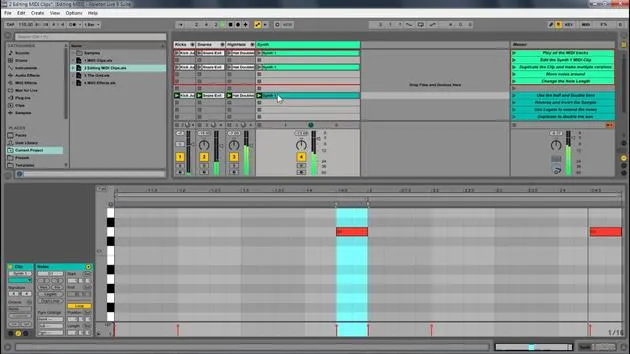
- Add a MIDI Clip: Double click to do that.
- Draw in a Kick and Snare Pattern: This is very easy.
- Choose your speed (BPM). I'm going to go with 90 to create something a little more hip hop.
Working with the Drum Rack
-
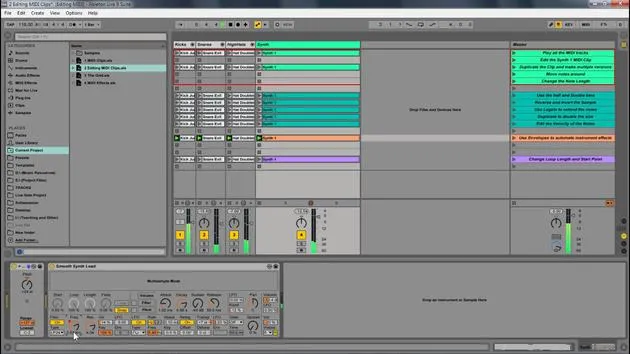
The drum rack displays only what's in it. There's already a drum rack available within this track.
- If you want to use a different one, go to Drums and drag in another drum rack.
-
Now, let's draw in a kick and some snare. Great!
Adding Hi-Hats and Adjusting the Grid
- Next, I want to add a closed hi-hat.
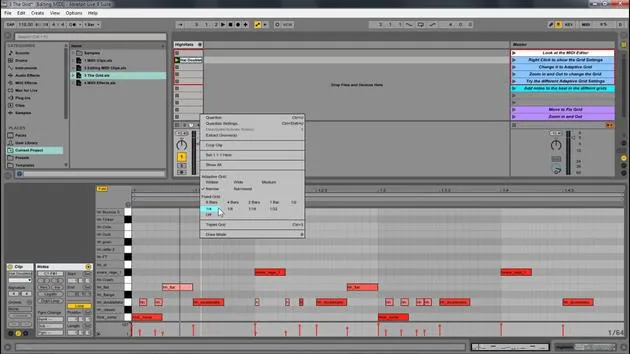
- Change the grid to 16th notes.
- Select all the elements and press Ctrl D to duplicate them.
- Change the grid to 32nd notes.
- Create a little fill at the end.
Enhancing the Beat with Velocity Changes
-
This is a great start to a beat:
- Kick
- Different elements
- Hi-hat
-
Now, let's add some velocity changes:
- Select all of this.
- Hit Duplicate Loop to double the size, allowing for variation in the loop.
-
Accent the kicks on the one.
- Since this kick instrument isn't velocity sensitive, I'll change that in the Simpler.
- Also, add variation to the hi-hats.
Finalizing the Beat
-
Ensure the hi-hat is velocity sensitive.
- Increase it and adjust the others accordingly.
- You can hold Alt and drag up to adjust velocity.
-
We have the beginning of the beat; it's a pretty good start!
Exploring Different Styles
-
This is a simple project for you to go through, but you can go crazy creating various beats.
-
Different Examples:
- Let's say we want something in 4/4 time.
- Delete the preceding elements.
- Duplicate and add a snare and some shakers.
-
Set it to 16th notes and again use Ctrl D to duplicate.
-
Add more variation and sounds until you find something that flows.
Creative Exploration
- You can create genres like hip hop, dubstep, or trap. Play around with different structures and sounds:
- Lay down a simple kick.
- Experiment with different elements and see how it sounds.
Hot Swap and Final Tweaks
-
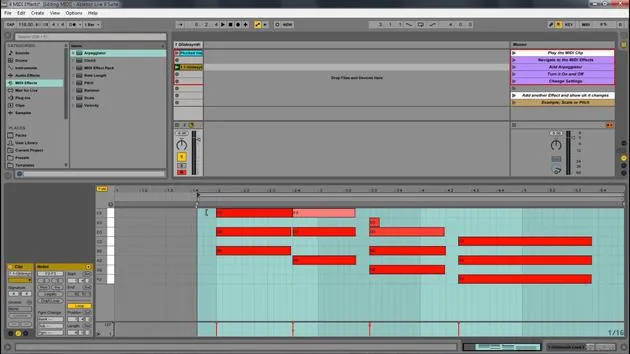
Now that we've looked at the basics, let's discuss the Hot Swap feature:
- Simply press that button to change out the instrument to any other you like.
-
Try different instruments and see how they transform your beat.
Conclusion
- Editing MIDI within Ableton Live allows you to create your own instruments, sounds, and melodies. Explore and enjoy making music using MIDI!
17 lecciones
1h 33m de lecciones en vídeo estructuradas
Funciones de vídeo avanzadas
Ralentiza, repite un pasaje, sigue la partitura
Móvil, tablet y ordenador
Practica donde quieras
Garantía de satisfacción 100%
30 días de garantía de devolución
Conoce a tu gurú
Conoce a tu gurú
Isaac Cotec es, posiblemente, ¡uno de los mejores formadores de Ableton del mundo! Mientras trabajaba en su propia música, empezó a enseñar técnicas de grabación, diseño sonoro y Ableton Live a alumnos particulares y, desde que obtuvo su certificación como Ableton Certified Trainer oficial, ha ayudado a miles de productores a mejorar su nivel y triunfar como músicos.
Isaac comenzó a producir música electrónica en 2005 con Psyche Sonics, un grupo experimental que trabajaba con la ciencia y la investigación de los binaural beats y la alteración de la consciencia a través del sonido. Tras salir de gira, siguió componiendo música bajo el alias Cotec y más tarde surgió como el artista Subaqueous, fusionando su pasado electrónico con técnicas de producción tanto futuristas como orgánicas. Hasta la fecha ha publicado 3 álbumes y 4 EPs.
Isaac es también fundador y gerente del sello discográfico Invibe Music, que representa a algunos de los mejores artistas de música electrónica del Pacífico Noroeste y se especializa en dance de midtempo.
En sus cursos de Ableton Live, Isaac comparte las técnicas de producción, diseño sonoro y composición que ha pasado años perfeccionando: justo las habilidades que emplea para convertir la chispa de una idea en un tema terminado.







