



Instalar y configurar controladores MIDI en Ableton Live

Con
Isaac CotecCómo instalar y configurar un controlador MIDI en Ableton Live, desde las preferencias de MIDI y Sync hasta activar Track y Remote para poder tocar y grabar partes.
Qué incluye el curso
17 lecciones (1h 33m) · 1 gratis

Transcripción de la lección
Recording MIDI in Ableton Live
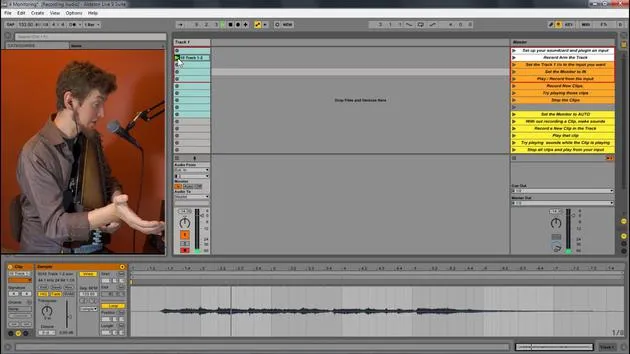
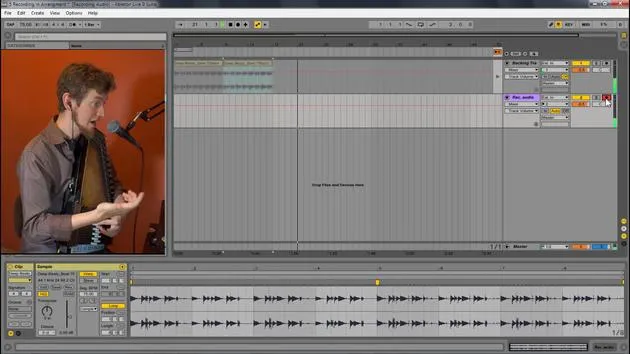
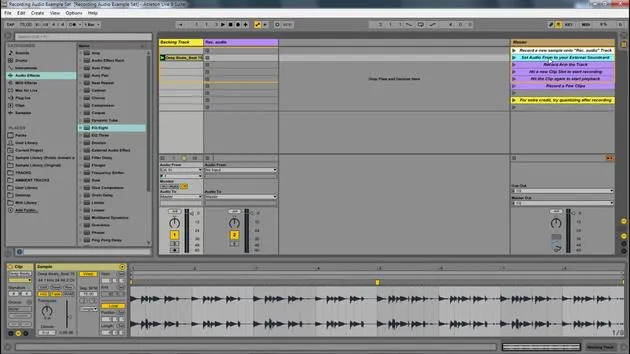
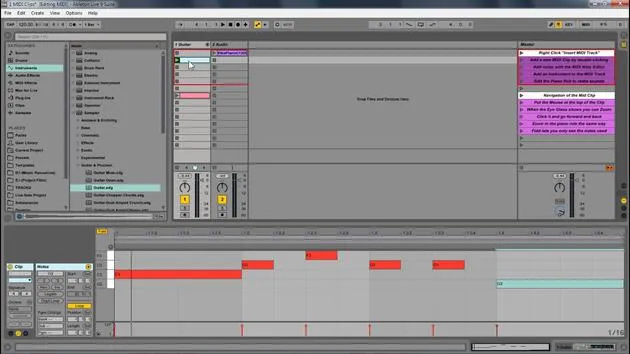
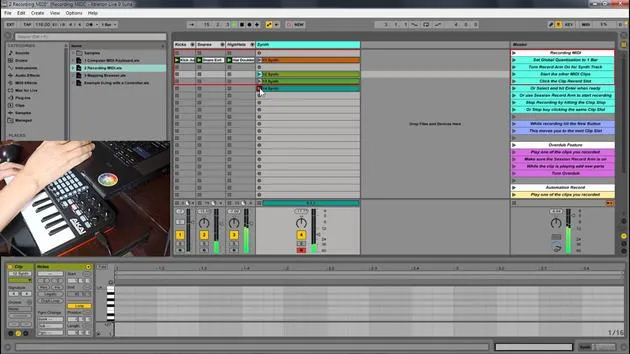
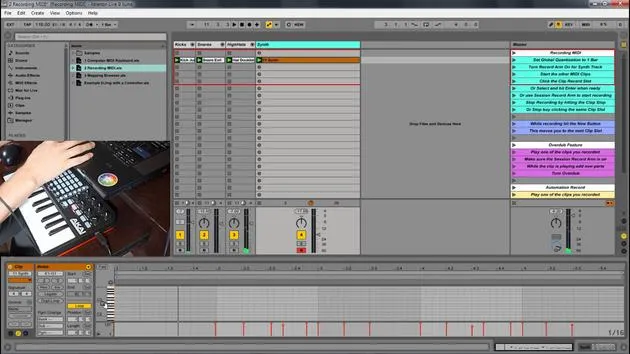
In this module, we're going to be looking at how we can record new MIDI parts and add them directly into Ableton Live. Recording MIDI in Ableton Live allows us to add new MIDI in real-time.
Recording New Clips
- You can record new clips on the fly into any session slot.
- You can record new MIDI using:
- A keyboard
- A MIDI controller
Benefits of MIDI Controllers
MIDI controllers provide a much easier way to control aspects of Live. They can transform Live from just a Digital Audio Workstation (DAW) into a musical instrument. There is a wide variety of MIDI controllers available, such as:
- Keyboards
- Drum pads
- Devices like the Ableton Push, which enhances the feeling of playing an instrument rather than just working within a screen.
Setting Up a MIDI Controller
To set up a MIDI controller in Ableton Live:
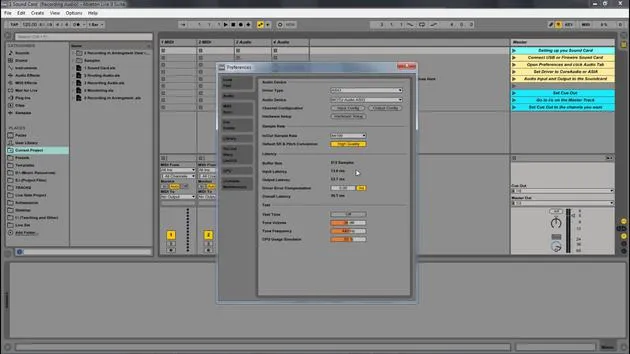
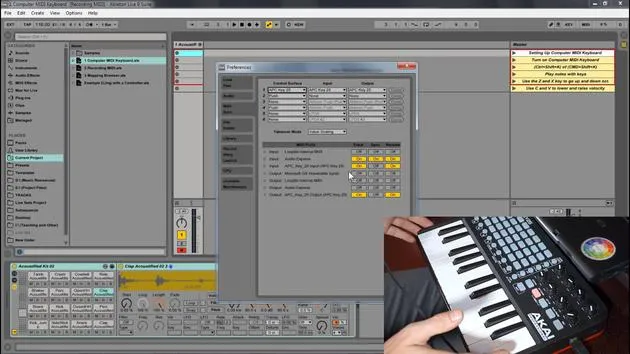
- Go to Options > Preferences.
- Under MIDI and Sync, you'll find your different MIDI preferences.
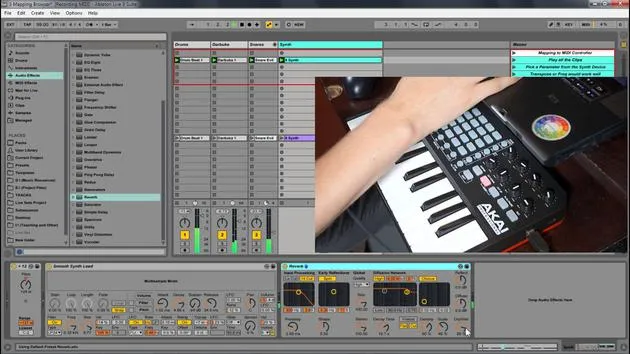
For instance, I have the APC Key 25, which functions similarly to a launchpad:
- It features grids corresponding with Ableton.
- It includes knobs and keys for additional control.
Configuration Steps
- If you are using a control surface (like the APC Key 25), set the control surface in the preferences.
- Set the inputs and outputs accordingly (e.g., your audio interface, like the Audio Express, and the APC Key 25).
Make sure to enable "Track" and "Remote" so you can control various aspects of Ableton. Once the armed button is set, you can use your keyboard to input information.
Quick Review
- Go to Live Preferences.
- Check the MIDI and Sync section.
- Ensure that the MIDI device is set to "Remote On" and "Track On".
This might vary depending on the specific controller you are using, and the manufacturer will generally provide the necessary setup information.
Using Your Computer Keyboard
If you do not have a MIDI controller, you can always use your computer keyboard.
- The image shows the white and black keys of a piano represented on the computer keyboard:
- White Keys: A, S, D, F, G, H, J, K, L
- Black Keys: W, E, T, Y, U, O, P
Activating the Computer MIDI Keyboard
To activate the computer MIDI keyboard:
- Press the designated button in Ableton to turn it on.
After activation, you can use the following keys to play:
- W, A, S, D will produce sound.
Visual Feedback
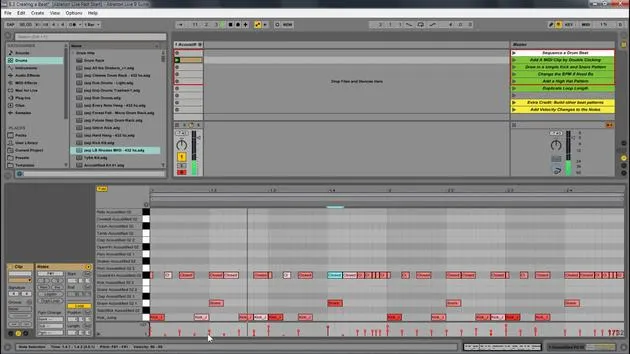
In the drum rack, you will see little yellow dots indicating active spaces. If there are no instruments loaded there, hitting the keys won't produce any sound.
To adjust the octave:
- Press Z to lower the octave and keep pressing to adjust further.
Velocity Sensitivity
While using the computer keyboard:
- It may not be velocity sensitive by default.
- Press C to lower velocity and V to raise it.
I've seen amazing producers write music on the fly using just their computer keyboard while traveling. So, don't let the lack of a MIDI controller hold you back, your computer keyboard is a great starting point!
Summary
- The keys A, S, D represent the white keys on a keyboard.
- The keys W, E, T represent the black keys.
- You can adjust octave and velocity directly from your keyboard.
- Always ensure the activation button for the computer MIDI keyboard is on; otherwise, it will default to MIDI control for external devices.
17 lecciones
1h 33m de lecciones en vídeo estructuradas
Funciones de vídeo avanzadas
Ralentiza, repite un pasaje, sigue la partitura
Móvil, tablet y ordenador
Practica donde quieras
Garantía de satisfacción 100%
30 días de garantía de devolución
Conoce a tu gurú
Conoce a tu gurú
Isaac Cotec es, posiblemente, ¡uno de los mejores formadores de Ableton del mundo! Mientras trabajaba en su propia música, empezó a enseñar técnicas de grabación, diseño sonoro y Ableton Live a alumnos particulares y, desde que obtuvo su certificación como Ableton Certified Trainer oficial, ha ayudado a miles de productores a mejorar su nivel y triunfar como músicos.
Isaac comenzó a producir música electrónica en 2005 con Psyche Sonics, un grupo experimental que trabajaba con la ciencia y la investigación de los binaural beats y la alteración de la consciencia a través del sonido. Tras salir de gira, siguió componiendo música bajo el alias Cotec y más tarde surgió como el artista Subaqueous, fusionando su pasado electrónico con técnicas de producción tanto futuristas como orgánicas. Hasta la fecha ha publicado 3 álbumes y 4 EPs.
Isaac es también fundador y gerente del sello discográfico Invibe Music, que representa a algunos de los mejores artistas de música electrónica del Pacífico Noroeste y se especializa en dance de midtempo.
En sus cursos de Ableton Live, Isaac comparte las técnicas de producción, diseño sonoro y composición que ha pasado años perfeccionando: justo las habilidades que emplea para convertir la chispa de una idea en un tema terminado.







