



Configurar una tarjeta de sonido externa en Ableton Live

Con
Isaac Cotec
Qué incluye el curso
17 lecciones (1h 33m) · 1 gratis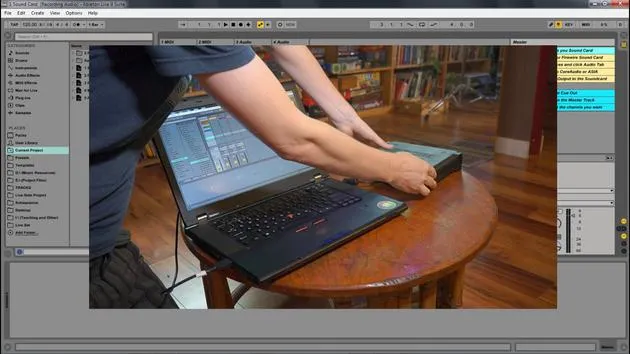
Transcripción de la lección
Recording Audio in Ableton Live
In this module, we're going to be looking at how we can record audio within Ableton Live. We'll cover:
- Setting up our system to record external audio
- Creating new parts, clips, and recordings
You can only get so far using loops and pre-made clips. Let's expand the palette with our own recording.
Setup Overview
To do this, there are a few things we need to set up and learn:
- Set up your external audio interface
- Routing the ins and outs within Live
- Arming tracks and monitoring
- Global record, recording, and playback
- Metronome, multi-tracking, and editing recordings
External Audio Interface
An external audio interface or sound card allows you to connect microphones, instruments, and other external sounds to your computer, and in turn, to Ableton Live.
Important Note: You don't need an external audio interface, but you will be limiting your sound quality and ability to record external sounds if you don't.
External interfaces typically use USB or FireWire to connect to your computer.
Steps for Connecting Your Audio Device
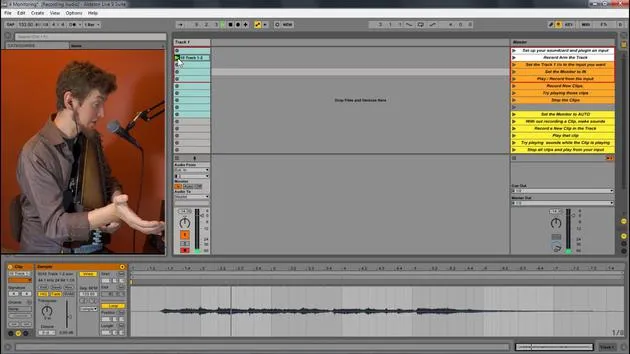
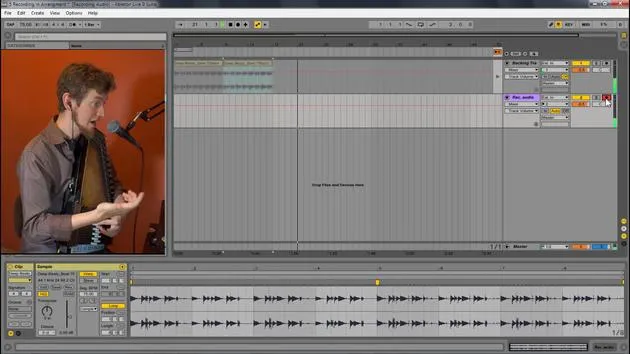
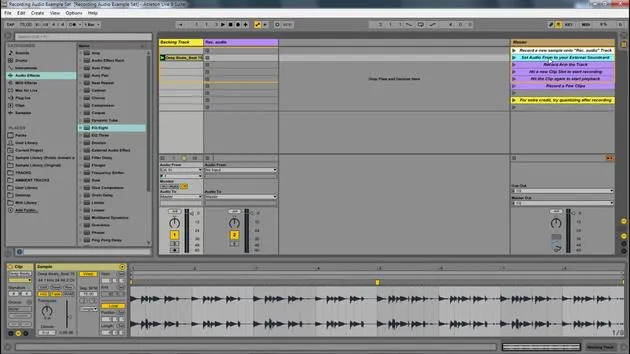
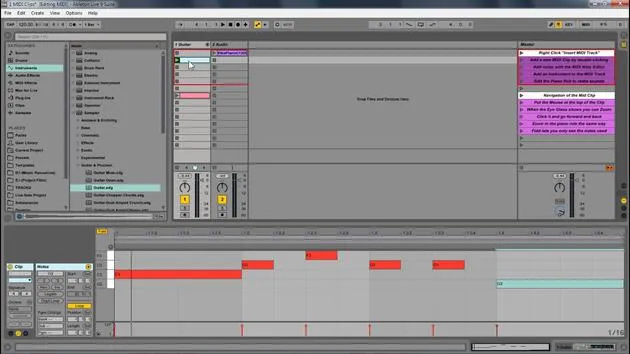
Let's look at connecting your audio device within Ableton Live. This Ableton Live set goes through all the different necessary steps to prepare your audio interface.
Setting Up Your Sound Card
-
Connect Your Interface
Here I am connecting my MOTU sound card to my computer via USB. -
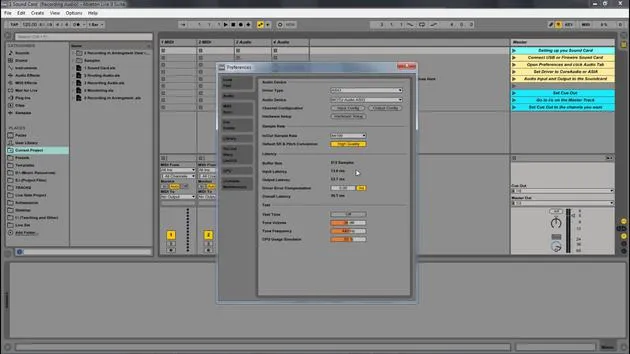
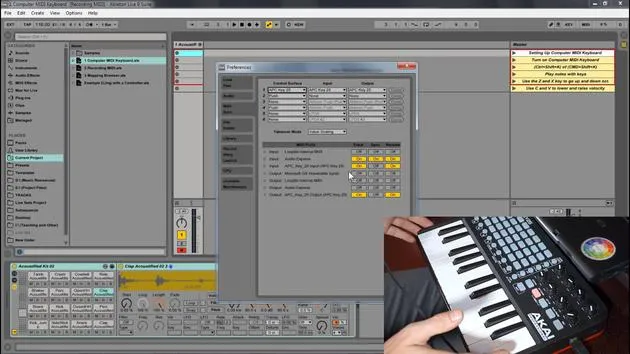
Open Preferences
- Go to: Options > Preferences (or File > Preferences on Mac).
-
Choose Your Audio Driver
- Main driver type:
- ASIO for PC
- Core Audio for Mac
- MME DirectX is for the onboard sound card.
If I set it to this, I can choose my headphones or speakers. Note that you can only select one thing at a time in this setting.
- Main driver type:
-
Select ASIO or Core Audio
When using ASIO or Core Audio, you can pick the device, which can have multiple inputs and outputs.- Example: I would select the MOTU interface.
-
Input Choices
- You can look at your inputs; my device has several options, and you can choose either mono or stereo.
- I typically only use these.
-
Output Settings
- I also have several output options, but I usually only need two channels in stereo.
- You can turn inputs and outputs on and off by clicking them.
By following these setup steps, you'll be able to effectively record audio within Ableton Live, expanding your creative capabilities!
17 lecciones
1h 33m de lecciones en vídeo estructuradas
Funciones de vídeo avanzadas
Ralentiza, repite un pasaje, sigue la partitura
Móvil, tablet y ordenador
Practica donde quieras
Garantía de satisfacción 100%
30 días de garantía de devolución
Conoce a tu gurú
Conoce a tu gurú
Isaac Cotec es, posiblemente, ¡uno de los mejores formadores de Ableton del mundo! Mientras trabajaba en su propia música, empezó a enseñar técnicas de grabación, diseño sonoro y Ableton Live a alumnos particulares y, desde que obtuvo su certificación como Ableton Certified Trainer oficial, ha ayudado a miles de productores a mejorar su nivel y triunfar como músicos.
Isaac comenzó a producir música electrónica en 2005 con Psyche Sonics, un grupo experimental que trabajaba con la ciencia y la investigación de los binaural beats y la alteración de la consciencia a través del sonido. Tras salir de gira, siguió componiendo música bajo el alias Cotec y más tarde surgió como el artista Subaqueous, fusionando su pasado electrónico con técnicas de producción tanto futuristas como orgánicas. Hasta la fecha ha publicado 3 álbumes y 4 EPs.
Isaac es también fundador y gerente del sello discográfico Invibe Music, que representa a algunos de los mejores artistas de música electrónica del Pacífico Noroeste y se especializa en dance de midtempo.
En sus cursos de Ableton Live, Isaac comparte las técnicas de producción, diseño sonoro y composición que ha pasado años perfeccionando: justo las habilidades que emplea para convertir la chispa de una idea en un tema terminado.







