



BONUS - Setting up an external instrument (Korg Volca Beats) in Ableton from scratch
Learn how to set-up and configure an external instrument (Volca Beats) in Ableton Live
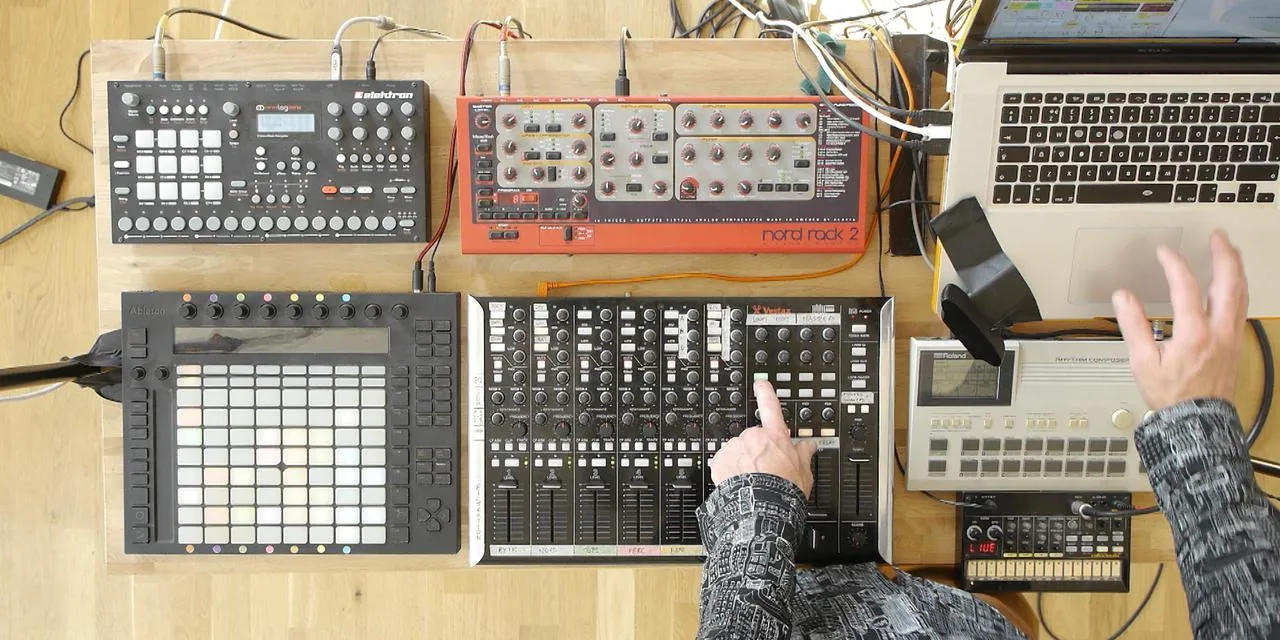
What's in the course
16 lessons (2h 26m) · 2 free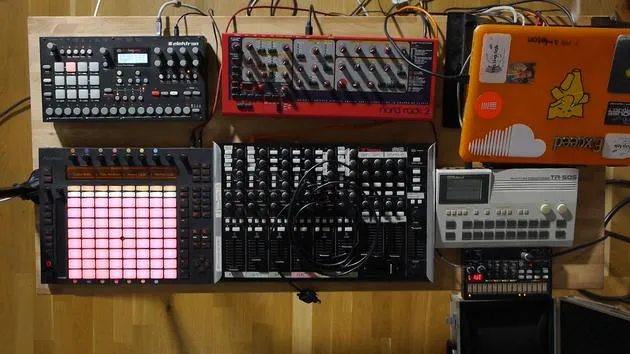
01. Setting up the gear
1:29
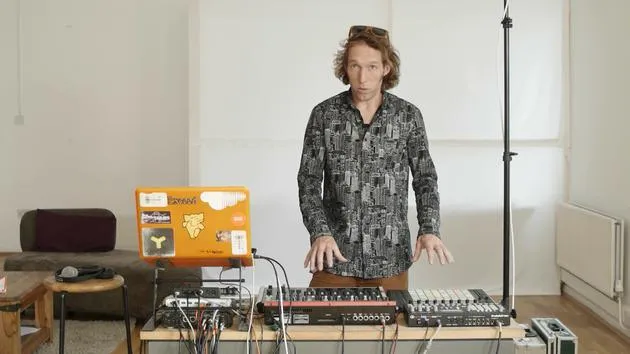
02. Presentation of the instruments
Free lesson5:44
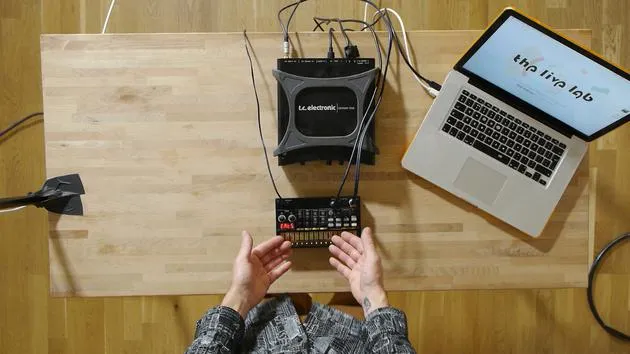
03. BONUS - Setting up an external instrument (Korg Volca Beats) in Ableton from scratch
You are here12:51
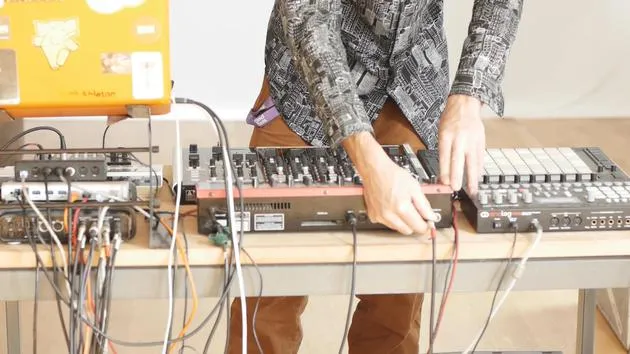
04. Understanding cabling, MIDI and Analog audio routing
4:01
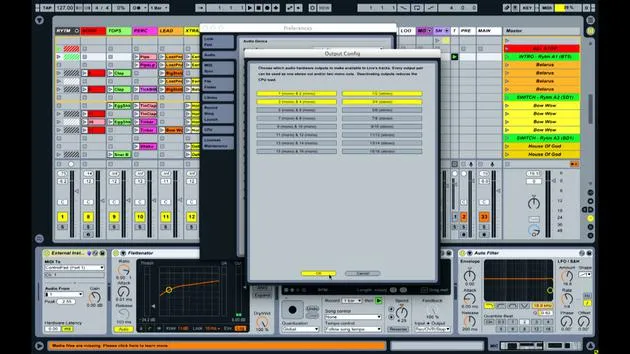
05. Setting up MIDI & Audio preferences in Ableton
10:44
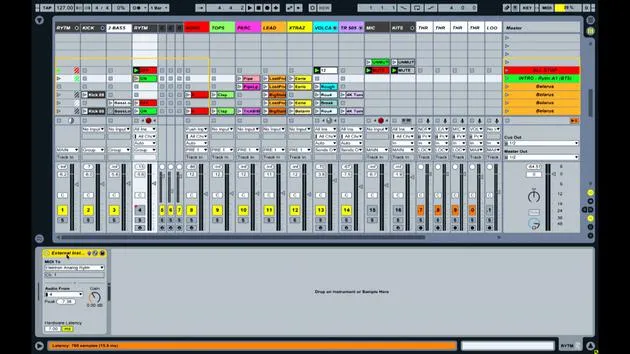
06. Setting up tracks & signal routing in Ableton live
6:46
07. Setting up external instrument tracks in Ableton Live
8:33
08. Setting up a microphone track in Ableton Live
6:09
09. Setting up Thru-tracks and loopers
9:08
10. The set's secret weapon - movers and shakers
8:08
11. Output routing & Master FX
13:36
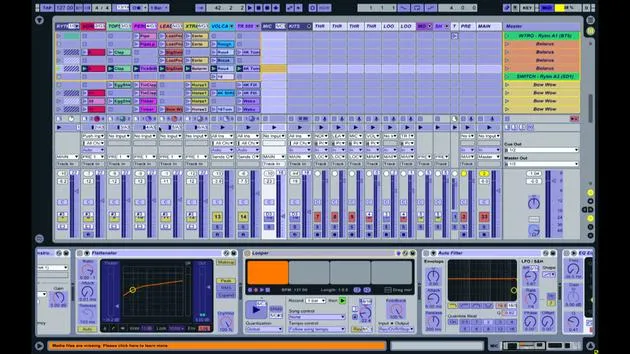
12. MIDI mapping, Racks & Macros (part 1)
14:16
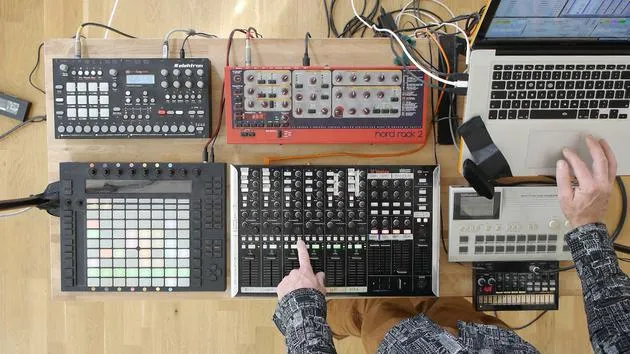
13. MIDI mapping, Racks & Macros (part 2)
12:35
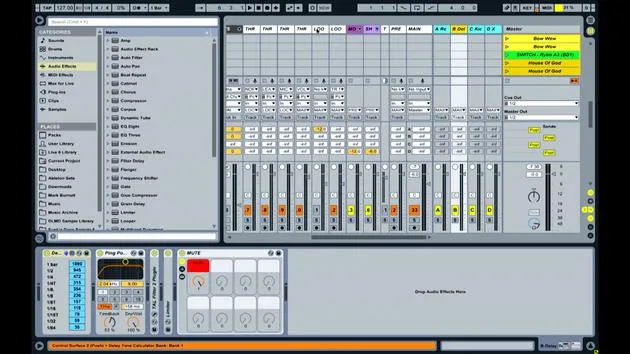
14. Delay track and delay times
3:33
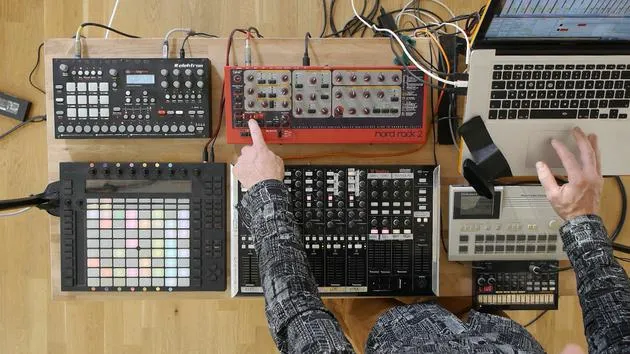
15. Program Changes & External Instruments
7:11
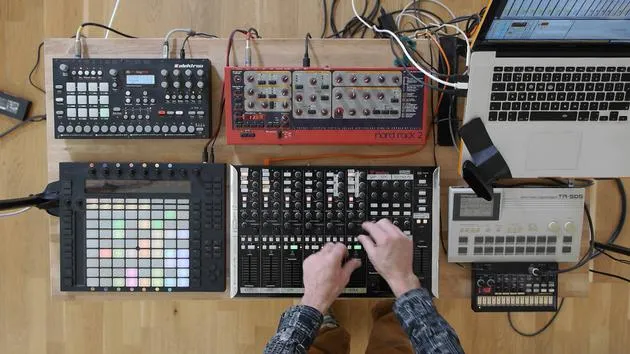
16. Set content & performance technique
21:23
Lesson transcript
Integrating Hardware with Ableton Live
Okay, so you've been using Ableton for a little while. You've managed to create some parts and sort of play around with ideas. You might have even been using it for a while, and you're proficient in producing music inside the software itself. But now, you've decided that you want to get involved in the hardware revolution that's happening right now.
People are realizing the benefits and the fun involved in getting hold of actual hardware boxes that you can interact with.
Getting Started with Hardware
Let's say you've just been to the shop and bought something like the Korg Volker Beats. It's a lovely little drum machine, super cheap for what you get. It has some really nice analog circuits that create some fantastic sounds. You can play it straight out of the shop with the built-in speaker, but you want to know how to integrate it with what you've already got inside Ableton Live.
Equipment Needed
To get this to work, you're going to need a couple of things:
- Audio MIDI Interface:
- The one I'm using today is the TC Electronic Connect Live.
- It's important that your interface has:
- Audio inputs and outputs.
- MIDI in and out (the MIDI out is crucial, as it's how you will send information to your external gear).
Connecting Everything Together
Now, I'm going to show you how to connect everything together.
- My audio interface is a FireWire interface, so it connects with a FireWire cable.
- If you have a USB audio interface, it will connect using a USB cable.
Plug in the FireWire cable to my Mac. Once connected, you should see power on the front of your audio interface.
Next, plug in your Korg Volker Beats.
- Remember, this device only has a MIDI in, so it can only receive information (it can't send information as MIDI), but it does have an audio out.
Setting Up the MIDI Connection
-
MIDI Cable:
- Use a standard five pin MIDI cable.
- Connect the output from the audio MIDI device to the input on the Korg Volker Beats.
- This will send MIDI information; for example, when I tell Ableton Live to play kick drums, it sends that message to the drum machine.
-
Audio Connection:
- You'll need an audio lead to get the sound back into Ableton.
- The Volker Beats has a mini jack output, so use a mini jack lead to connect it to the larger mono jacks on my audio interface (inputs 1 and 2).
-
Powering the Device:
- Some devices run on batteries; if your Korg does, make sure you have some, or plug it in.
Setting Up Ableton Live
Now, let's get Ableton loaded.
- It's best to plug in all your devices before booting up Live, as this helps it recognize everything correctly.
-
Open Ableton Live:
- Create a new set to work from the basic building blocks.
-
Audio Preferences:
- Go to the preferences (Control + Comma or Command + Comma).
- Select the audio tab to ensure your audio input/output device is set to the one you're using.
- If it isn't, select it from the drop-down box.
- Check that inputs and outputs 1 and 2 are activated (they should be yellow).
-
Monitoring Signal:
- Go back to your set.
- Open the IO tab if you don't see the input/output routing section.
- Start tapping on the Volker Beats; you should see the VU meters lighting up.
Using the External Instrument Device
To trigger your drum machine and get audio back into your Live set:
-
Create a MIDI Track:
- Drag an external instrument onto MIDI track one.
- Set the MIDI section to send info to your Korg Volker Beats.
-
Set MIDI and Audio Channels:
- In the external instrument device, select the appropriate MIDI channel (for Korg Volker Beats, it operates on MIDI channel 10).
- Set the audio input to 1 and 2.
-
Test the Setup:
- Enable your MIDI keyboard and record arm the track. Try playing some notes to trigger sounds from the drum machine.
Creating Patterns and Mixing
- Now you can create MIDI patterns within the MIDI track, triggering the drum machine sounds.
- Use the piano roll in the MIDI clip to identify sound mappings (e.g., C1 for kick drum).
Final Thoughts
This setup allows you to incorporate your external instrument much like any other software plugin while allowing for hands-on interaction. You can adjust parameters and sounds directly on the hardware, and still maintain the ability to apply effects, mix, and manipulate audio within Ableton Live.
I hope this helps you understand how to connect a basic device! Next, I'll show you my full live setup involving multiple devices all working under the same principle: sending messages out as note information and getting audio back in for a cohesive performance.
16 lessons
2h 26m of structured video lessons
Advanced video features
Slow down, loop a passage, follow along
Mobile, tablet & desktop
Practise wherever you are
100% satisfaction guarantee
30-day money-back guarantee
Meet your guru
Meet your guru
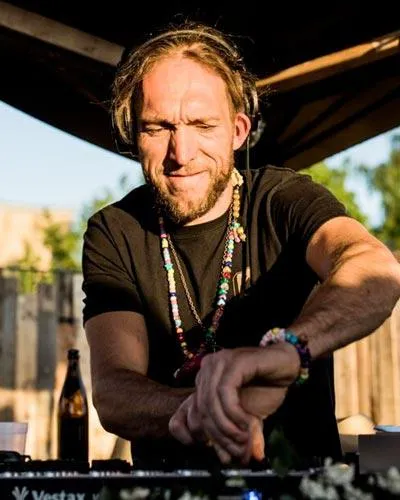
Mark Burnett is an Ableton Certified Trainer who has worked with Ableton products for over 14 years. As a producer and DJ on Funk'n Deep Records, his tracks have featured at major festivals and in sets and podcasts from artists including Carl Cox and Richie Hawtin, and he has played to crowds of thousands. He also runs large-scale events such as Workhouse Project, and studied at Imperial College London. His course covers using Ableton Live to build live performances, and it suits electronic producers and performers who want to take a show out of the studio and onto the stage.







