



Live Sets und Live Projects
Das steckt im Kurs
36 Lektionen (5h 28m) · 1 gratis
Transkript der Lektion
Working with Live Sets in Ableton Live
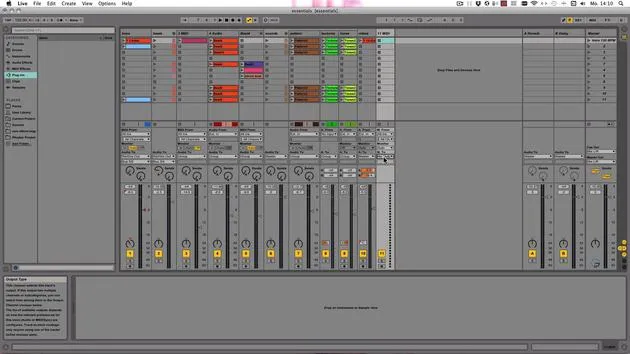
The file that you're working on in Ableton Live is called a Live Set. It contains:
- All the MIDI clips
- All the settings for tracks, clips, and devices
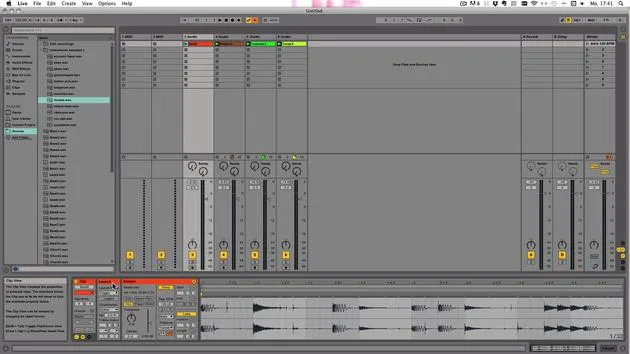
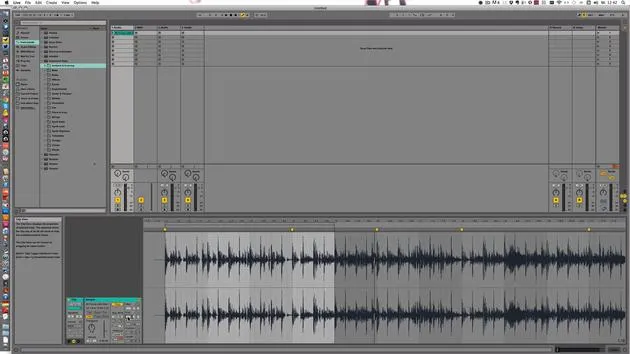
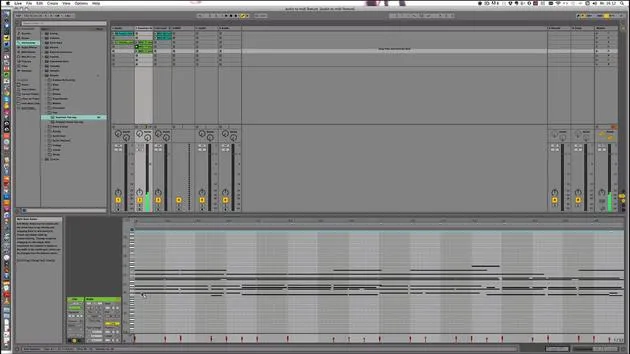
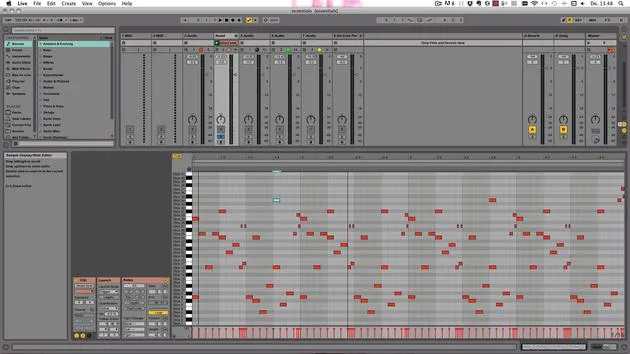
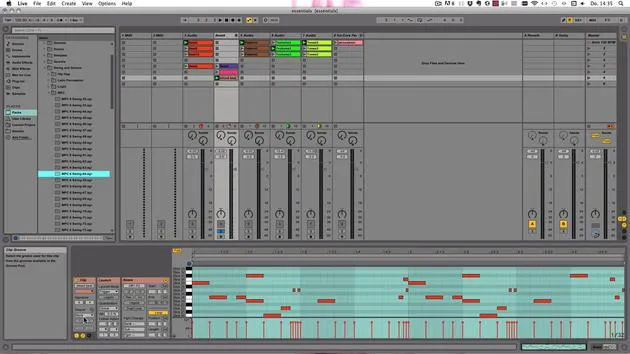
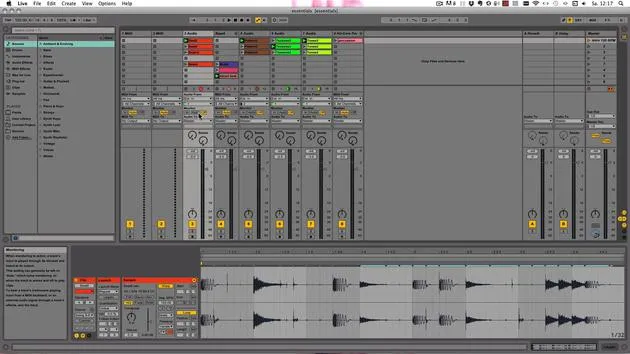
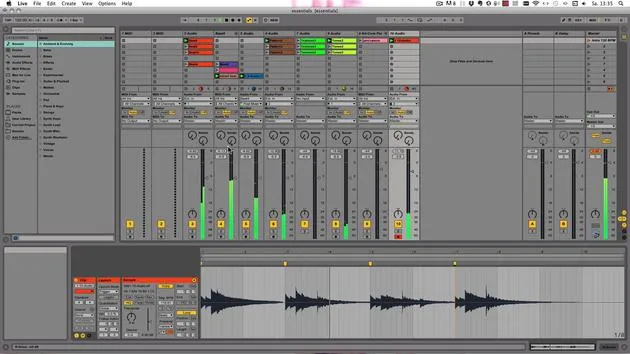
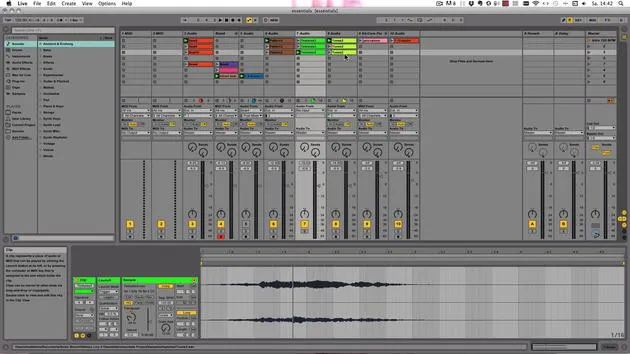
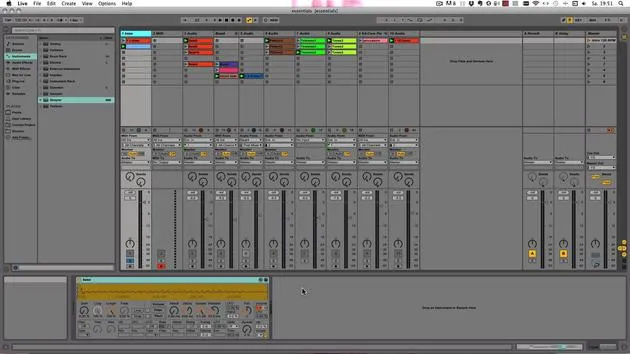
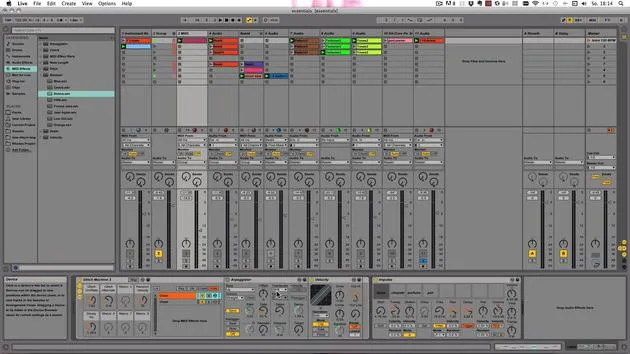
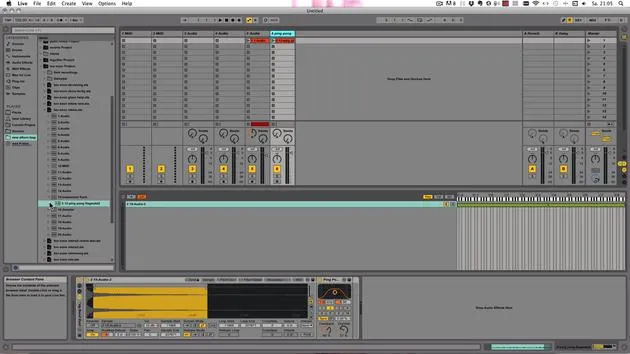
I've prepared a little Live Set here that is unsaved so far, which you can see because it's called Untitled. It has:
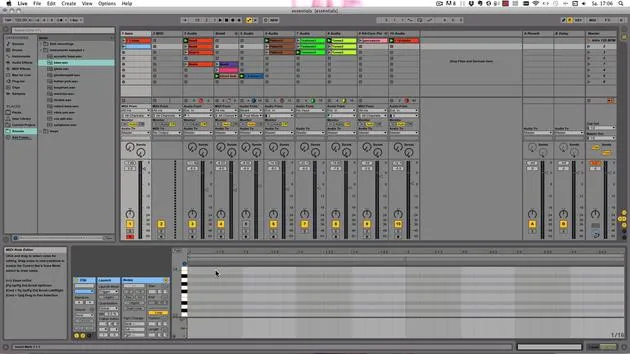
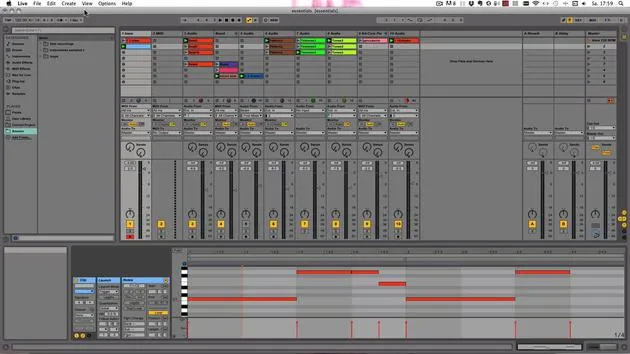
- A MIDI clip
- Some devices
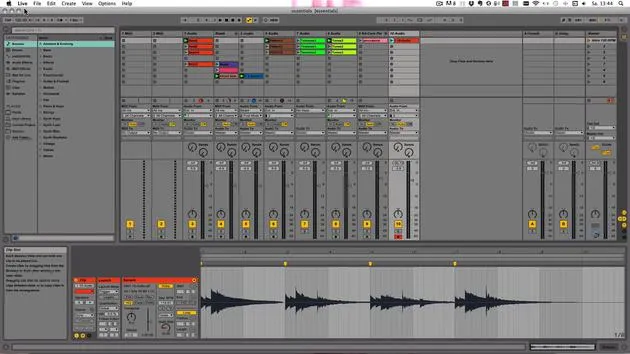
- An audio clip that I just recorded
Saving Your Live Set
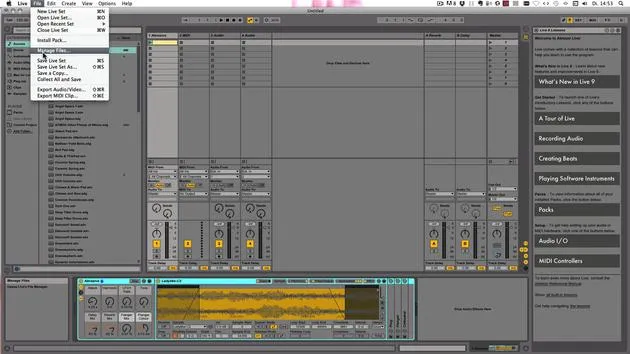
Let's save that. You can save through:
- File > Save Live Set
- On Mac: Command + S
- On Windows: Control + S
Here you see, I've been working on another project. This is where you definitely don't want to save it. You should have a dedicated folder where you want to save all your Live Sets into. For example, here I have different folders:
- Collaborations
- Music
Saving Process
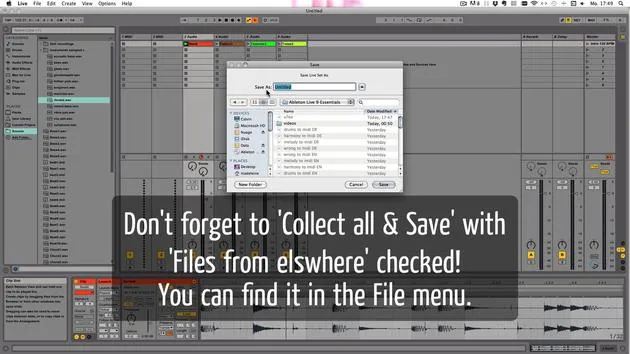
Let's say I want to save it in Collaps and call this Test. Then, press Enter.
There are also more commands for saving:
-
Save As: This is useful, for example, if you've been working on a song or a track, saved it, and then go back the next day to work more on it. Suppose you want to save it as Version 2; you could save it as Test 2.
-
Save a Copy: Here, you can save it with a new name and in a different location.
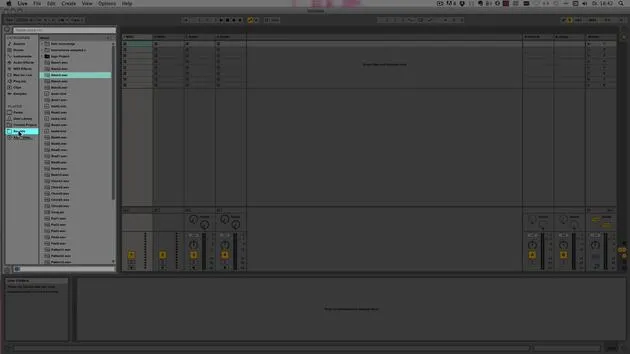
Using the Browser
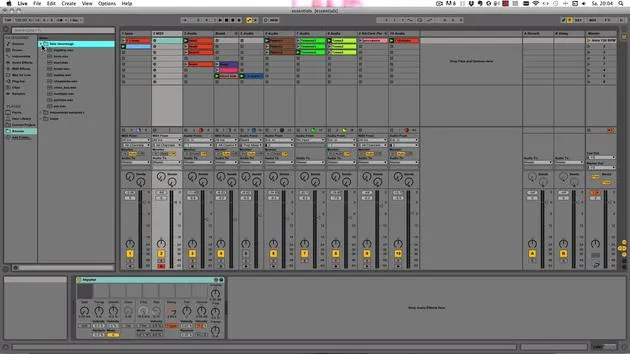
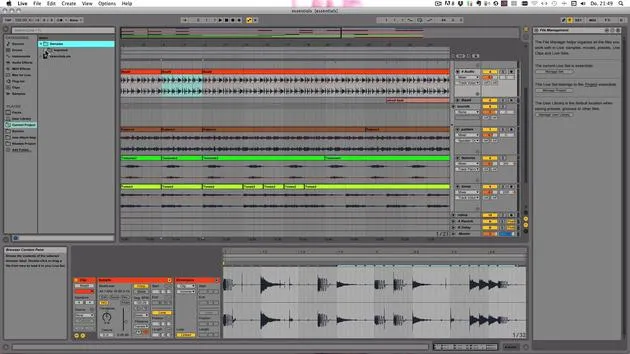
In the browser, you can go to Current Project, which shows you all the files in your Live Set, such as:
- Test 1
- Test 2
- Samples folder
Exploring Tracks and Clips
When you click on the little triangle, you can unfold and see more details:
- Track 1
- Track 2
- Track 3
- Track 4
Upon unfolding them, you can see the clips contained in each track:
- Track 1: Nothing in it.
- Track 2: Audio clip, nothing in it again.
- Samples folder: So far, it only has another recorded folder.
Important Note on Samples
The Samples folder contains all the audio files because Live Sets themselves (the .ALS files) are not very big. They do not save the WAV files within them, but only reference them. Therefore:
- Ensure you have a dedicated folder.
- Always save a new Live Set there to avoid saving it in the Live library or within another Live Set's project folder, which prevents the Samples folder from being generated and can lead to missing audio files.
This is a common issue that many newcomers to Live encounter.
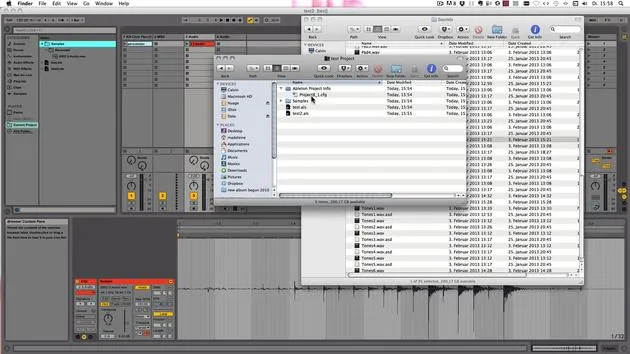
Viewing in Finder
Let's take a look at how this looks in Finder on Mac. It would appear the same on Windows in Windows Explorer.
- Navigate back to Collaps; you will find the Test project containing:
- Samples folder
- Both saved Live Sets (Test 1 and Test 2)
- Ableton project info, which Live needs for data (do not delete this).
When you save a Live Set for the first time, a project folder with the same name is instantly created that contains:
- All Live Set versions
- The Samples folder
Adding Audio Clips
Let's drag another audio clip in. If I save again and then check, you'll see it doesn't show up here because only what's been recorded or created by Live shows up in the Samples folder.
To avoid having lost connections and to address missing media files:
- Go through Collect All and Save.
- If you wish to copy audio files from the Live library, turn that option on.
All this is covered in a later tutorial, so don't worry about it. Just press OK, and you'll see a folder called Imported now, containing all the audio files used in that Live Set.
Opening Live Sets
To open a new Live Set, go through:
- Open Live Set or
- On Mac: Command + O
- On Windows: Control + O
You can also use Open Recent Set to quickly access the Live Sets you've been working on. Be mindful that some may be grayed out, meaning either they were deleted, moved, or renamed, causing Live to lose track of them.
Starting a New Live Set
You can start a new Live Set by pressing:
- On Mac: Command + N
- On Windows: Control + N
By default, Live always starts with a new Live Set. Unfortunately, you cannot set it to open with the last project you worked on.
Lastly, if you close a Live Set, a new one is created instantly as well.
36 Lektionen
5 Std. 28 Min. strukturierte Videolektionen
Erweiterte Videofunktionen
Verlangsamen, Passagen loopen, mitlesen
Handy, Tablet & Desktop
Üben, wo du willst
100 % Zufriedenheitsgarantie
30 Tage Geld-zurück-Garantie
Lern deinen Guru kennen

Lern deinen Guru kennen
Madeleine Bloom ist eine klassisch ausgebildete Musikerin, Produzentin, Multiinstrumentalistin und Sängerin aus Berlin und Gründerin des Labels Quixotica Records. Sie studierte elektroakustische Musik am Franz-Liszt-Konservatorium bei Prof. Robin Minard und überträgt diese Methoden auf ihren eigenen Mix aus Electronica-Pop. Ihre Musik wurde von den Produzenten Guy Sigsworth und Rupert Hine gelobt und brachte ihr eine persönliche Einladung von Imogen Heap ein, deren Tour sie eröffnete.
Als ehemalige technische Support-Mitarbeiterin von Ableton gründete sie 2012 die Online-Plattform Sonic Bloom, auf der sie in Kursen, Workshops und Einzelstunden Ableton Live und Musikproduktion unterrichtet. Sie hat Menschen auf der ganzen Welt mit Ableton Live, Push und Max for Live sowie mit Audio Engineering, Musiktheorie, Komposition und Sounddesign geholfen.







