



MIDI-Clips
Das steckt im Kurs
36 Lektionen (5h 28m) · 1 gratis
Transkript der Lektion
Music Lesson: Working with MIDI Clips
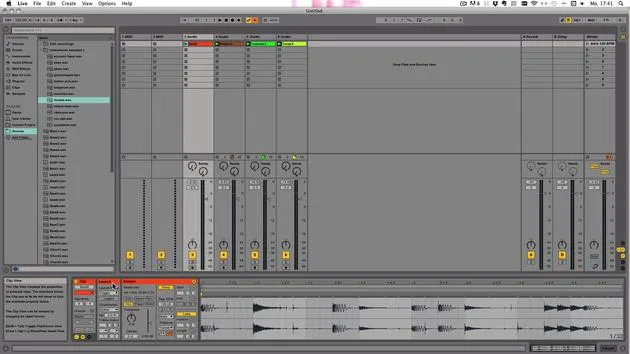
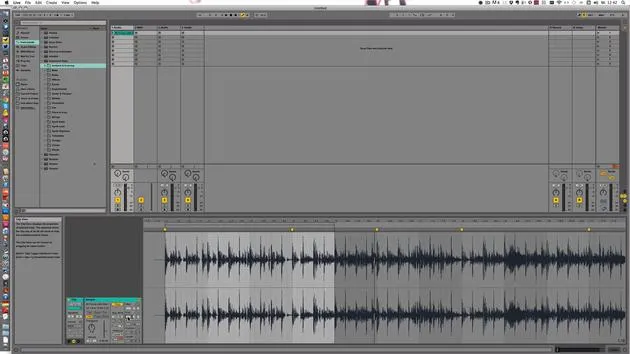
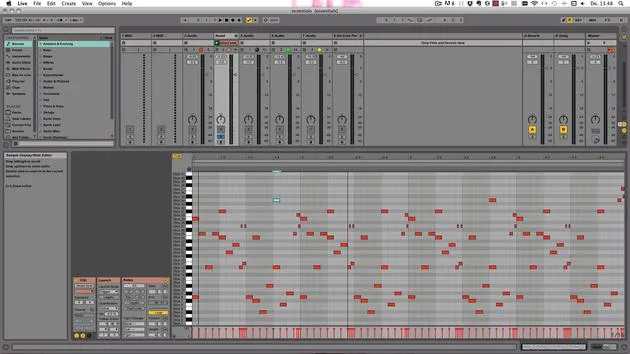
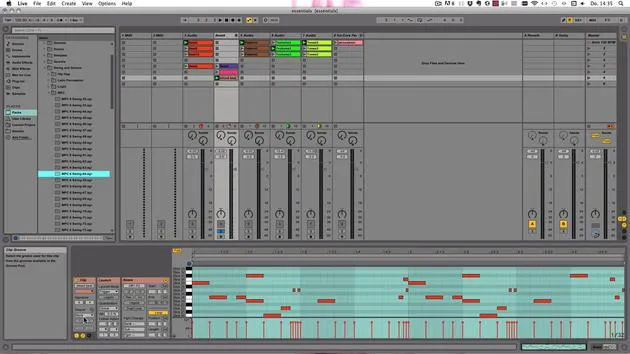
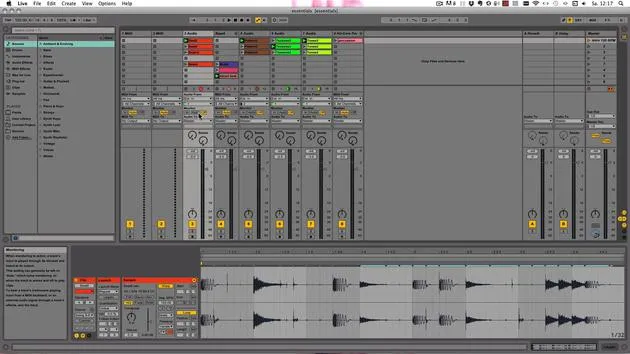
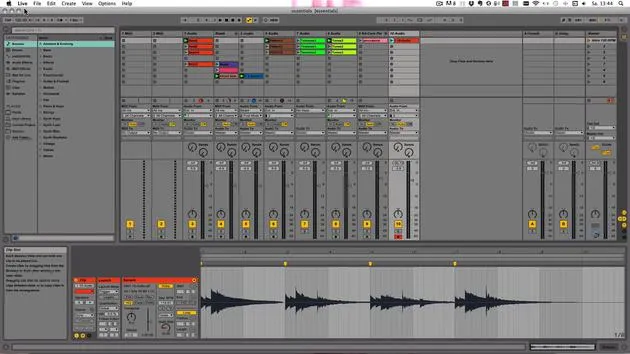
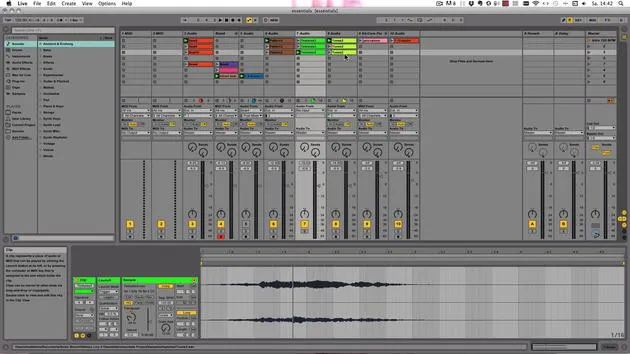
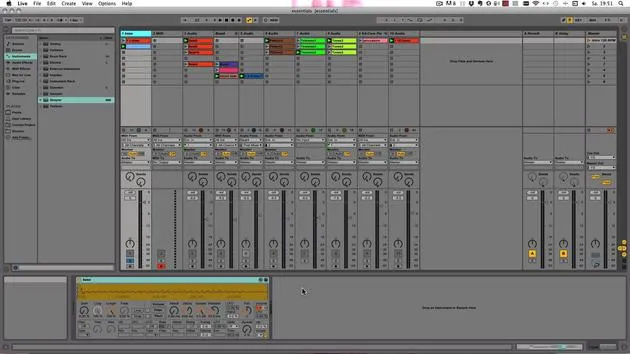
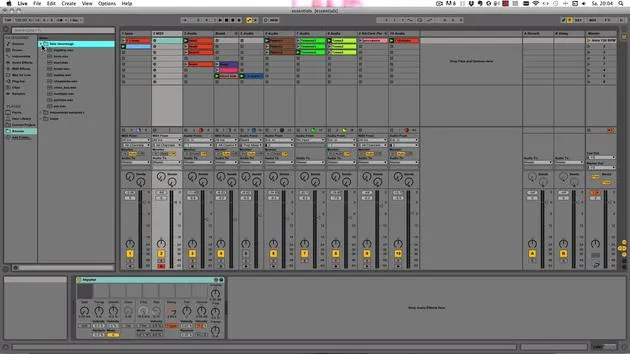
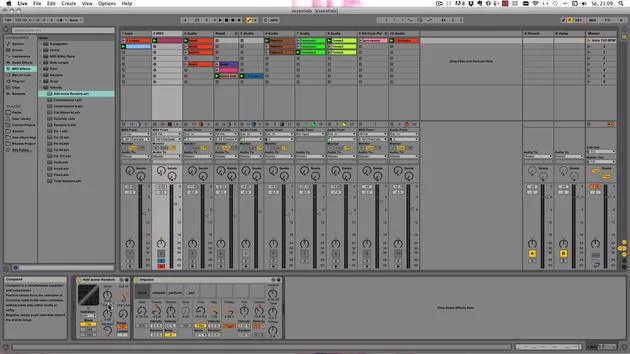
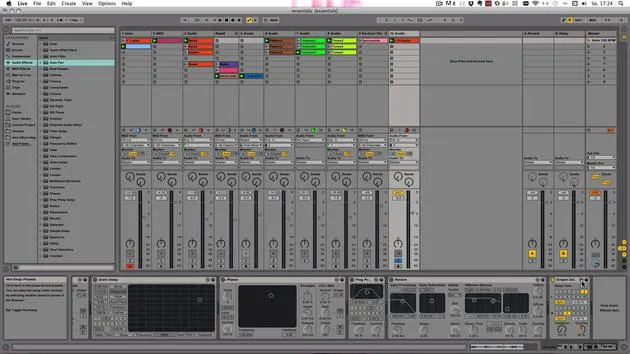
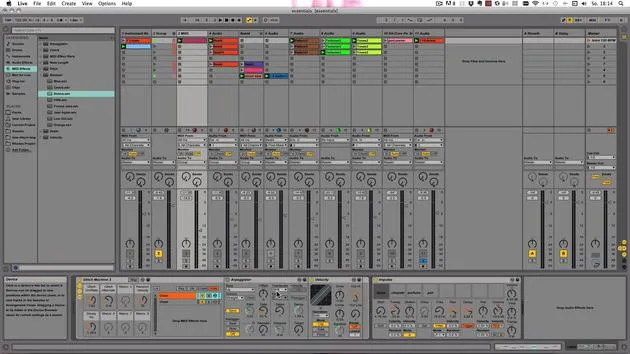
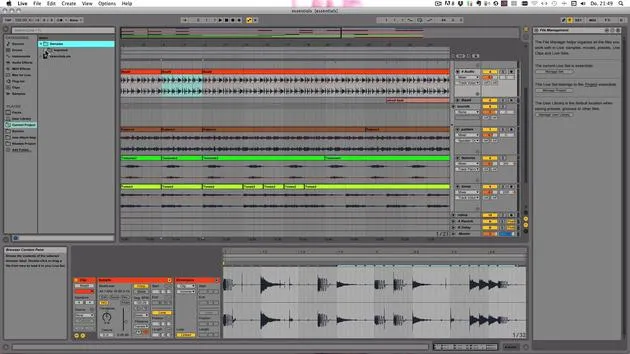
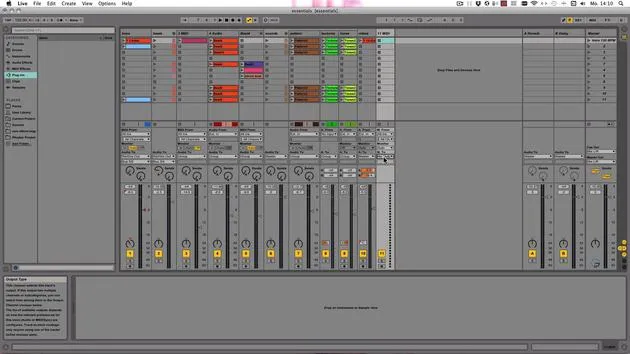
As you can see, I've cleaned up the live set a bit. In the meantime, I've created some more variations from those clips, just with the functions that I had explained earlier. You probably did all the variations and also came up with a better MIDI clip for the sliced beat.
Playback
Let's just quickly play everything.
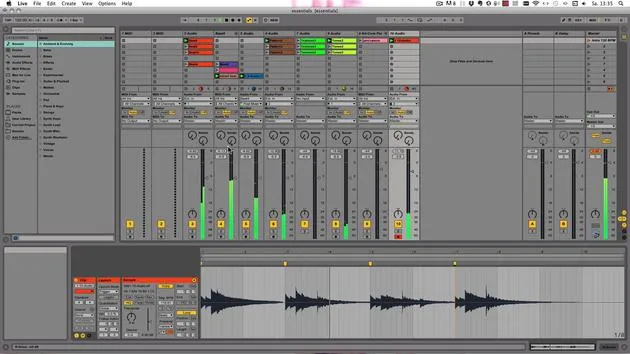
- Observation: This is scaled, going already quite a bit into the red, which is too loud as well.
- Adjustment: Let's take this down and maybe take them all down together by shift-clicking. Now we can adjust all of them together.
Okay, let's turn this one down as well, just in case.
Saving Your Progress
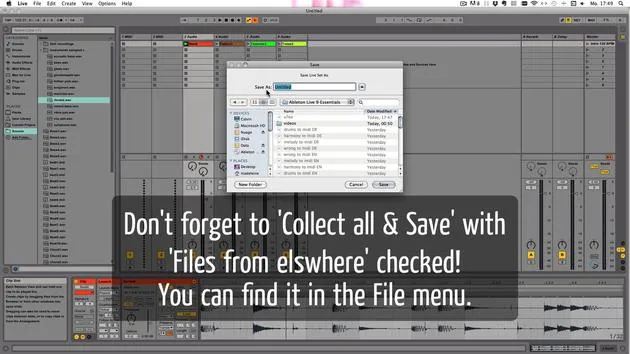
And don't forget to save.
- Shortcut: That's Command + S on Mac, Control + S on Windows.
- If you edit any more audio clips, choose Collect All and Save as well.
- I only want to copy the files that are not from the live library, files from elsewhere or from other projects. In this case, they would be from elsewhere for me only.
Good. All right, so let's play again.
Focus on the Sliced Beat
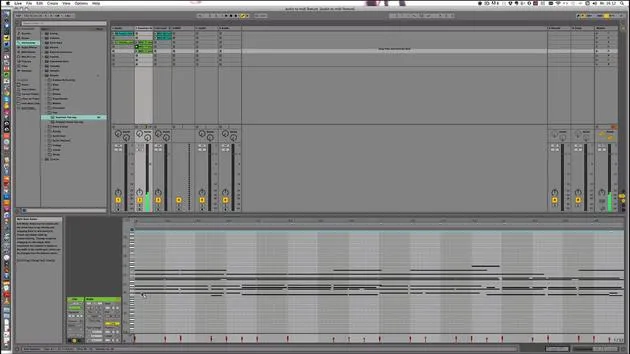
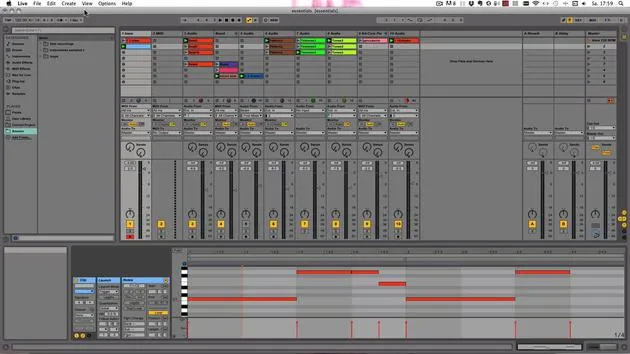
Now let's stick with the sliced beat that we have, and I want to show you all the functions for MIDI clips.
Transpose Slider
First up, we have the transpose slider, meaning you can actually transpose the notes.
- You can either enter values (semitones), like +5 or -7.
- As you can see, they are added up together. So now we add -2.
- To go back to original, you'd have to press 2, or you can just slide the mouse up and down.
- This applies to all notes or just a selection.
Division and Multiplication
Next up, we have the "Divided by Two" and "Multiplied by Two," which works exactly like in audio clips:
- Divided by 2: Doubles the playback speed.
- Times 2: Halves it.
Let's solo this track. Now it's back to the original, or you can do that just with the selection.
Reverse and Inversion Functions
- Reverse Button: Mirrors the notes. Works with the selection or all notes. Clicking it twice obviously reverts it back to the original.
- Inverse: Flips all the notes vertically, setting the highest to the lowest note, and vice versa. Pressing it twice inverts it back to normal.
Gator and Length Adjustments
The gator changes the note end, so it's right before the start of the next one. This shortens or lengthens the MIDI notes.
- Here you see, only the topmost notes are adjusted in length. For example, if we make one longer and then click on Legato, you see it gets adjusted.
Duplicate Loop Function
We also have the duplicate loop function, which doubles the loop length and adjusts the loop braces at the same time.
- For example, we had a one-bar loop; now we have two bars.
- We could even do that again and get four bars.
MIDI Note Editing
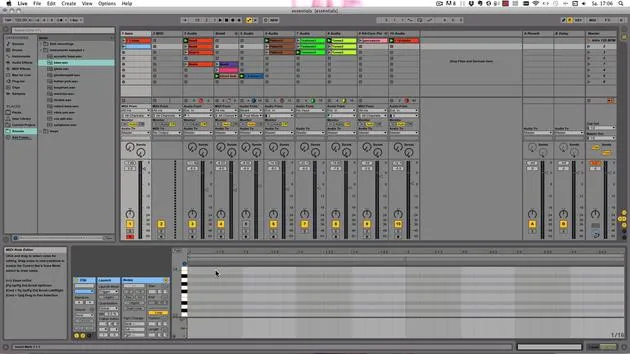
You've already seen that you can move MIDI notes around by clicking and dragging. All editing functions work just like in the audio clips:
- Zoom: Click and drag vertically, or scroll left and right with the mouse.
- Follow Button: Works in a MIDI clip.
Scrub Area and Drawing Mode
The scrub area is here, right under the beat time ruler. You can also use the draw mode:
- Turn it on and off with B on your keyboard.
- There's a preview switch, allowing you to click on the piano roll keys to hear what sounds they will make.
Grid Snapping and Movement
When you move notes, there's automatic grid snapping:
- There is free movement until you get close to the next or previous event.
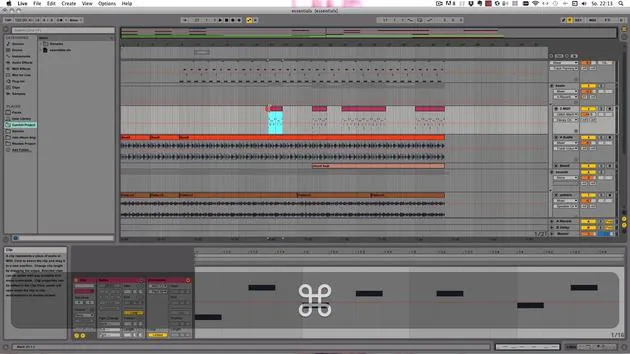
- If you want to bypass it, you can use either the Alt key on Windows or the Command key on Mac to momentarily turn off the grid.
Additional Features
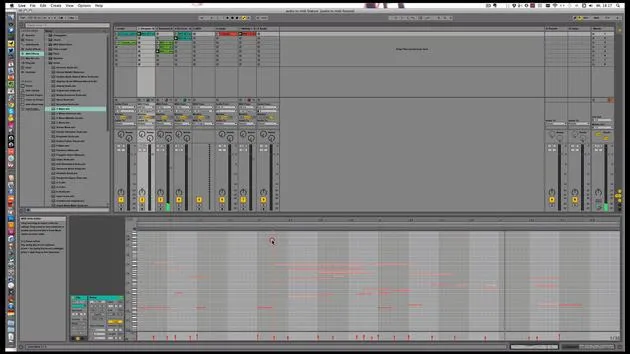
You can use the piano roll to scroll through the octaves:
- Zooming: Use the plus and minus keys on your keyboard.
- Selection: Click in an empty space in the media editor and drag to enclose notes.
- Folding: Make editing easier by showing only the lines with notes.
Adjusting Note Lengths and Velocities
You can make notes longer or shorter by dragging the end or start of a note.
- Copy and paste commands work; you can duplicate to maintain the same length as before.
- For velocities, drag the values as needed.
Quantization
If you want to quantize, it might not be necessary here since they've been drawn in according to the grid.
- Right-click and choose Quantize or use the shortcut (Command + U on Mac, Control + U on Windows).
Exporting MIDI Clips
To export the MIDI clip for use in another program or live set:
- Right-click and choose Export MIDI Clip. Decide where to save it and under which name.
Cropping MIDI Clips
Cropping also works on MIDI clips, just like on audio clips:
- Adjust the loop brace to only include two bars, for example.
- No new file is written; the MIDI notes not included in the loop brace are deleted.
Deactivating Nodes
You can deactivate nodes by right-clicking and choosing Deactivate Node or pressing 0 on your keyboard.
MIDI Note Stretch
To highlight and stretch notes, you can see stretch markers appearing:
- You can take one and stretch or compress it.
- Notes outside of the selection are unaffected unless they overlap with another MIDI note.
Now you know how to work with MIDI clips and create your own interesting variations!
See you in the next video!
36 Lektionen
5 Std. 28 Min. strukturierte Videolektionen
Erweiterte Videofunktionen
Verlangsamen, Passagen loopen, mitlesen
Handy, Tablet & Desktop
Üben, wo du willst
100 % Zufriedenheitsgarantie
30 Tage Geld-zurück-Garantie
Lern deinen Guru kennen
Lern deinen Guru kennen
Madeleine Bloom ist eine klassisch ausgebildete Musikerin, Produzentin, Multiinstrumentalistin und Sängerin aus Berlin und Gründerin des Labels Quixotica Records. Sie studierte elektroakustische Musik am Franz-Liszt-Konservatorium bei Prof. Robin Minard und überträgt diese Methoden auf ihren eigenen Mix aus Electronica-Pop. Ihre Musik wurde von den Produzenten Guy Sigsworth und Rupert Hine gelobt und brachte ihr eine persönliche Einladung von Imogen Heap ein, deren Tour sie eröffnete.
Als ehemalige technische Support-Mitarbeiterin von Ableton gründete sie 2012 die Online-Plattform Sonic Bloom, auf der sie in Kursen, Workshops und Einzelstunden Ableton Live und Musikproduktion unterrichtet. Sie hat Menschen auf der ganzen Welt mit Ableton Live, Push und Max for Live sowie mit Audio Engineering, Musiktheorie, Komposition und Sounddesign geholfen.







