



Die Benutzeroberfläche von Live
Ein Rundgang durch die Oberfläche von Ableton Live – das Hauptfenster, die Session- und Arrangement-Ansicht, MIDI- und Audiospuren und die Bedienelemente, die Bereiche wie Sends und I/O ein- oder ausblenden.
Das steckt im Kurs
36 Lektionen (5h 28m) · 1 gratis
Transkript der Lektion
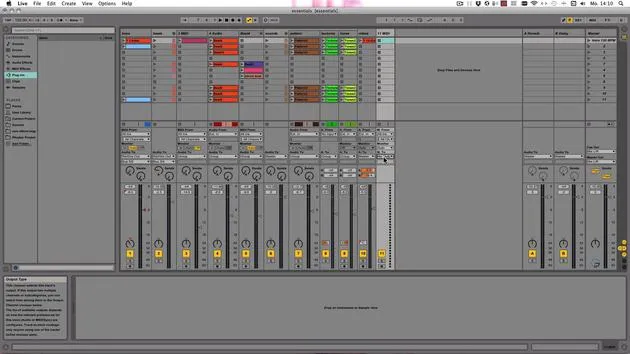
Exploring Live's User Interface
In this video, I want to show you Live's user interface. So let's get started right away.
Main Window and Views
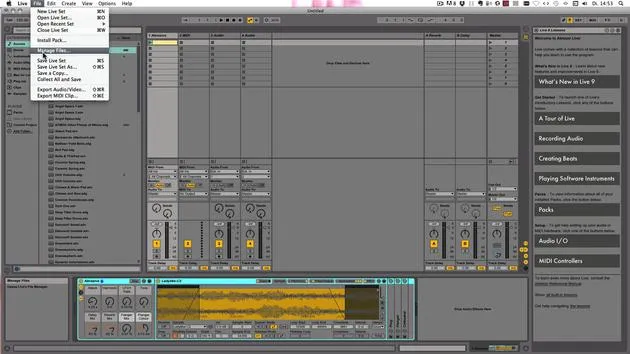
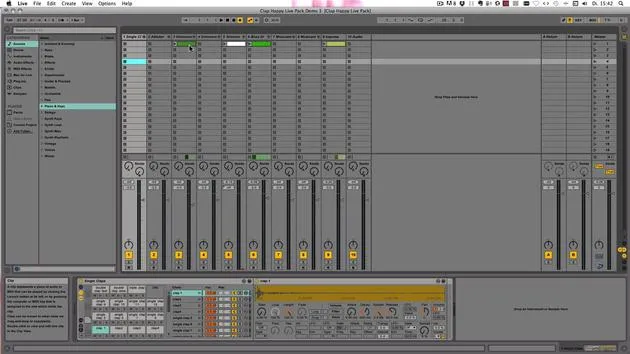
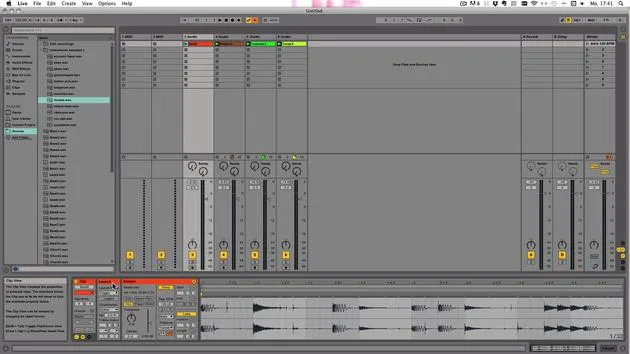
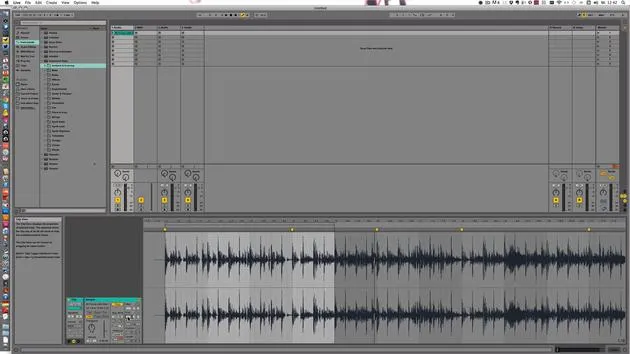
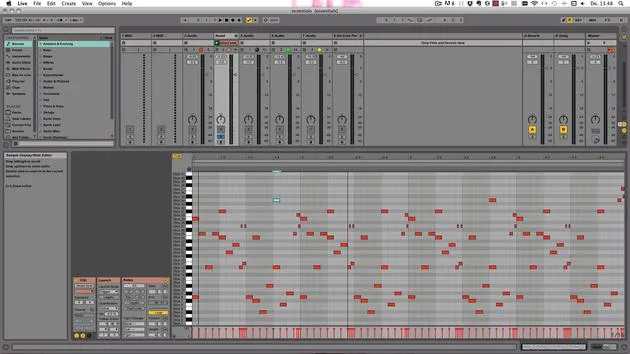
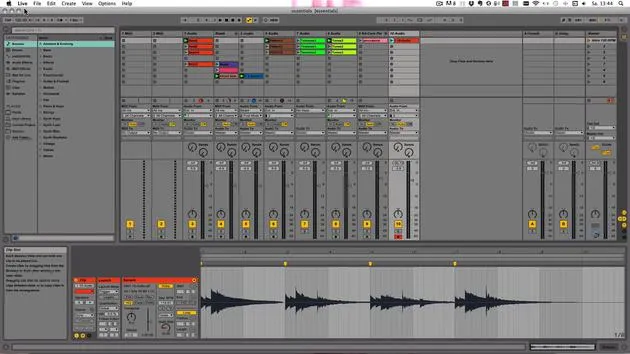
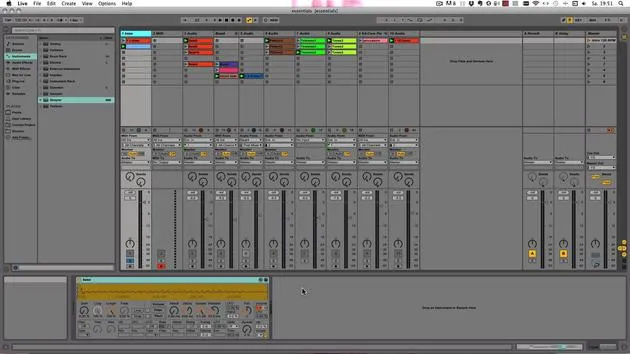
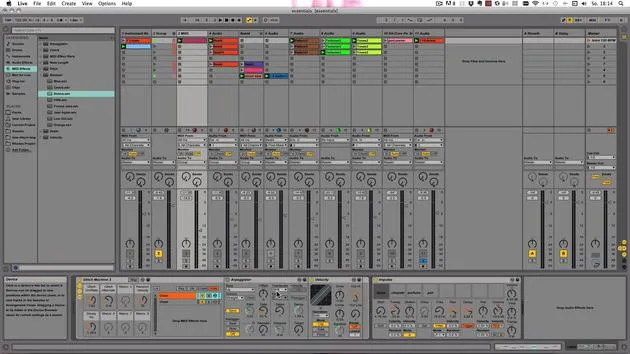
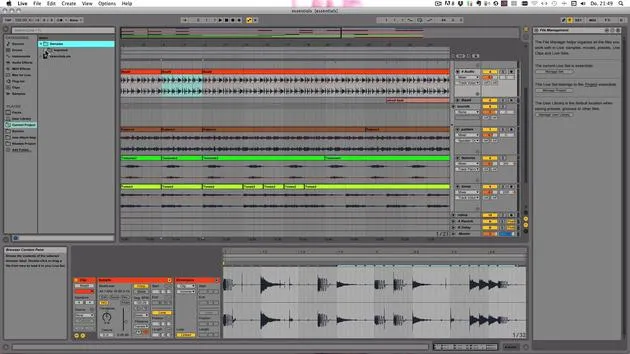
All the main action happens in the main window. Live has two views:
- Session View: As seen here.
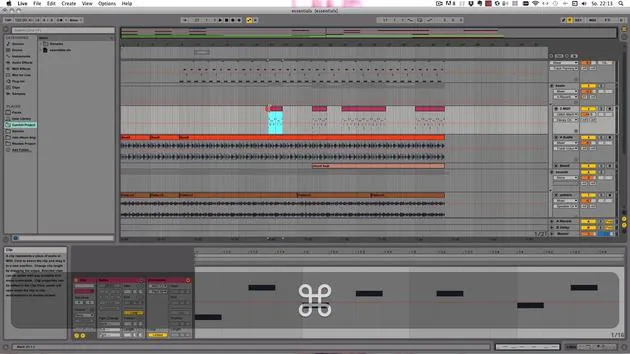
- Arrangement View: Toggle between these views using the buttons or the Tab key on your computer keyboard.
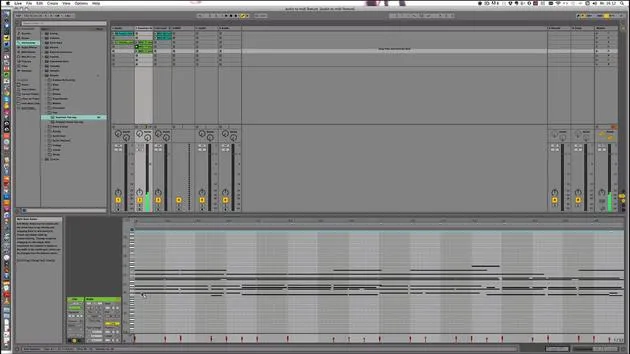
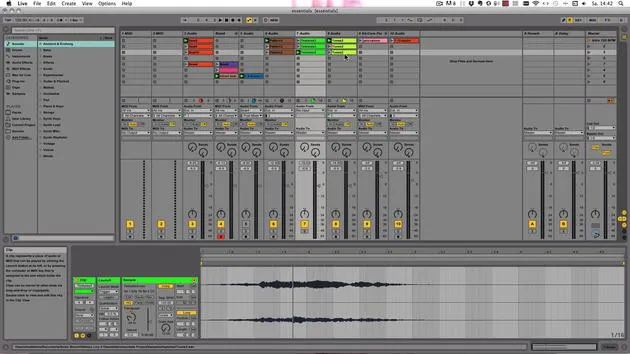
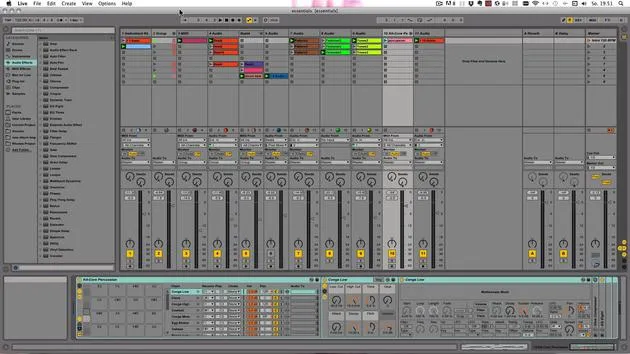
In both views, there are tracks that can host either MIDI or audio clips.
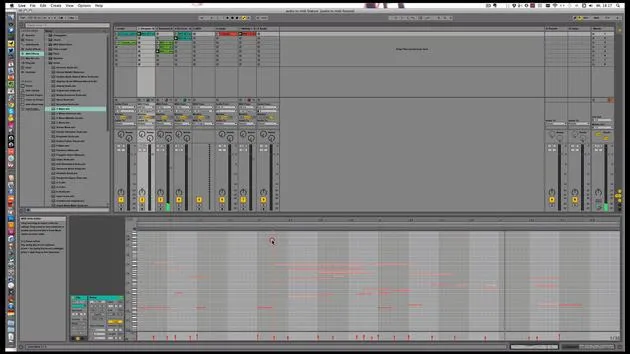
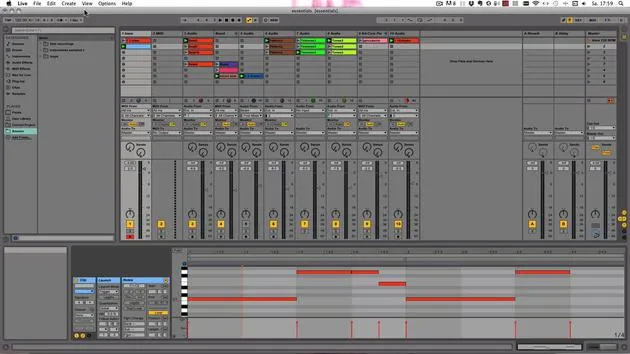
- MIDI Tracks can only host MIDI clips.
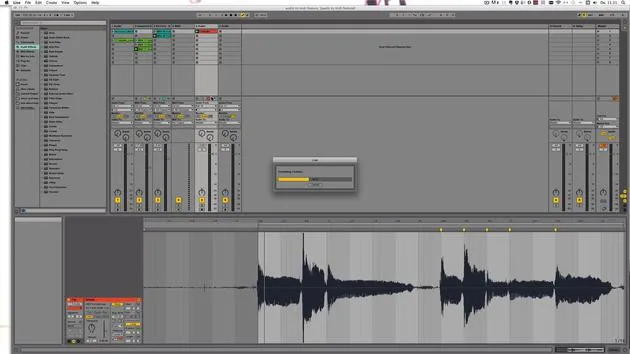
- Audio Tracks can only host audio clips.
In the session view, audio clips are located in clip slots, while in the arrangement view, they are lined up from bar one to the end of the track or song.
Interface Sections
Important Controls
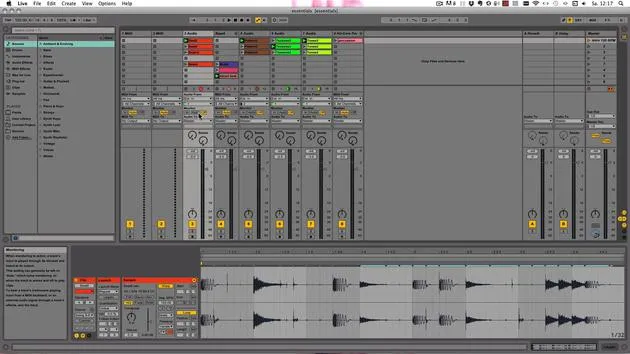
Very important is the area with the little buttons, which can be used to show or hide certain elements in Live:
- This opens the In/Out section for routing audio or MIDI in, out, or between tracks.
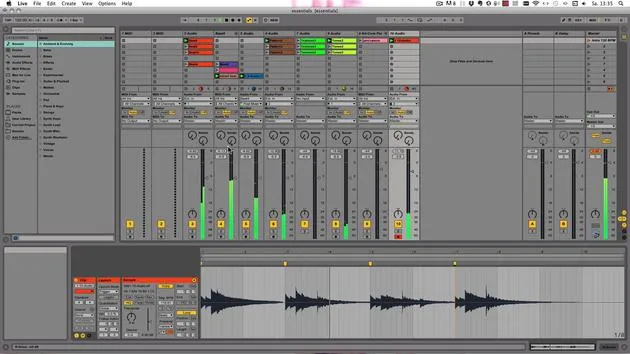
- Next is the Send Section, which is turned on by default. Here, you will find:
- Two Return Tracks that can receive audio from all the sends.
- Send knobs for each track to send audio out.
Mixer Section
Next up is the Mixer Section, which is also on by default. It features:
- Output meters.
- Faders and panning controls.
- A track activator button (mute).
- A solo button.
- A record button.
The button for track delays allows you to set tracks to play either earlier or later:
- Negative values make the track play earlier.
- Positive values make it start later.
Crossfader Section
The Crossfader Section operates like DJing with two turntables. You don't just have two tracks playing simultaneously; you can have more. You can set tracks to A or B and crossfade between them.
Bottom Area and Views
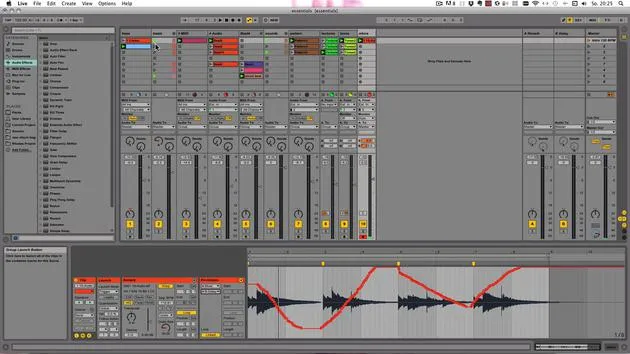
An important area at the bottom shows different views depending on your selection. It can display:
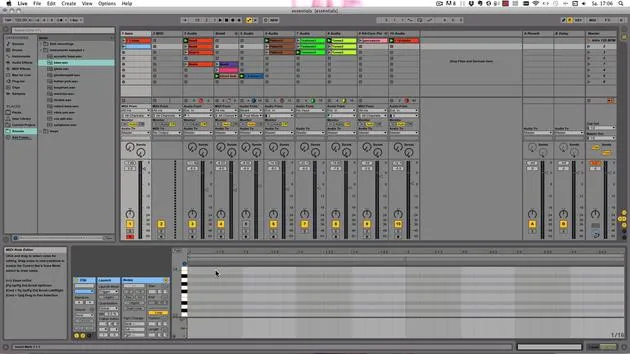
- Clip View: Double-click here to create a MIDI clip.
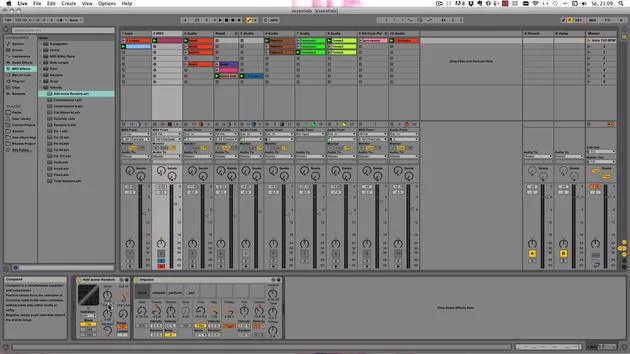
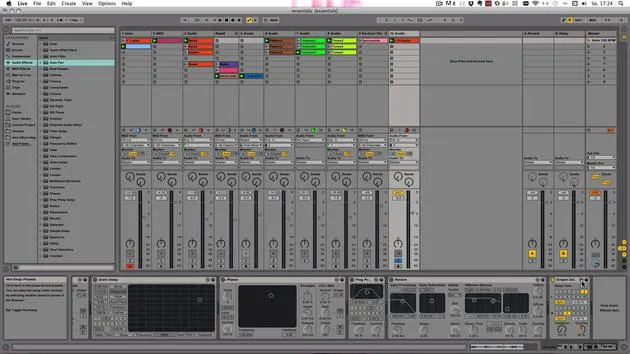
- Device View: Displays MIDI effects, MIDI instruments, or audio effects when a MIDI instrument is added to the track.
Browser and Files
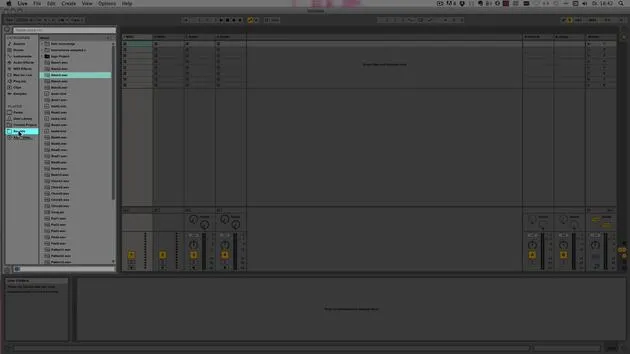
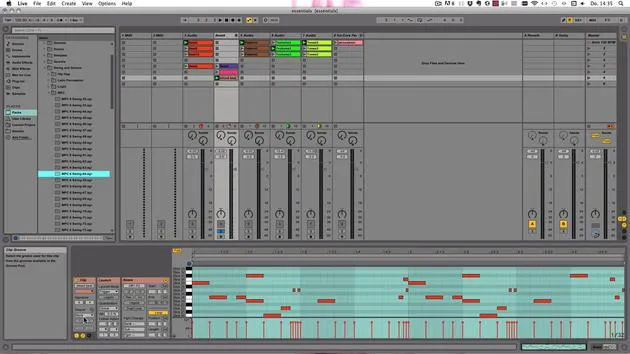
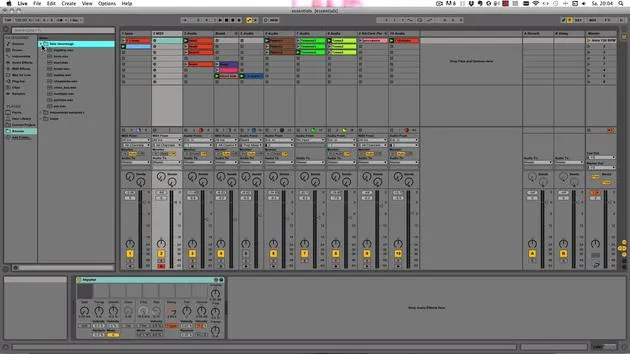
Here is the Browser, where you can access:
- All files and assets related to Live.
- Max for Live devices.
- Third-party plugins.
- Other file types used within Live.
I'll talk about all of those things later. This is just a rough overview of the video.
Info and Help Views
Also very important is the Info View located at the bottom. When you hover over elements with your mouse, it shows a brief description of each parameter.
- For example, hovering over a track activator provides information about its function.
The Help View can be accessed through the Help menu. This provides built-in tutorials and life lessons you can explore.
If you encounter issues with Ableton Live, navigate to Help > Get Support to find technical help.
Customizing the Interface
Almost everything in Ableton Live can be shown or hidden:
- The Browser can be hidden with a button.
- The Info View can also be hidden.
- The entire lower section can be toggled off.
Resizing Elements
It's important to remember that many elements can be resized. For instance, you can drag to enlarge the mixer section or the track width.
Common Workflow
A typical way of working in Live involves dragging and dropping. You can reorder tracks simply by dragging them to a new location. This capability also applies to clips, scenes, and devices, but more on those later.
36 Lektionen
5 Std. 28 Min. strukturierte Videolektionen
Erweiterte Videofunktionen
Verlangsamen, Passagen loopen, mitlesen
Handy, Tablet & Desktop
Üben, wo du willst
100 % Zufriedenheitsgarantie
30 Tage Geld-zurück-Garantie
Lern deinen Guru kennen

Lern deinen Guru kennen
Madeleine Bloom ist eine klassisch ausgebildete Musikerin, Produzentin, Multiinstrumentalistin und Sängerin aus Berlin und Gründerin des Labels Quixotica Records. Sie studierte elektroakustische Musik am Franz-Liszt-Konservatorium bei Prof. Robin Minard und überträgt diese Methoden auf ihren eigenen Mix aus Electronica-Pop. Ihre Musik wurde von den Produzenten Guy Sigsworth und Rupert Hine gelobt und brachte ihr eine persönliche Einladung von Imogen Heap ein, deren Tour sie eröffnete.
Als ehemalige technische Support-Mitarbeiterin von Ableton gründete sie 2012 die Online-Plattform Sonic Bloom, auf der sie in Kursen, Workshops und Einzelstunden Ableton Live und Musikproduktion unterrichtet. Sie hat Menschen auf der ganzen Welt mit Ableton Live, Push und Max for Live sowie mit Audio Engineering, Musiktheorie, Komposition und Sounddesign geholfen.







