



Geräte verwenden
Das steckt im Kurs
36 Lektionen (5h 28m) · 1 gratis
Transkript der Lektion
Understanding Live Devices in Music Production
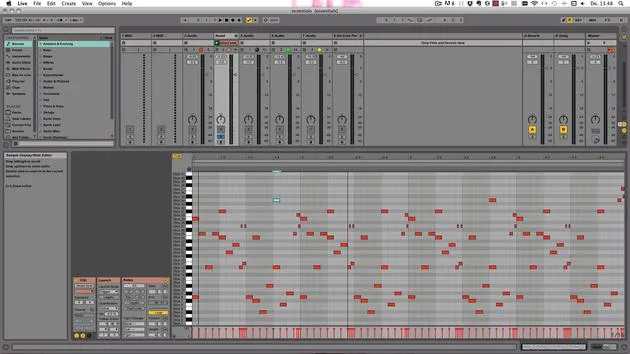
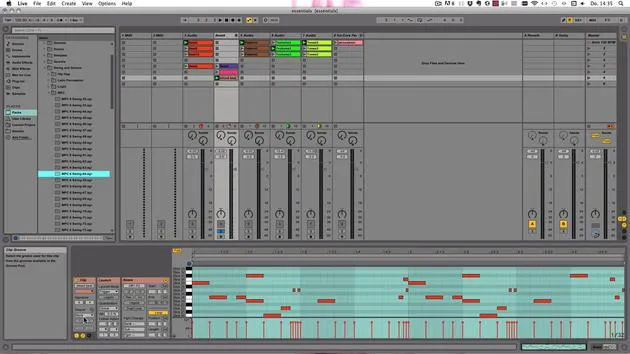
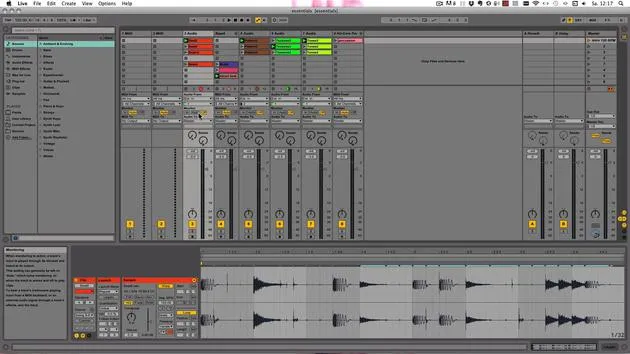
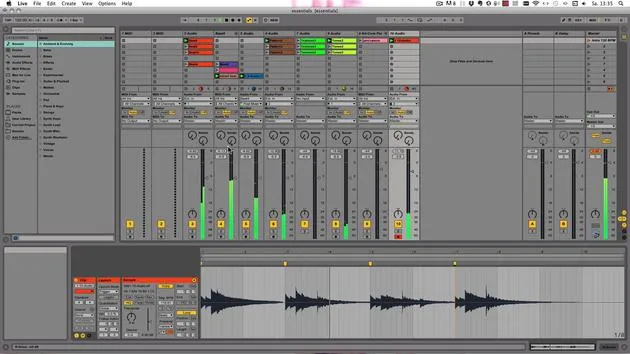
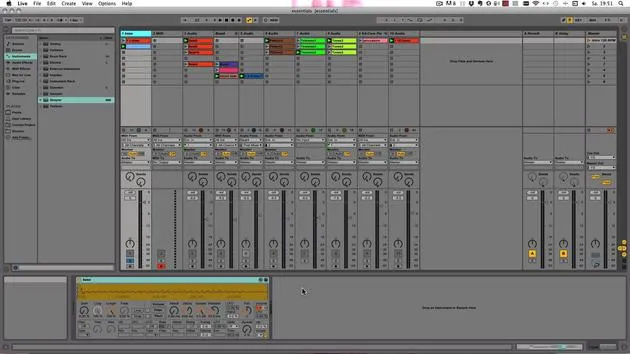
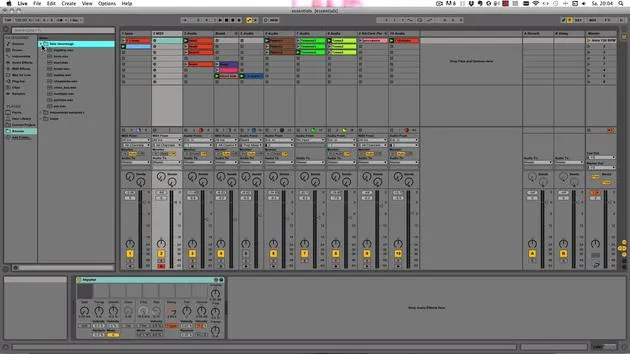
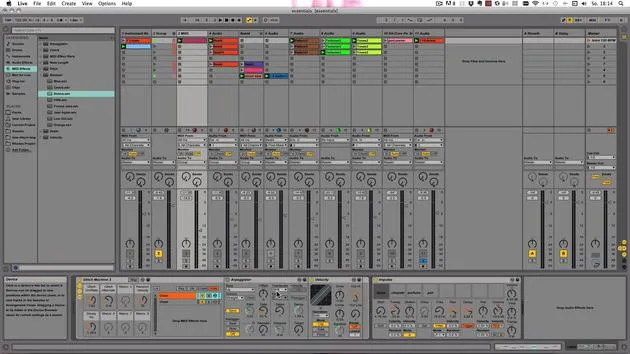
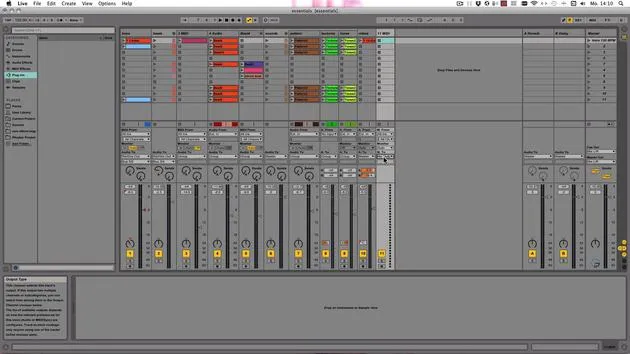
One very important part of music production is the use of live devices. This includes all live instruments, audio effects, and MIDI effects. You can insert them into the device view, which is where you also adjust the devices on the selector track.
Instruments and MIDI Tracks
- As you've seen before, we have a
Simpler.- This is an instrument that can only go into a MIDI track.
- You can find all the presets for instruments under Instruments in the browser, as well as under Sounds and Drums.
MIDI Effects
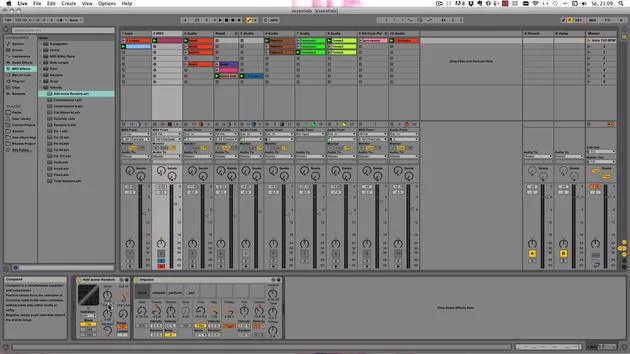
- MIDI effects can only be inserted on MIDI tracks and only before the MIDI instrument.
- For example, you can add an Arpeggiator here.
- If you try to edit here, it will simply edit before the instrument.
- You can edit either by:
- Dragging and dropping, or
- Double-clicking the effect.
Audio and Effects Tracks
- If you have a track selected where the device could go, it will simply be edited.
- If you have an audio track chosen and you double-click that, a new MIDI track with the MIDI effect will be created.
Let's undo that. That's actually two undos.
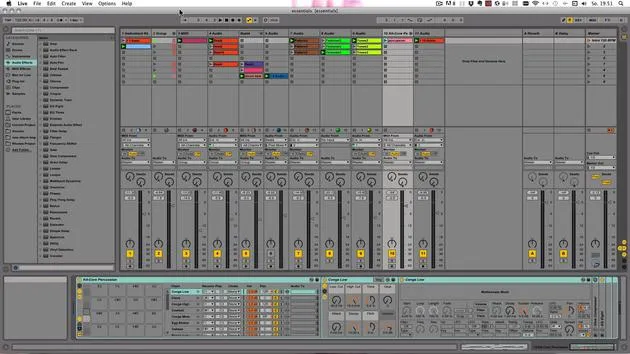
Audio effects can be inserted on all tracks:
- You can insert them on audio tracks and MIDI tracks, but on MIDI tracks, only after the instrument.
- You could also insert an effect on a MIDI track that doesn't contain a MIDI instrument, but nothing would be heard because it doesn't have an instrument.
Let's undo this again.
Inserting Effects
- Audio effects can be inserted on:
- Audio tracks
- MIDI tracks
- Return tracks
- The master track
For example, let's go back to that track and insert EQ8 here. You can actually add the default preset by choosing the folder.
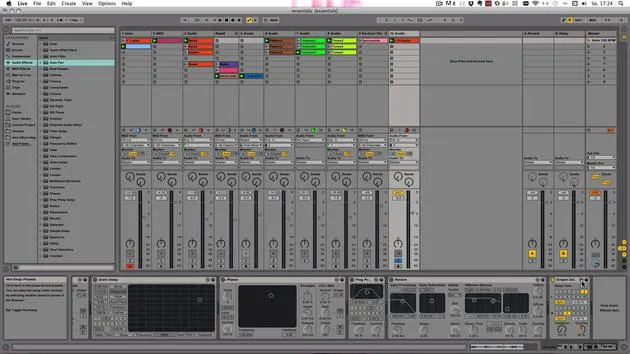
- As you can see, you can add them in a chain.
- The order of effects makes a difference in sound.
Reordering Effects
- For example, if we just play this now and solo it, we can drag it here.
- You can reorder effects to create different sounds.
Adding More Effects
- You can also add more MIDI effects, but you can only ever add one instrument.
- This is very important because if you add a new Simpler, for example, it would be replaced.
Let's undo this.
If you have a chain of effects, the signal goes through the following sequence:
- MIDI goes through the bouncy chords.
- Then through this effect.
- Finally into the instrument.
Since an instrument converts MIDI into audio, you now have the levels here as audio, which then goes into the effects, and out into the track here into the mixer section.
Dragging and Dropping Effects
You can:
- Take an effect, hover over it, and drag it into the desired position.
- Copy and paste effects, or use duplicate.
Let's delete all of those.
Activator Switch and Folding Effects
On each effect:
- You have an activator switch so you can turn it on and off.
- You can use zero as well.
- Once you've selected the title and double-clicked it, you can fold it up.
If you have many effects on a track, folding them up when they are turned off will use less CPU.
Note: This doesn't work for plugins or the looper.
Hot Swap and Saving Presets
All devices have a Hot Swap button, which takes you directly to the effect where you can choose a different preset.
- You can double-click it to select or use the arrow keys in the browser and then press Enter.
- To exit the Hot Swap mode, you can press the button or enter it with Q. Once you're done, you can press Escape.
Every device also has a Save Preset button.
- If you make your own changes and like what you've done, you can simply click Save.
- This would be saved into the user library, and you can rename it however you like.
I just name it "two" now, so I actually haven't changed it. Then press Enter.
Deleting Devices
If you want to delete a device:
- Select it by clicking on the title.
- You can use the delete or backspace keys.
Quite simple. Just delete them all for now. Oh, I deleted the wrong one! Undo.
Using Plugins in Live
You can also use plugins in Live, such as VST Effects and Instruments.
- If you are on Mac, also consider using Audio Units.
Before using plugins, they need to be configured. In my case, I've already done that, or else Live will inform you that they still need configuration.
- Make sure to install the newest version of the same bit depth as Live:
- 32-bit plugins for 32-bit version of Live
- 64-bit for the 64-bit version
Configuring Plugins
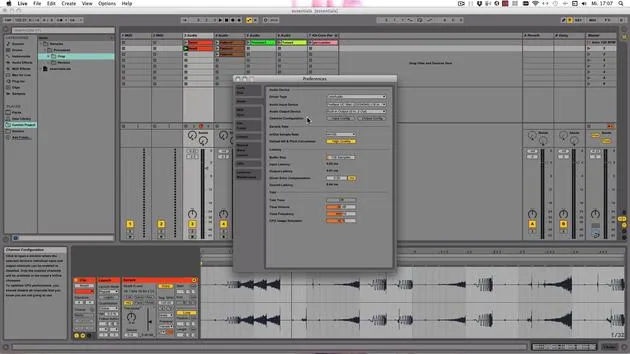
You can configure plugins in the preferences under File Folder.
- If you're on Mac, you have the option to use Audio Units.
- You can turn it on or leave it off depending on your needs.
On both Windows and Mac:
- Use VST plugin system folders and custom folders.
- If you installed VST plugins in your own folder, ensure to turn it on and select the folder where your plugins are installed.
Important: Don't select an entire hard drive; it may crash Live. Choose a dedicated folder that contains all VST effects.
After setting up, you can choose the Rescan Plugins button to search for newly installed plugins. You can find them under categories and plugins for either Audio Units or VSTs.
- They can be used just like Live devices.
- For instance, just double-clicking on a selected track can add the audio effect Camel Crusher, or you could drag and drop it again.
36 Lektionen
5 Std. 28 Min. strukturierte Videolektionen
Erweiterte Videofunktionen
Verlangsamen, Passagen loopen, mitlesen
Handy, Tablet & Desktop
Üben, wo du willst
100 % Zufriedenheitsgarantie
30 Tage Geld-zurück-Garantie
Lern deinen Guru kennen
Lern deinen Guru kennen
Madeleine Bloom ist eine klassisch ausgebildete Musikerin, Produzentin, Multiinstrumentalistin und Sängerin aus Berlin und Gründerin des Labels Quixotica Records. Sie studierte elektroakustische Musik am Franz-Liszt-Konservatorium bei Prof. Robin Minard und überträgt diese Methoden auf ihren eigenen Mix aus Electronica-Pop. Ihre Musik wurde von den Produzenten Guy Sigsworth und Rupert Hine gelobt und brachte ihr eine persönliche Einladung von Imogen Heap ein, deren Tour sie eröffnete.
Als ehemalige technische Support-Mitarbeiterin von Ableton gründete sie 2012 die Online-Plattform Sonic Bloom, auf der sie in Kursen, Workshops und Einzelstunden Ableton Live und Musikproduktion unterrichtet. Sie hat Menschen auf der ganzen Welt mit Ableton Live, Push und Max for Live sowie mit Audio Engineering, Musiktheorie, Komposition und Sounddesign geholfen.







