



Das Kaoss-Setup abschließen
Mit
Mark Burnett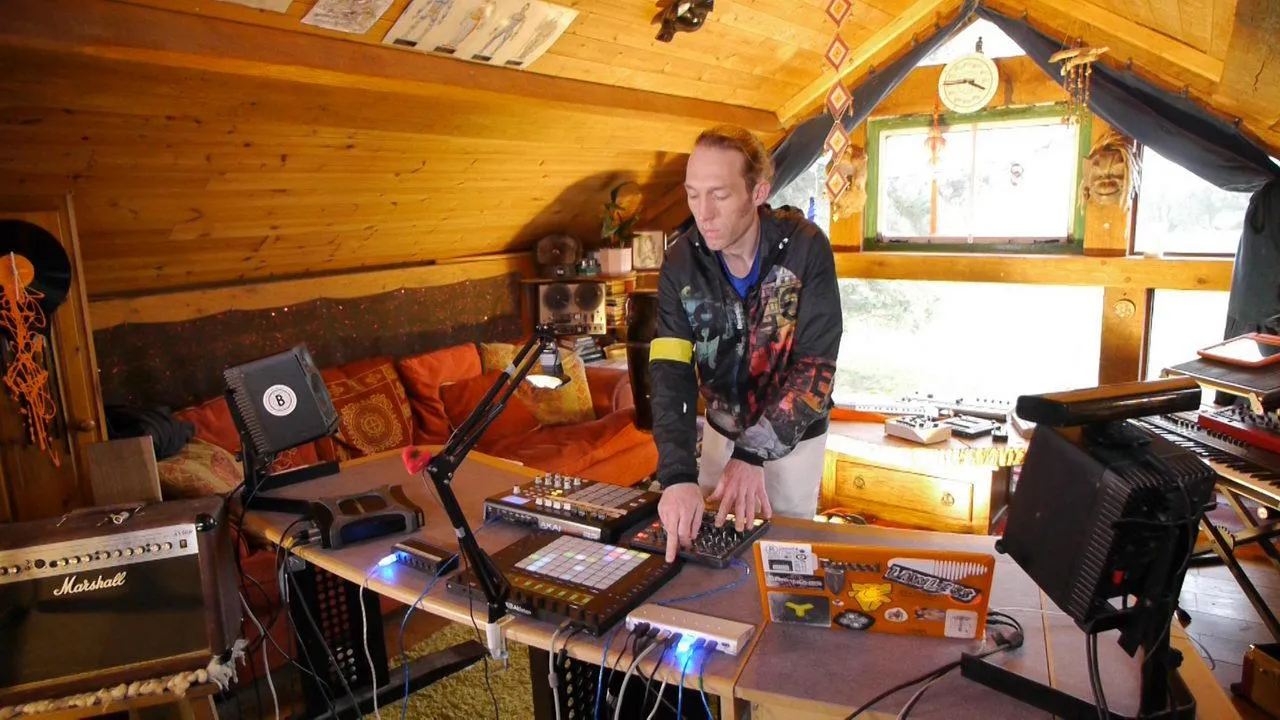
Das steckt im Kurs
24 Lektionen (3h 29m) · 2 gratis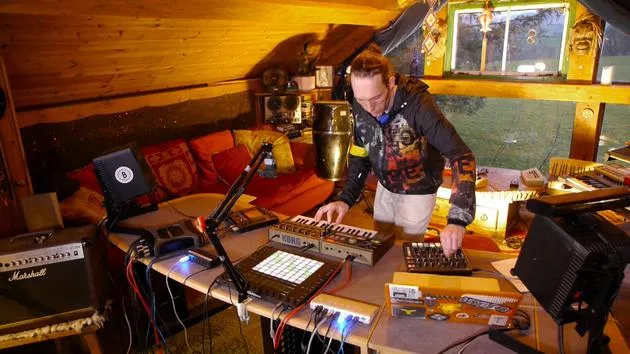
01. Was du in diesem Kapitel lernst
1:18
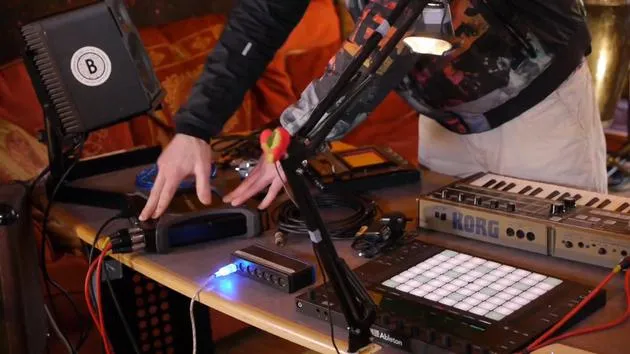
02. Lass uns das Setup einrichten (MicroKorg und Novation Launch Control)
7:47
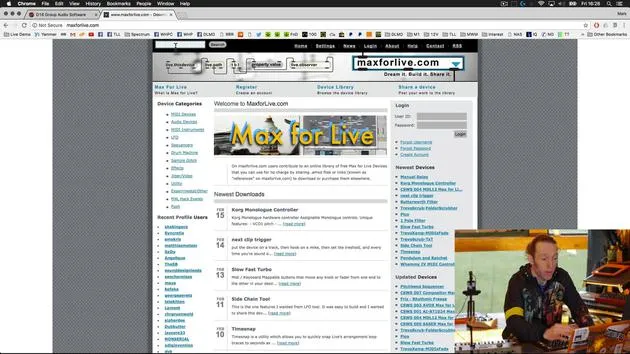
03. MIDI-CC-Nachrichten & Mapping des Novation LC auf MicroKorg-Parameter
18:19
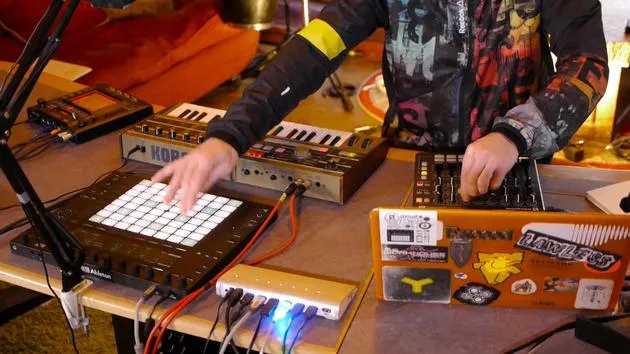
04. Demo des bisherigen Setups
1:47
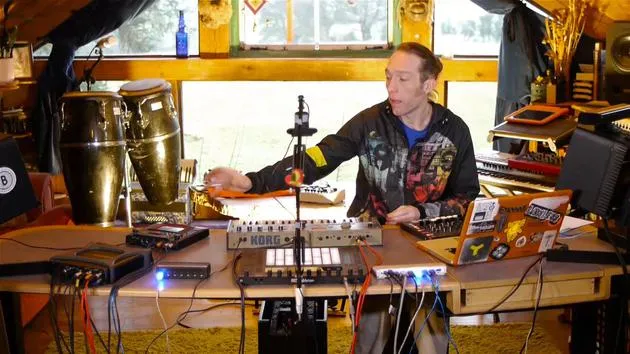
05. Taktile Effekte mit dem Kaoss Pad 3 hinzufügen
11:50
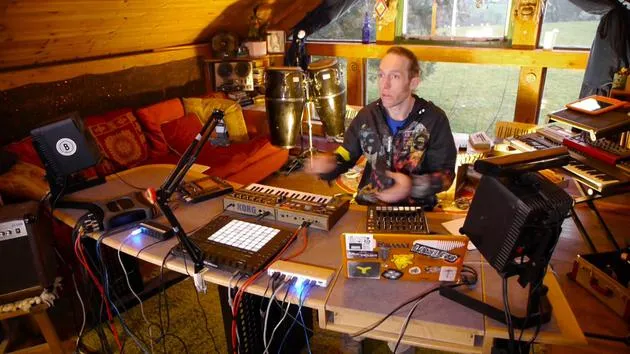
06. Das Kaoss-Setup abschließen
Du bist hier7:02
07. Zusammenfassung des Gelernten
4:23
08. Das Setup erkunden
3:54
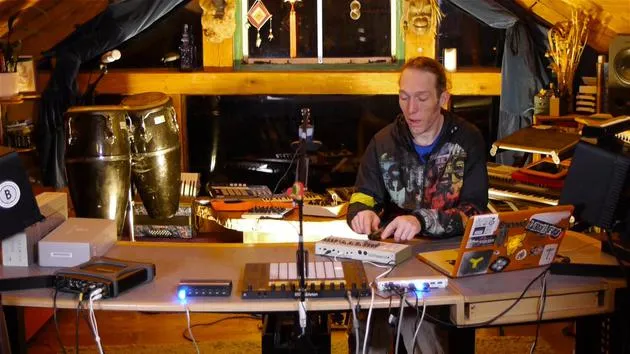
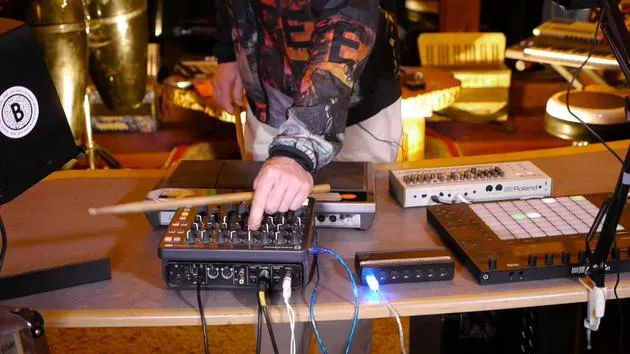
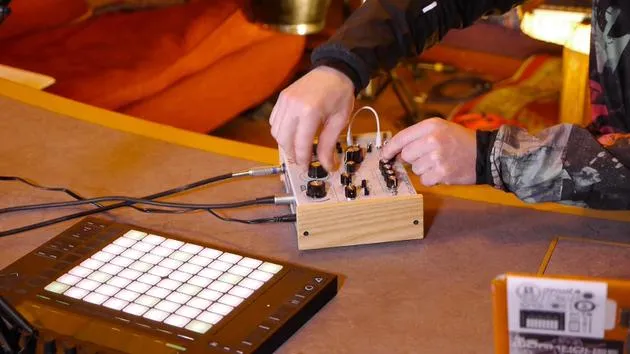
Transkript der Lektion
Finalizing the Setup: Macro Controls for Microcorg and Chaos Pad
So, let's just tidy this up and take this to the final stage now.
Assigning the Hold Button
- Our second control (CC's) here is sending X and Y information.
- We also have the hold button, which is quite useful.
Mapping the Hold Button
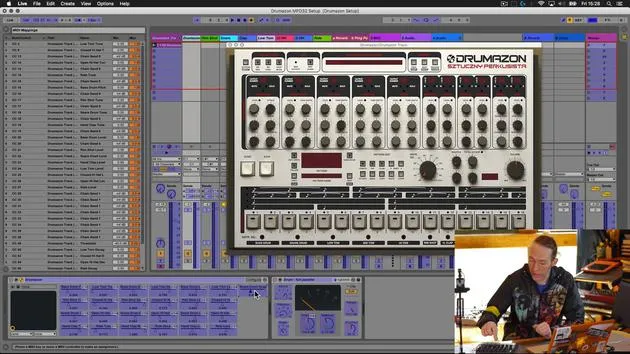
Let's map the hold button, which we know is CC95.
- If we set control 3 to 95, you'll notice that as I turn this knob, I can turn the hold on and off.
- I'm turning this up and down, and the hold button is coming on and going off accordingly.
Note: It may not necessarily make sense to have a dial that's assigned to a button that's on or off. But as you'll see when we implement that through the MIDI mapping, it kind of doesn't really matter. It makes perfect sense.
Changing Presets: Microcorg and Chaos Pad
The final thing we might want to do, as I alluded to before, is to be able to change the presets on both the Korg Microcorg and the Chaos Pad.
Labeling the Chains
- If you remember, in the first chain on our instrument rack, it's probably a good time now to label these up:
- Chain 1: Microcorg
- Chain 2: Chaos
Using Max for Live Device
The Max for Live device made by Grimjack has a box at the end that we can assign to control the presets.
- We can dial through or select presets from this drop-down box, which is quite useful.
Mapping to Macros
At this stage, we should map this to one of the macros for the entire group.
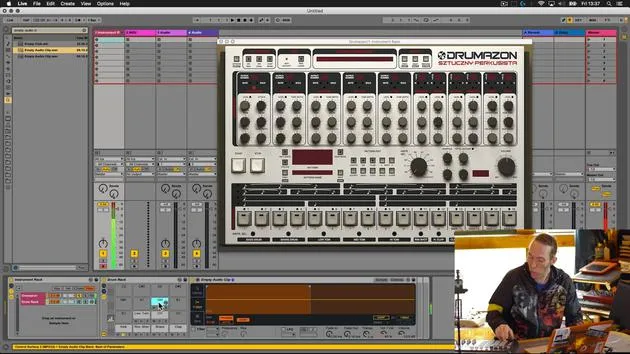
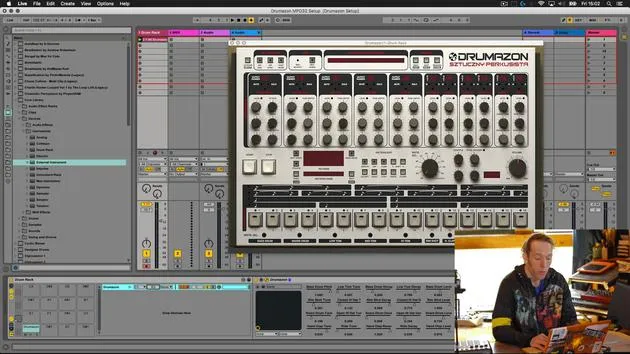
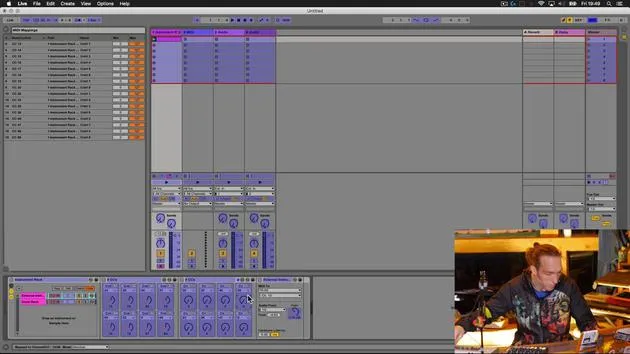
- Open up the instrument rack and you'll see that we have eight macros available.
- I'm going to go to this drop-down box and assign it to Macro 1.
- You can see the tiny green dot that has appeared to indicate that it has been assigned.
- Over here on the macros, I'm going to call this Micro PGM because that's the program number for the Microcorg.
Introducing Final Device: Dial to Program Change
Next, let's move to the chain for the Chaos Pad and introduce the final Max for Live device for this particular part of the course.
- This device is called Dial to Program Change.
- If I hit Command + F and start typing in "dial," we will see that it very quickly appears at the top of the list.
Adding the Device
- Drag it down and drop it into this chain among the other MIDI devices.
- This device is very simple; it has a dial and an increase/decrease button.
- It enables us to send program change numbers or program change information to whichever device is at the end of that path, in this case, the Chaos Pad 3.
Mapping to Macro 2
- If I move this program knob, you can see that we're changing the effect type currently active for the Chaos Pad 3.
- Now, I'm just going to right-click and map that to Macro 2.
- Let's rename this to Chaos Program.
Adding Colors and Additional Parameters
We now have two macros.
- Let's give them a little bit of color.
Mapping X and Y Parameters
To make the interaction smoother, I'm also going to map the X and Y parameters to Macros 3 and 4.
- Let's just give those some garish colors:
- Macro 3: X
- Macro 4: Y
Global Parameters for Microcorg
We should also choose one or two of the more significant global parameters from the Microcorg and map those to the macros.
- I'm going to choose:
- Amp Level (main level for the Microcorg)
- Pan (global control)
- Portamento (map to Macro 7)
- Modulation Depth
These have automatically labeled themselves in the macros, so let's just give them some pretty colors.
Finalizing the Setup
The last thing to do is to give this an appropriate and useful name.
- I'm going to start with my double zero prefix and call this Korg Setup.
- Let's be even more specific: Microcorg and Chaos Setup.
- Finally, I'll give it the MXB suffix, which is my personal identifier.
Shrinking the Rack
Now we can shrink this entire thing down.
- We can also drag the external instrument and external audio effect into the rack just after the external instrument.
- This ensures everything is contained within this rack.
Let's hit save.
- It will save that in our user library.
Now we have built a really useful tool that provides great control over both the Launch Control and the Push, as well as a combination of the three devices.
Conclusion
Finally, we'll take a look at how this all works together and play around with it a little bit.
24 Lektionen
3 Std. 29 Min. strukturierte Videolektionen
Erweiterte Videofunktionen
Verlangsamen, Passagen loopen, mitlesen
Handy, Tablet & Desktop
Üben, wo du willst
100 % Zufriedenheitsgarantie
30 Tage Geld-zurück-Garantie
Lern deinen Guru kennen
Lern deinen Guru kennen
Mark Burnett ist ein Ableton Certified Trainer, der seit über 14 Jahren mit Ableton-Produkten arbeitet. Als Produzent und DJ bei Funk'n Deep Records liefen seine Tracks auf großen Festivals sowie in Sets und Podcasts von Künstlern wie Carl Cox und Richie Hawtin, und er hat vor Tausenden von Menschen gespielt. Außerdem veranstaltet er große Events wie das Workhouse Project und studierte am Imperial College London. Sein Kurs behandelt den Einsatz von Ableton Live zum Aufbau von Live-Performances und eignet sich für Produzenten und Performer im Bereich elektronischer Musik, die ihre Show aus dem Studio auf die Bühne bringen möchten.







