



Varispeed parameters and uses

With
Aamir Yaqub
What's in the course
14 lessons (1h 22m) · 1 free
01. Welcome to Recording audio
0:58
02. Intro to recording audio
4:47
03. Using the metronome
5:00

04. Making your first recording
Free lesson5:32
05. Comping
13:03
06. Editing audio
9:41
07. Managing project files
3:46
08. Recording an instrument track
2:06
09. How to use Flex Time
10:58
10. How to use Flex Pitch
11:12
11. Converting pitch to MIDI data
3:11
12. Smart Tempo
3:04
13. Varispeed parameters and uses
You are here4:08
14. Adaptive project tempo
5:00
Lesson transcript
Exploring Vary Speed in Logic
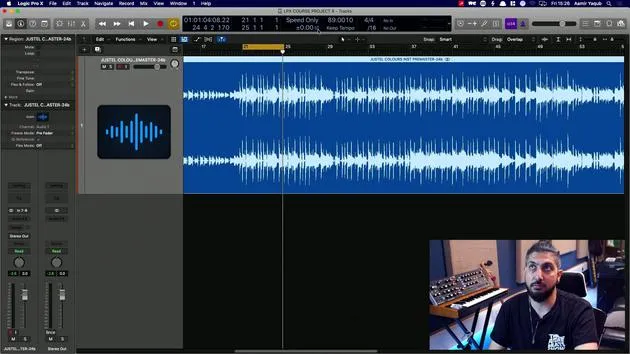
There's another very interesting feature in Logic that can really help you play around with certain aspects, such as tempos where you don't actually have Flex Time on, or it's not an Apple Loop. This feature is Vary Speed.
Step-by-Step Guide
-
Accessing the Feature
- First, go to your LCD and navigate down to Custom.
- You'll notice various options appearing there.
- Right-click on Customize Control Bar and Display.
- In the Custom menu, add Vary Speed.
-
Understanding Vary Speed
- Vary Speed brings up a section that has two different modes.
- You have the ability to change by percentage values or other adjustments.
- For example, let's determine the tempo here, which is approximately 89 BPM.
-
Listening to Sections
- Let's move to a different section of the song from what we heard before, which was just the guitar.
- We'll take the click off to listen more closely.
Options Available
-
Speed Only:
- I have two options here, Vary Speed and Speed and Pitch.
- For now, I'll choose Speed Only since I don't want to alter the pitch.
-
MIDI Information:
- I don't have any MIDI information in this particular session, but if I did, it would speed up or slow down that MIDI data as well.
Adjusting Speed
- Beneath the main controls, there's a percentage value.
- This represents the deviation in percentage of speed.
- You can also adjust it to detune in semitones and change the tuning reference.
Example Settings
- Let's say I want this to speed up by 2%:
- Double-click the percentage field and press 2.
- You will see the orange indicator for the Vary Speed button is now on.
Results
- The audio is now 2% faster, not 2 BPM faster.
- Let's look at what it sounds like:
- If you prefer this sped-up version, that's great!
Speed and Pitch Adjustment
- You can also choose to speed and pitch.
- This will change the pitch along with the speed when you enable this option.
Checking the Resulting BPM
- If you think this 2% faster setting works well, what is the new BPM?
- Let's check:
- It's actually sped up to 90.90.781.
- Essentially, you have sped this up by a couple of BPM, and it sounds good!
Conclusion
Vary Speed is a very handy feature; it's derived from the functionality of tape machines. It's an excellent tool to quickly evaluate if your session will sound better at a different speed and pitch.
14 lessons
1h 22m of structured video lessons
Advanced video features
Slow down, loop a passage, follow along
Mobile, tablet & desktop
Practise wherever you are
100% satisfaction guarantee
30-day money-back guarantee
Meet your guru
Meet your guru
Aamir Yaqub is a music producer and engineer based in London. He has worked with some of the biggest names in music, including Alicia Keys, David Guetta, Rihanna, Sia and will.i.am, as well as developing independent artists.
Across his courses he teaches his complete Logic Pro workflow - from the interface and recording through beat-making, synthesis and MIDI effects to mixing and finishing a track.







