



Smart Tempo

With
Aamir Yaqub
What's in the course
14 lessons (1h 22m) · 1 free
01. Welcome to Recording audio
0:58
02. Intro to recording audio
4:47
03. Using the metronome
5:00

04. Making your first recording
Free lesson5:32
05. Comping
13:03
06. Editing audio
9:41
07. Managing project files
3:46
08. Recording an instrument track
2:06
09. How to use Flex Time
10:58
10. How to use Flex Pitch
11:12
11. Converting pitch to MIDI data
3:11
12. Smart Tempo
You are here3:04
13. Varispeed parameters and uses
4:08
14. Adaptive project tempo
5:00
Lesson transcript
Understanding Smart Tempo in Logic
A feature that can be really handy and useful is a feature called Smart Tempo.
Overview
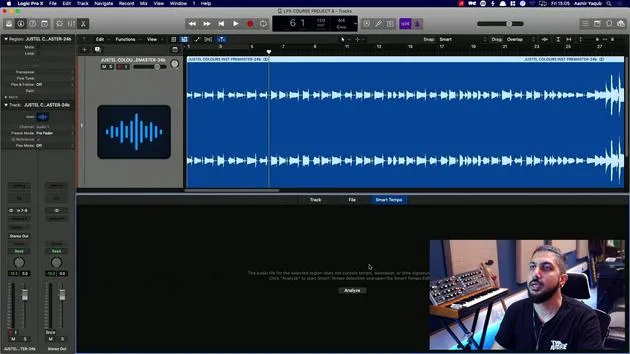
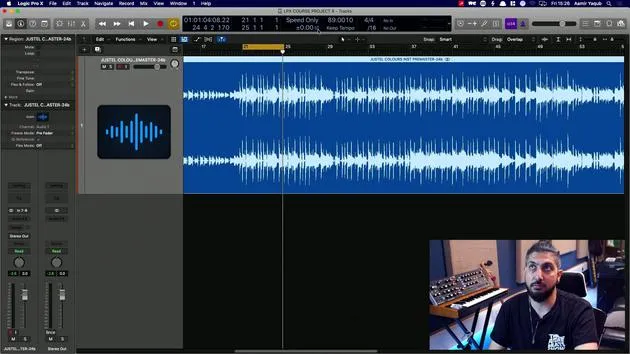
We have a song here, which I produced in Logic. I know the tempo and everything, but I'm pretending that I didn't.
- This audio file has a tempo, which was the tempo that I produced the session at and everything was recorded at.
- Now, I brought this in to show you Smart Tempo because it can allow you to determine the tempo of a file just by reading what's going on in that file.
Accessing Smart Tempo
To access Smart Tempo:
- Double click on the region to open your audio editor window.
- Navigate to the Smart Tempo tab.
At this point, it might not show you anything.
Analyzing the Audio File
You need to say, "I want you to analyze this," because it indicates that there's no tempo information hidden in the data of the file.
- Hit "Analyze."
- The software will go through the file and detect what it considers to be the tempo of the song.
Confirming the Tempo
Now, the song is considered to have a tempo of 89 BPM. You can double-check this by doing the following:
-
In the edit window, go to Apply Region Tempo to Project Tempo.
- This action will take the tempo determined by Smart Tempo and set it as your project tempo.
-
You will be asked if you want to align the downbeat (i.e., beat one) and if you want to maintain the relative position of any other regions.
- If you don't have any other regions in the track, that option doesn't matter.
- I generally just leave this checked.
Applying the Tempo
Let's apply that. Now, the project tempo has been changed to 89 BPM.
- To double-check if we are correct, press K to turn on the click.
- Listen to the playback.
And lo and behold, we have Smart Tempo working out the tempo of something that has been brought in. That tempo can then be applied to your entire project.
14 lessons
1h 22m of structured video lessons
Advanced video features
Slow down, loop a passage, follow along
Mobile, tablet & desktop
Practise wherever you are
100% satisfaction guarantee
30-day money-back guarantee
Meet your guru
Meet your guru
Aamir Yaqub is a music producer and engineer based in London. He has worked with some of the biggest names in music, including Alicia Keys, David Guetta, Rihanna, Sia and will.i.am, as well as developing independent artists.
Across his courses he teaches his complete Logic Pro workflow - from the interface and recording through beat-making, synthesis and MIDI effects to mixing and finishing a track.







