



Editing audio

With
Aamir YaqubEdit audio in Logic Pro X with the fade tool and region parameters: create crossfades and manual fades, batch-apply fade values, and strip silence for cleaner takes.
What's in the course
14 lessons (1h 22m) · 1 free
01. Welcome to Recording audio
0:58
02. Intro to recording audio
4:47
03. Using the metronome
5:00
04. Making your first recording
Free lesson5:32
05. Comping
13:03
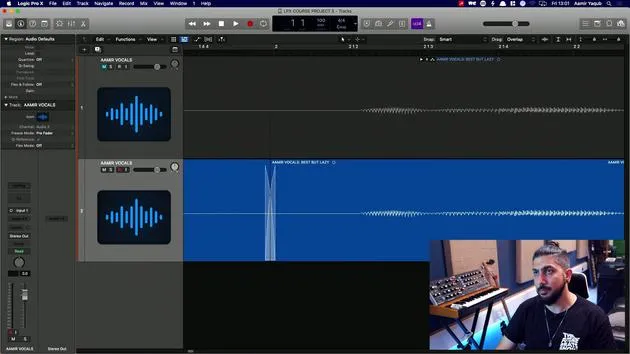
06. Editing audio
You are here9:41
07. Managing project files
3:46
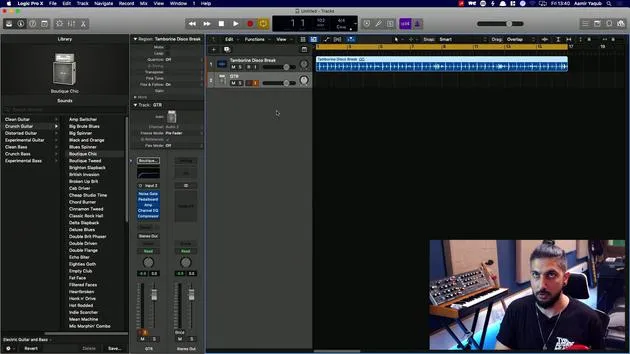
08. Recording an instrument track
2:06
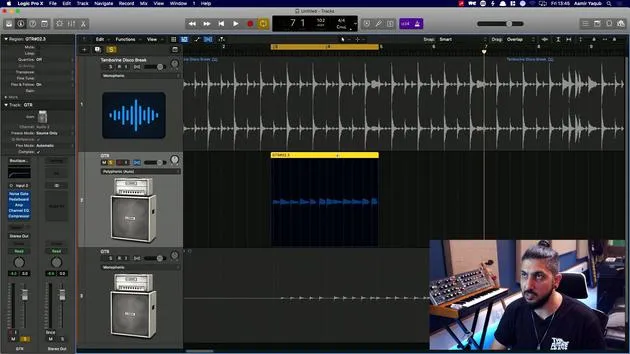
09. How to use Flex Time
10:58
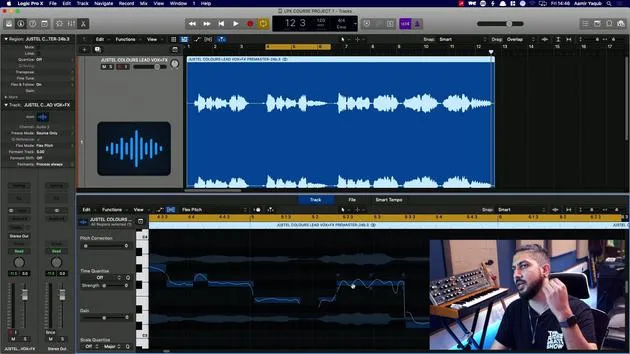
10. How to use Flex Pitch
11:12
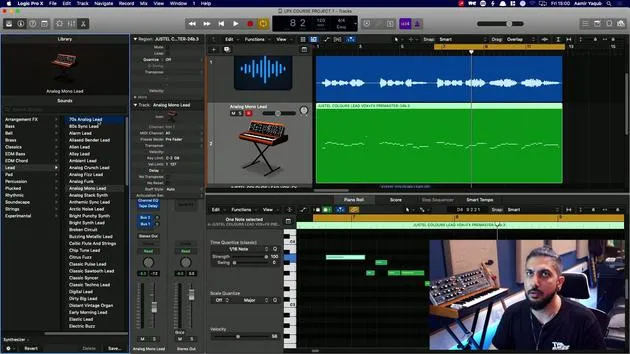
11. Converting pitch to MIDI data
3:11
12. Smart Tempo
3:04
13. Varispeed parameters and uses
4:08
14. Adaptive project tempo
5:00
Lesson transcript
Audio Editing Techniques
Why Edit Audio?
- To eliminate unwanted noise in tracks.
- To remove background distractions such as shuffling feet.
Editing Process: Comping and Fades
Quick Swipe Comping
- Crossfade: This technique involves fading out one audio region while fading into another. It's essential for seamless transitions between overlapping regions.
- Quick swipe comping automatically creates crossfades when two regions are adjacent, enhancing the editing workflow.
Creating Fades Manually
-
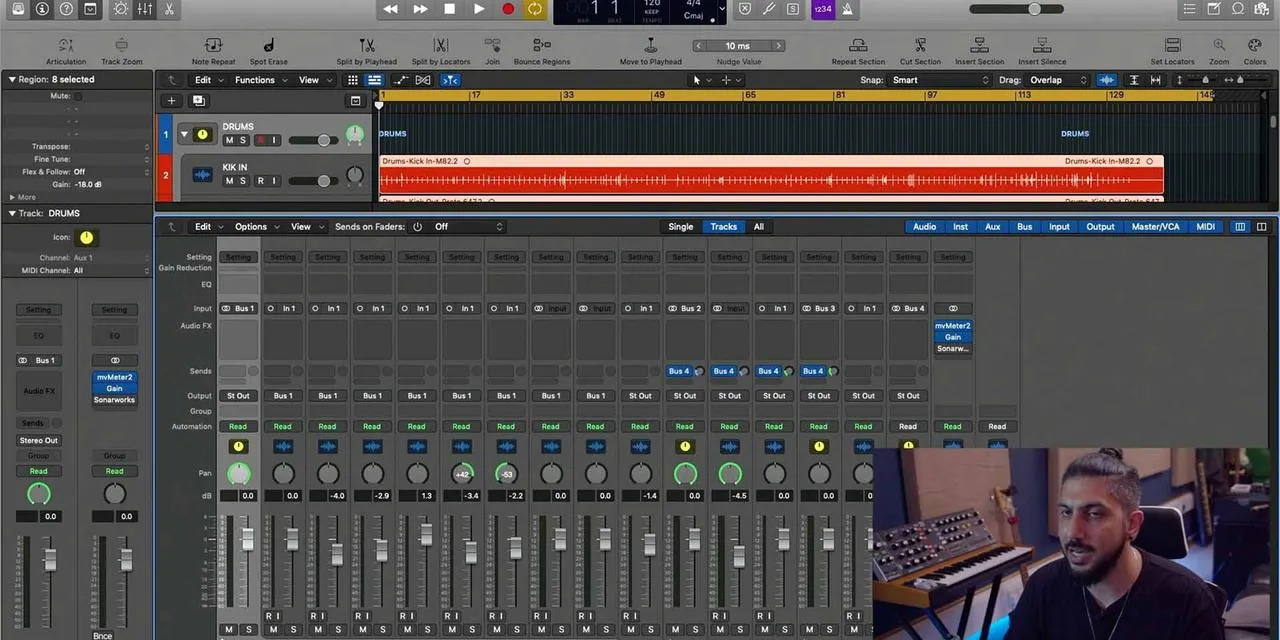
Select the Fade Tool:
- Use the fade tool from your toolbar.
- Alternatively, right-click to access the fade tool.
-
Implementing Fades:
- Hover over the edge of a region to introduce a fade:
- Fade In: Click and drag at the beginning of a region.
- Fade Out: Click and drag at the end of a region.
- Hover over the edge of a region to introduce a fade:
Batch Processing Fades
To streamline the process:
- Select All Regions.
- Navigate to Region Parameters in the Inspector:
- Click on More → Fade In.
- Enter your desired value (e.g., 25 milliseconds for both fade in and fade out).
- Use batch processing to apply fades to multiple regions at once.
Avoiding Pops and Clicks
- Implement fades to mitigate pops and clicks that occur when the playhead crosses regions with audio information.
- Addressing this early in the production process is crucial for achieving a polished final mix.
Adjusting Fades
- Fade Curves: Adjust the curve and size of fades for smoother transitions:
- Create convex or concave curves for varied sound dynamics.
- Use logarithmic approaches for more gradual volume changes.
Creating a Tape Stop Effect
To create a tape stop sound:
- Select the fade tool and extend the fade length.
- Adjust the curve for a more dramatic effect.
- In the parameters section, manipulate the Fade Out to simulate the deceleration of a tape.
Removing Silence
Flattening Regions
To simplify editing:
- Flatten and merge your comp into a single region.
Removing Silent Sections
-
Use the Split Option:
- Right-click and select "Split" to remove silence.
- Shortcut: Control + X will also bring up silencing options.
-
Adjusting Threshold Levels:
- Set the threshold to determine what qualifies as silence (e.g., -41 dB).
- Remove audio below this threshold while preserving softer spoken phrases.
Verifying Changes
After processing:
- Listen through the edited regions to ensure phrases remain intact and unwanted silence is effectively eliminated.
- Adjust individual sections as necessary for precise editing.
Conclusion
By utilizing the techniques covered in this lesson, you can enhance your audio editing skills significantly. Focus on creating clean edits through fades, efficient use of tools, and batch processing to perfect your audio projects.
14 lessons
1h 22m of structured video lessons
Advanced video features
Slow down, loop a passage, follow along
Mobile, tablet & desktop
Practise wherever you are
100% satisfaction guarantee
30-day money-back guarantee
Meet your guru
Meet your guru
Aamir Yaqub is a music producer and engineer based in London. He has worked with some of the biggest names in music, including Alicia Keys, David Guetta, Rihanna, Sia and will.i.am, as well as developing independent artists.
Across his courses he teaches his complete Logic Pro workflow - from the interface and recording through beat-making, synthesis and MIDI effects to mixing and finishing a track.







