



How to use Flex Pitch

With
Aamir YaqubAamir Yaqub walks through Flex Pitch in Logic Pro - how to correct and reshape the pitch of a recorded vocal, and what each parameter does.
What's in the course
14 lessons (1h 22m) · 1 free
01. Welcome to Recording audio
0:58
02. Intro to recording audio
4:47
03. Using the metronome
5:00
04. Making your first recording
Free lesson5:32
05. Comping
13:03
06. Editing audio
9:41
07. Managing project files
3:46
08. Recording an instrument track
2:06
09. How to use Flex Time
10:58
10. How to use Flex Pitch
You are here11:12
11. Converting pitch to MIDI data
3:11
12. Smart Tempo
3:04
13. Varispeed parameters and uses
4:08
14. Adaptive project tempo
5:00
Lesson transcript
Exploring Flex Pitch in Logic Pro
We also have Flex Pitch in Logic Pro, a very powerful feature that allows us to manipulate the pitch of a recorded performance, such as vocals. Let's dive in and see how we access Flex Pitch.
Accessing Flex Pitch
-
Open the Editor Window
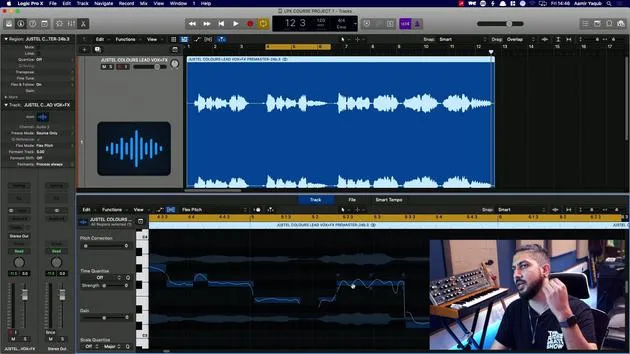
Here in the workspace, I have a vocal that I recorded. I would initially double-click on this to get to the editor window. -
Enable Flex Pitch
In the editor window, you can see the Flex button, similar to what we have up there. When you're working with Flex Pitch, you want to be inside the editor window.- Turn on Flex Pitch.
- Logic will automatically select Flex Time, but we want to choose Flex Pitch.
-
Analyzing the Vocal Performance
This will now analyze the pitch of the vocal performance.- Luckily, I was working with a very good singer.
- The notes are represented as they would be in the piano roll, just like MIDI data.
Understanding the Pitch Representation
- Logic detects various notes:
- As I move over, various dots appear around each note, six dots per note.
- You can observe all notes, phrasing, and even vibrato.
Example Vocal Phrase
Let's listen to the vocal:
"You're loving a million colors, love in a million colors..."
You can see that all of those notes are being picked up by Flex Pitch, which is fantastic.
Working with Vocal Editing
I'm focusing on a phrase here, which forms part of vocal editing when working on recorded vocals.
Adjusting Notes
-
Hovering Over Notes
On the left-hand side, we have sliders similar to those in the MIDI piano roll editor. I'll hover over some notes to see the six dots appear again.- For example, this note is about 2/3 filled in.
-
Fine-Tuning Pitch
- The grey area indicates the singer isn't 100% on the note.
- You can adjust it by moving the fine pitch circle down to fill it in more.
-
Using Pitch Correction
- Select the note and use pitch correction to slide it to be 100% accurate.
- Remember, this can be done for multiple notes at once.
Additional Controls
Pitch Drift
- Pitch drift allows for adjustments if someone slides into or out of a note.
- Adjusting this will show how closely the squiggly line tracks the note's pitch movement.
Gain Control
- The bottom left will control the gain for the note, which is simply another term for volume.
- Adjusting this will make the note louder, reflected in both the waveform and workspace.
Vibrato Control
- The middle control adjusts vibrato, which is the quick modulation of pitch.
- You can decrease or increase vibrato, depending on the desired effect.
Formant Shift
- Formant shift is crucial for maintaining the tonality of an instrument or voice as notes move up or down the scale.
- Shifting the formant downwards or upwards can create unique sounds without altering the pitch.
Snapping to a Scale
With this whole vocal performance, I can snap it to a scale. For instance, if the song is in C Major, I can ensure the singer only sings that specific scale.
Creating Harmonies with Flex Pitch
-
Duplicate the Track
Create a duplicate of the vocal track and bring it down. -
Create Harmonies
- You can use this duplicate to create harmonies, especially if the original singer is unavailable.
- Play around with harmony arrangements.
Example Harmony Adjustments
- If I move a section up by three semitones, it may sound like, "Love in a million colors," but I could also move notes up by a fifth for a better harmony.
Experimenting with these features allows for a creative approach to vocal arrangements, opening doors to new musical possibilities.
14 lessons
1h 22m of structured video lessons
Advanced video features
Slow down, loop a passage, follow along
Mobile, tablet & desktop
Practise wherever you are
100% satisfaction guarantee
30-day money-back guarantee
Meet your guru
Meet your guru
Aamir Yaqub is a music producer and engineer based in London. He has worked with some of the biggest names in music, including Alicia Keys, David Guetta, Rihanna, Sia and will.i.am, as well as developing independent artists.
Across his courses he teaches his complete Logic Pro workflow - from the interface and recording through beat-making, synthesis and MIDI effects to mixing and finishing a track.







