



Key Commands

With
Dov WatermanDov Waterman shows you how to find, learn and customise key commands in Logic Pro to speed up your workflow.
What's in the course
10 lessons (0h 46m) · 1 free
01. Welcome to the course & Dov's take on creativity
Free lesson3:29
02. Intro to Workflow & Efficiency
1:30
03. Workflow and Efficiency
7:13
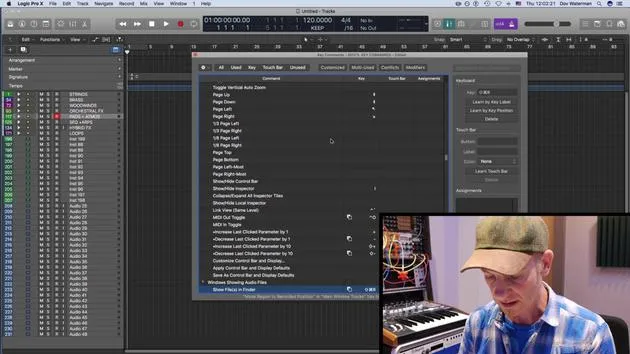
04. Key Commands
You are here6:04
05. Creating a sound pallette
4:02
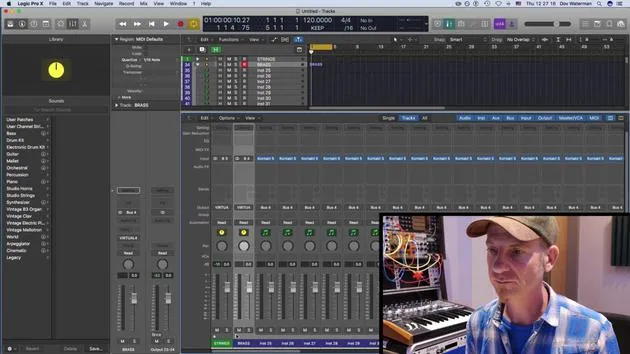
06. Setting up and saving a template
4:30
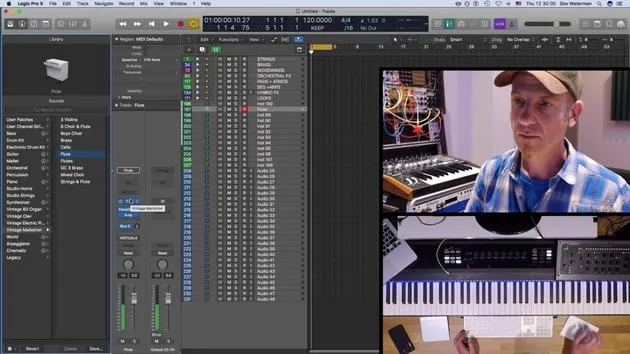
07. Overview of library and channel strips
9:20
08. The Toolbar
4:23
09. Screen-sets
4:34
10. Assignment: Create your template
1:18
Lesson transcript
Key Commands in Logic
Welcome to the key command lesson! This page is a fantastic resource for understanding your key commands. If you're ever unsure about what a key command does, or if you're looking for a specific one, here's how to navigate it:
Finding Key Commands
-
Type in a Key Command:
- For example, if I press H, I get Toggle Hide View.
- This function is useful for showing various hidden tracks in Logic.
-
Not a How-To Video:
- Just a heads up, this isn't an in-depth video on the various functions of Logic.
- Covering all functions would take much longer than we have.
-
Using the Key Commands Page:
- If you're unsure of what a key command does, or if you're searching for a command that isn't listed, simply type in a key and you'll discover its functionality.
Common Key Commands
- Voice Separation Tool: A command I seldom use.
- Metronome (C):
- Press C to toggle the metronome on and off.
- Searching for "metronome" yields options for MIDI monitoring and metronome clicking.
Saving Customized Key Commands
- If you create key commands not included in the default settings, you can save these as a preset:
- Store your key commands in a file that can be exported and used on another computer with Logic.
Example: Changing a Key Command
-
Search for "Record":
- You might find commands like "Record on" or "Record repeat".
- Let's say you want to change the record button to Shift + S.
-
Result:
- Pressing Shift + S may display "Select similar region events in main window."
- If you don't use this often, simply replace the command.
-
Deleting Commands:
- To remove a command, press delete on the section, and it will vanish.
-
Saving Changes:
- After adjusting commands, save them to your Key Commands folder in your Music directory for future use.
Recap of the Command Bar
- In the command bar at the top, you can view all available key commands in Logic:
- All Commands: A comprehensive list, including those you have customized.
- Unused: Displays functions without assigned key commands.
- Multi Use: Highlights key commands with conflicts that may confuse Logic.
- Modifier Keys: Make use of the extended keyboard or right-side ASCII commands for an enhanced workflow.
Utilizing these key commands will greatly enhance your efficiency while working in Logic. Happy music making!
10 lessons
0h 46m of structured video lessons
Advanced video features
Slow down, loop a passage, follow along
Mobile, tablet & desktop
Practise wherever you are
100% satisfaction guarantee
30-day money-back guarantee
Meet your guru
Meet your guru
Dov Waterman is a composer, pianist and producer. He has written and designed sound for films including After Earth, Terminator Genisys, Transformers: The Last Knight and The Snowman, and works as a sample-library audio editor and sound designer with companies such as Native Instruments and SonoKinetic.
His Composition in Logic series walks through building a track end to end in Logic Pro - from templates and workflow to synthesis and beat programming, MIDI effects, editing and the final mix - for producers who want to turn their ideas into finished records.







