



MIDI CC messages & mapping Novation LC to MicroKorg parameters
With
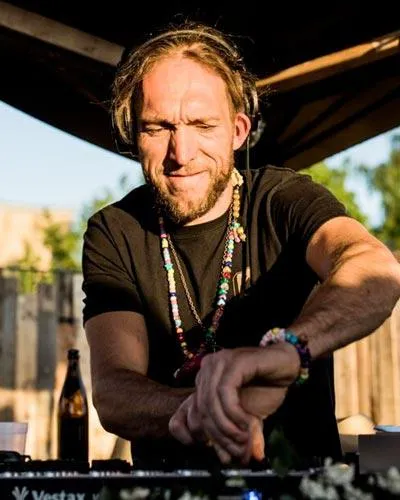
Mark BurnettMark Burnett explains MIDI Control Change messages and shows how to map a Novation Launch Control's knobs to MicroKorg parameters in Ableton Live.
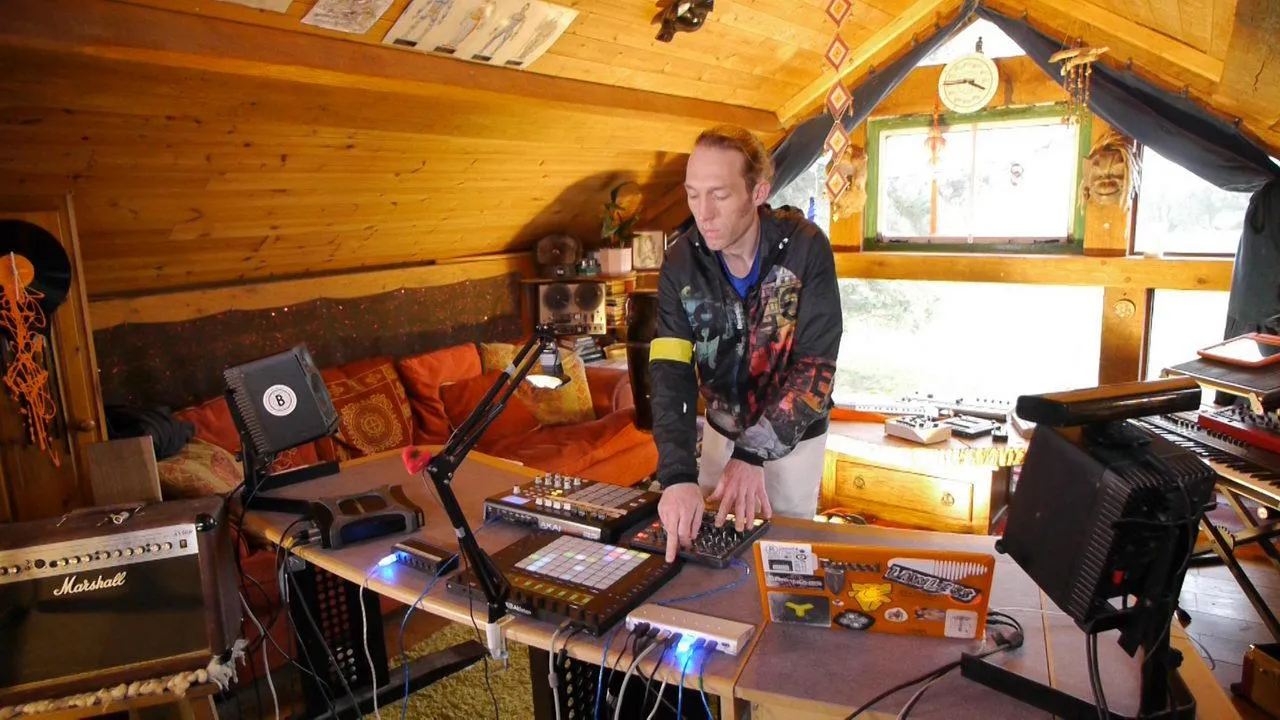
What's in the course
24 lessons (3h 29m) · 2 free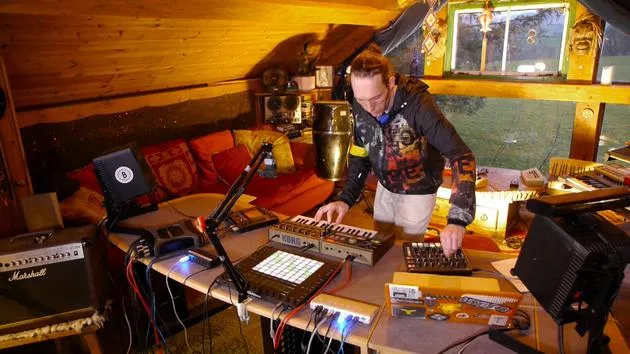
01. What you'll learn in this chapter
1:18
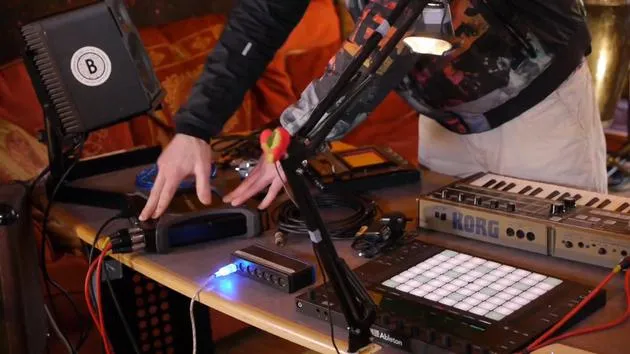
02. Let's get set-up (MicroKorg and Novation Launch Control)
7:47
03. MIDI CC messages & mapping Novation LC to MicroKorg parameters
You are here18:19
04. Demo of the setup so far
1:47
05. Adding tactile effects with the Kaoss Pad 3
11:50
06. Finalizing the Kaoss setup
7:02
07. Recap of what we've learned
4:23
08. Exploring the setup
3:54
Lesson transcript
Connecting and Configuring the MicroKorg with Ableton Live
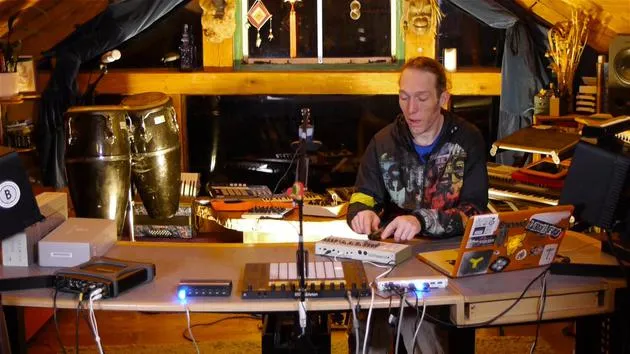
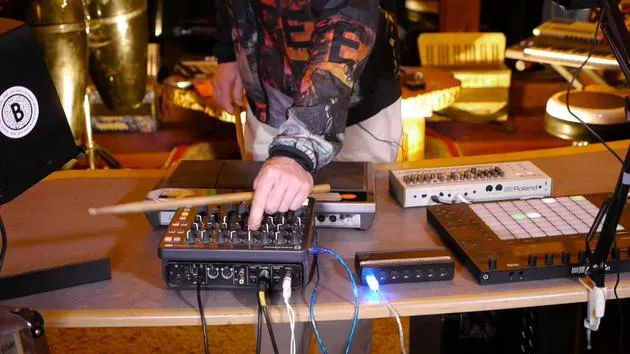
Okay, so now that we've got all of this connected, the first thing we want to do is see if we can get some sounds out of the MicroKorg here coming through Ableton Live out of our sound card via the speakers.
Initial Check
- If I press some keys on here, nothing's happening.
- What I need to do is check the preferences to make sure that all of my audio settings are correct.
Setting Up the External Instrument
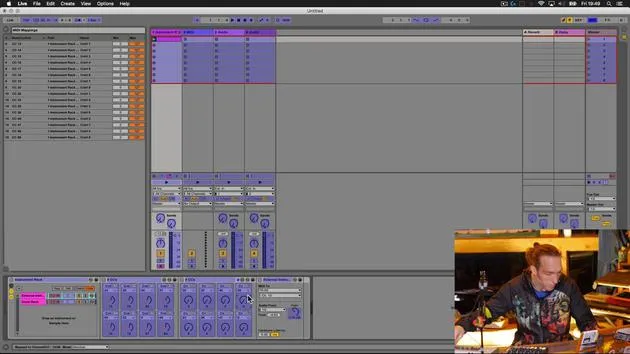
Then I need to set up an external instrument device inside Ableton Live to communicate with the MicroKorg.
- Go to MIDI track one from our new set.
- Expand the volume metering area so we can see the meters clearly.
- Press Command + F to search the entire LIVE library and start typing in "external instrument."
- Insert that on this track.
Explanation of the External Instrument Device
The external instrument enables me to:
-
Send MIDI from Ableton Live out of any of the ports capable of transmitting MIDI to a device.
-
Collect audio from that device via one of the audio inputs on the sound card and bring that back into Live.
-
MIDI Output: We want to send MIDI to this machine, which is connected to the TC Near MIDI ports.
-
Select the TC Near MIDI ports from the first drop-down menu.
-
Next, I need to select the MIDI Channel.
Checking MIDI Channel Settings
Now the MicroKorg is set to... In fact, I'm not even sure what it's set to. Let's quickly go to the MIDI parameters:
- MIDI channel is set to 3.
Important Note: If you have more than one device operating on the same MIDI channel, there could be interference between the messages you're trying to send.
- Make sure that each device, including the MIDI controller, is set to separate channels.
- Novation default is set to channel 1.
- Chaos pad responds to MIDI channel 2.
Therefore, the MicroKorg being set to 3 makes sense.
Now, we can select channel 3 from the drop-down box, ensuring that any MIDI information from Live goes to the MicroKorg.
Specifying Audio Input
Audio Input Setup
Next, we need to specify where the audio is coming back from:
- Open the drop-down box in the bottom half of the external instrument.
- We see indicators for all the various input channels:
- 1 and 2 as a stereo pair
- 3 and 4 as a stereo pair
- 1, 2, 3, and 4 as individual mono inputs.
Testing Audio
I'll press a couple of keys on the MicroKorg to see if any of the inputs light up.
- Okay, we can't see any lighting up.
- Checking my MIDI parameters... they're assigned properly.
- Ensure the correct button on the front of my TC Near is activated.
Success: Now that I've done that, we're getting sounds, which is fantastic!
To keep it nice and simple, we'll keep a short decay and set up a simple patch so we can clearly see what changes we're making to the sound.
MIDI Mapping and Max for Live Setup
Accessing Control Parameters
Now let's take another quick look at what's going on with the MicroKorg. Each parameter functionality is indicated in a table or matrix.
- These knobs allow access to up to 100 different parameters.
- However, you can only access five at any one time.
To control more parameters while performing, we need to ascertain the control parameters we need to send to the Korg.
Two Methods to Determine CC Messages
Method 1: Turn on MIDI mapping mode inside Live and start moving the knobs to learn the various MIDI CC messages.
- Each knob outputs a control change message (CC) ranging between 0 and 127.
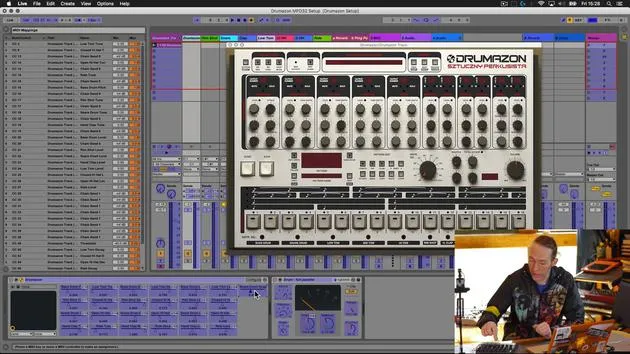
Method 2: Use Max for Live.
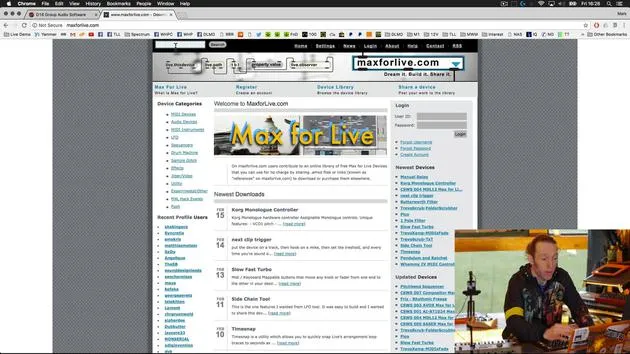
- If you have a synthesizer that's been around for a time, check out max4live.com for a dedicated device.
- Type in "MicroKorg" and review the available devices.
Using Max for Live Device
- Found a MicroKorg 1.1 by Grimjack.
- Click on Device Details to download it.
- Drag the MicroKorg.amxd file into our MIDI track.
Benefits:
- The Max for Live device automatically outputs the correct CC messages to control various parameters within the MicroKorg.
Mapping Parameters
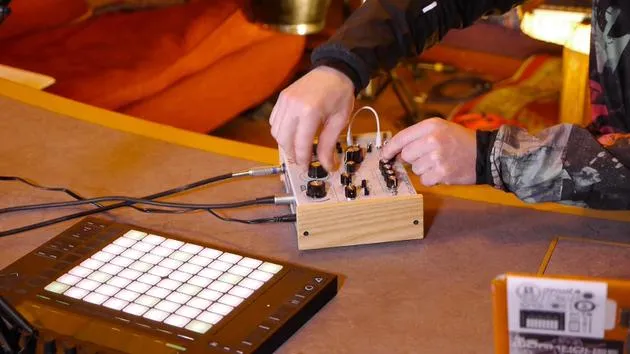
- Enter mapping mode by pressing Command + M.
- Click on desired parameters and assign them to knobs on the controller.
- Sketch out mappings for easier reference.
Finalizing Mappings
The parameters I've mapped include:
- Oscillator Controls: Waveforms, mix for oscillators 1 and 2.
- Filter Settings: Type, cutoff, resonance.
- LFOs: Shape and speed for LFOs 1 and 2.
- Delay Parameters: Time, depth.
- Arpeggiator Settings: Range, type, gate setting, and on/off.
Conclusion
After exiting mapping mode, check that all mappings work correctly.
Performance Improvement: This setup allows comprehensive control of parameters, enhancing creative possibilities and performance manipulation, resulting in new sound effects and configurations that you might not have discovered before.
24 lessons
3h 29m of structured video lessons
Advanced video features
Slow down, loop a passage, follow along
Mobile, tablet & desktop
Practise wherever you are
100% satisfaction guarantee
30-day money-back guarantee
Meet your guru
Meet your guru
Mark Burnett is an Ableton Certified Trainer who has worked with Ableton products for over 14 years. As a producer and DJ on Funk'n Deep Records, his tracks have featured at major festivals and in sets and podcasts from artists including Carl Cox and Richie Hawtin, and he has played to crowds of thousands. He also runs large-scale events such as Workhouse Project, and studied at Imperial College London. His course covers using Ableton Live to build live performances, and it suits electronic producers and performers who want to take a show out of the studio and onto the stage.







