



Roland TR-09 : unboxing et configuration dans Ableton Live
Avec
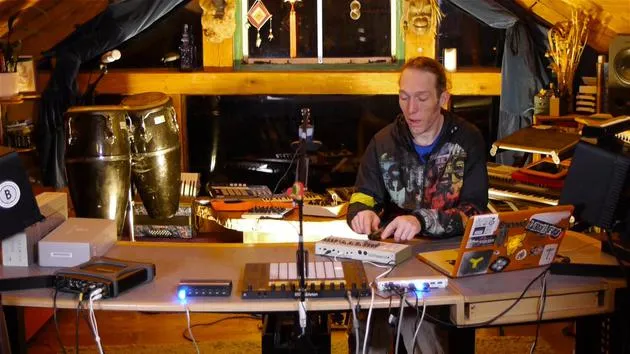
Mark BurnettMark Burnett déballe la boîte à rythmes Roland TR-09, la connecte à l'ordinateur et la configure dans Ableton Live, en faisant la démo de ses sons au passage.
Le contenu du cours
24 leçons (3h 29min) · 2 gratuites
01. Ce que tu vas apprendre dans ce chapitre
1:53
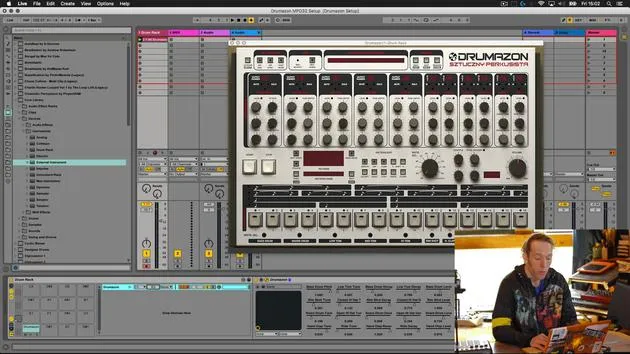
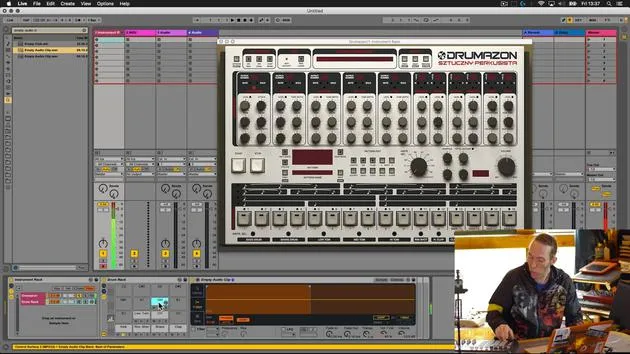
02. Comment router les sons de Drumazon vers des pistes individuelles
16:58
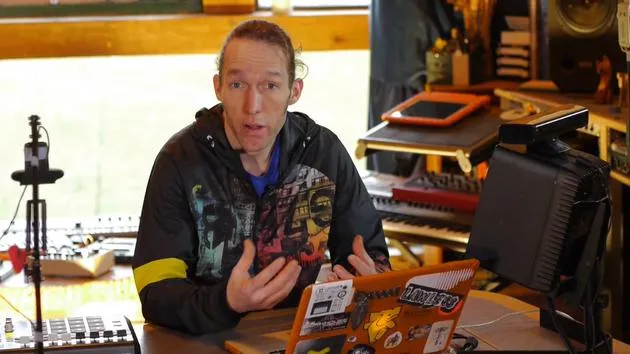
03. Comment appliquer des effets à des groupes de batterie
5:08
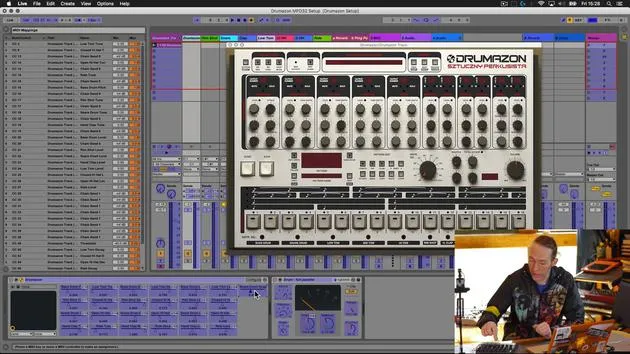
04. Comment mapper des effets logiciels sur un contrôleur externe
12:44
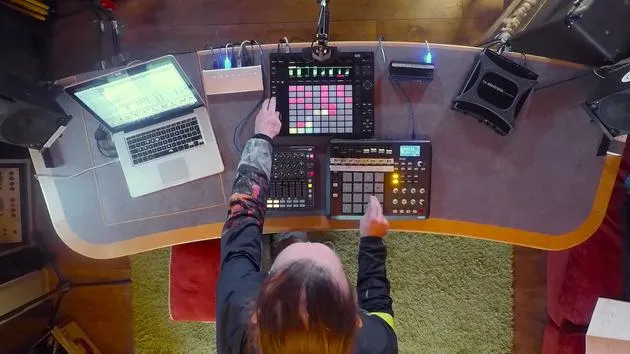
05. Sauvegardons cette configuration et testons-la !
9:21
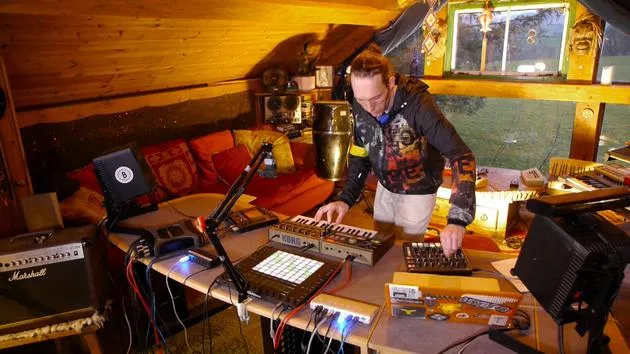
01. Ce que tu apprendras dans ce chapitre
1:18
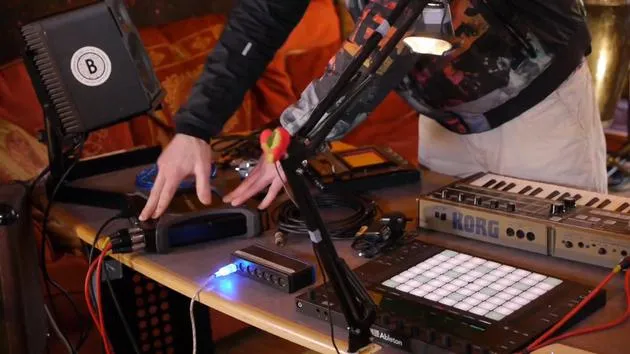
02. Préparons le setup (MicroKorg et Novation Launch Control)
7:47
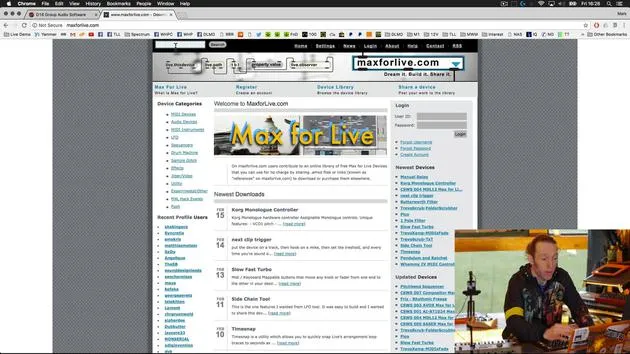
03. Messages MIDI CC et mapping du Novation LC vers les paramètres du MicroKorg
18:19
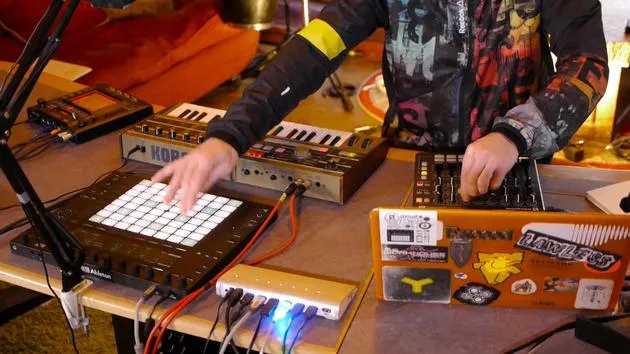
04. Démonstration de la configuration jusqu'ici
1:47
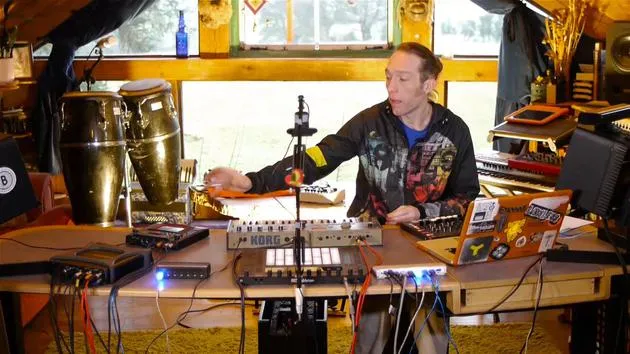
05. Ajouter des effets tactiles avec le Kaoss Pad 3
11:50
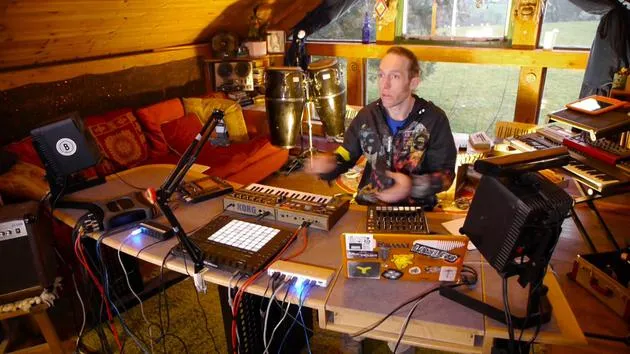
06. Finaliser la configuration du Kaoss
7:02
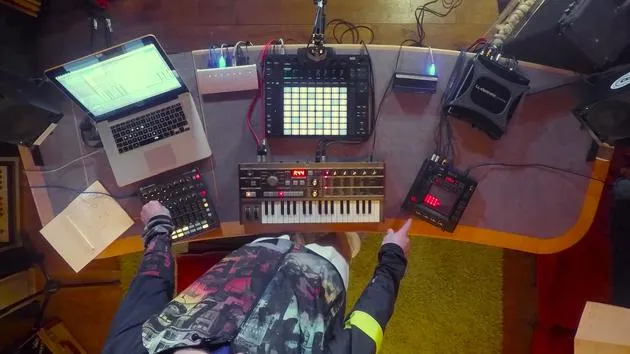
07. Récapitulatif de ce qu'on a appris
4:23
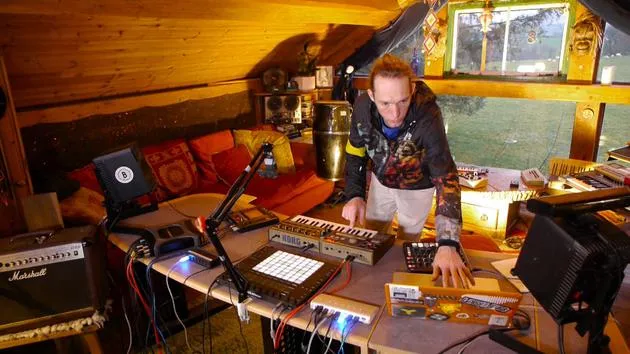
08. Explorer le setup
3:54
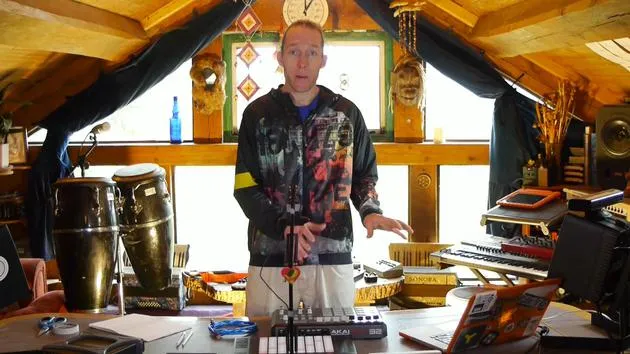
Transcription de la leçon
TR09 Unboxing and Setup Lesson
Hey folks!
Introduction
Okay, so this just arrived in the post. I've always been a huge fan of the TR909, and this is Roland's latest offering, the TR09. It sounds like a great idea, so I'm going to put it to the test and see whether it's actually any good.
The TR909, as I'm sure you're aware, is a classic drum machine used on countless tracks, both dance, pop, and otherwise, over the years.
Unboxing
- Nice bit of packaging here courtesy of Roland.
- This is part of their new boutique range, where they've reproduced a whole selection of their classic synthesizers and drum machines in this little compact format.
Let me just pop that over to the side here. They've courteously given us:
- Two disposable cheap batteries (not thinking of the planet, were they?).
- A rather large fold-out implementation chart with all the different instructions on it.
But, if you're anything like me, you only use the instructions when things go wrong!
Initial Setup
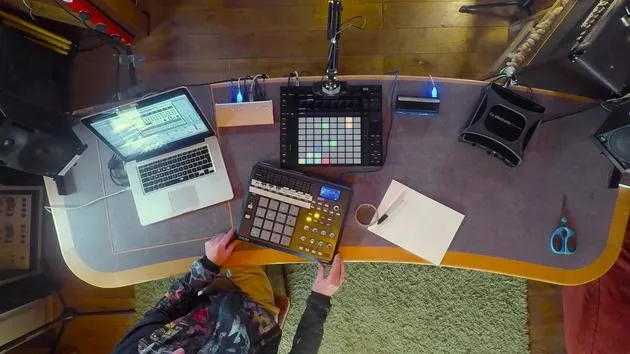
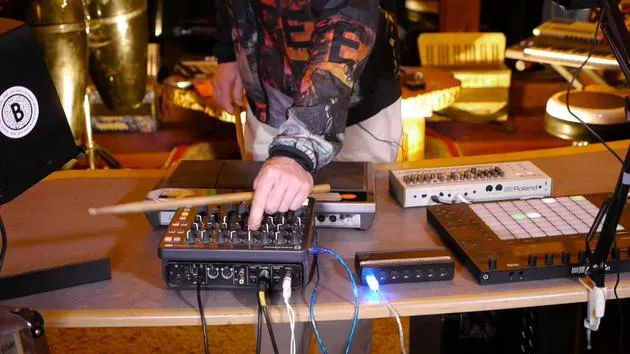
Assuming that I'm not about to blow this unit up by incorrectly connecting it to anything, I'm going to plug it in and see what it can do.
-
Power Connection:
The first thing that strikes me is the distinct lack of any kind of power connector. Now, I'm assuming somewhere underneath this snazzy multi-level stand there is a battery compartment that takes four batteries. So it was nice of them to provide two!Luckily, I do happen to have one of these USB micro B style cables. Let me just locate that and get this plugged in.
- USB Cable: This is the cable we need; it's a micro USB B.
- I'm going to connect this to the USB hub here. With a bit of luck, it does USB power.
Power on... Yay, we've got some lights! So we're powered up.
Audio and MIDI Connections
Now, what's the next obstacle?
- Audio Out:
There are inputs and outputs: there's a mix in, an output, and a phones output. We can obviously go somewhere with this.- We've got MIDI in and out, and we can transmit the MIDI via USB.
I'm not going to connect the MIDI cables at the moment; I want to see if we can get this up and running.
-
Audio Cable:
I need a mini jack output to our sound card. Luckily, I have the exact cable for that!- It's an RCA (cinch connector) with a couple of jack adapters and a mini jack connector on this end.
Let's get that plugged in:
- Going into inputs 1 and 2 on our sound card.
- Remember which number it is!
There's also a volume setting on the back, so I'm going to leave that somewhere in the middle range just in case it has an extremely loud output.
Now we should be able to get MIDI in and out via the USB cable and audio out via the cable I just plugged in.
Testing Sounds
Now, let's see if we can get some sounds from here:
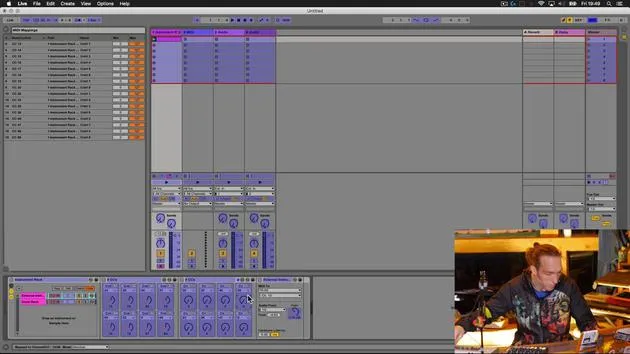
- I'm going to start running it through Ableton Live and insert an external instrument device.
- Let's check if the TR09 appears in the MIDI tab in the preferences pane in Ableton and if we can get some MIDI transmission and audio transmission.
Inside Ableton Live
- Add an "External Instrument" to track one.
- Check the drop-down menu for available ports.
We can see that the TR09 has appeared automatically as an option in terms of MIDI in and out. Now, we need to know what channel this is on.
Generally, Roland drum machines set to MIDI channel 10, so I'm going to start there!
Testing MIDI Transmission
Let's test that out:
- Hit some buttons on the TR09 to see if we can get some sound.
- I can also start the internal sequencer.
Well, there you go, nice and simple! We're getting our sounds, which is fantastic.
MIDI Channel Check
Are we transmitting MIDI on the correct channel?
- We can either send some MIDI information from one of the clips in Live or use the Push controller.
Well, there we are! Straight off the bat, we're transmitting MIDI and got the right channel!
Exploring the TR09
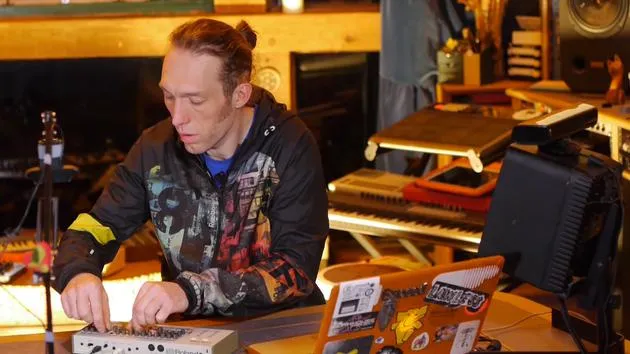
Now that we have the instrument working, let's have a little play around with the sounds. I'm going to use the internal sequencer on the TR09 for now and see what we can achieve.
- Access to all basic controls is available:
- Level for each sound
- Tune or pitch for each sound
- Some sounds have extra parameters such as attack and decay
- The snappy function for the snare is present
Observations and Challenges
- The clap doesn't have the reverb found in the original TR909 (or at least the Drummer's On version).
- The hi-hats are grouped, so there isn't an independent level setting for the closed and open hat.
Now, I've never owned an original TR909, but one immediate note is that:
- These knobs, while small, are quite hard, making them a bit difficult to manipulate.
In a live setting, if you're excited, you might have trouble adjusting these knobs, which could be a problem, but it's not unsolvable.
Next Steps
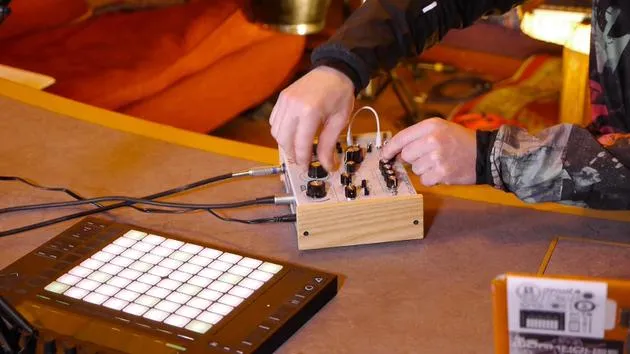
With that in mind, let's program a little beat in Live to send to the TR09 and consider adding a MIDI controller to make it easier to control essential parameters during live sessions.
Let's get that going and see what we can do!
24 leçons
3h 29m de leçons vidéo structurées
Fonctions vidéo avancées
Ralentissez, bouclez un passage, suivez la partition
Mobile, tablette et ordinateur
Pratiquez où vous voulez
Satisfaction garantie à 100 %
Garantie remboursement 30 jours
Rencontrez votre guru
Rencontrez votre guru
Mark Burnett est un Ableton Certified Trainer qui travaille avec les produits Ableton depuis plus de 14 ans. En tant que producteur et DJ chez Funk'n Deep Records, ses morceaux ont été joués dans de grands festivals ainsi que dans les sets et podcasts d'artistes comme Carl Cox et Richie Hawtin, et il s'est produit devant des foules de plusieurs milliers de personnes. Il organise également des événements de grande envergure comme le Workhouse Project, et a étudié à l'Imperial College London. Son cours porte sur l'utilisation d'Ableton Live pour construire des performances en direct, et convient aux producteurs et interprètes de musique électronique qui souhaitent faire passer leur spectacle du studio à la scène.







