



Installer et configurer des contrôleurs MIDI dans Ableton Live

Avec
Isaac CotecComment installer et configurer un contrôleur MIDI dans Ableton Live, des préférences MIDI et Sync jusqu’à l’activation de Track et Remote pour pouvoir jouer et enregistrer des parties.
Le contenu du cours
17 leçons (1h 33min) · 1 gratuites

Transcription de la leçon
Recording MIDI in Ableton Live
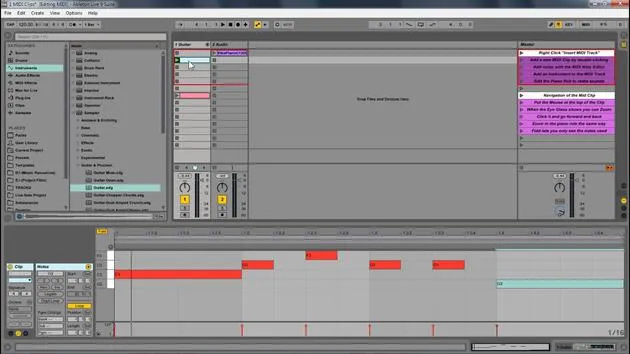
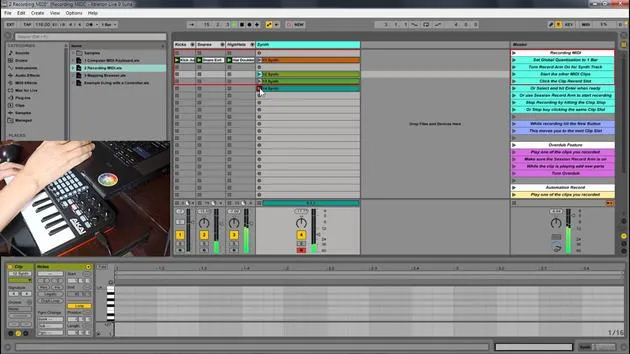
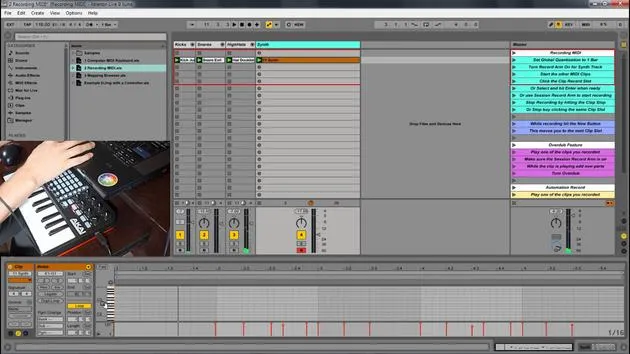
In this module, we're going to be looking at how we can record new MIDI parts and add them directly into Ableton Live. Recording MIDI in Ableton Live allows us to add new MIDI in real-time.
Recording New Clips
- You can record new clips on the fly into any session slot.
- You can record new MIDI using:
- A keyboard
- A MIDI controller
Benefits of MIDI Controllers
MIDI controllers provide a much easier way to control aspects of Live. They can transform Live from just a Digital Audio Workstation (DAW) into a musical instrument. There is a wide variety of MIDI controllers available, such as:
- Keyboards
- Drum pads
- Devices like the Ableton Push, which enhances the feeling of playing an instrument rather than just working within a screen.
Setting Up a MIDI Controller
To set up a MIDI controller in Ableton Live:
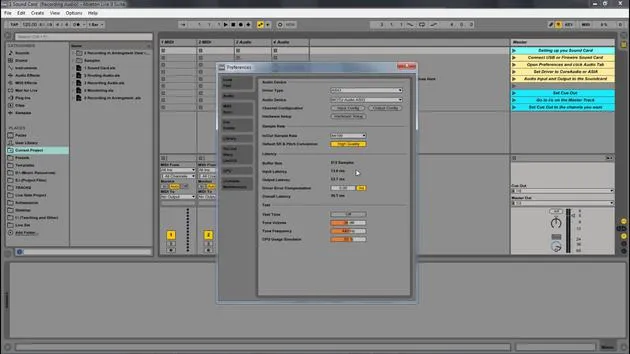
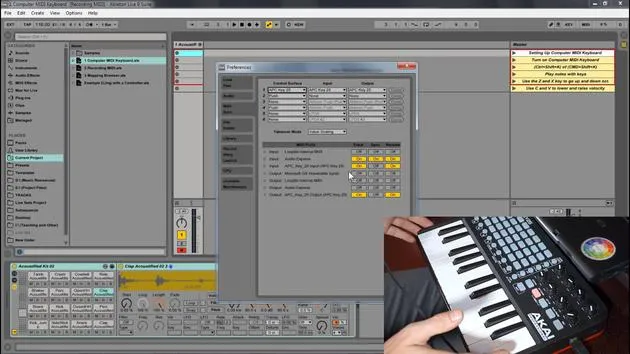
- Go to Options > Preferences.
- Under MIDI and Sync, you'll find your different MIDI preferences.
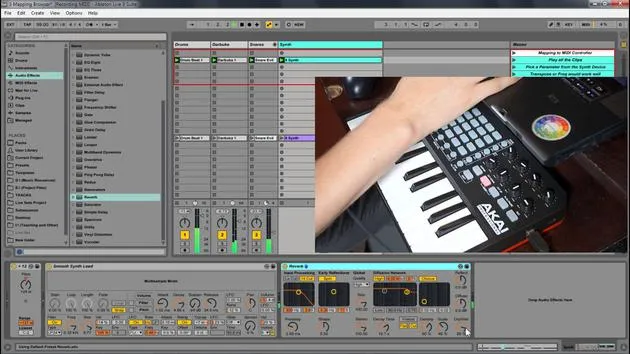
For instance, I have the APC Key 25, which functions similarly to a launchpad:
- It features grids corresponding with Ableton.
- It includes knobs and keys for additional control.
Configuration Steps
- If you are using a control surface (like the APC Key 25), set the control surface in the preferences.
- Set the inputs and outputs accordingly (e.g., your audio interface, like the Audio Express, and the APC Key 25).
Make sure to enable "Track" and "Remote" so you can control various aspects of Ableton. Once the armed button is set, you can use your keyboard to input information.
Quick Review
- Go to Live Preferences.
- Check the MIDI and Sync section.
- Ensure that the MIDI device is set to "Remote On" and "Track On".
This might vary depending on the specific controller you are using, and the manufacturer will generally provide the necessary setup information.
Using Your Computer Keyboard
If you do not have a MIDI controller, you can always use your computer keyboard.
- The image shows the white and black keys of a piano represented on the computer keyboard:
- White Keys: A, S, D, F, G, H, J, K, L
- Black Keys: W, E, T, Y, U, O, P
Activating the Computer MIDI Keyboard
To activate the computer MIDI keyboard:
- Press the designated button in Ableton to turn it on.
After activation, you can use the following keys to play:
- W, A, S, D will produce sound.
Visual Feedback
In the drum rack, you will see little yellow dots indicating active spaces. If there are no instruments loaded there, hitting the keys won't produce any sound.
To adjust the octave:
- Press Z to lower the octave and keep pressing to adjust further.
Velocity Sensitivity
While using the computer keyboard:
- It may not be velocity sensitive by default.
- Press C to lower velocity and V to raise it.
I've seen amazing producers write music on the fly using just their computer keyboard while traveling. So, don't let the lack of a MIDI controller hold you back, your computer keyboard is a great starting point!
Summary
- The keys A, S, D represent the white keys on a keyboard.
- The keys W, E, T represent the black keys.
- You can adjust octave and velocity directly from your keyboard.
- Always ensure the activation button for the computer MIDI keyboard is on; otherwise, it will default to MIDI control for external devices.
17 leçons
1h 33m de leçons vidéo structurées
Fonctions vidéo avancées
Ralentissez, bouclez un passage, suivez la partition
Mobile, tablette et ordinateur
Pratiquez où vous voulez
Satisfaction garantie à 100 %
Garantie remboursement 30 jours
Rencontrez votre guru
Rencontrez votre guru
Isaac Cotec est, sans doute, l'un des meilleurs formateurs Ableton au monde ! Tout en travaillant sur sa propre musique, il a commencé à enseigner les techniques d'enregistrement, le design sonore et Ableton Live à des élèves particuliers et, depuis qu'il a obtenu sa certification d'Ableton Certified Trainer officiel, il a aidé des milliers de producteurs à passer un cap et à réussir comme musiciens.
Isaac a commencé à produire de la musique électronique en 2005 avec Psyche Sonics, un groupe expérimental travaillant sur la science et la recherche des binaural beats et la modification de la conscience par le son. Après avoir tourné, il a continué à écrire de la musique sous l'alias Cotec puis a émergé comme l'artiste Subaqueous, mêlant son passé électronique à des techniques de production à la fois futuristes et organiques. À ce jour, il a sorti 3 albums et 4 EPs.
Isaac est aussi le fondateur et le gérant du label Invibe Music, qui représente certains des meilleurs artistes de musique électronique du Pacific Northwest et se spécialise dans la dance midtempo.
Dans ses cours Ableton Live, Isaac partage les techniques de production, de design sonore et d'écriture qu'il a passé des années à affiner — les compétences mêmes qu'il utilise pour transformer l'étincelle d'une idée en un morceau fini.







