



Comping

Con
Aamir YaqubAamir muestra cómo gestionar varias tomas en Logic con el comping: carpetas de tomas, quick swipe comping y quedarte con las mejores partes de cada interpretación.
Qué incluye el curso
14 lecciones (1h 22m) · 1 gratis
01. Bienvenido a la grabación de audio
0:58
02. Introducción a la grabación de audio
4:47
03. Usar el metrónomo
5:00

04. Hacer tu primera grabación
Lección gratis5:32
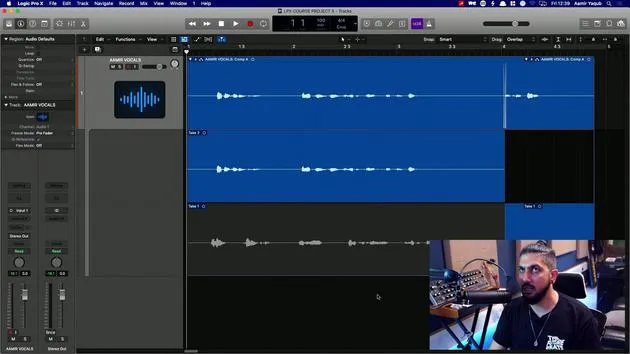
05. Comping
Estás aquí13:03
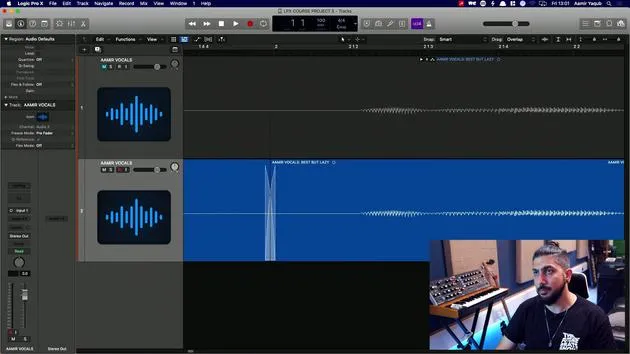
06. Editar audio
9:41
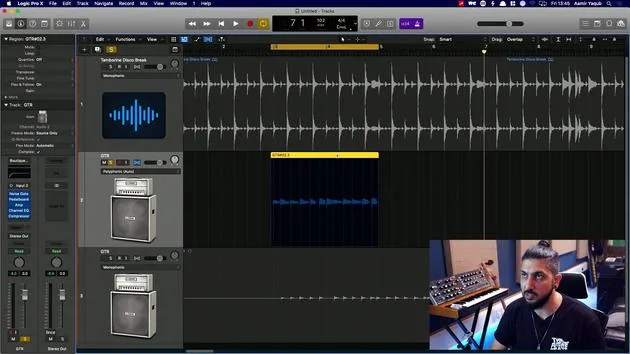
07. Gestionar los archivos del proyecto
3:46
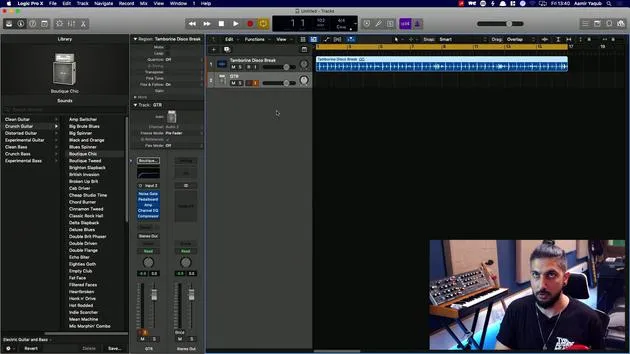
08. Grabar una pista de instrumento
2:06
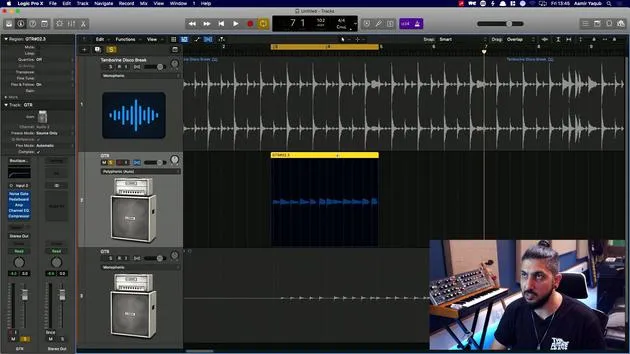
09. Cómo usar Flex Time
10:58
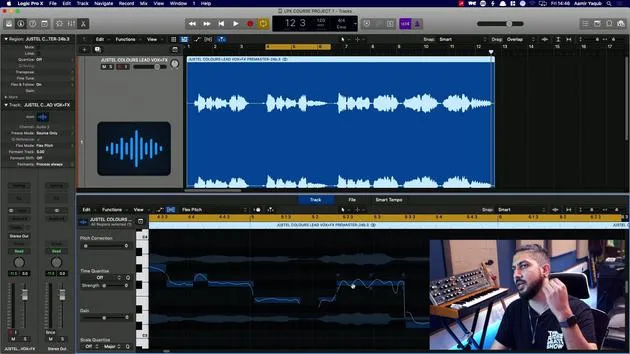
10. Cómo usar Flex Pitch
11:12
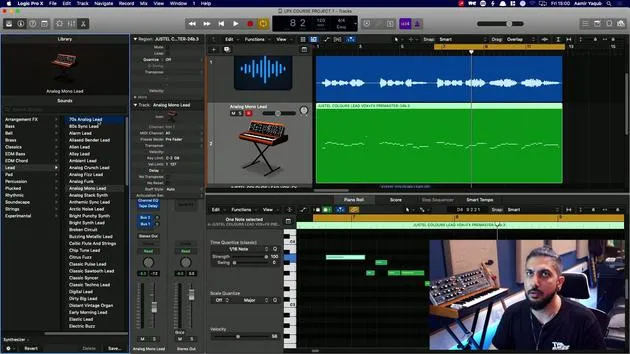
11. Convertir el tono en datos MIDI
3:11
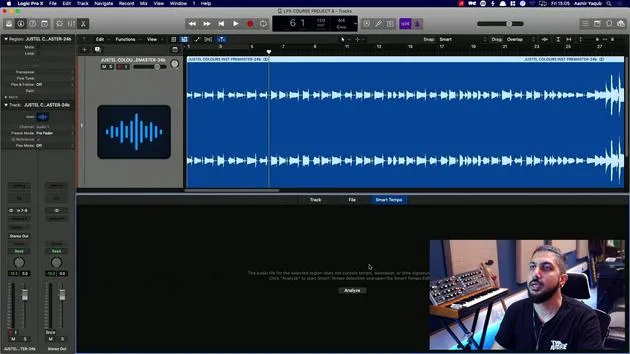
12. Smart Tempo
3:04
13. Parámetros y usos de Varispeed
4:08
14. Tempo de proyecto adaptativo
5:00
Transcripción de la lección
Deleting Recordings in Logic Pro X
If, of course, I want to delete any of these recordings, I can do so by just clicking on the region.
- When I press delete, it asks me if I want to delete this from the disk.
- If you choose to delete, this will wipe it off your drive, never to be recalled again. So, that fantastic take that you did? Gone forever.
- If you choose to keep it, it remains on your drive, and you can recall it into the project whenever you want.
Preferences for Managing Takes
Now, it's up to you what kind of approach you prefer:
- Some people are like, "Oh, no, no, no, that was rubbish. I don't ever want to hear that again," and they always delete stuff to keep their hard drives clean.
- Others prefer to keep everything and tidy up their sessions later on.
In this instance, I'm going to say keep. Because there are two takes here, it's asking me again what I want to do, and I'm going to go with keep. The reason is that I want to showcase the Quick Swipe comping feature in Logic.
Quick Swipe Comping Explained
So, what is Quick Swipe comping?
When you have take folders, we can go between different parts of our takes using this feature. This is particularly useful for musical performances as it allows us:
- To select the very best parts, whether it's for vocals, guitar, bass, or synth.
- To compile (or "comp") them together. Comp is basically short for compile.
Behavior of Take Folders
We've already seen the behavior of take folders and how we can open them using the disclosure triangle. For example, if I was happy with all of take one, I could just click on that, and you can see take one is there, which can go up to the comp track at the top.
- All of take two would also go up to the comp track.
Quick Swipe comping enables us to select specific parts and combine them.
- Click and Drag: You can click and drag across the takes.
- Playback: When you play this back, you will hear the beginning of take two and the rest of take one.
Example Playback
- Hi there, my name is Amir. Here we are on a tutorial for Logic Pro X. I hope you're enjoying the course so far.
- You can hear that this part of the take is from one take and this part is from another.
If I wanted to switch between them:
- I can easily click up and down on the takes to change which section is playing.
For instance:
- "Hello, my name's Amir. I hope you're enjoying your Logic Pro X course so far."
- Very simple, very easy.
Exploring the Menu
Now that we have an idea of how to swipe different parts in, let me show you more about the menu itself.
- I'll close this down, and I'm still listening to the comp track.
- You can verify that by playing it if you're ever unsure.
Quick Swipe Comping Menu Options
Clicking on the little "A" shows us that A is comp A (ticked). If I switch to take 2:
- Reopening it brings in all of take two.
- Going back to comp A brings me back to that comp.
Furthermore, within the menu, there are options to:
-
Duplicate the Comp:
- This creates a comp B in the menu. Now, I have comp A and comp B, which currently are exactly the same.
- I can create alternate comps and keep them organized.
-
Rename the Comp:
- I might call this "best but lazy" if I thought I was being lazy.
- It's good for organization.
-
Deleting Options:
- I can delete the current comp or all other comps, leaving just the one I like.
Flatten and Merge Functionality
- Flatten: If I flatten comp B, I lose all Quick Swipe comping functionality.
- Flatten and Merge:
- This takes away the Quick Swipe comping functionality with the active comp you have and joins it into one audio file.
Exporting and Moving Comps
Looking further at the Quick Swipe comping menu:
-
Export the Active Comp to a New Track:
- This creates a flattened duplicate of that region.
-
Move it to a New Track:
- If I perform this action, you'll see the audio files comprising comp B have been removed from my Quick Swipe take folder.
Unpacking Options
We can also unpack recordings:
-
Unpacking:
- This gives you new versions of what you had before for each take.
-
Unpack to New Tracks:
- Allows you to hear all takes separately as they are now on their own audio channels.
Keep in mind:
- If you play two identical audio regions together, they won't sound thicker; they will just be louder.
As you get further into audio editing, you'll discover various reasons to use these functionalities effectively.
14 lecciones
1h 22m de lecciones en vídeo estructuradas
Funciones de vídeo avanzadas
Ralentiza, repite un pasaje, sigue la partitura
Móvil, tablet y ordenador
Practica donde quieras
Garantía de satisfacción 100%
30 días de garantía de devolución
Conoce a tu gurú
Conoce a tu gurú
Aamir Yaqub es un productor e ingeniero musical afincado en Londres. Ha trabajado con algunos de los nombres más grandes de la música, entre ellos Alicia Keys, David Guetta, Rihanna, Sia y will.i.am, además de desarrollar a artistas independientes.
A lo largo de sus cursos enseña su flujo de trabajo completo en Logic Pro: desde la interfaz y la grabación, pasando por la creación de ritmos, la síntesis y los efectos MIDI, hasta la mezcla y el acabado de un tema.







