



Tempo de proyecto adaptativo

Con
Aamir YaqubAamir Yaqub muestra cómo usar Smart Tempo y Adapt Project Tempo de Logic para que la cuadrícula siga tu interpretación cuando grabas libremente sin clic.
Qué incluye el curso
14 lecciones (1h 22m) · 1 gratis
01. Bienvenido a la grabación de audio
0:58
02. Introducción a la grabación de audio
4:47
03. Usar el metrónomo
5:00
04. Hacer tu primera grabación
Lección gratis5:32
05. Comping
13:03
06. Editar audio
9:41
07. Gestionar los archivos del proyecto
3:46
08. Grabar una pista de instrumento
2:06
09. Cómo usar Flex Time
10:58
10. Cómo usar Flex Pitch
11:12
11. Convertir el tono en datos MIDI
3:11
12. Smart Tempo
3:04
13. Parámetros y usos de Varispeed
4:08
14. Tempo de proyecto adaptativo
Estás aquí5:00
Transcripción de la lección
Working with Smart Tempo in Logic
So, a really handy feature that we have when we're working with Smart Tempo is actually different from the example shown before, which involved pre-recorded audio.
Free Recording Without a Click
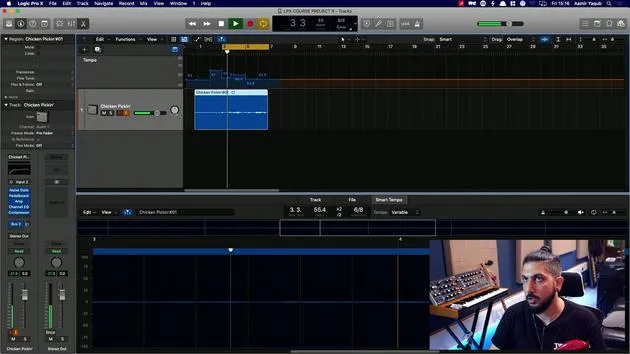
What if I was just sitting here playing guitar and thought, "I want to put the idea in, but I don't want to record with a click?" I want my grid and my tempo to conform to what I'm playing.
Logic uses Smart Tempo to help you when you're free recording, meaning you're recording without a click. Here's how to do it:
-
Adapt Project Tempo
- Go to the LCD and select Adapt Project Tempo.
- Once you've done that, you'll see a notification appear, but it won't do anything yet.
-
Disable the Metronome
- Right-click on the metronome and ensure it's not clicking while recording.
-
Start Recording
- Now you can press Record. This will start to adapt to and follow the tempo you are playing.
Demonstration
You can see that I've got my record going on. If I just start strumming, Logic will now detect the tempo, and as you can see, it's moving the tempo around.
Smart Tempo Editor
Next, you'll get a prompt that says "Click Show to open the Smart Tempo editor." Here you can:
- Preview the audio file.
- Shift the downbeat if needed.
- Adjust the detected tempo.
Now, let's look at the editor.
-
Identify the Downbeat
-
The first beat you've played should be set as the downbeat.
-
Let's zoom into the waveform to see what's going on.
-
If I look closely, I can identify that the first hit there is actually the downbeat. The downbeat just means the first beat of the bar.
-
-
Adjust the Downbeat Marker
- Move the marker to signify that as being the downbeat.
Tempo Changes
When I adjust that marker, you'll notice that the tempo has changed in my global tempo track. It didn't just jump from 78.5 to 38.8, so you might need to adjust the next downbeat marker as well.
- Move the marker back to accurately represent the start of the bar.
- As I progress, I adjust it accordingly to reflect where the music actually starts.
This consistency allows my tempo map to change constantly because I'm not stuck in a rigid tempo.
Adding Drums
Next, if I wanted to go in and program some drums or even use something like Drummer, I can do that easily:
- Add a Drummer Track
- Go to add a drummer track, select the songwriter option, and pick a drummer.
- Let's choose Mason and see what he brings to the mix.
You can see there that the drummer adapts to the tempo changes. This is signified in the global tempo track and allows for dynamic adjustments.
Final Thoughts
You might find that sometimes the tempo feels a little too fast or too slow, especially with a range jump from 80 to 120.
Always make sure your markers are in the right place, and everything should work out just fine.
14 lecciones
1h 22m de lecciones en vídeo estructuradas
Funciones de vídeo avanzadas
Ralentiza, repite un pasaje, sigue la partitura
Móvil, tablet y ordenador
Practica donde quieras
Garantía de satisfacción 100%
30 días de garantía de devolución
Conoce a tu gurú
Conoce a tu gurú
Aamir Yaqub es un productor e ingeniero musical afincado en Londres. Ha trabajado con algunos de los nombres más grandes de la música, entre ellos Alicia Keys, David Guetta, Rihanna, Sia y will.i.am, además de desarrollar a artistas independientes.
A lo largo de sus cursos enseña su flujo de trabajo completo en Logic Pro: desde la interfaz y la grabación, pasando por la creación de ritmos, la síntesis y los efectos MIDI, hasta la mezcla y el acabado de un tema.







