



Ejercicios de composición

Con
Isaac CotecIsaac Cotec muestra cómo dividir un tema en sus partes —intro, estrofa, pre-estribillo, estribillo y puente— usando clips MIDI etiquetados en Ableton Live, con un Live Set de ejemplo para descargar.
Qué incluye el curso
19 lecciones (2h 54m) · 1 gratis
Transcripción de la lección
Music Composition Exercises
In this video, we're going to be showing off some exercises in composition and how we can really start applying this information to the different parts of a composition while looking at it in our own music.
Activity Overview
- Evaluating Other Tracks: We'll break down various parts of a track to understand how they work and how we can rearrange them.
Example Breakdown
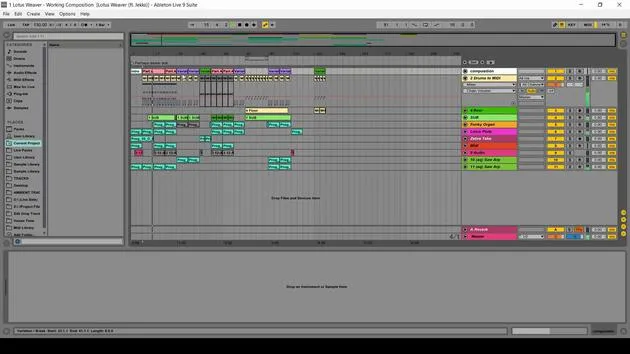
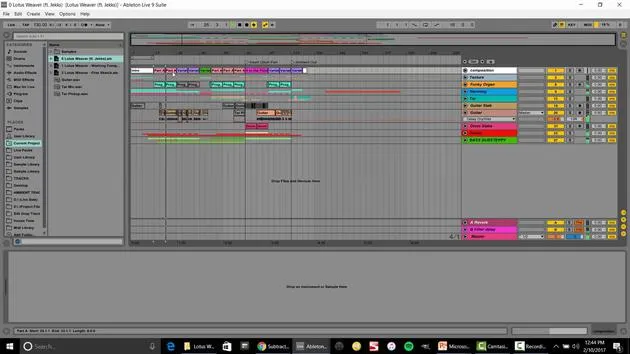
As an example, I have a track from my project Subaqueous, where I collaborated with Michael Miracle, an amazing piano player and teacher.
MIDI Track Setup
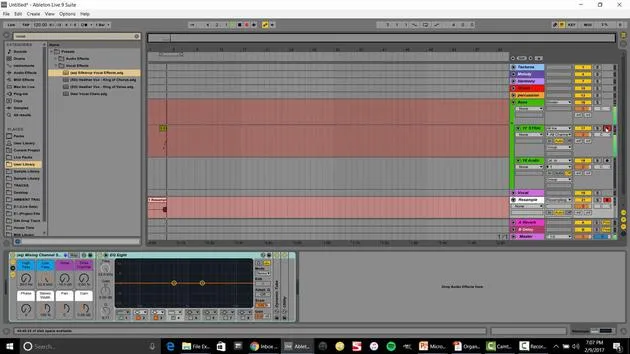
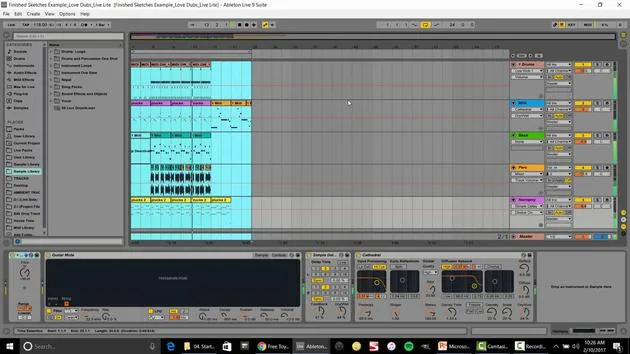
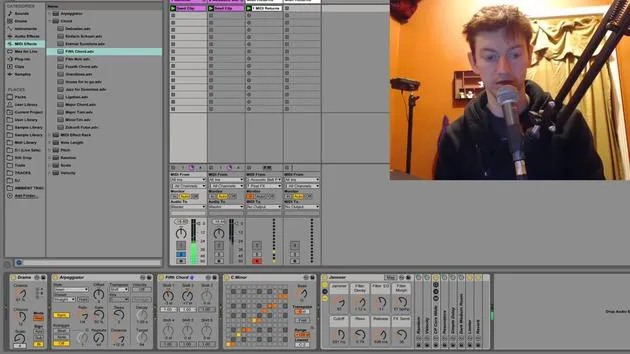
- At the top, I have a MIDI track with clips that help me label and color-code the composition:
- Intro: The opening of the track
- Verse: This tells the story of the track
- Solo Variation: More movement in this section
- Pre-Chorus: A great example of transitioning into the chorus, featuring a chord change
Let's listen again to highlight how the pre-chorus sets up the energy for the chorus. You'll notice that the chorus has significantly more energy than the verse.
Transitioning Between Sections
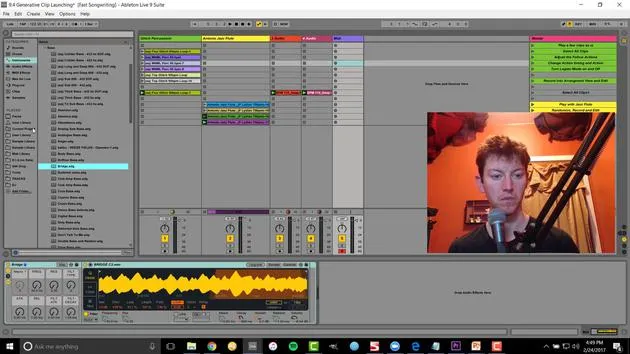
- We also look at a solo that leads back into the pre-chorus, before moving into a completely different section called the Bridge.
- The bridge features:
- A complete scale change
- Different feel and drums
From there, we return to the pre-chorus and then the chorus, concluding the track.
Hopefully, this gives you a clearer idea of the different parts and their functions within your own music.
Evaluating a Track From Scratch
Now, let's take it a step deeper and evaluate another track from scratch, showing you how to set this up with the MIDI track located at the top.
Exercise with Your Favorite Musicians
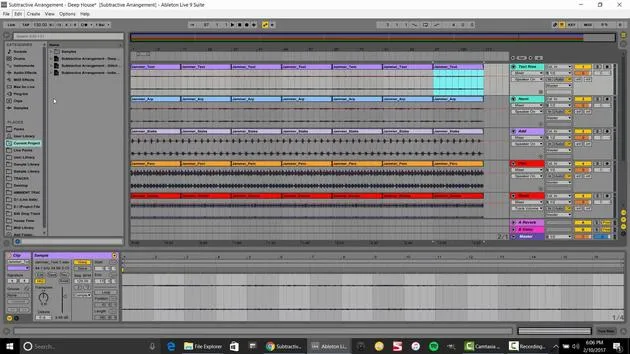
- Import a track into Ableton Live.
- Set up a 'sketch' for its composition.
- You can right-click to insert a MIDI track. I already have one ready at the top.
Steps for Composition Setup
- Select an Area: Right-click to insert MIDI.
- Call this Intro.
- Add Beats: Insert another MIDI track called Intro Beats.
- Label the Verse: Color-code the sections clearly.
- Identify Variations: Name it based on the component you recognize (e.g., Verse, Variation).
- Label Parts: You might see a part without a traditional chorus; label it as Part B.
Here's how it starts taking shape:
- Outro: Drag over, name this section, and you're done!
The Benefits of This Approach
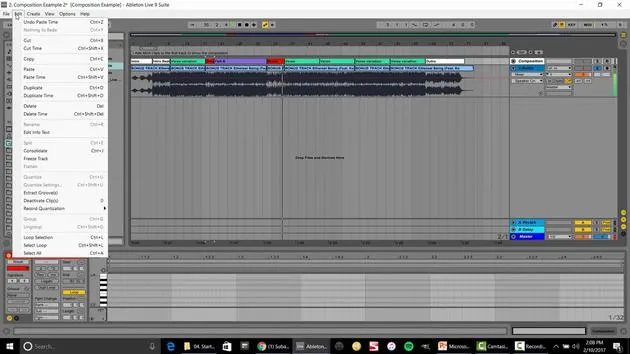
Now, you can easily see the movement over time. A cool advantage of this setup is the ability to move various parts around with ease.
Example of Moving Parts
- Select the Verse:
- Edit → Cut Time
- Edit → Paste Time
- Now, you can creatively rearrange to form a very different composition:
- For instance, cut and paste sections to change the flow and energy.
Additional Resources
At the top, we have our composition setup. Now, I can grab this and drag it into any project, saving it as Composition Ethereal.
I've also created a large collection of different compositions available for you to download. This includes pre-made MIDI tracks from:
- Pop Music
- Radiohead
- Coldplay
- Emancipator (chill-out electronic)
Using the Composition Toolkit
Once you have it downloaded:
- Open the toolkit: Hit the little square to access.
- Drag and drop: Use them as templates for your own compositions.
Activity Suggestion
I highly suggest that you:
- Go through your favorite tracks
- Import them into Live
- Develop a composition MIDI track
- Save it into your composition toolkit library
This will help build a palette of music that inspires you for your production.
Conclusion: Changing Compositions
As one more example, let's change a composition similar to what we've just done. If you have Live Standard or Suite, you can perform these exercises, but unfortunately not with Live Lite.
Composition Example
-
Identify and label:
- Parts A, B, and C for clear separation
- Left space for adjustments
-
Experiment:
- Duplicate and paste different sections to see how they change the overall track.
- This exercise can yield surprising results and enhance your composition skills.
By experimenting with these techniques, you're not just remixing, you're actively practicing and enhancing your toolkit for composition.
19 lecciones
2h 54m de lecciones en vídeo estructuradas
Funciones de vídeo avanzadas
Ralentiza, repite un pasaje, sigue la partitura
Móvil, tablet y ordenador
Practica donde quieras
Garantía de satisfacción 100%
30 días de garantía de devolución
Conoce a tu gurú
Conoce a tu gurú
Isaac Cotec es, posiblemente, ¡uno de los mejores formadores de Ableton del mundo! Mientras trabajaba en su propia música, empezó a enseñar técnicas de grabación, diseño sonoro y Ableton Live a alumnos particulares y, desde que obtuvo su certificación como Ableton Certified Trainer oficial, ha ayudado a miles de productores a mejorar su nivel y triunfar como músicos.
Isaac comenzó a producir música electrónica en 2005 con Psyche Sonics, un grupo experimental que trabajaba con la ciencia y la investigación de los binaural beats y la alteración de la consciencia a través del sonido. Tras salir de gira, siguió componiendo música bajo el alias Cotec y más tarde surgió como el artista Subaqueous, fusionando su pasado electrónico con técnicas de producción tanto futuristas como orgánicas. Hasta la fecha ha publicado 3 álbumes y 4 EPs.
Isaac es también fundador y gerente del sello discográfico Invibe Music, que representa a algunos de los mejores artistas de música electrónica del Pacífico Noroeste y se especializa en dance de midtempo.
En sus cursos de Ableton Live, Isaac comparte las técnicas de producción, diseño sonoro y composición que ha pasado años perfeccionando: justo las habilidades que emplea para convertir la chispa de una idea en un tema terminado.







