



Configurer des pistes d'instrument externe dans Ableton Live
Mark Burnett explique comment configurer des pistes d'instrument externe dans Ableton Live - en routant le MIDI et l'audio vers et depuis chaque piste de ton set.
Le contenu du cours
16 leçons (2h 26min) · 2 gratuites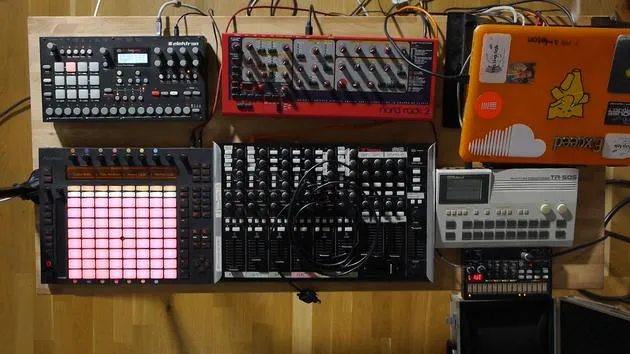
01. Installer le matériel
1:29
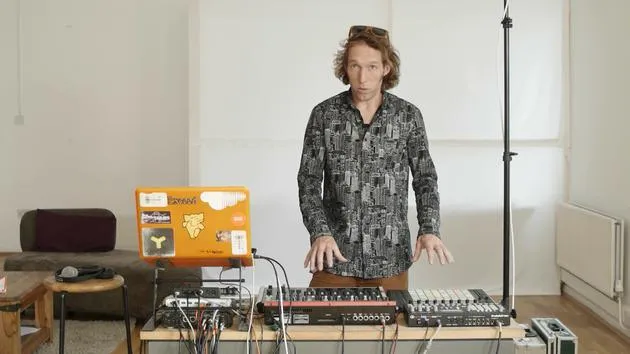
02. Présentation des instruments
Leçon gratuite5:44
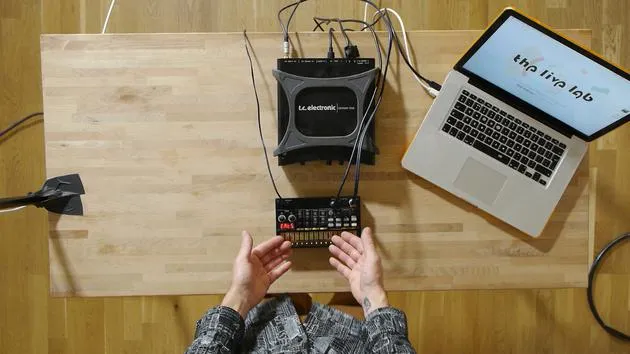
03. BONUS - Configurer un instrument externe (Korg Volca Beats) dans Ableton en partant de zéro
Leçon gratuite12:51
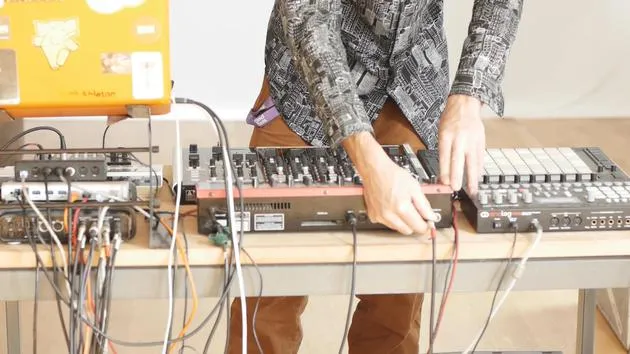
04. Comprendre le câblage, le MIDI et le routage audio analogique
4:01
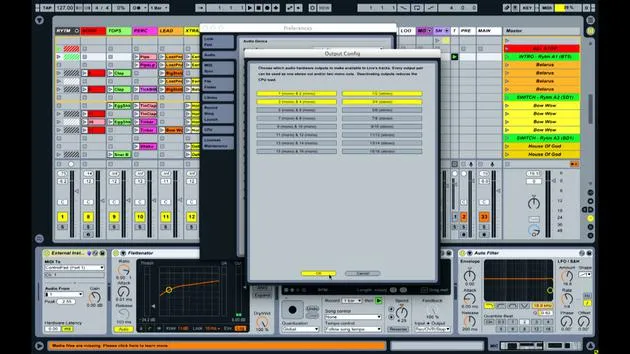
05. Configurer les préférences MIDI et audio dans Ableton
10:44
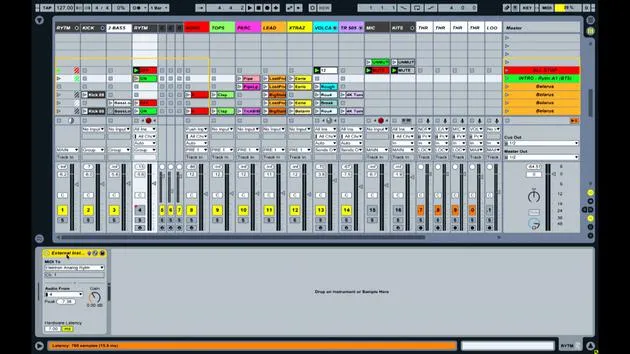
06. Configurer les pistes et le routage du signal dans Ableton Live
6:46
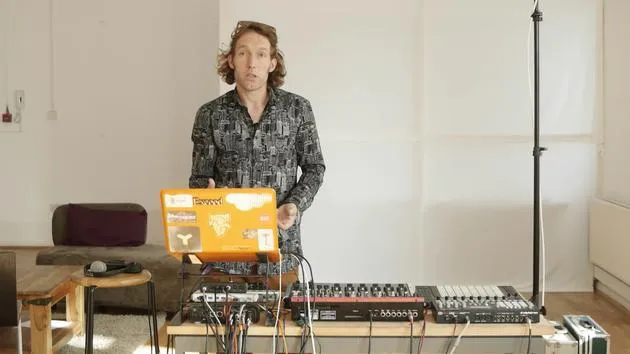
07. Configurer des pistes d'instrument externe dans Ableton Live
Tu es ici8:33
08. Configurer une piste de microphone dans Ableton Live
6:09
09. Configurer les thru-tracks et les loopers
9:08
10. L'arme secrète du set : movers and shakers
8:08
11. Routage de sortie et FX master
13:36
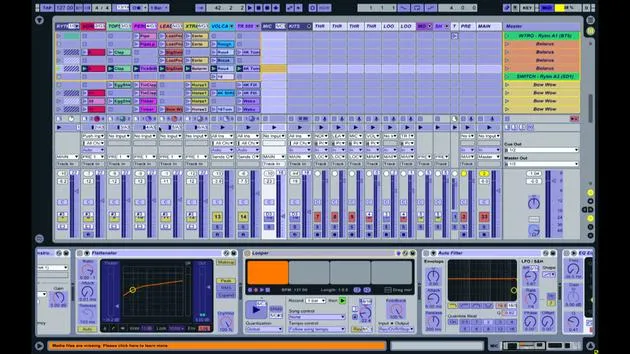
12. Mappage MIDI, racks & macros (partie 1)
14:16
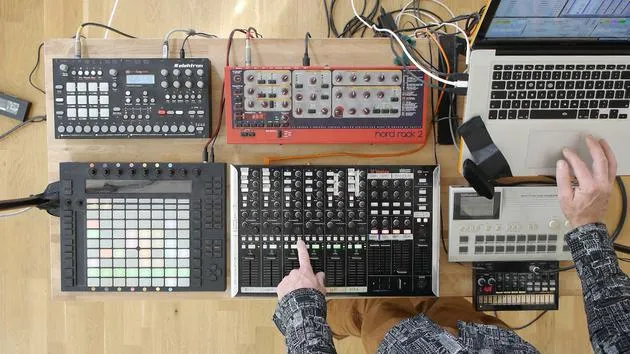
13. Mappage MIDI, Racks et Macros (partie 2)
12:35
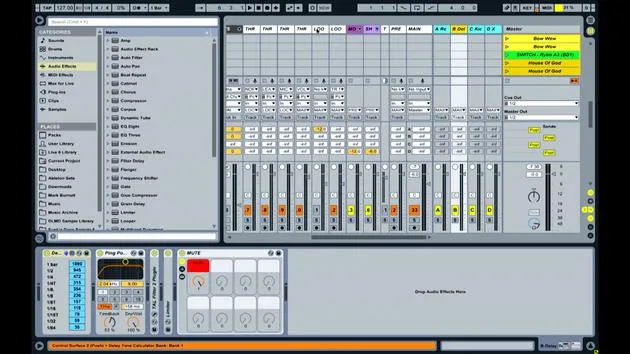
14. Piste de delay et temps de delay
3:33
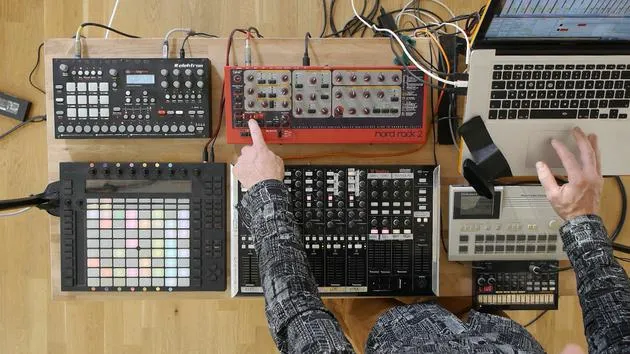
15. Changements de programme et instruments externes
7:11
16. Contenu du set et technique de performance
21:23
Transcription de la leçon
Ableton Live Setup: Connecting External Instruments
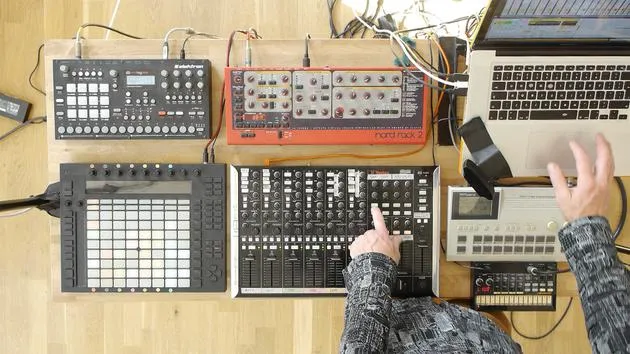
Right, so once you've got all of your devices plugged in and you've set your preferences up so that your signals are coming in and out of Live properly, then what you need to do is have a look at specifically the tracks within the set and how we get the audio and MIDI into and out of the specific tracks.
Overview of Tracks
Now, what I'm going to do in this video is show you how to connect an external instrument and use Ableton Live's external instrument device to insert that instrument into the set. I'll also walk you through the various tracks in this particular set and what I've got going on in each one.
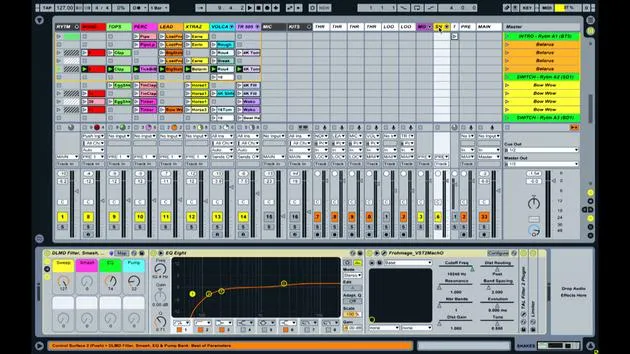
Rhythm Track
I am going to make one omission, just because it's slightly more complicated. In the rhythm track at the beginning, I've actually subgrouped a bunch of other tracks:
- Kick Track: This is audio.
- Bass Track: This is also audio.
- Rhythm Track: The purpose of this track is solely to enable me to remotely mute and unmute the entire device.
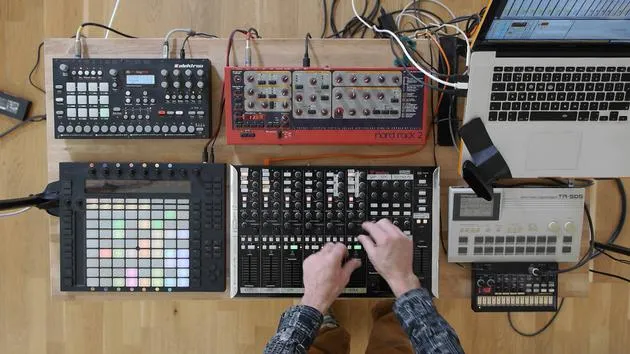
Now, I'm not sending any information from the Ableton set into the Electron Analog Rhythm because it's using its internal sequencer. So all I'm sending to the rhythm is:
- A start signal
- A stop signal
- A mute on
- A mute off
And that's all the control that I need in terms of what I can do inside Live for my performance. I do use the controls and parameters on the rhythm itself during the performance to add, change, and modify what's happening with that machine, but I'm not sending it notes.
Synchronization Settings
All you need to know at this stage is that the synchronization settings are sending the clock messages to the rhythm, making it start and stop when I want it to.
Track Breakdown
Nord Track
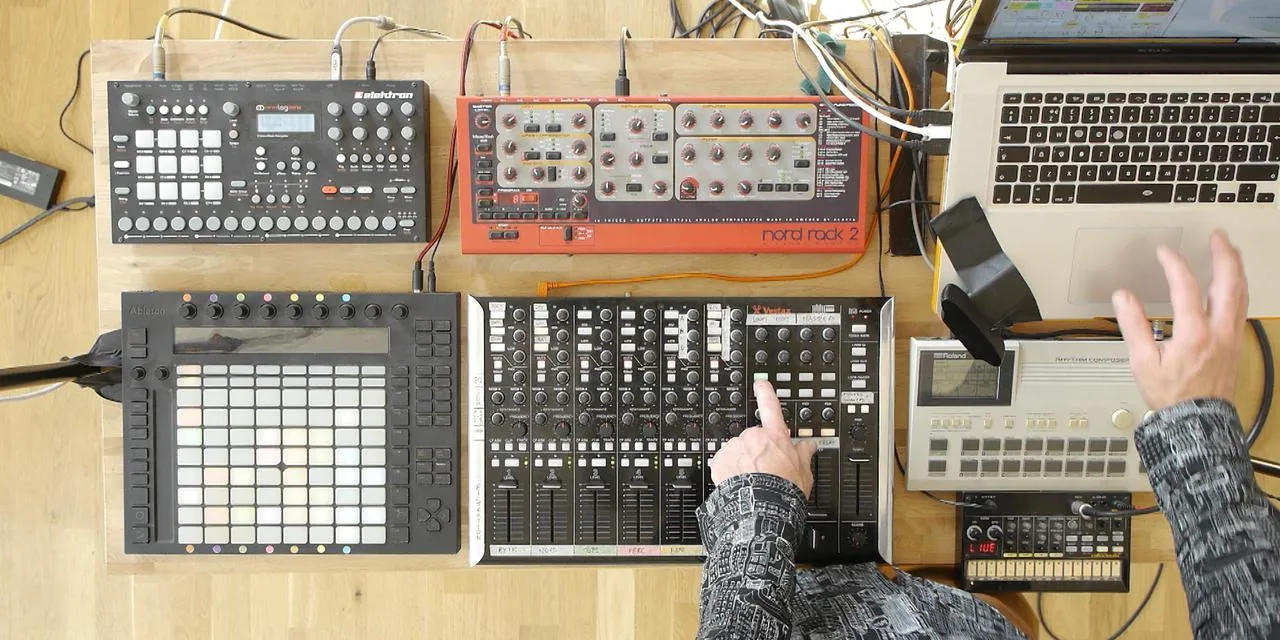
The second track here is the Nord track. So that's an external instrument. You'll notice here, if I look at what's on the track in the track detail, there's an external instrument device.
- MIDI Signal: Going out of Port 3 (on the back) into the NORD.
- Audio Signal: Coming out and going back in to the audio input number three on the sound card.
Once the audio signal has been sent out and the notes have been sent out, I can then use a variety of Ableton Live devices to control, mix, and affect the sound coming from that instrument.
TOPS Track
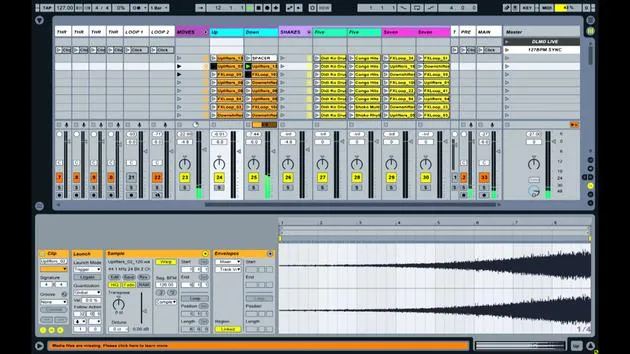
Track 3 is called "TOPS." This track exclusively contains audio clips.
- If I double click on these clips, you'll see they have audio in them, making it very simple to trigger the audio.
- At the top of the track, you'll find a standard selection of mixing tools, including:
- A filter
- Distortion
- EQ settings
- A feature called "Pump" (explanation forthcoming).
Percussion Track
The next track, track four, is the "Perk Track," which contains percussion parts.
- This is all audio, with little loops of audio that I can trigger.
- Again, I can see my set of effects applied to that audio in the track detail.
Lead Track
The fifth track here is the "Lead Track," which is also audio.
- When I click on these clips, you can see the audio.
- Similar effects can be applied here as well.
Extras Track
Finally, track six is the "Extras Track," which again contains audio.
This gives me:
- Four Audio Tracks: TOPS, Percussion, Lead, and Extras.
- Four MIDI Tracks: This includes the written one, the Nord track, the Volker, and the TR505, that are external instruments.
MIDI and Audio Integration
So, I'm essentially using an eight-track mix:
- Four Audio Tracks from within Live.
- Four MIDI Tracks that exist within Live as MIDI, but the MIDI is being sent to the external devices and the audio is coming back in from those devices into the set.
Clip Example: Volker Track
If I show you one of the clips here on the Volker track, if I double click on the one called "Rough," you'll see the MIDI pattern contained within that clip.
- If I stop all these other clips and launch that one, you can see the playhead moving along and hear the audio.
- Opening the track information shows the external instrument device, sending MIDI out of port one on the MT4. This is coming into the Volker Beats, with audio coming back into audio input one.
Advantages of Hardware
One of the main reasons for using hardware is that it allows me to control specific sounds on the device itself. Although most of the mixing and control parameters are manipulated via the VCM and Push, I also retain the option of adjusting the parameters on the machines during the performance.
For example, if I play the rough pattern for the Volker Beats, the lights start flashing, showing that it's playing various sounds within the drum machine. Because these sounds come from the drum machine, I can change them directly on the machine.
Controlling Parameters
- Pitch of the Tom: I can change this directly on the machine.
- FX Control: I can still manipulate filters, reverb, and delay.
TR505 Track
Lastly, let's look at the TR505 track.
- This track also has an external instrument device, sending MIDI out of port two on the MT4 and coming into the back of the 505.
- The audio is routed back into the sound card on input number two.
As soon as I press a note on the 505, the audio signal will be displayed on the screen.
Conclusion
You may have already noticed that there are a bunch of other tracks performing a variety of different functions within the set. I'll go through those in more detail next.
16 leçons
2h 26m de leçons vidéo structurées
Fonctions vidéo avancées
Ralentissez, bouclez un passage, suivez la partition
Mobile, tablette et ordinateur
Pratiquez où vous voulez
Satisfaction garantie à 100 %
Garantie remboursement 30 jours
Rencontrez votre guru
Rencontrez votre guru
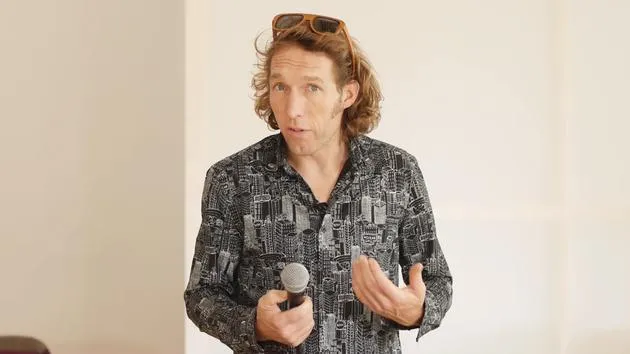
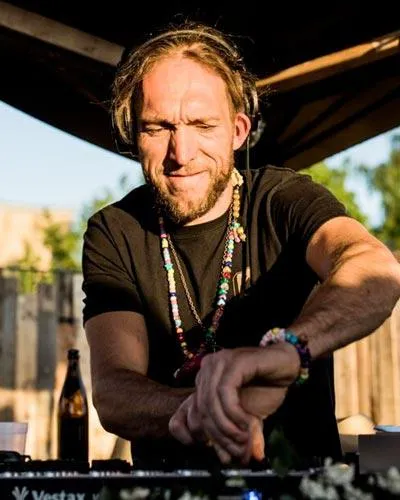
Mark Burnett est un Ableton Certified Trainer qui travaille avec les produits Ableton depuis plus de 14 ans. En tant que producteur et DJ chez Funk'n Deep Records, ses morceaux ont été joués dans de grands festivals ainsi que dans les sets et podcasts d'artistes comme Carl Cox et Richie Hawtin, et il s'est produit devant des foules de plusieurs milliers de personnes. Il organise également des événements de grande envergure comme le Workhouse Project, et a étudié à l'Imperial College London. Son cours porte sur l'utilisation d'Ableton Live pour construire des performances en direct, et convient aux producteurs et interprètes de musique électronique qui souhaitent faire passer leur spectacle du studio à la scène.







