



Randomisation de périphériques avec M4L

Avec
Isaac CotecIsaac Cotec montre comment utiliser le périphérique Randomization de Max for Live pour ajouter du mouvement et créer des effets dans ton morceau Ableton. Live Suite uniquement, et facultatif.
Le contenu du cours
19 leçons (2h 54min) · 1 gratuites
Transcription de la leçon
Exploring the Randomization Device in Ableton Live
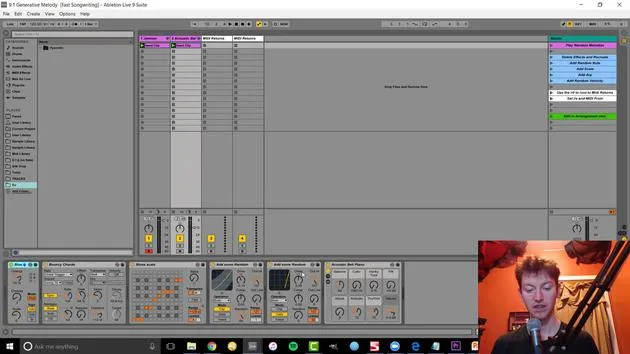
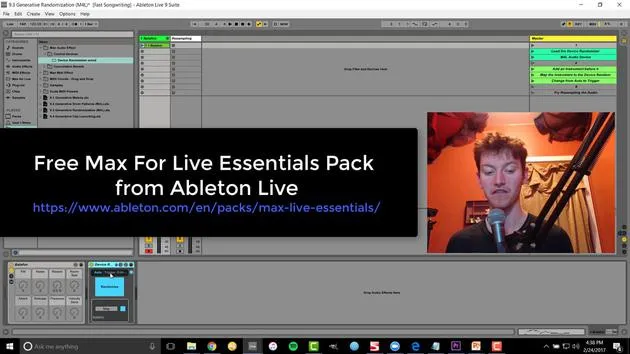
All right, let's look at another thing: the randomization device. This can be more helpful for creating effects compared to what we were doing before. Previously, we focused on making whole sounds using generative techniques. Now, let's explore this randomization idea.
Getting Started with the Randomization Device
- Load the Randomization Device:
- This device comes with the Ableton Live Max for Live kit, which includes most of the different effects you see in Ableton Live videos.
How It Works
The randomization device randomizes whatever it's pointed to. Let's open it up and check it out.
-
Play the Device:
- Randomization is already set.
-
Turning Off Randomization:
- Nothing is happening right now.
-
Mapping to Randomize:
- Map this device by hitting map and clicking. This takes it over.
Exploring Controls
Once you hit a little button to open it up, you'll see the different controls available:
- Frequency
- Depth
- Smoothness
- And many other options
You can easily randomize anything! For example, add a frozen smear and adjust the sync amount to make it like super slow.
Now, we have a slow-evolving change, and you can see how that's going to create a cool new morphing sound that we might not think of or create by hand. This is a much faster way of doing it!
Additional Features of the Randomization Device
When using the Randomizer, if you switch from Auto to Trigger or Edit, you access a lot more parameters:
- You can edit which effects are being affected.
- You can turn off parameters selectively.
For instance, you could:
- Turn off a couple to narrow it down.
- This leaves you with the desired effects to tweak further.
Using the Trigger Option
The Trigger option allows you to:
- Randomize only once by hitting randomize.
- This way, you can find an effect you like, and it will stay consistent rather than always changing over time.
In conclusion, adding randomization to your audio opens up a world of creative possibilities!
19 leçons
2h 54m de leçons vidéo structurées
Fonctions vidéo avancées
Ralentissez, bouclez un passage, suivez la partition
Mobile, tablette et ordinateur
Pratiquez où vous voulez
Satisfaction garantie à 100 %
Garantie remboursement 30 jours
Rencontrez votre guru
Rencontrez votre guru
Isaac Cotec est, sans doute, l'un des meilleurs formateurs Ableton au monde ! Tout en travaillant sur sa propre musique, il a commencé à enseigner les techniques d'enregistrement, le design sonore et Ableton Live à des élèves particuliers et, depuis qu'il a obtenu sa certification d'Ableton Certified Trainer officiel, il a aidé des milliers de producteurs à passer un cap et à réussir comme musiciens.
Isaac a commencé à produire de la musique électronique en 2005 avec Psyche Sonics, un groupe expérimental travaillant sur la science et la recherche des binaural beats et la modification de la conscience par le son. Après avoir tourné, il a continué à écrire de la musique sous l'alias Cotec puis a émergé comme l'artiste Subaqueous, mêlant son passé électronique à des techniques de production à la fois futuristes et organiques. À ce jour, il a sorti 3 albums et 4 EPs.
Isaac est aussi le fondateur et le gérant du label Invibe Music, qui représente certains des meilleurs artistes de musique électronique du Pacific Northwest et se spécialise dans la dance midtempo.
Dans ses cours Ableton Live, Isaac partage les techniques de production, de design sonore et d'écriture qu'il a passé des années à affiner — les compétences mêmes qu'il utilise pour transformer l'étincelle d'une idée en un morceau fini.







