



Screen-Sets
Mit
Dov WatermanDov Waterman zeigt, wie man Screen-Sets in Logic Pro einrichtet und Bildschirmlayouts speichert und wieder aufruft, sodass die richtigen Fenster nur einen Tastendruck entfernt sind.
Das steckt im Kurs
10 Lektionen (0h 46m) · 1 gratis
01. Willkommen zum Kurs und Dovs Sicht auf Kreativität
Gratis-Lektion3:29
02. Einführung in Workflow & Effizienz
1:30
03. Workflow und Effizienz
7:13
04. Tastenbefehle
6:04
05. Eine Klangpalette erstellen
4:02
06. Ein Template einrichten und speichern
4:30
07. Überblick über die Library und Channel-Strips
9:20
08. Die Werkzeugleiste
4:23
09. Screen-Sets
Du bist hier4:34
10. Aufgabe: Erstelle dein Template
1:18
Transkript der Lektion
Customizing Screen Sets for Mixing
One other aspect to touch on in terms of customization is screen sets. Screen sets are great for:
- Working on a mix
- Managing a bunch of plugins on your output
For example, if you're mixing down and you have various outputs with plugins that you need to monitor, let's take a closer look.
Monitoring Signals
We'll pull up some metering plugins, such as:
- Correlation Meter
- Loudness Meter
Link Button Functionality
The link button, represented by the little purple icon, has a handy feature:
- When clicked, plugins will open in single plugin view.
This is useful when you only need one plugin open but not when you need several plugins visible to monitor various signals.
Saving Screen Sets
Now, let's proceed to open the various plugins. If I'm working on a mix and require certain plugins to be open, here's what I do:
- Duplicate the current screen set.
- Rename it: For example, call it "Mixing Window".
Now, I can return to the original screen set and delete the unnecessary plugins.
Mixing Pages
As you can see, these two pages serve different mixing purposes. This setup is particularly handy if I'm arranging and need multiple instrument plugins open.
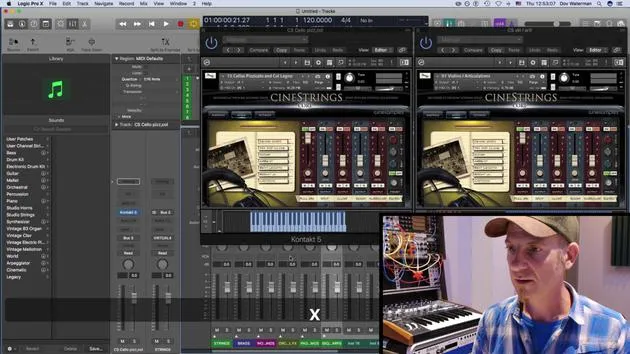
For instance, if I'm arranging strings and working on the harmonization of various string articulations, I might have:
- My current plugin up for strings
- A cello plugin, such as cello pizzicato
Once I have the setup I need, I can save it as a template.
Instrument Page Setup
This will be my Instrument Page. I can go in here, turn off any excess plugins, and lock the page.
The lock button will ensure that:
- The preset is saved
- The screen preset remains unchanged
I can lock additional screens as needed, like Screen Set 3. All these screen sets can be accessed either:
- From the toolbar at the top or
- Through your key commands.
This allows easy navigation to Screen Set 1, Screen Set 2, and Screen Set 3.
Making Changes
If I need to make changes to a specific screen set that I don't like (for example, the mixing window), I simply:
- Unlock it
- Close the mixer
- Go back to my screen set
- Lock it again
Though there is a key command for this, I must admit I don't use screen sets often enough to have one memorized.
Conclusion
And that's it for setting up your template!
10 Lektionen
0 Std. 46 Min. strukturierte Videolektionen
Erweiterte Videofunktionen
Verlangsamen, Passagen loopen, mitlesen
Handy, Tablet & Desktop
Üben, wo du willst
100 % Zufriedenheitsgarantie
30 Tage Geld-zurück-Garantie
Lern deinen Guru kennen
Lern deinen Guru kennen
Dov Waterman ist Komponist, Pianist und Produzent. Er hat für Filme wie After Earth, Terminator Genisys, Transformers: The Last Knight und The Snowman Musik geschrieben und das Sounddesign gestaltet und arbeitet als Audio-Editor für Sample-Bibliotheken und Sounddesigner mit Firmen wie Native Instruments und SonoKinetic.
Seine Reihe Composition in Logic geht den Aufbau eines Tracks von Anfang bis Ende in Logic Pro durch – von Templates und Workflow über Synthese und Beat-Programmierung, MIDI-Effekte, Editing bis zum finalen Mix – für Produzenten, die ihre Ideen in fertige Tracks verwandeln möchten.







