



Creating Apple Loops
With
Dov Waterman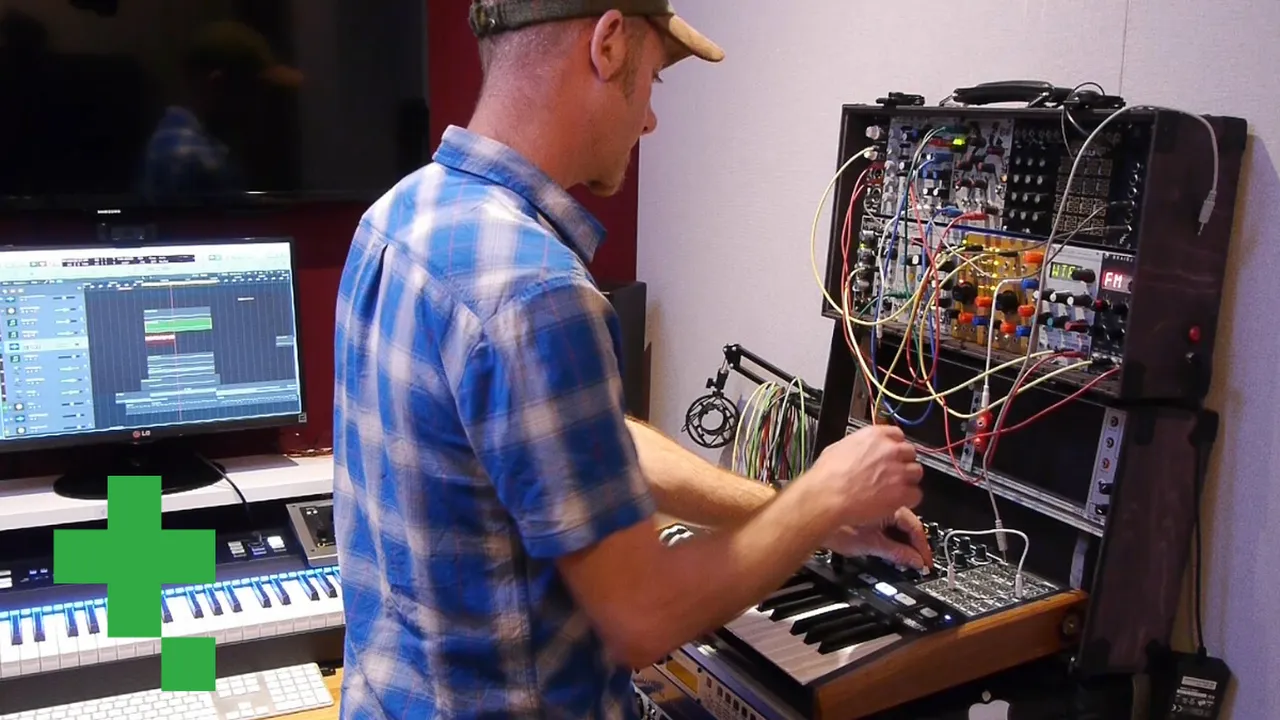 Part of the courseComposition in Logic: MIDI Effects, Smart Controls & Automation14 lessons (0h 53m)Your guruDov Waterman
What's in the course
14 lessons (0h 53m) · 1 free
Lesson transcript
Automation and Apple Loops in Music Production
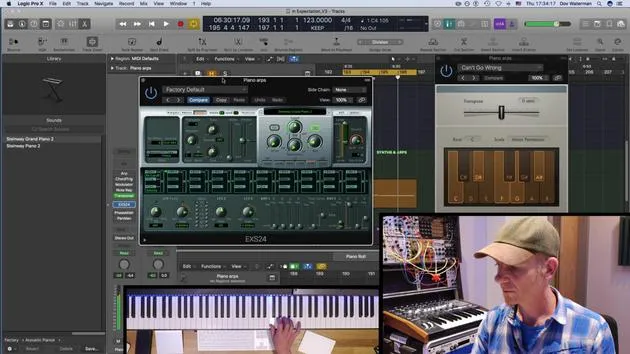
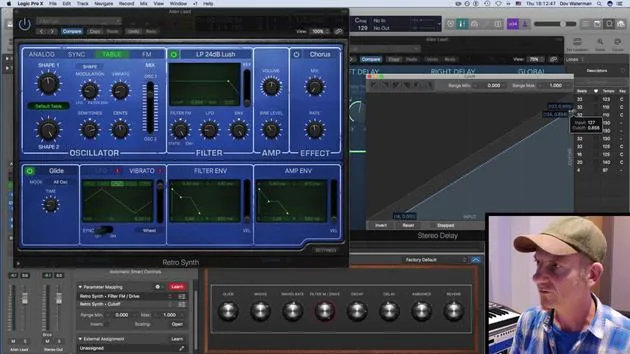
I've recorded a little sequence here with automation going on. Oops. You can see all these controls moving.
Using Automation in Your Project
Say, I like that. And I think, "Hey, hang on! I could use it within this project, or perhaps in another project." So, I could save it as an Apple Loop and then do whatever I like with it.
Saving as an Apple Loop
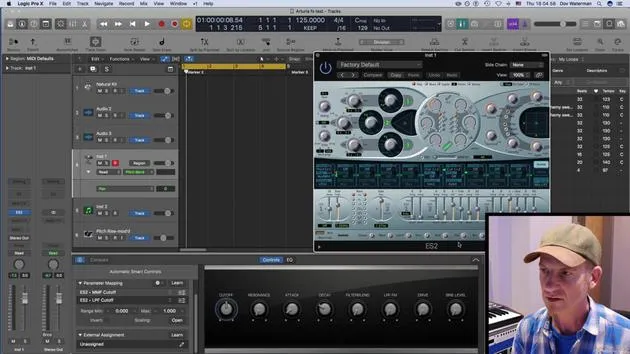
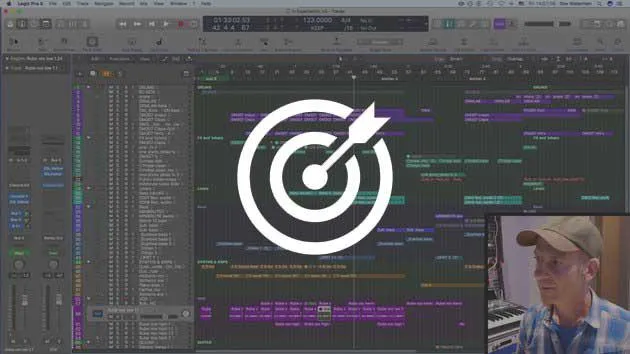
To save as an Apple Loop, we can now just drag it into our Apple Loop section.
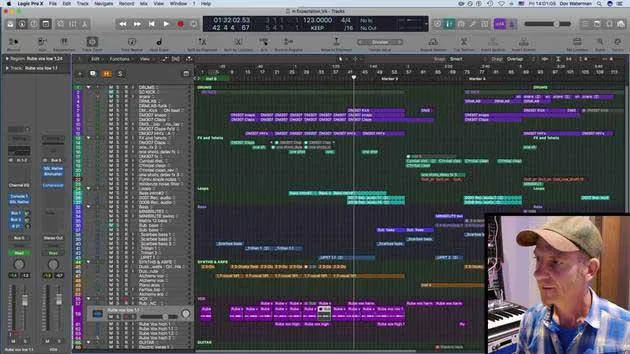
- Recorded Automation: I recorded these bits of automation in a region.
- Track vs. Region: There are two sections here: track and region. Rather than save this as a track (since we're not doing any volume or panning automation), we're actually recording automation of the parameters of the synth and various aspects of the signal chain.
- Region Mode: It's important to do it in Region mode. This saves the Apple Loop with everything in it, it won't do that if you're in track mode. Very important to remember!
Naming Your Apple Loop
Let's drag this in. We'll call it Dovalient Lead 2.
- Characterization: It's a minor sound, so we'll label it:
- Single
- Clean
- Distorted
- Electric
These are all just tags for you to find your sound a little bit easier later. It's not quite cheerful, it's grooving, it's melodic, it's a part. Great!
Finding Your Apple Loops
After you create your loop:
- Loop Packs: You'll find different loop packs, so all the genres are here.
- My Loops: If you're looking for a specific kind of sound, you'll find it in the various loop packs, and in "My Loops," you'll find the sounds that you create yourself.
Resetting and Importing a Sound
Let's delete this. In fact, I'm going to delete the whole thing and reset the channel strip. Now, I'm going to bring this one in.
- New Project: Pretend I'm in a completely new project. I remembered I had this sound that was very unique.
- Importing: I've pulled it in, and it's brought not only the MIDI part but also the channel strip with the ARP and all the sequence data I had in there. Really handy!
Now you can see the modulation that's been going on. This is how you turn ideas into an Apple Loop where you can create a pool of sounds.
Capturing Creative Ideas
When you're in that creative zone and these ideas and little experiments are flying off the bat, it's very useful to capture them by saving them as Apple Loops.
Converting to Audio Loops
If you want to turn it into an audio loop:
- Control & Bounce: All you need to do is control and bounce, then go to "Bounce in Place." It will turn it into an audio file.
- Creating Audio Loops: You can then create an audio loop in the Apple Loop section.
Once it's pulled up, you'll have two types:
- Audio Loop: This is just an audio loop.
- Apple Loop: This will conform to the tempo of your track, indicated by the little Apple Loop sign.
Tempo and Flexibility
If I change my tempo, remember:
- The ordinary audio loop does not conform to anything.
- The Apple Loop stays in time.
Summary
You can save a whole bunch of these little ideas for use later on. If you're creating an arrangement out of these ideas, you'll have a pool of little sounds ready to enhance your composition. There you have it!
14 lessons
0h 53m of structured video lessons
Advanced video features
Slow down, loop a passage, follow along
Mobile, tablet & desktop
Practise wherever you are
100% satisfaction guarantee
30-day money-back guarantee
Meet your guru
Meet your guru
Dov Waterman is a composer, pianist and producer. He has written and designed sound for films including After Earth, Terminator Genisys, Transformers: The Last Knight and The Snowman, and works as a sample-library audio editor and sound designer with companies such as Native Instruments and SonoKinetic.
His Composition in Logic series walks through building a track end to end in Logic Pro - from templates and workflow to synthesis and beat programming, MIDI effects, editing and the final mix - for producers who want to turn their ideas into finished records.







