



Push & Max for Live
Avec
Madeleine Bloom
Le contenu du cours
16 leçons (3h 6min) · 1 gratuites
Transcription de la leçon
Macs for Life Devices Tutorial
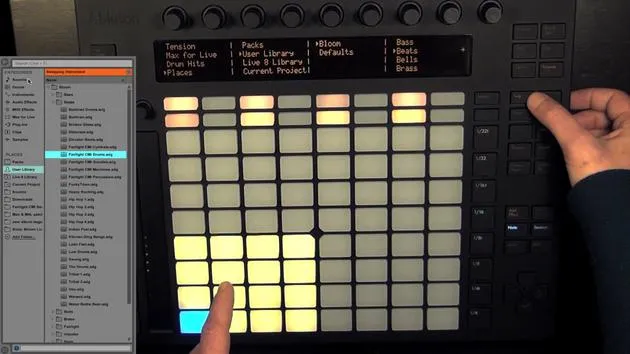
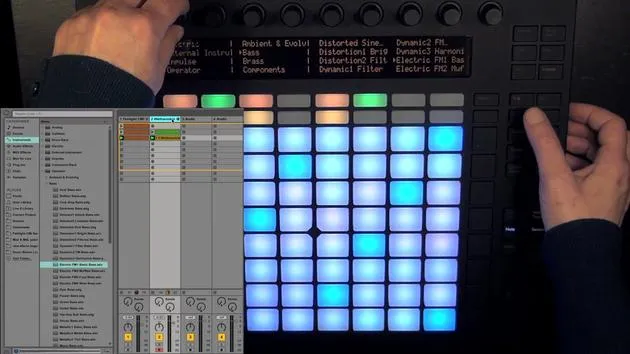
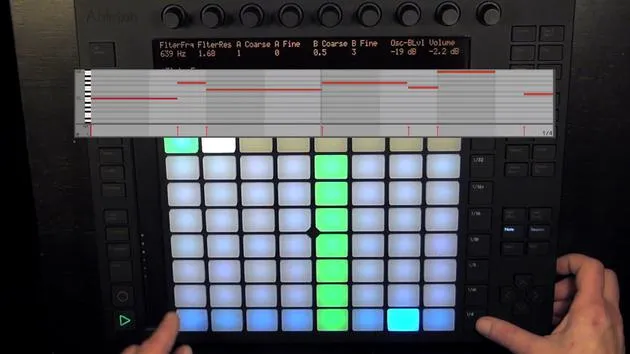
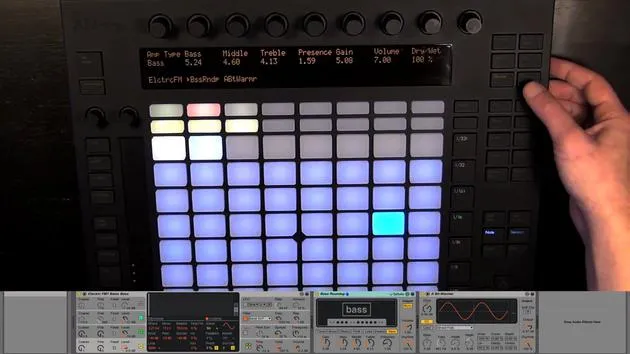
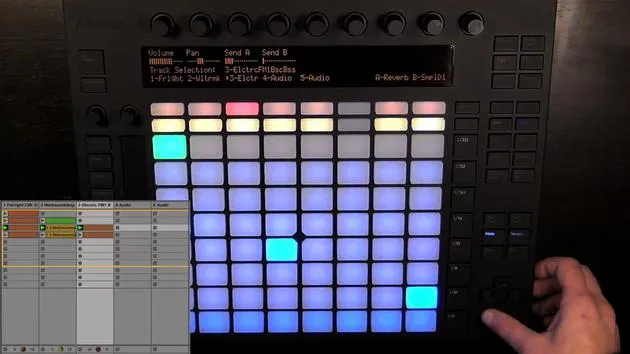
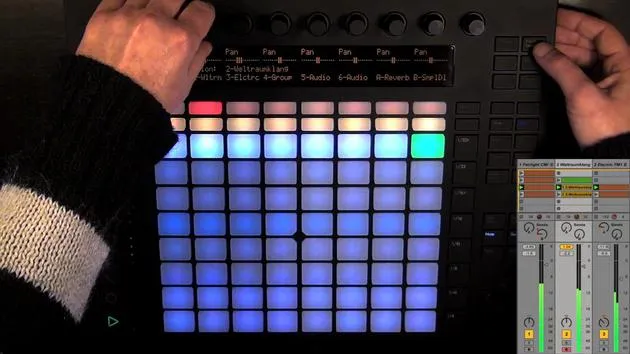
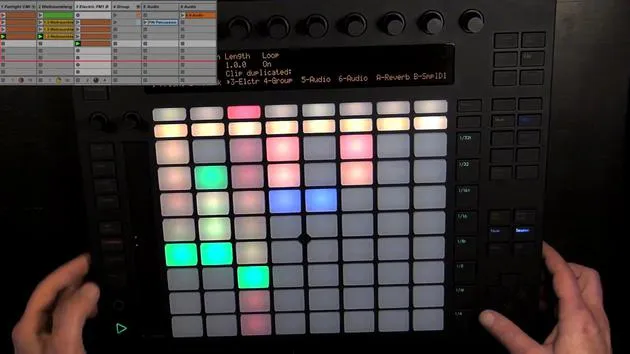
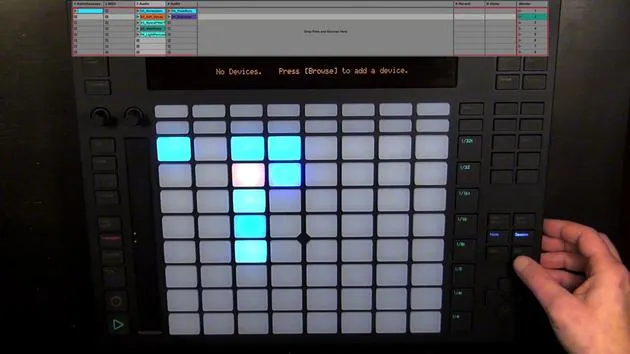
In this video, I'm going to be showing you some Macs for Life devices. There are actually quite a lot of free Macs for Life devices, especially effects coming out that you can download for free and use to enhance the features of Push. I've checked them all out, selected my favorites, and I'm going to show you them right now.
1. MMS Ableton PUSH Aftertouch Device
This device allows you to:
- Map a chosen parameter to the aftertouch of the pads on Push.
It's a MIDI effect. All you need to do is:
- Click this device.
- Click the parameter that you want to choose.
Example
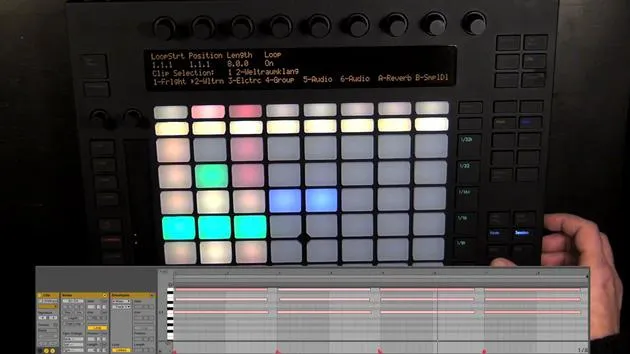
- I've chosen the Simpler Length because it shows quite nicely how it works.
Chooser Options:
- Macro: Choose this when you want to map the aftertouch to a macro.
- Live Meter: This can be mapped to anything in a track (volume, panning, sends).
Example with Parameters
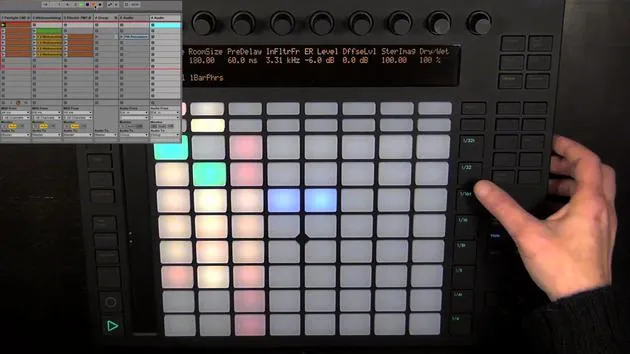
- Let's try mapping it to the dry/wet parameter of the reverb.
- We could also map it to the Send B, but notice that it only works from the center to the right.
Mapping issues with panning:
- Might not work too well; you might have to turn it all the way to the left and map it again.
If you choose interesting parameters, you can get really cool results!
2. Push Global Quant
- A wonderful effect that lets you set the global quantization on Push (not possible otherwise).
- This one goes onto the master track.
How to Add:
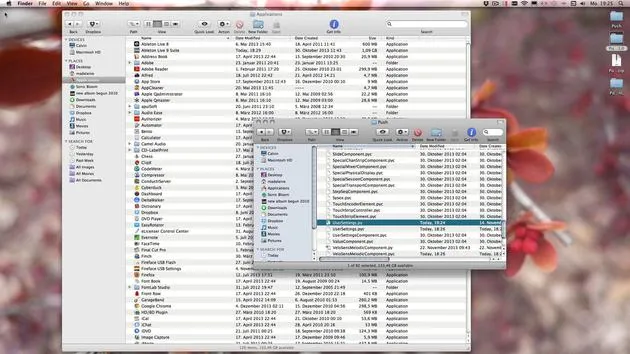
- Drag it into Live or add it via Push.
To Change Global Quantization:
- Press Select.
- Move the Tempo Encoder.
Now you can change the global quantization with all values available that you would have in Live!
3. Push Master Volume
An audio effect that you can place anywhere in your Live set, generally on the master track.
Functionality
- It blocks the encoder for the master volume, preventing accidental changes.
- Press and hold Select to adjust the master volume safely.
Additional Option:
- To adjust the Q volume, press and hold Select and Shift, then turn the master volume encoder.
4. Push Color Picker
This effect allows you to change the colors of clips in a session view on Push.
How to Use:
- Make sure you're in Session Mode.
- Press and hold Select + Arrow Up to access color options.
- Choose a color (e.g., purple).
Options for Color Changing:
- Select + Arrow Up: Changes all clips in the selected track.
- Select + Arrow Down: Changes all clips in the selected scene.
- Select + Arrow Left: Changes the currently selected clip.
- Select + Arrow Right: Colors the whole scene.
Remember, you have to be in session mode for this effect to work!
5. Push MIDI Clip Transposer
This MIDI effect allows you to transpose MIDI clips.
How to Use:
- Add it to the MIDI track you want to transpose.
- In note mode, hold Select and use the arrow buttons:
- Up: Transpose up an octave.
- Down: Transpose down an octave.
- Left: Transpose down a semitone.
- Right: Transpose up a semitone.
6. Futility
A MIDI effect that sets a fixed value to aftertouch and adds mod wheel functionality.
Usage
- Useful for filtering out unwanted aftertouch triggering and allows modulation.
7. Save Push Performance
An audio effect for live performances.
Setup:
- Place it where you won't accidentally touch it during a performance.
- Choose functions on Push to deactivate them, both in note mode and session mode.
Demonstration:
- Switch to note mode and deactivate functions (e.g., Tap Tempo, Master Volume).
- Press Save to keep these settings.
- Repeat in session mode.
Function Switching
- Toggle Mode: Activates functions when you hold Shift + Select; deactivates when pressed again.
- Momentary Mode: Functions activate only while holding; revert once you let go.
Note
The cue volume trick can be a bit tricky as holding Shift could also change the master volume.
Now, you have an overview of the Macs for Life devices and their functionalities! Enjoy enhancing your Push experience!
16 leçons
3h 6m de leçons vidéo structurées
Fonctions vidéo avancées
Ralentissez, bouclez un passage, suivez la partition
Mobile, tablette et ordinateur
Pratiquez où vous voulez
Satisfaction garantie à 100 %
Garantie remboursement 30 jours
Rencontrez votre guru
Rencontrez votre guru
Madeleine Bloom est une musicienne de formation classique, productrice, multi-instrumentiste et chanteuse originaire de Berlin, et fondatrice du label Quixotica Records. Elle a étudié la musique électroacoustique au Conservatoire Franz Liszt auprès du Prof. Robin Minard et applique ces méthodes à son propre mélange de pop électronique. Sa musique a été saluée par les producteurs Guy Sigsworth et Rupert Hine, et lui a valu une invitation personnelle d'Imogen Heap, dont elle a assuré la première partie de la tournée.
Ancienne conseillère du support technique d'Ableton, elle a fondé en 2012 la plateforme en ligne Sonic Bloom, où elle enseigne Ableton Live et la production musicale à travers des cours, des ateliers et des séances individuelles. Elle a accompagné des personnes du monde entier avec Ableton Live, Push et Max for Live, mais aussi en ingénierie du son, théorie musicale, composition et sound design.







