



La fonction Browse
Avec
Madeleine Bloom
Le contenu du cours
16 leçons (3h 6min) · 1 gratuites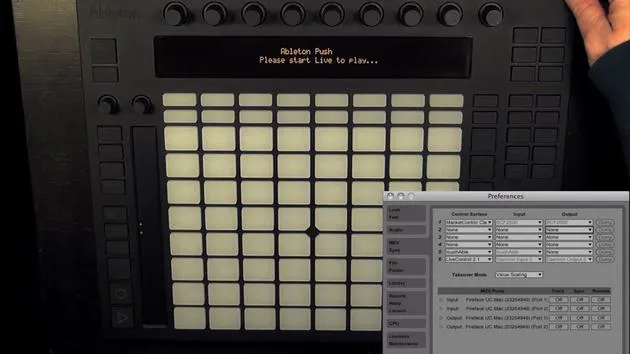
Transcription de la leçon
Music Lesson: Exploring the Browse Function
So now that you've gotten an overview of Push, we'd like to be a bit more practical.
Navigating the Browse Function
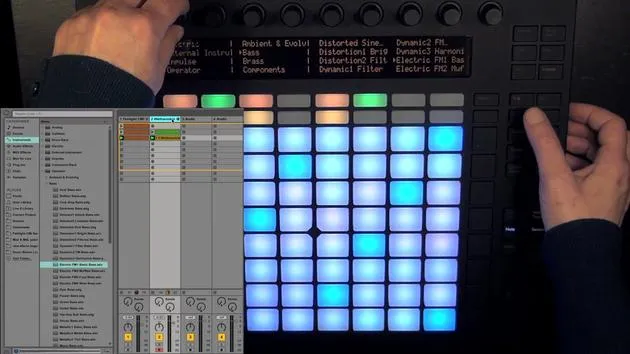
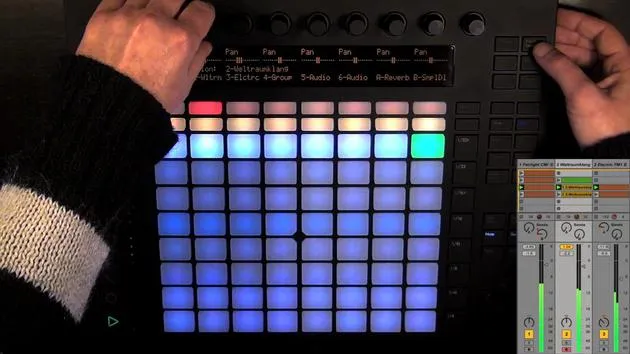
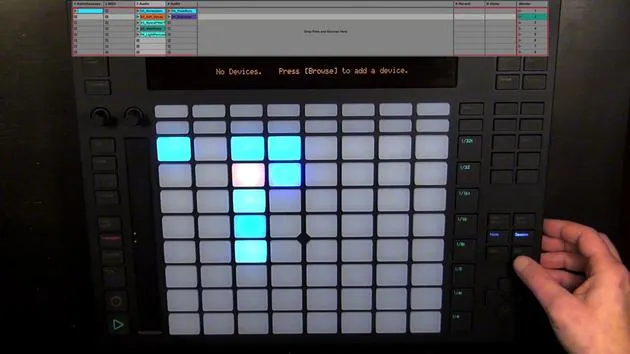
The first thing we're going to look into is Browse. It already says on display, "No devices."
- Press Browse to add a device.
- It takes us directly to what we can add: MIDI instruments, because we're on a MIDI track.
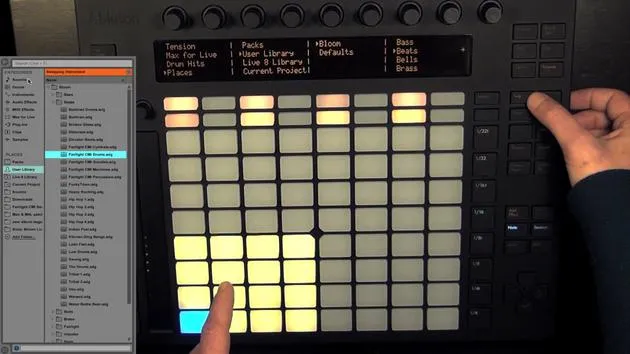
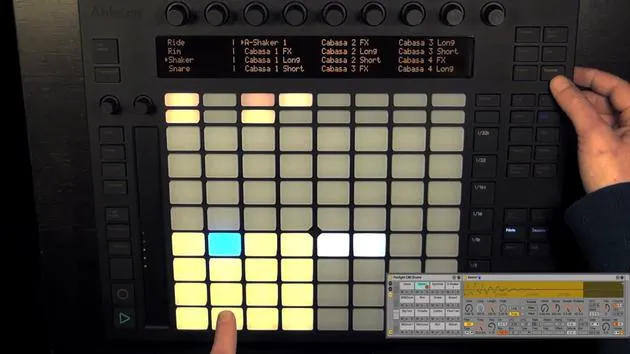
You can see on the display that it's divided into three parts. We can use:
- The first two encoders for the first part
- The next two for the second part
- The last four for the last part
You can either use the encoders to scroll through, or we can also use the pads right underneath to go up and down.
Understanding the Green Button
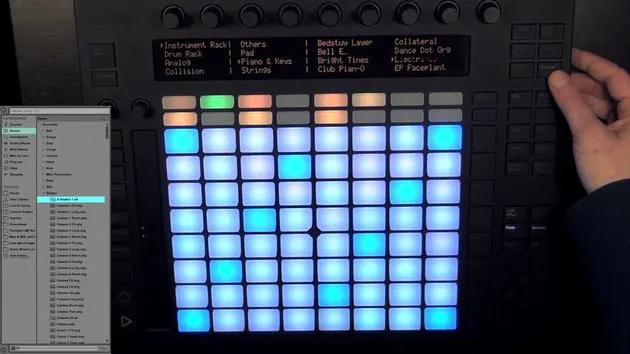
The green button always means that I can choose this. In this case, it means I could choose the instrument rack.
- In the Live browser, this would correspond to the folder of the instrument rack.
- Here, I have the same green button, which means I can choose the actual presets.
Accessing the Browser
Okay, so now let's have a look at what we can actually access through the browser:
- MIDI Instruments
- Instrument Rack
- Drum Rack
- Analog
Note: I have the suite, so I can choose a lot more, like Operator, and so on.
- User Library Sections
- Packs
- User Library
- Live 8 Library (if still installed)
- Current Project
- All the folders added in the Live browser through AddFolder (containing MIDI instrument presets only)
Choosing a Folder
I've already chosen something that I'd like to use. I actually created a folder in the user library called Bloom, which has more subfolders where everything is sorted.
- I want to start with Beats.
- There is a little arrow indicating you need to use the "In" button to go further in.
Now I can see all the presets for the drums that I've created myself. You can use the encoders or the pads to scroll through.
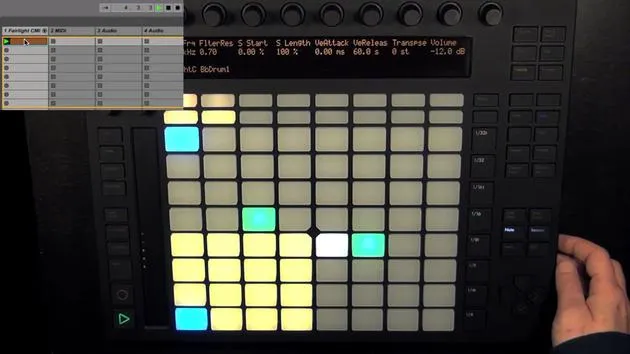
Unfortunately, there's no pre-listening, so I'm going to choose this one now by pressing the green button. You can see it's loading now.
Navigating Within the Drum Rack
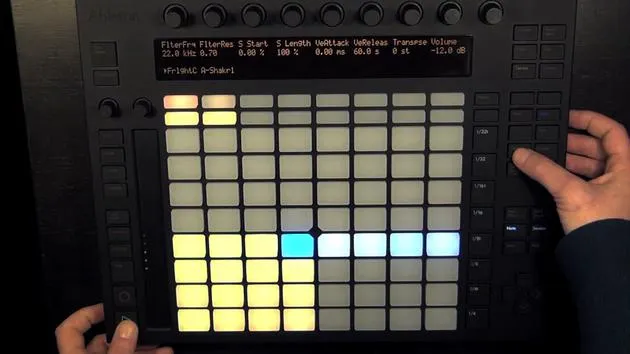
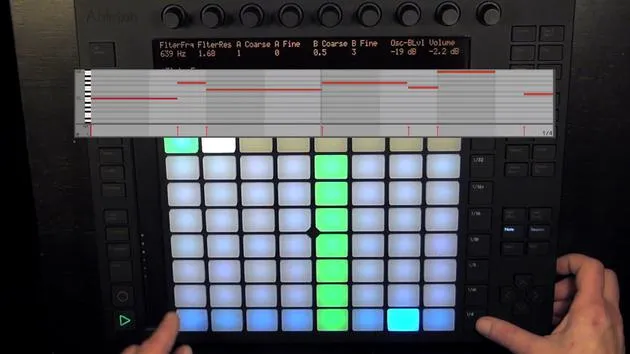
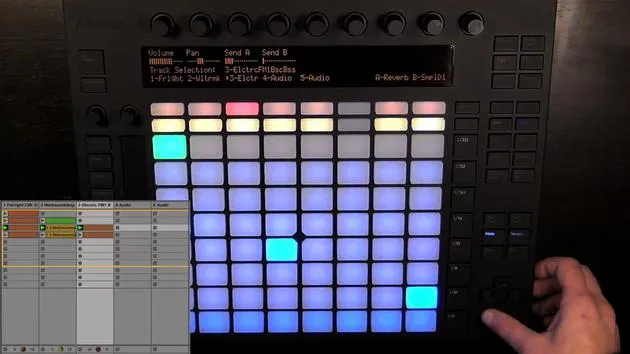
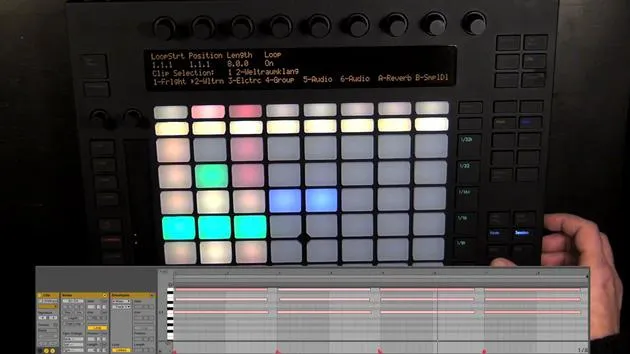
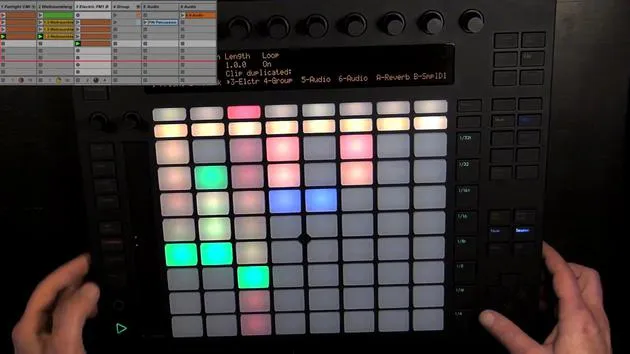
It shows the drum layout because it's a drum rack that I've chosen. You can navigate out with the "Out" button, using in and out helps you get further into the subfolders or back out. This is also useful when working with devices, as we'll later see.
- If you want to go through the presets more quickly, hold Shift and then either use the encoders or the pads to scroll through faster.
Let's see where I have more presets, maybe here. Otherwise, I'd have to go through the presets individually. Remember to keep Shift pressed if you want to scroll through faster.
Important Notes
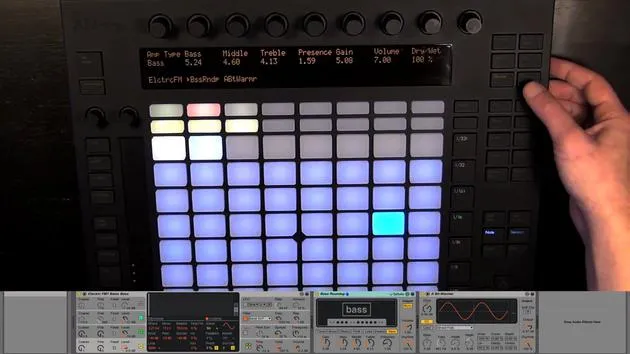
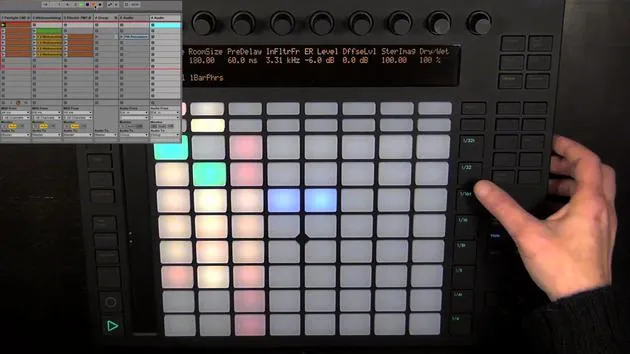
As I already mentioned, you can only see what you can actually add or hot swap.
This means that:
- Samples folders and samples can only be accessed through individual pads in a drum rack and from the Wales.
- We'll get to all of that in a little while.
For now, we're just going to leave the browse mode and the next video is about beats.
16 leçons
3h 6m de leçons vidéo structurées
Fonctions vidéo avancées
Ralentissez, bouclez un passage, suivez la partition
Mobile, tablette et ordinateur
Pratiquez où vous voulez
Satisfaction garantie à 100 %
Garantie remboursement 30 jours
Rencontrez votre guru
Rencontrez votre guru
Madeleine Bloom est une musicienne de formation classique, productrice, multi-instrumentiste et chanteuse originaire de Berlin, et fondatrice du label Quixotica Records. Elle a étudié la musique électroacoustique au Conservatoire Franz Liszt auprès du Prof. Robin Minard et applique ces méthodes à son propre mélange de pop électronique. Sa musique a été saluée par les producteurs Guy Sigsworth et Rupert Hine, et lui a valu une invitation personnelle d'Imogen Heap, dont elle a assuré la première partie de la tournée.
Ancienne conseillère du support technique d'Ableton, elle a fondé en 2012 la plateforme en ligne Sonic Bloom, où elle enseigne Ableton Live et la production musicale à travers des cours, des ateliers et des séances individuelles. Elle a accompagné des personnes du monde entier avec Ableton Live, Push et Max for Live, mais aussi en ingénierie du son, théorie musicale, composition et sound design.







