



Contrôler les clips - Launch Box

Avec
Isaac Cotec
Le contenu du cours
20 leçons (2h 16min) · 1 gratuites
Transcription de la leçon
Understanding the Launch Box
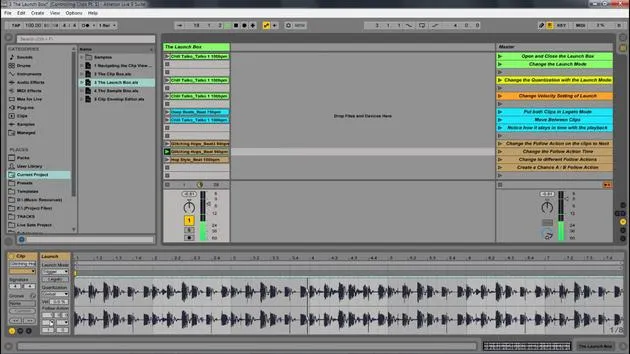
The Launch Box allows you to control how clips are launched or played live. This includes control over:
- Launch Mode
- Quantization
- Follow Actions
Let's break down these elements.
Opening and Closing the Launch Box
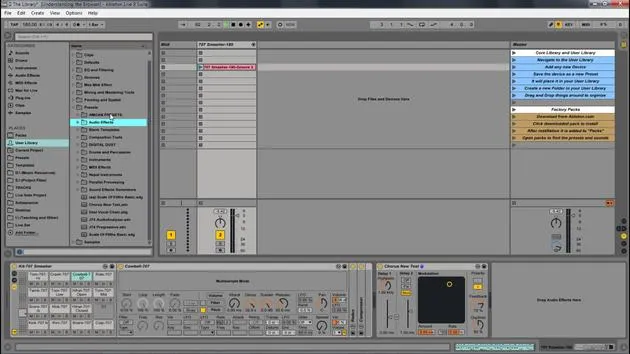
To get started, you need to open and close the launch box, which can be done by clicking the L icon.
Launch Modes
1. Trigger
- When you press down, the clip starts.
- Pressing down again restarts the clip.
- An up message (when you release) means nothing happens.
2. Gate
- Pressing down starts the clip.
- Releasing it stops the clip.
Example of Gate in Action:
- Set to Trigger and press play; pressing again restarts.
- Switch to Gate: press and hold to play, then release to stop.
3. Toggle
- Pressing down starts the clip.
- The next down press stops the playback.
Example of Toggle:
- Press once to start.
- Press again to stop.
4. Repeat
- As long as the mouse switch or key is held down, the clip is triggered repeatedly at the clip quantization rate.
Example of Repeat:
- Set to 1 bar and press and hold.
- On release, continue through the rest of the sample.
Quantization
- Determines how quickly the clip starts and stops.
- Default is set to global; setting this to 1:16 allows for faster releases.
Velocity
- Velocity can affect playback volumes if you have a velocity-sensitive controller, like a keyboard.
Legato
- Legato mode takes over the play position from the last played clip, ensuring smooth transitions.
Example of Legato:
- When you play a second clip, it begins where the first clip left off.
Follow Actions
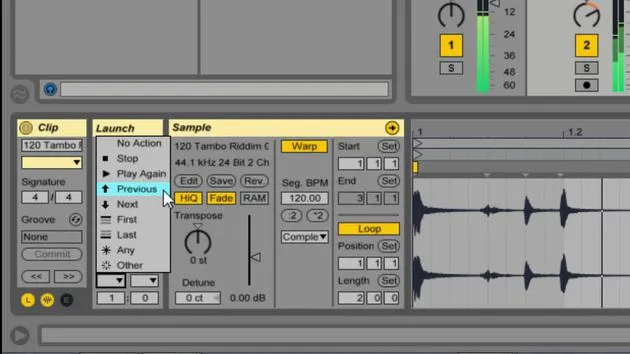
Follow actions enable automation, allowing clips to trigger the next action without user intervention.
Options Include:
- Bars
- Beats
- 16th Notes
Setup of Follow Actions:
- Set to 1 bar and choose next.
- Clips can be set to go next or previous and can even be configured for random selection.
Customization with Ratios
- You can set the ratio for follow actions. For example:
- 1:1 means a 50% chance of going next vs. previous.
- Adjusting this ratio allows for varying probabilities.
Conclusion
The launch box is a powerful tool for creating dynamic performances and automations. By understanding and experimenting with the various modes, quantization settings, and follow actions, you can greatly enhance your music production capabilities.
20 leçons
2h 16m de leçons vidéo structurées
Fonctions vidéo avancées
Ralentissez, bouclez un passage, suivez la partition
Mobile, tablette et ordinateur
Pratiquez où vous voulez
Satisfaction garantie à 100 %
Garantie remboursement 30 jours
Rencontrez votre guru
Rencontrez votre guru
Isaac Cotec est, sans doute, l'un des meilleurs formateurs Ableton au monde ! Tout en travaillant sur sa propre musique, il a commencé à enseigner les techniques d'enregistrement, le design sonore et Ableton Live à des élèves particuliers et, depuis qu'il a obtenu sa certification d'Ableton Certified Trainer officiel, il a aidé des milliers de producteurs à passer un cap et à réussir comme musiciens.
Isaac a commencé à produire de la musique électronique en 2005 avec Psyche Sonics, un groupe expérimental travaillant sur la science et la recherche des binaural beats et la modification de la conscience par le son. Après avoir tourné, il a continué à écrire de la musique sous l'alias Cotec puis a émergé comme l'artiste Subaqueous, mêlant son passé électronique à des techniques de production à la fois futuristes et organiques. À ce jour, il a sorti 3 albums et 4 EPs.
Isaac est aussi le fondateur et le gérant du label Invibe Music, qui représente certains des meilleurs artistes de musique électronique du Pacific Northwest et se spécialise dans la dance midtempo.
Dans ses cours Ableton Live, Isaac partage les techniques de production, de design sonore et d'écriture qu'il a passé des années à affiner — les compétences mêmes qu'il utilise pour transformer l'étincelle d'une idée en un morceau fini.







