



Screen-sets
Avec
Dov WatermanDov Waterman montre comment configurer les screen-sets dans Logic Pro, en enregistrant et en rappelant des dispositions d'écran pour avoir les bonnes fenêtres à portée de touche.
Le contenu du cours
10 leçons (0h 46min) · 1 gratuites
01. Bienvenue dans le cours et le point de vue de Dov sur la créativité
Leçon gratuite3:29
02. Introduction au workflow et à l'efficacité
1:30
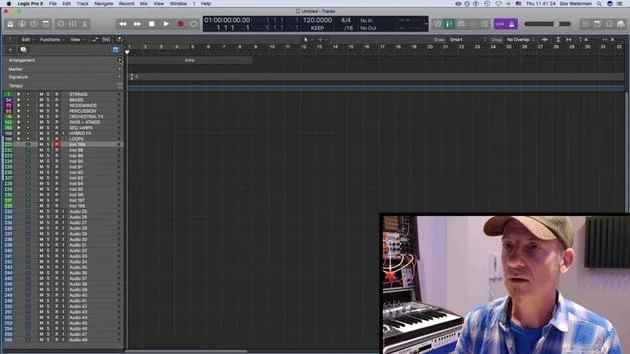
03. Flux de travail et efficacité
7:13
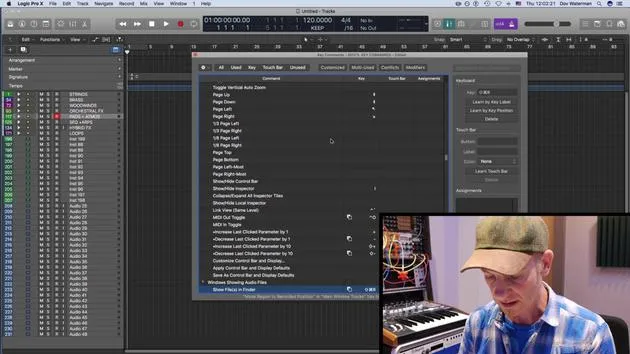
04. Raccourcis clavier
6:04
05. Créer une palette de sons
4:02
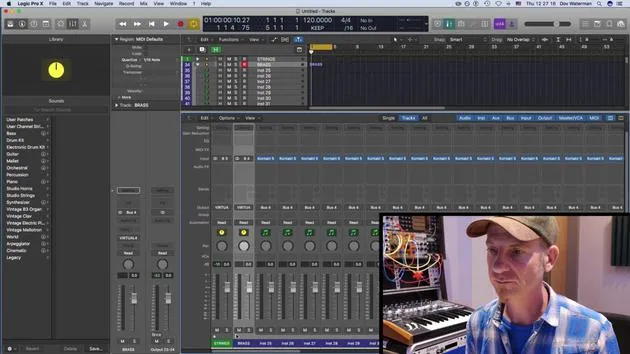
06. Configurer et enregistrer un template
4:30
07. Vue d'ensemble de la bibliothèque et des tranches de console
9:20
08. La barre d'outils
4:23
09. Screen-sets
Tu es ici4:34
10. Exercice : Crée ton template
1:18
Transcription de la leçon
Customizing Screen Sets for Mixing
One other aspect to touch on in terms of customization is screen sets. Screen sets are great for:
- Working on a mix
- Managing a bunch of plugins on your output
For example, if you're mixing down and you have various outputs with plugins that you need to monitor, let's take a closer look.
Monitoring Signals
We'll pull up some metering plugins, such as:
- Correlation Meter
- Loudness Meter
Link Button Functionality
The link button, represented by the little purple icon, has a handy feature:
- When clicked, plugins will open in single plugin view.
This is useful when you only need one plugin open but not when you need several plugins visible to monitor various signals.
Saving Screen Sets
Now, let's proceed to open the various plugins. If I'm working on a mix and require certain plugins to be open, here's what I do:
- Duplicate the current screen set.
- Rename it: For example, call it "Mixing Window".
Now, I can return to the original screen set and delete the unnecessary plugins.
Mixing Pages
As you can see, these two pages serve different mixing purposes. This setup is particularly handy if I'm arranging and need multiple instrument plugins open.
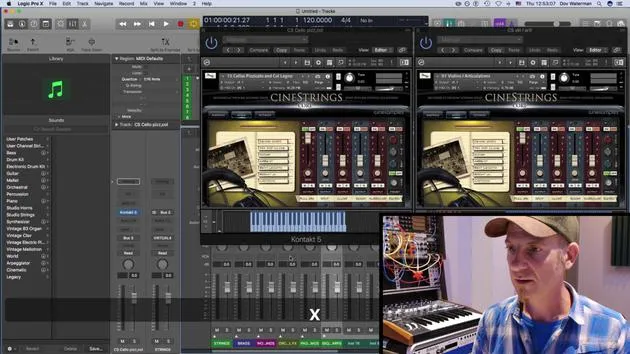
For instance, if I'm arranging strings and working on the harmonization of various string articulations, I might have:
- My current plugin up for strings
- A cello plugin, such as cello pizzicato
Once I have the setup I need, I can save it as a template.
Instrument Page Setup
This will be my Instrument Page. I can go in here, turn off any excess plugins, and lock the page.
The lock button will ensure that:
- The preset is saved
- The screen preset remains unchanged
I can lock additional screens as needed, like Screen Set 3. All these screen sets can be accessed either:
- From the toolbar at the top or
- Through your key commands.
This allows easy navigation to Screen Set 1, Screen Set 2, and Screen Set 3.
Making Changes
If I need to make changes to a specific screen set that I don't like (for example, the mixing window), I simply:
- Unlock it
- Close the mixer
- Go back to my screen set
- Lock it again
Though there is a key command for this, I must admit I don't use screen sets often enough to have one memorized.
Conclusion
And that's it for setting up your template!
10 leçons
0h 46m de leçons vidéo structurées
Fonctions vidéo avancées
Ralentissez, bouclez un passage, suivez la partition
Mobile, tablette et ordinateur
Pratiquez où vous voulez
Satisfaction garantie à 100 %
Garantie remboursement 30 jours
Rencontrez votre guru
Rencontrez votre guru
Dov Waterman est compositeur, pianiste et producteur. Il a écrit et conçu le son de films tels que After Earth, Terminator Genisys, Transformers: The Last Knight et The Snowman, et travaille comme monteur audio de bibliothèques de samples et sound designer avec des sociétés comme Native Instruments et SonoKinetic.
Sa série Composition in Logic parcourt la construction d'un morceau de bout en bout dans Logic Pro — des templates et du workflow jusqu'à la synthèse et la programmation de beats, les effets MIDI, le montage et le mix final — pour les producteurs qui veulent transformer leurs idées en disques aboutis.







